

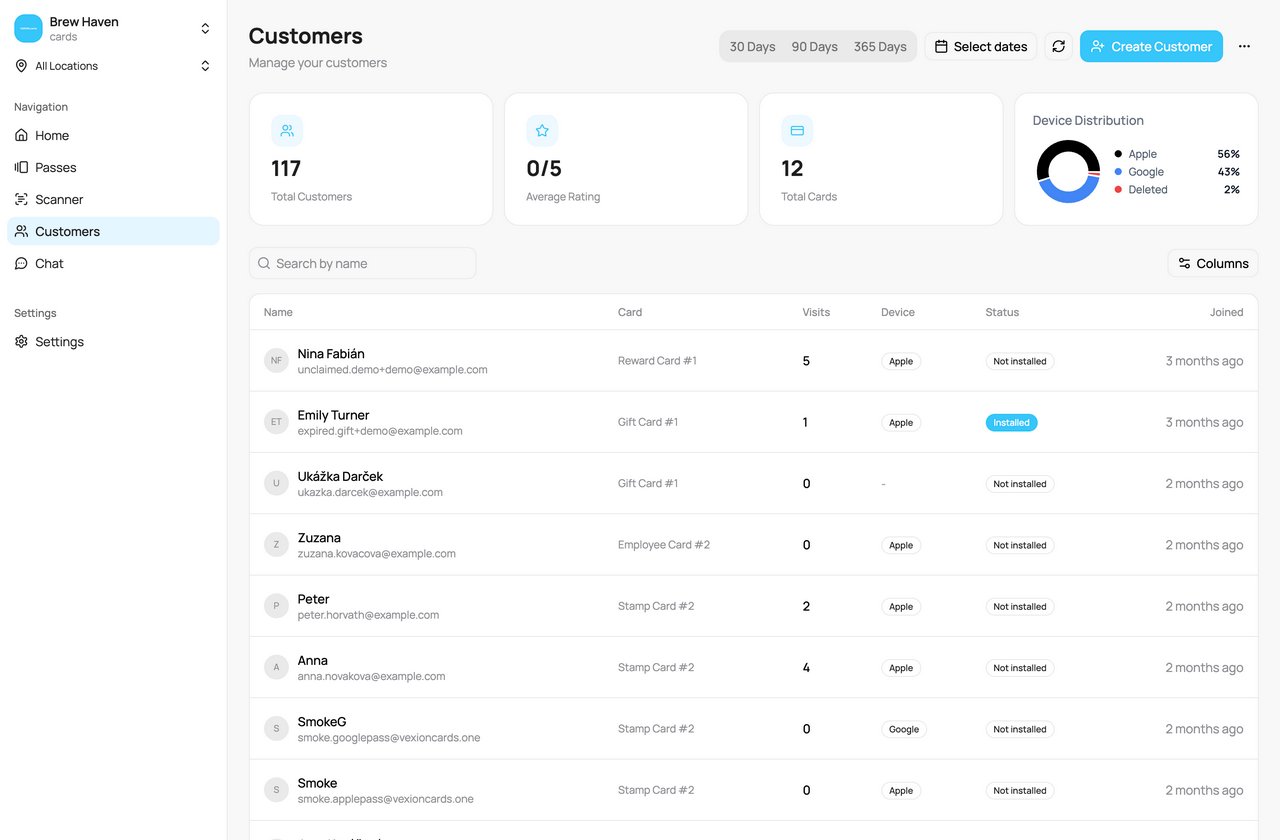
The Customers page
At a glance
Four tiles at the top summarise your customer base. Your own Launch test card appears in this list and is counted in these tiles.- Total Customers across all cards.
- Average Rating (from feedback customers have left).
- Total Cards you run.
- Device Distribution: the split of passes across Apple, Google, and Deleted.
The customer list
Each row is one customer. If a customer holds several of your cards, the Card column shows how many. Visits, Device and Status describe the first card.
Use Search by name to find a customer. Click any row to open that customer’s profile.
Use Columns to show or hide Card, Visits, Device, Status, and Joined. Name always stays. The choice is saved on this device. The Columns button is on desktop only.
The list has no sorting and no filter. It shows the newest customers first. Below a long list you find Rows per page and the page buttons.
On a phone, each customer is a card, and Load more shows the next page.
The period
The buttons at the top right set the period: 30 Days, 90 Days, 365 Days, or Select dates for your own range. The period filters by sign-up date. It changes the list and the tiles. With no choice made, you see every customer.Refresh and export
- The Refresh button (the circular arrows) reloads the tiles and the list.
- The ”…” menu at the far right has Export customers, Export transactions, and Export history. Only an admin sees it. The export uses the period, the location, and the search you set.
If you have more than one location, the sidebar location selector scopes this list and its tiles to customers who belong to the selected store(s), and the export matches. See Filtering by Location & Time.