

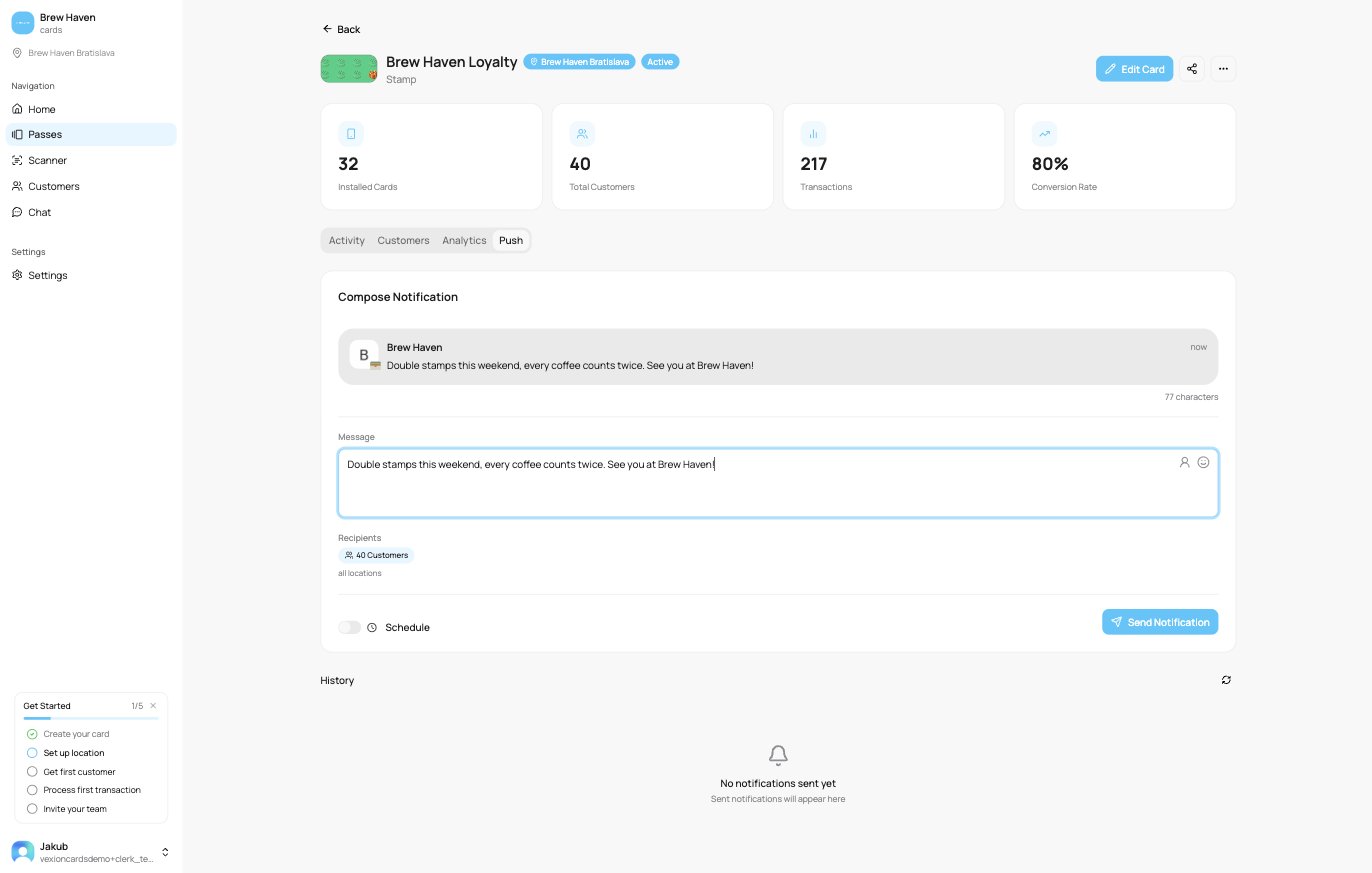
The Push tab
Compose Notification
- Live preview: at the top, a preview shows exactly how the notification will look on a phone, updating as you type.
- Message: type your message. You can:
- Insert + First Name to personalise it with each customer’s first name.
- Add emoji.
- The message can be up to 200 characters (you will see a warning as you approach the limit).
- Recipients: the notification goes to the customers who hold this card and have not turned off marketing messages. The count shown includes every holder (for example “49 Customers”).
- Schedule: leave this off to send now, or turn it on to pick a date and time to send later.
- Send Notification: sends (or schedules) the push.
Only customers who have installed the card to Apple Wallet or Google Wallet can receive a push. You can see who has installed on the Customers tab.
Notification History
Below the composer, Notification History lists the messages you sent on this card, with its Message, Status, how many were Delivered, and when it was Sent. Automatic reminders (next visit and feedback) are not listed there. Use it to check that a message went out and reached customers.This sends a one-off push to a single card’s holders. Automated messages (such as a reward-earned or win-back message) are set up separately. See Notifications.