

Gift cards and employee cards do not use a sign-up form, so this step is skipped for them.
Building the form
When you create or edit a card, open the Form step (“Configure what customers fill in when signing up for your card”). It has two parts:- Active Fields: the fields on the form right now. Drag to reorder them. Each field has a Required switch and can be removed, except Email and First Name, which are always on the form, always required, and cannot be deleted.
- Available Fields: fields you can add. Click one to add it to the form.
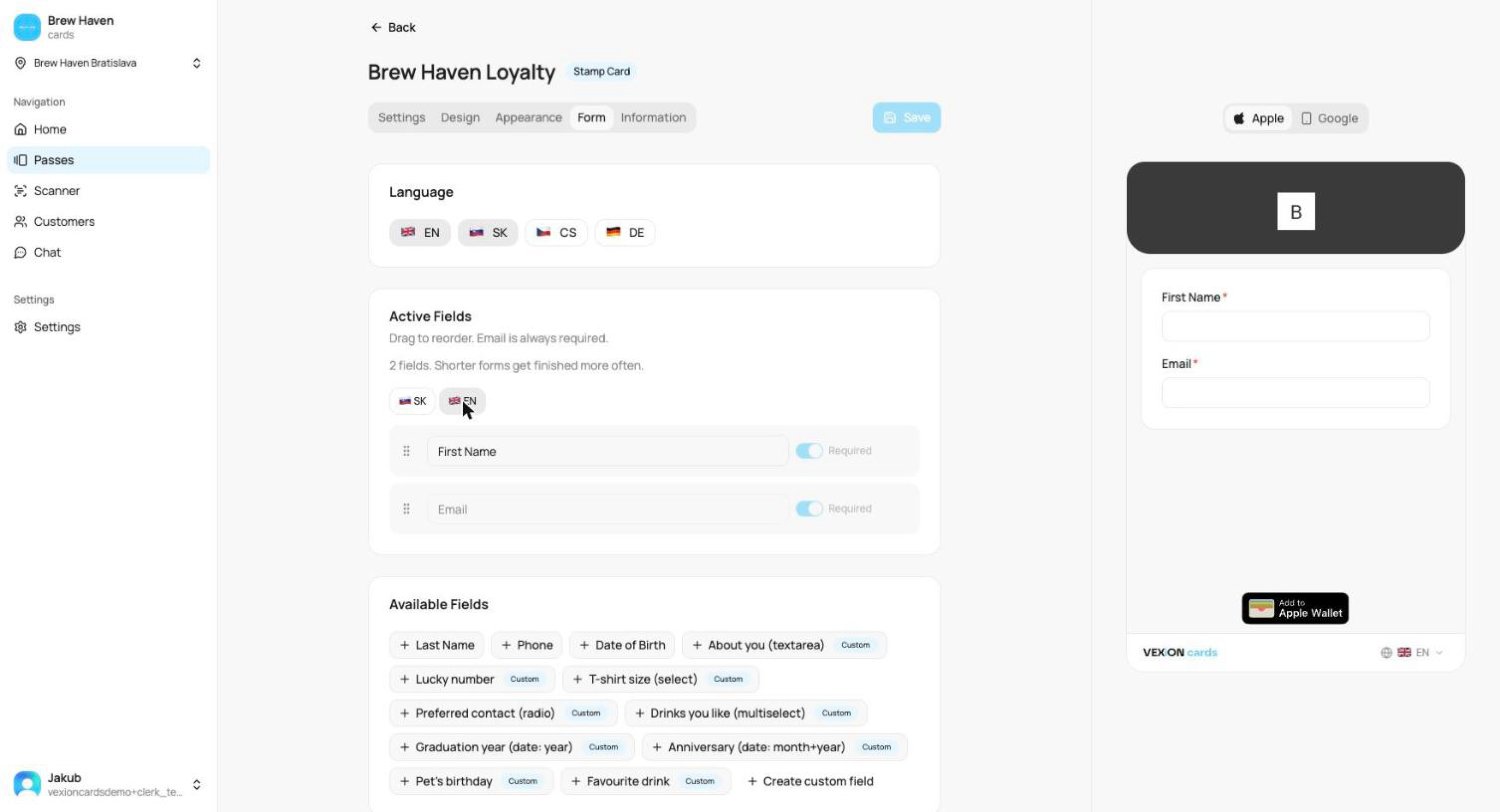
The sign-up form builder
Built-in fields
Email and First Name are always on the form and required. On top of those you can add Last Name, Phone, and Date of Birth, and mark each one Required or leave it optional.Your own questions (custom fields)
You can also add your own questions. Click Create custom field to make one, or add a custom field you already built. Custom fields come in types like Text, Number, Date, Select, and Multi-select. They are reusable across all your cards, see Custom fields.Languages
The form can be shown in more than one language, so customers see it in their own. Pick the languages you want to offer.The live preview
The panel on the right is the sign-up page as your customer will see it, not a rough sketch. It updates as you work, so adding a field, renaming it or reordering it shows up immediately. It also follows the language you are editing, so switching the language tab above the field list re-renders the preview in that language. That is the quickest way to check your Slovak or German wording actually fits before anyone sees it. The Apple and Google buttons at the top switch which wallet button the preview shows, matching what a customer on that phone would get.Email is always required (which is why it cannot be removed), so sign-up always has what it needs to create the card and deliver it.