

1
Open the user menu
Click your profile icon at the bottom-left of the sidebar. A menu opens.
2
Click your profile again
At the top of that menu, click your profile (your photo, name, and email). Your account dialog opens.
It is the profile row at the very top of the menu that opens this dialog. For admins, the Account item lower in the same menu opens your business General settings, which is a different thing.
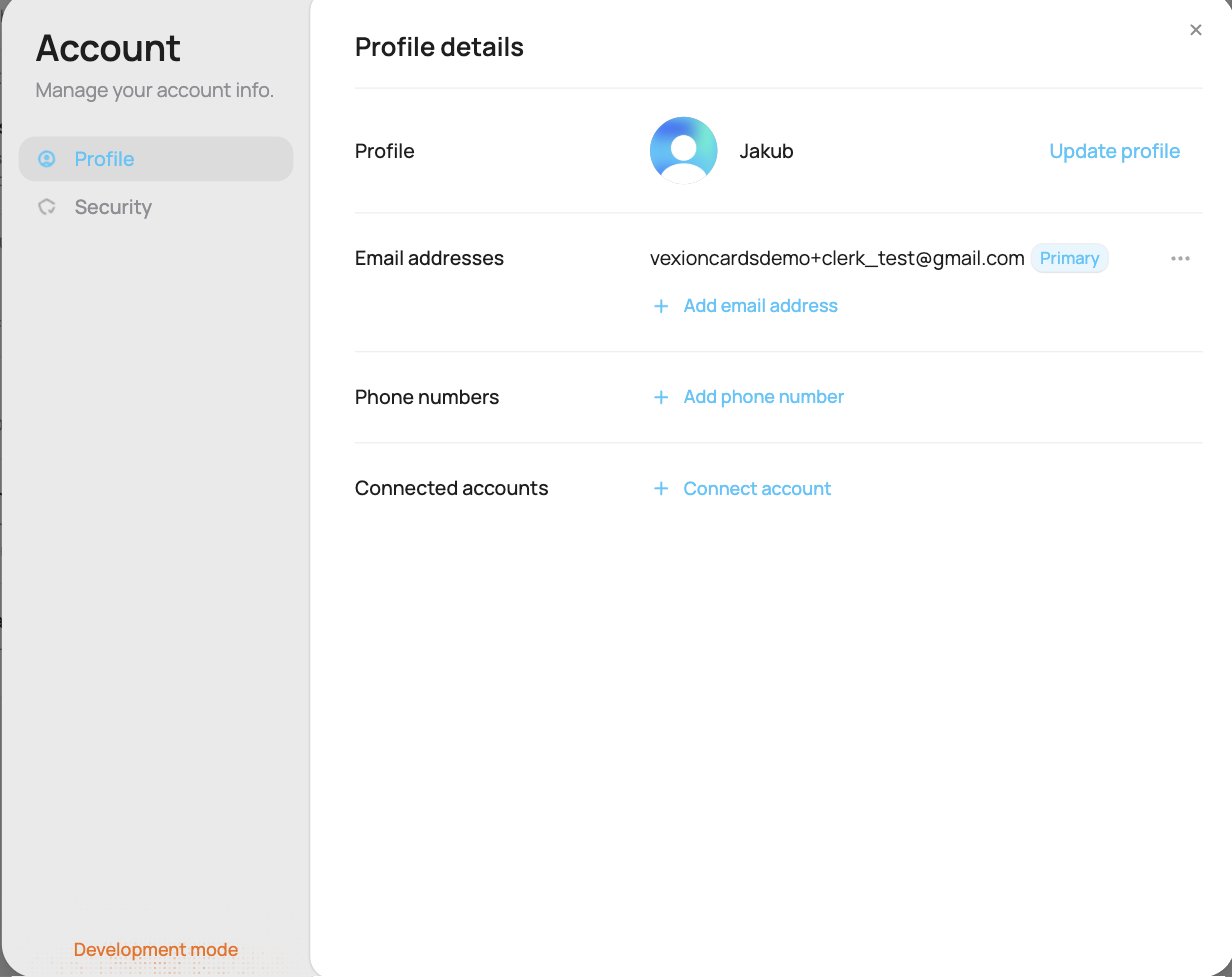
The Account dialog
Profile
Security
The Security section is where you manage how you sign in. It shows the sign-in options that are switched on for VEXiON cards, so what you see can differ from the list below:- Password: set a password, or change the one you have (Update password).
- Passkeys: add a passkey so you can sign in without a password, using your device’s fingerprint, Face ID, or PIN.
- Two-step verification: add a second step at sign-in for extra security.
- Active devices: see every device your account is signed in on (browser, location, and when it was last active), and sign out of any you do not recognise.
- Delete account: permanently delete your login.
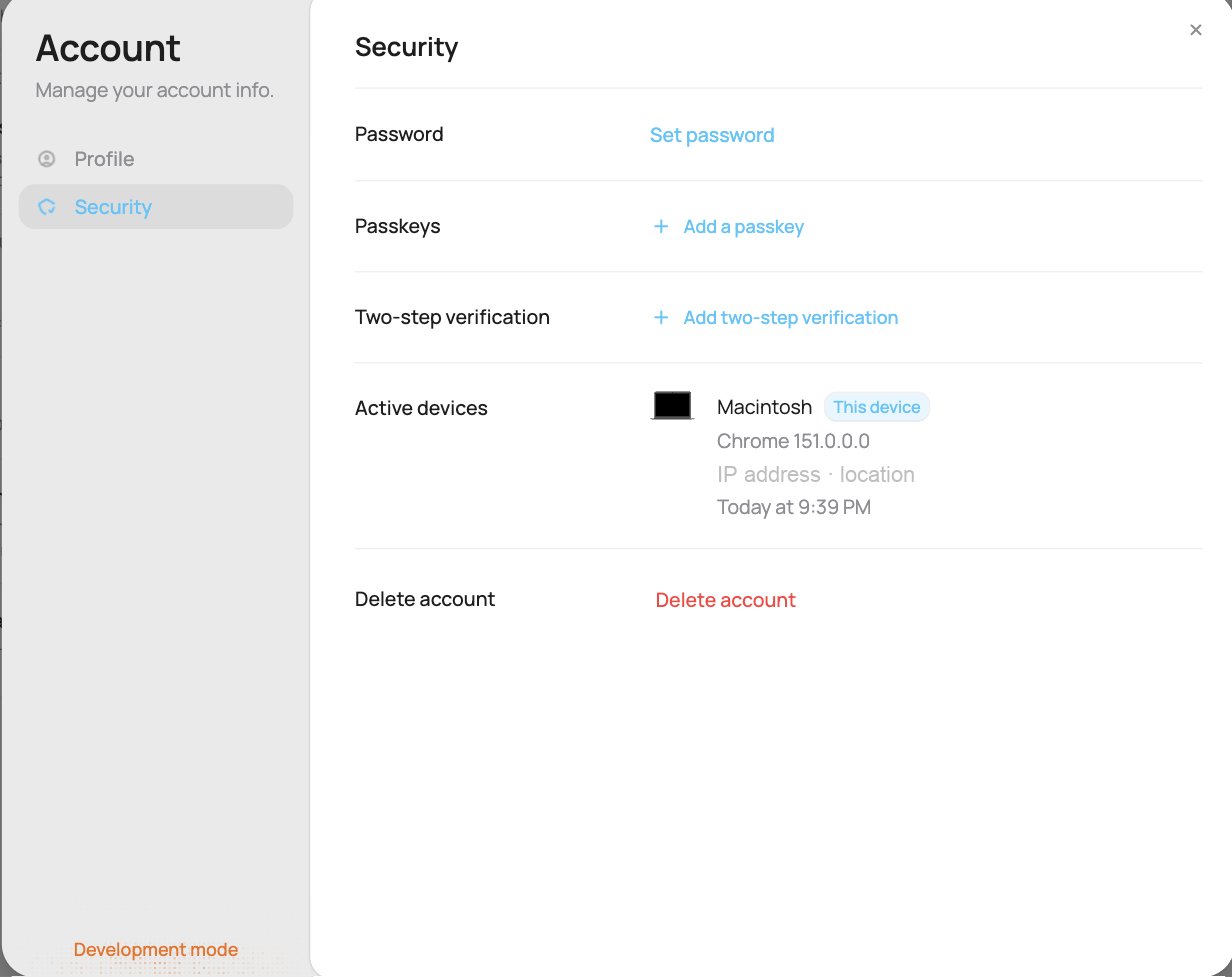
The Security section
Good to know
Your account login is not the same as your business billing details. To change the company name, address, or tax details on your invoices, go to Billing, not here.
Adding a teammate is different again, that is done in Team and roles, where each person gets their own account and login.