


The Team tab
The three roles
This is why the same app looks different for different people, each role only sees what it needs. See the full role matrix.
Inviting a member
Click Invite member. The invite has one or two steps depending on the role.1
Email, role, and locations
Enter their email address and pick a role (Admin, Manager, or Scanner). A short description reminds you what each grants. Then choose their locations, and this is where the roles differ:
- Admin: no location choice, admins see every location automatically.
- Scanner: pick the one location they work at (single choice).
- Manager: pick one or more locations they can access (toggles).
2
Delegated billing (managers only)
If you invited a Manager with at least one delegatable location, a second step appears: “Choose which locations this member will pay for independently.” Toggle on any location you want the manager to be billed for directly, they will get their own subscription and invoice for it (a franchise setup). Leave them all off to keep paying centrally yourself. See Delegated billing.
3
Send
Click Send Invite. They receive an email invitation and join once they accept.
Assigning the right location up front means every scan a manager or scanner makes is automatically attributed to the correct place, with no “select your location” prompt at the till.
What the person you invited sees
1
They open the invitation
They receive an email invitation and click the button inside it, which opens VEXiON cards.
2
They create a login, or sign in
If they are new to VEXiON cards, they create their login in seconds: they enter their email and get a one-time verification code by email to confirm it (or they can continue with Google), and they land straight inside your organization, in the role you gave them. If they already have a VEXiON cards login, they just sign in and are added.
3
They land in the right place
Admins and Managers land on the dashboard, a Scanner lands on the Scanner screen, always scoped to the locations you assigned them.
If you invited a Manager or a Scanner to a location whose billing is delegated, they will be asked to set up their own billing before they can start. See Delegated billing.
Managing members
Each member row has a ”…” menu with three actions:- Change role: switch them between Admin, Manager, and Scanner.
- Assign locations: open a dialog to change which locations they can access. It has a Select all toggle and a switch per location (a scanner picks a single location instead). A Scanner works at one location only. To move a scanner, remove them from their current location first. If the change is refused with “is already assigned to [location], remove them there first”, do that, then save again. The location editor also marks such people with the hint “already at [location]” (see the picture below). Locations that are already delegated are marked with a badge. If a Scanner’s location is switched off here, they lose access to the till immediately and cannot scan until they are reassigned. See what they see at the till.
- Remove: take them off the team, after a confirmation. They lose access to all data.
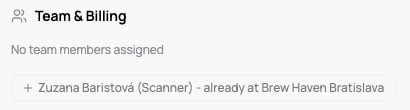
Assigning a Scanner who already works at another location
You cannot remove yourself: the ”…” menu does not appear on your own row.
Team size depends on your plan. VEXiON cards ONE is a single-user plan, so the Team tab shows a PRO badge; upgrade to PRO to invite staff. See Plans & pricing.