

This page is about what your customers see on their phone. Your own view of a customer in the dashboard is The Customer Profile.
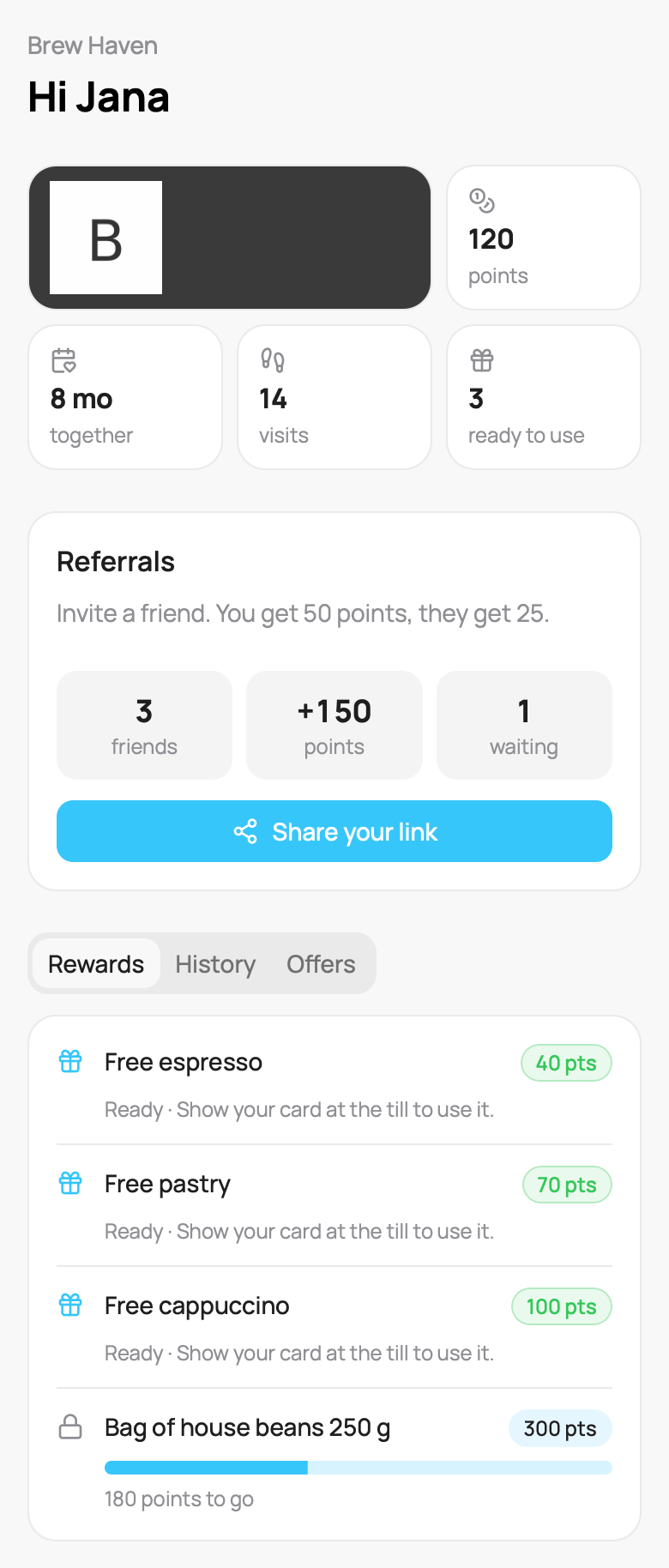
The top of the profile on a points card
How your customers open it
The text is in the card’s language, for example Zobraziť profil on a Slovak card.
There is nothing to set up. Every card gets the link. The only exceptions are cards issued through Bookio, BooqMe, Omega or Medlin: they have no profile link.
If a customer opens the page some other way, for example from a copied address, the page shows Your profile opens from your card. They open the card in their wallet and tap View profile again.
What is on the profile
From top to bottom:- Your business name and a greeting with the customer’s first name.
- Tiles: your logo on your card colour, then the numbers that matter for this card type (see the table below).
- Review us on Google: a button that shows for 24 hours after the Feedback automatic message. The rest of the time the review link is in the links list further down. See Review link.
- Referrals: the customer’s invite box, on cards with the referral program on. See Referrals below.
- Tabs: Rewards, Levels, Month, History and Offers, depending on the card type.
- Your details, the links to your business and the Messages switch.
- Card terms and Privacy at the bottom.
Tiles by card type
On an employee card with hidden amounts, the profile shows no amounts either.
Tabs
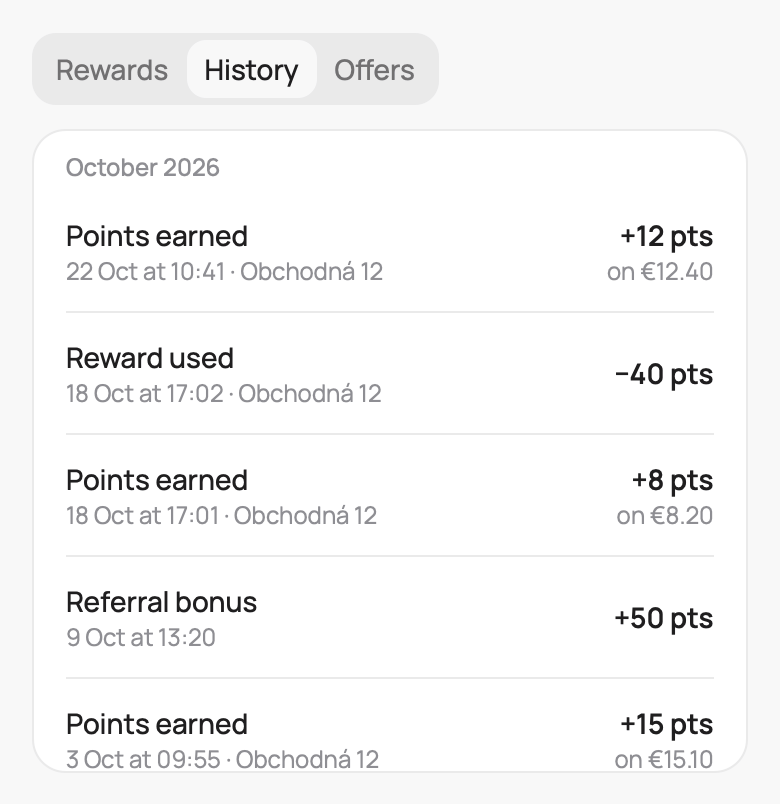
The History tab
Your details and your links
Your details shows what you know about the customer: name, email, phone, birthday, language, and the answers to your custom fields of the type Text, Text Area and Select. Fields of other types are not shown on the profile.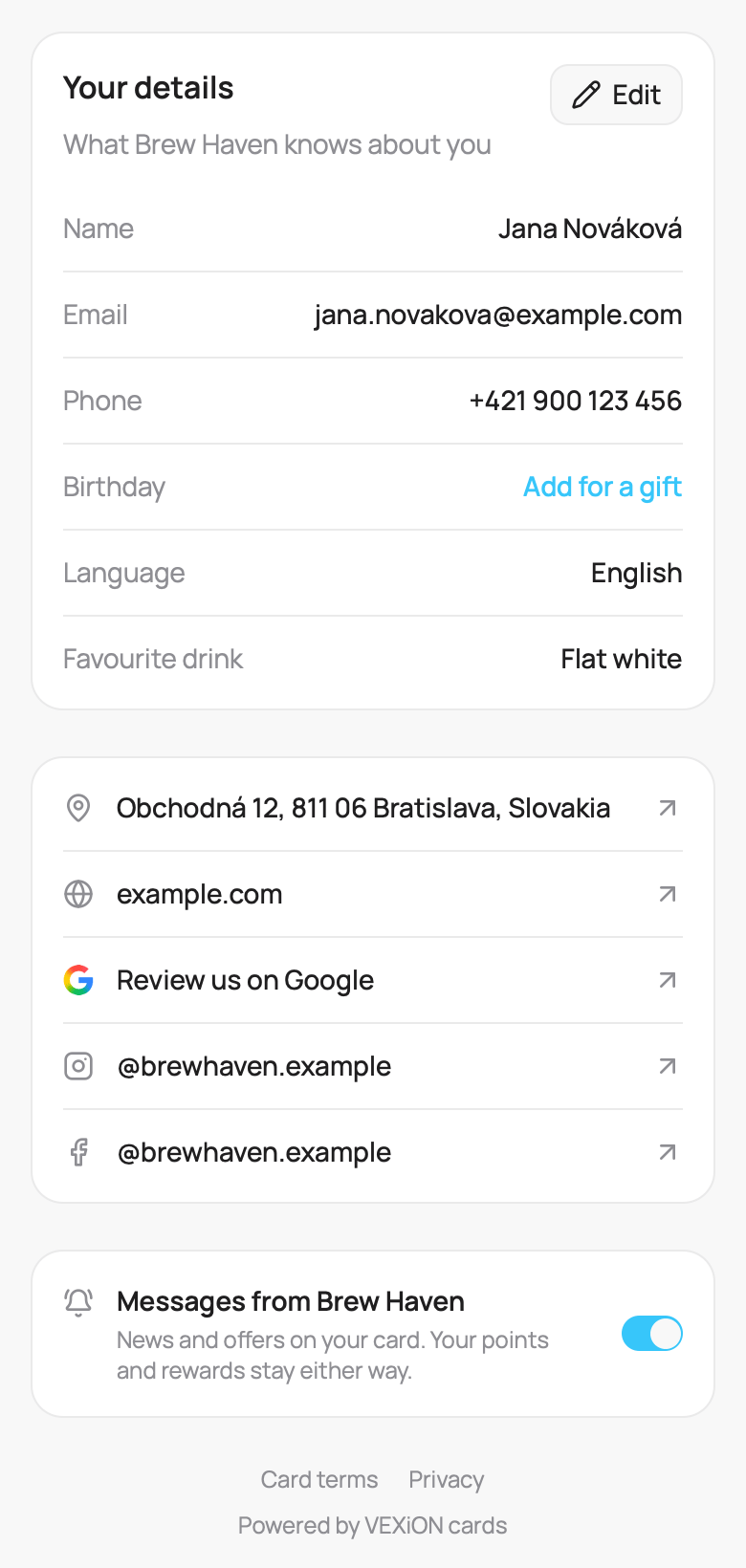
Your details, your links and the Messages switch
- They can change their first name, last name, birthday, language (Slovak, Czech, English or German) and their answers to your custom fields.
- They cannot change their email or phone. If they need a change, they ask you, and you change it on the Details tab of their customer profile.
- An empty birthday shows Add for a gift.
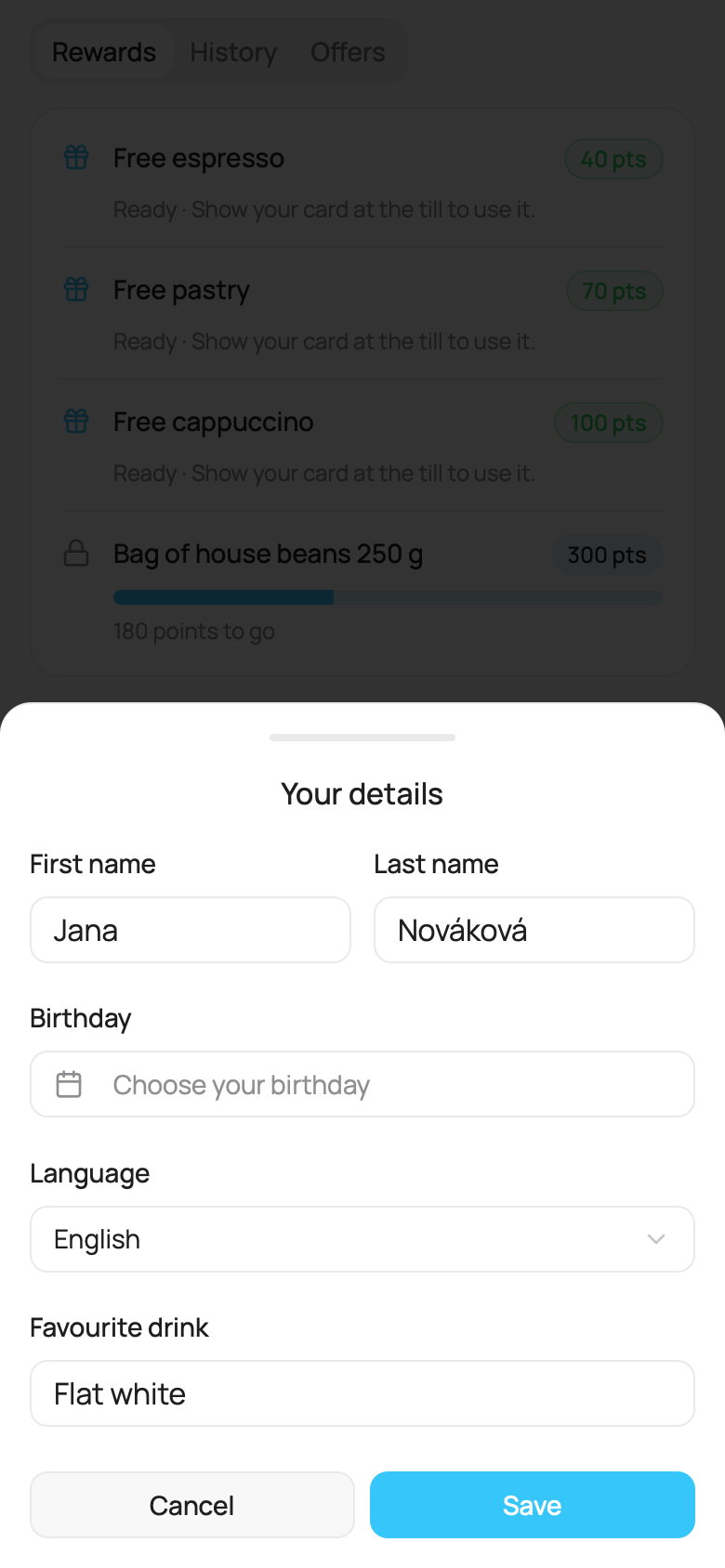
The edit sheet
- Your store address. Tapping it opens the map. It comes from Locations.
- Your website, Instagram and Facebook from the card’s Business Links (card editor, Information tab, see Editing a card). Other social networks are not shown.
- Review us on Google, after the customer’s first visit, while the Feedback automatic message is on.
Messages
At the bottom is the switch Messages from your business. It is the same setting as Marketing messages on the Details tab of your customer profile:- On: the customer gets your broadcasts and automatic messages.
- Off: they get none of them. Their points, stamps and rewards stay, and the card still updates after each purchase.
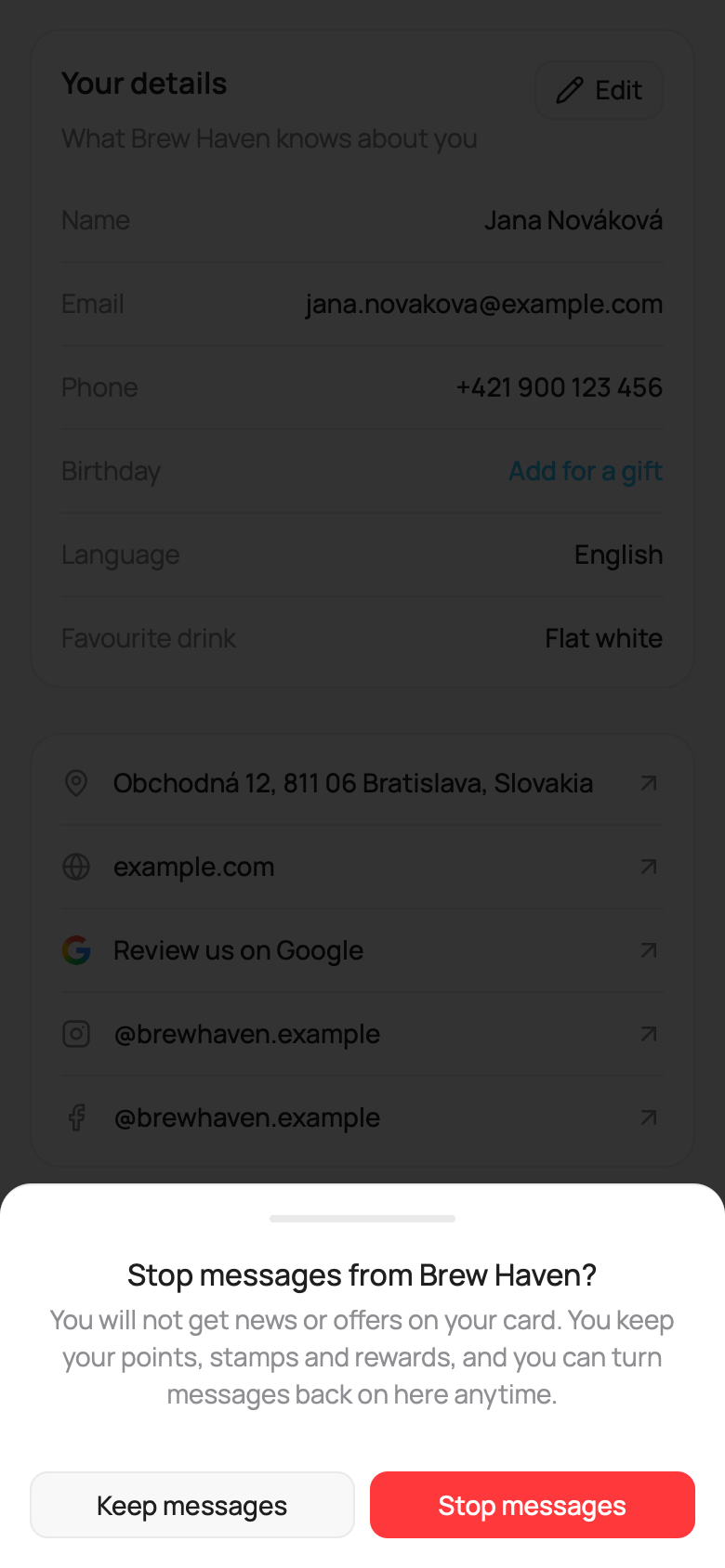
Turning messages off
Referrals
On a card with the referral program on, customers invite friends in two ways:- The QR code on their card. The friend scans it with the phone camera.
- Their personal link. On the profile, the Referrals box has a Share your link button. It opens the phone’s share menu, or copies the link.
Good to know
- The page follows the card’s language: Slovak, Czech, English or German. A card in another language opens the profile in English.
- Each customer sees only their own card and details.
- To fill the profile, add your store address in Locations, your links on the card, and your questions in Custom fields.