

Turning it on
Referral is a setting on the card, not a separate page. You set it when you create a card or by editing an existing one.1
Open the card's settings
From Passes, open the card and click Edit Card. You are on the Settings tab.
2
Turn on Referral Program
Switch on Referral Program (“Reward customers who refer new customers to your business”).
3
Set the two bonuses
- Bonus for referrer: what the existing customer gets when their friend joins and buys.
- Bonus for new customer: what the friend gets.
4
Save
Click Save. The referral program is now live on that card.
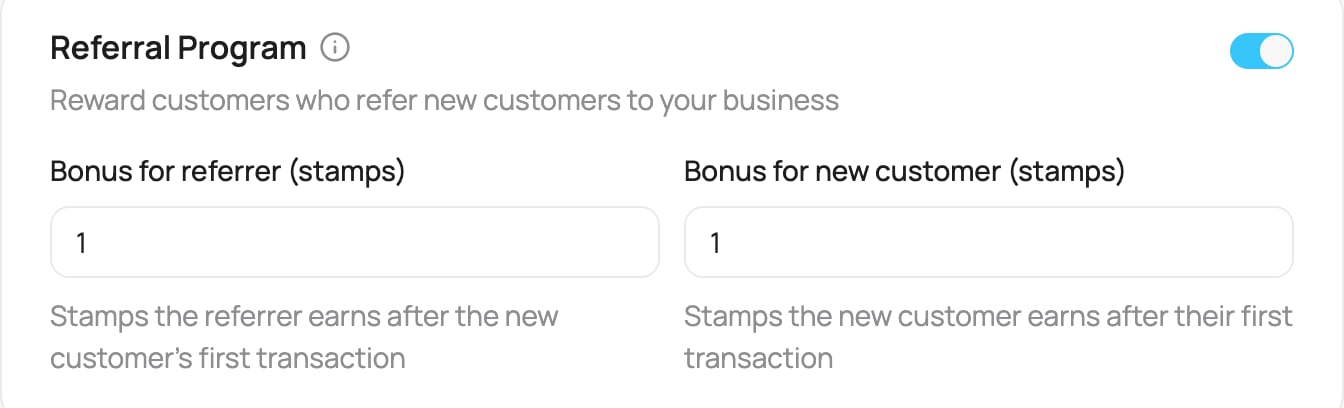
The Referral Program setting on a card
How it works for your customers
When referral is on, a customer invites friends in two ways:- The QR code on their wallet card. With referral on, it is also their referral code, so they share the card they already have.
- Their personal referral link. They share it with the Share your link button on their profile.
1
The customer opens their card
They open their card in Apple Wallet or Google Wallet and find their referral QR code on it.
2
They share the QR with a friend
They let the friend scan the QR with their phone camera, or send a screenshot (in a message, WhatsApp, Messenger, Instagram).
3
The friend scans it and joins
Scanning opens the card’s sign-up page, which shows who referred them (for example “Referred by: Jana K.”, first name and the initial of the last name). Below it, Reward shows what the friend gets on the first purchase, for example +1 stamp. The friend joins as normal and gets their own card.
4
Both get their bonus
When the new friend makes their first purchase, the bonuses are applied: the friend gets the new customer bonus and the referrer gets the referrer bonus. Both cards update and both get a notification.On a cashback card the notifications show the credit:
The bonuses are credited on the friend’s first purchase, not the moment they sign up, so a referral only pays out when it turns into a real customer.A referral waits 90 days for that first purchase. After 90 days it expires, and a later purchase pays no bonus.The bonuses are fixed when the friend signs up. If you later change the bonuses or turn the program off, friends who already signed up still get the bonuses that applied at their sign-up.To prevent self-referral, VEXiON checks each referral for warning signs: the friend’s browser details match another friend of the same referrer, the friend’s Apple Wallet card is on the same device as the referrer’s, or one referrer brings many friends in one day. One warning sign holds the bonus for at most 7 days. After the hold, the bonus is paid on the friend’s next purchase. A purchase the friend makes during the hold does not earn the bonus. A referral is held only once.When the matching browser details and the same Apple Wallet device both appear, the referral is cancelled and no bonus is paid. VEXiON never takes back a bonus that was already paid.
The customer’s profile
The customer opens their profile from the card (View profile). On a card with referral on, the profile shows a Referrals box below the statistics. It tells the customer what they and their friend get, how many friends joined, what they earned, and how many friends are still waiting for a first purchase. The Share your link button opens the phone’s share menu, or copies the link. The link opens the sign-up page of this card with the customer as the referrer. The box shows only on cards with referral on. In WhatsApp, iMessage, Messenger and other chat apps the link shows a preview: your card banner with a badge of the friend’s reward (for example +1 stamp, or +€1.00 credit on a cashback card), the title “Jana K. invites you to Brew Haven”, and what the friend gets on the first purchase. The text follows the card’s language. With referral off or a friend bonus of 0, the preview shows the plain banner and invite text.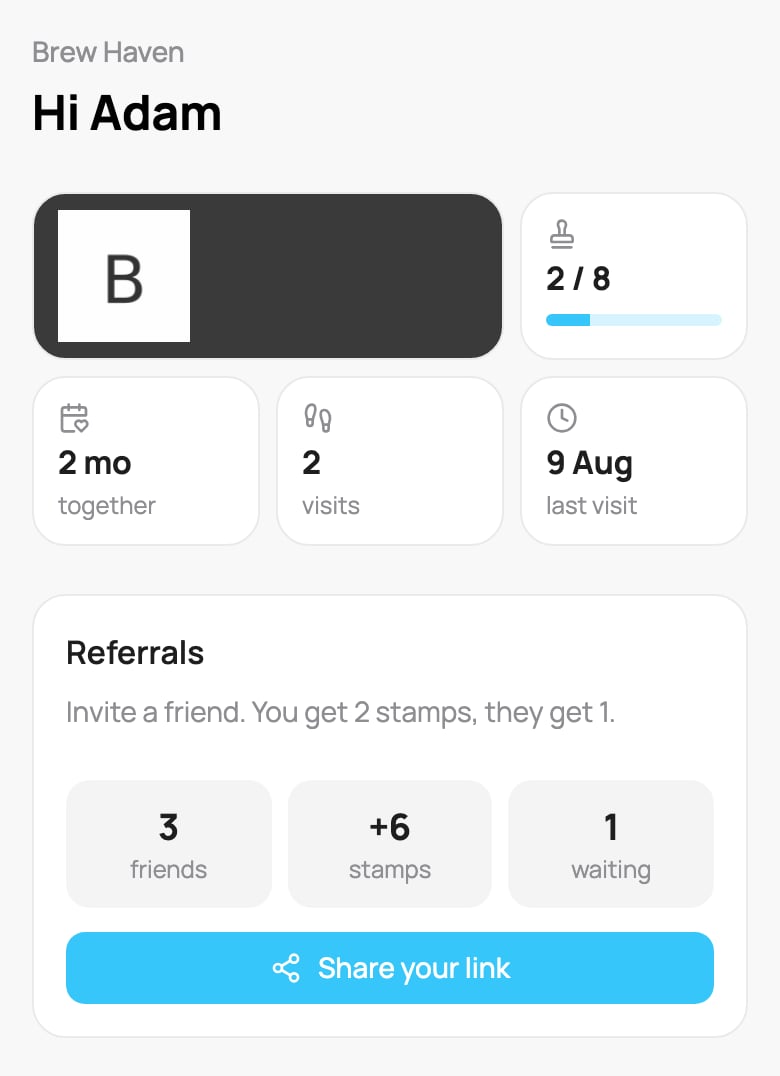
The Referrals box on the customer's profile
Where you see referrals
- Customer profile, Lifetime Analytics: the tile Referred friends shows how many friends made their first purchase. Below the number you see what the customer earned and how many friends are still waiting (pending). See The Customer Profile.
- Customer profile, header: a customer who joined through a referral shows Referred by with the referrer’s name. Click the name to open the referrer’s profile.
- Transactions: open Filter, then Event, and tick Referrals to list only the referral bonuses (Referral bonus and Welcome bonus (referral)). The option appears when this customer or card has such transactions.