

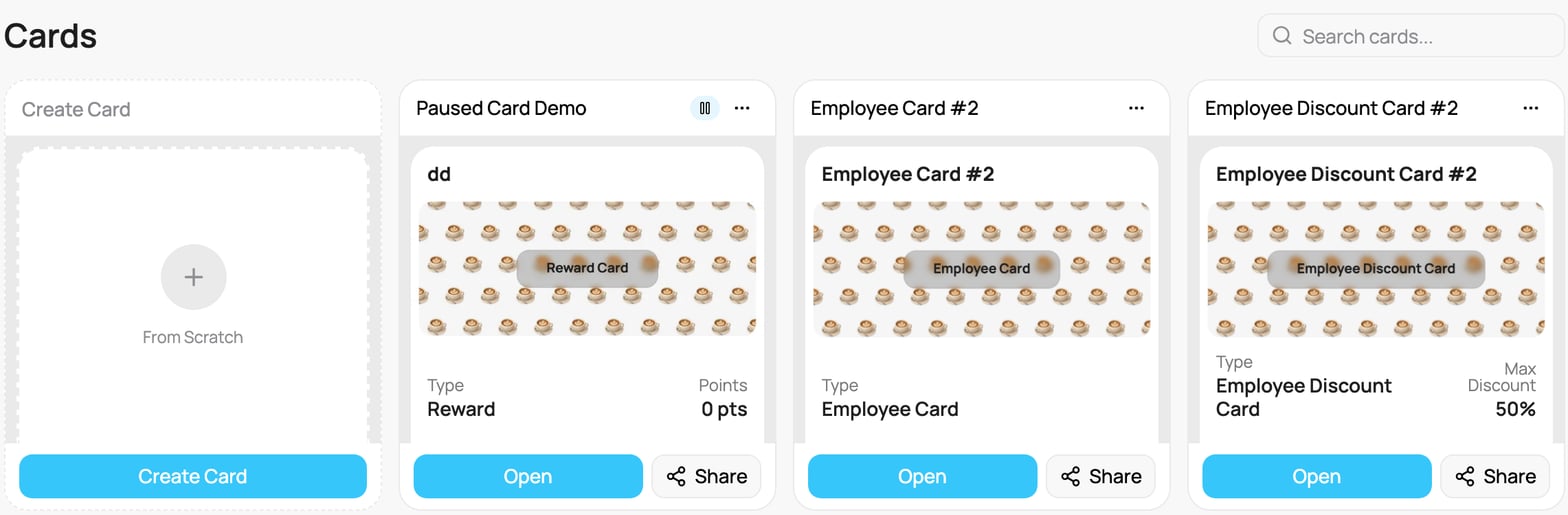
The Passes page
Finding a card
- Use the Search cards box at the top right to filter by name.
- If you have more than one location, the location selector at the top left scopes the view. That same selector scopes the dashboard, customers, and every card’s analytics too, see Filtering by Location & Time.
Card statuses
Every card is in one of these states, and the state decides whether customers can join it:- Active: the card is live. It can be shared, and customers can join it and use it.
- Draft: saved but not yet live. Its sign-up link and QR code show “This card is not available.”, so no one can join yet. You create a draft with Save as Draft at the end of the wizard, and make it live whenever you are ready.
- Paused: the card was live and you took it offline. New customers cannot join while it is paused, and its link shows “This card is currently unavailable.” Everyone who already has the card keeps using it normally. You can switch it back on any time with Activate card.
- Archived: a card set to Archived through the API. New customers cannot join, and its link shows “This card is not available.” Existing cardholders are not affected. You can switch it back on with Activate card.
Draft and Paused both stop new sign-ups. The difference is history: a draft has never been live, while a paused card was live and can be switched back on. Pausing never affects the customers who already hold the card.
What you can do with a card
Every card tile has these controls:- Open (two thirds of the width) opens the card’s detail view, with its performance and the Activity, Customers, Analytics, and Push tabs. See Card Activity & Customers and Card Analytics.
- Share (one third, with the word Share) opens the Share window: the card link, a QR code, a poster, an Instagram story and stickers. The same window opens from the Share icon at the top right of a card. See Sharing & Enrolling Customers.
- The ”…” menu gives quick actions. The first action depends on the status: Pause card for a live card, Activate card for a draft or paused card. The rest are always there: Edit name, Duplicate, and Delete. See Editing a Card.