

Composing a notification
Compose
1
Write the message
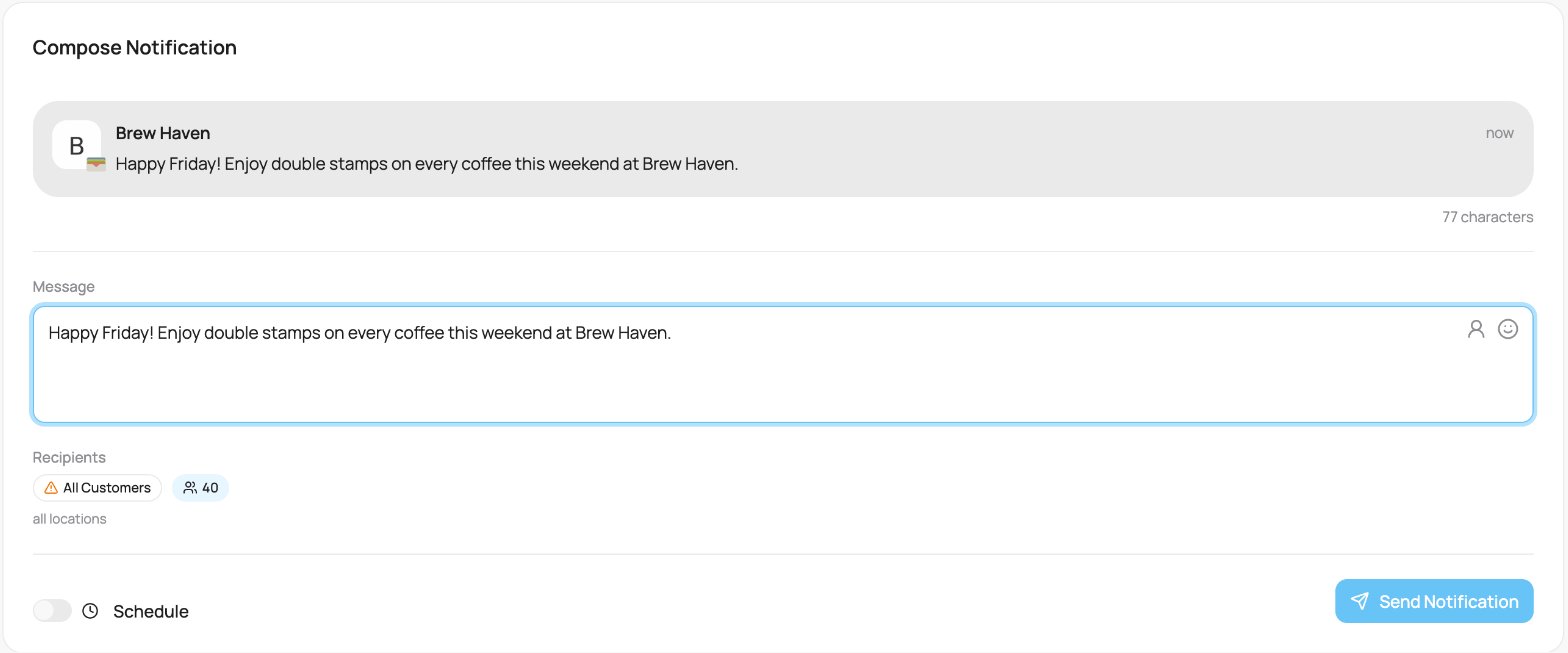
Type your message in the Message box. As you type, the live preview at the top shows exactly how it will look on a phone (your business name as the title, your card icon, and the text).Two tools sit in the message box: First Name personalisation (below) and an emoji picker to make the message pop on the lock screen.Messages can be up to 200 characters; the counter shows how many you have used.
2
Check the recipients
Under Recipients you see who will get it:
- On the Chat page: All Customers, with the total count. A small warning icon reminds you this reaches everyone.
- On a card’s Push tab: everyone who holds that card, with the count.
- On a customer’s profile: just that one customer, by name.
3
Send now or schedule
Leave Schedule off to send immediately. Turn it on to pick a date and time to send later (you cannot pick a time in the past). The button then reads Schedule Notification instead of Send Notification. Scheduling is not available when you write to a single customer.
4
Send
Click Send Notification. When sending to all customers (or a single customer) a quick confirmation appears first, since it goes to real people’s phones. Confirm, and it is on its way.
Personalising with First Name
Click the First Name button in the message box to drop in aFirst Name tag. It shows up as a small highlighted tag right in your text, like this:
Hi First Name, your coffee is waiting ☕
When the notification is sent, that tag becomes each customer’s real first name, so the example above arrives as “Hi Adam, your coffee is waiting ☕”. Customers with no first name on file simply receive the rest of the message. The live preview shows a sample name so you can see how it reads.
Insert the tag with the First Name button rather than typing it, that is what turns it into the highlighted tag you see in the box and the preview.
After sending
The message drops into the History list below, where you can watch it deliver in real time and open its full delivery breakdown. See Delivery & history.What makes a message work
The best-performing notifications share three things: a name, a specific offer, and a deadline. “Fresh croissants until noon today,First Name 🥐” beats “We have new products.” Vague messages get ignored; timely, personal ones bring people in.
Campaign ideas by business type
Ideas for a one-off promotion or announcement. Hover over an example and click the copy icon, then paste it into the message box and make it yours.{firstName} becomes each customer’s name on send (see above).
Café & bakery
Café
Café
Restaurant & bar
Restaurant
Restaurant
Salon & beauty
Salon
Salon
Gym & fitness
Gym
Gym
Retail & shop
Retail
Retail