

A profile belongs to one customer. If the customer holds several of your cards, the Overview shows the first card. The Transactions tab lists activity on all cards.
Give or change points, stamps, or credit
You can change a customer’s card right on their profile. You do not need the Scanner.- Open the customer.
- Click the button at the top right. On a phone it is the wide button under the name.
- If you work at more than one location and have not picked one yet, pick where you are now.
- Use the window exactly like the Scanner: enter the amount or tap the stamps, then click the button at the bottom.
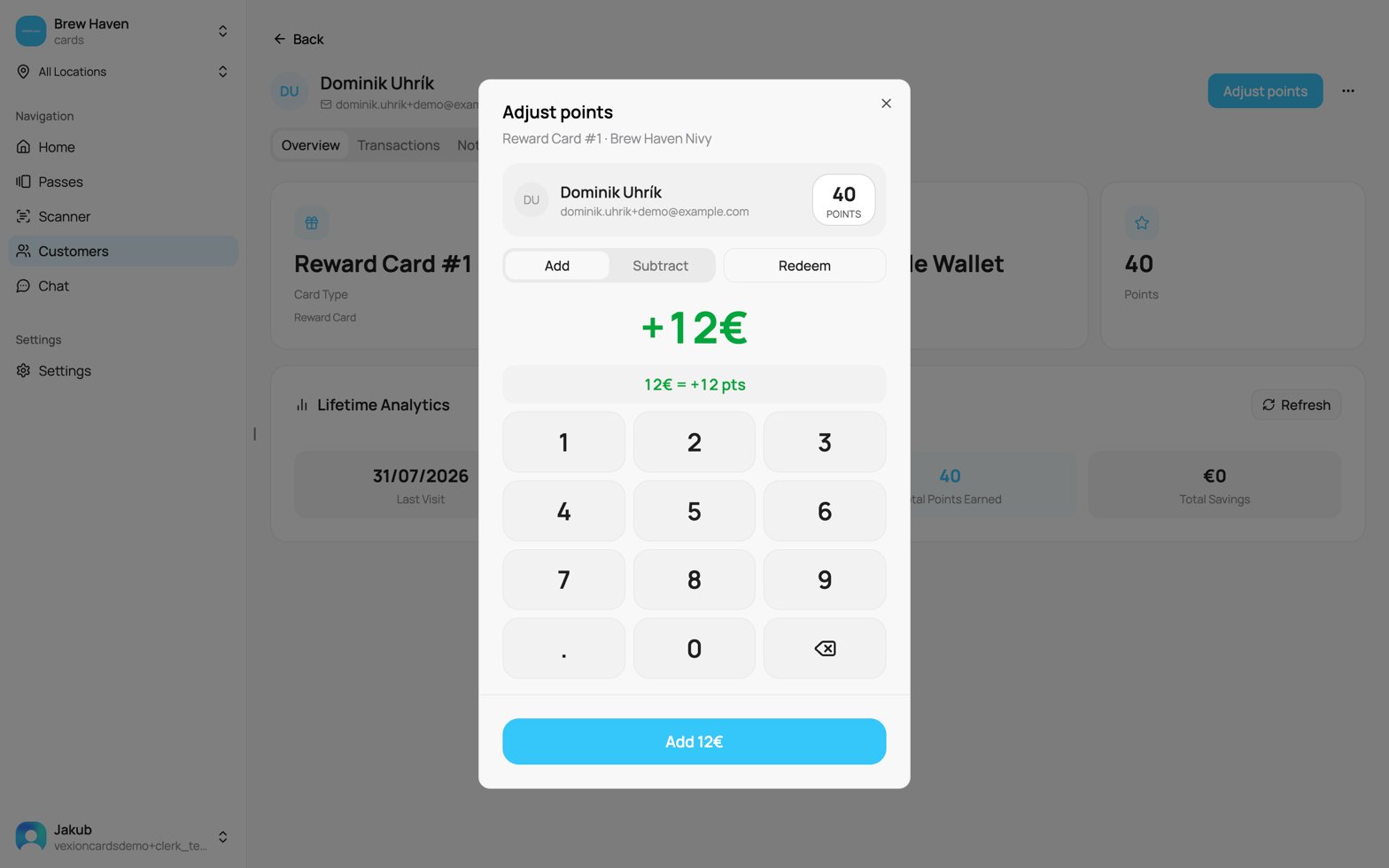
Adjusting points from the customer profile
After you click the button at the bottom, the window closes and the profile shows the new balance. The change appears in the Transactions tab with the source Manual, your name, and your location, the same as a change made in the Scanner. The customer’s wallet card updates.
Good to know:
- Made a mistake? Click Undo in the message that appears. You have about 8 seconds. Gift cards and coupons cannot be undone this way.
- If your business asks to confirm every transaction (Settings), the window asks too.
- On a tablet or a phone the keypad in the window is all you need. The phone keyboard does not open.
- A used coupon has no button.
Overview
The Overview has four tiles: Card Type, Status, Device, and a fourth tile that depends on the card type because each card tracks something different:
Below is Lifetime Analytics. Two tiles show for every card: Last Visit and Total Visits. On a card with the referral program on, a third tile shows Referred friends: how many friends made their first purchase. Below the number you see what the customer earned from referrals and how many friends are still waiting. Last Visit then also shows how many days ago it was.
The other tiles depend on the card type. For example, a stamp card shows stamps earned and rewards redeemed. A discount card shows total spend and savings. No tile repeats one of the four tiles above. Referral bonuses are not counted as visits, spend, or savings.
On a discount card or a cashback card with levels, the panel also shows To Next Tier. With level retention on, it adds Level valid until: the date until which the customer keeps the level. On the lowest level this tile is not shown, because there is nothing to lose.
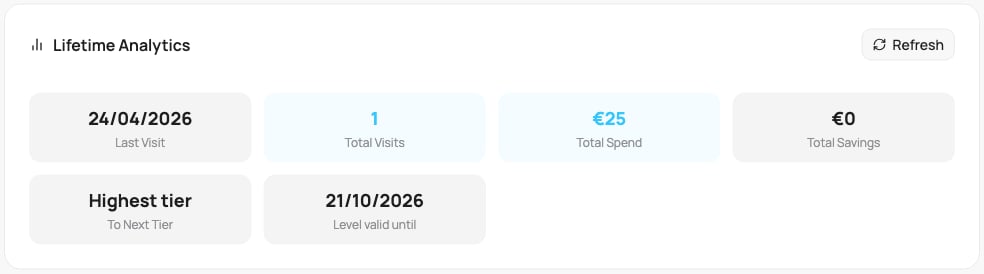
Lifetime Analytics on a discount card with levels
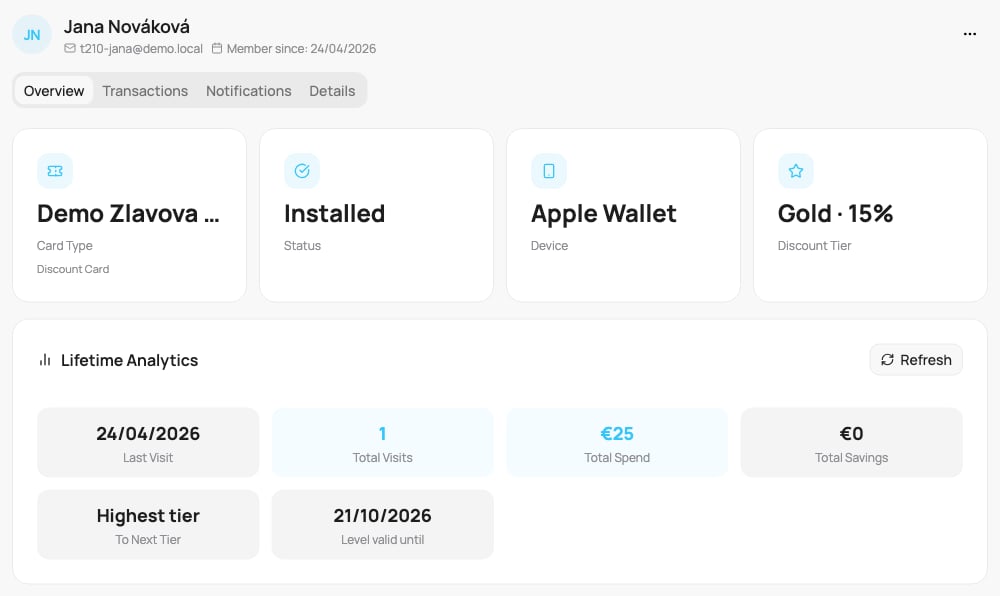
Customer profile overview
Transactions
Every transaction this customer has made, on all their cards, newest first. It is the same table as the card’s Activity tab, for one customer.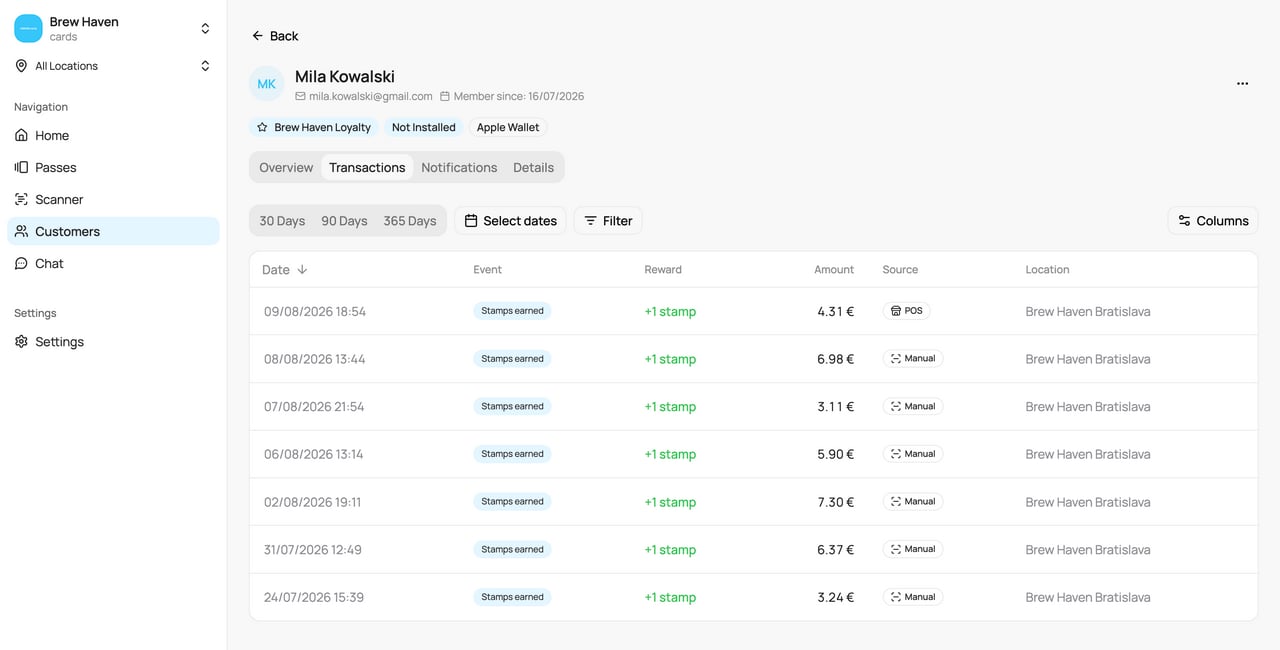
The Transactions tab
A reversal is its own row, and its label starts with Reversed ·. The original row gets a Reversed badge.
Above the table you can:
- Pick a period: 30 Days, 90 Days, 365 Days, or Select dates. With no choice made, the table shows all history.
- Filter by Event and Source. The menu offers only what really happened for this customer in the period. Click Clear to remove all ticks. Referrals under Event lists only the referral bonuses.
- Use Columns to show or hide Event, Reward, Amount, Source, and Location. Date always stays. The choice is saved on this device.
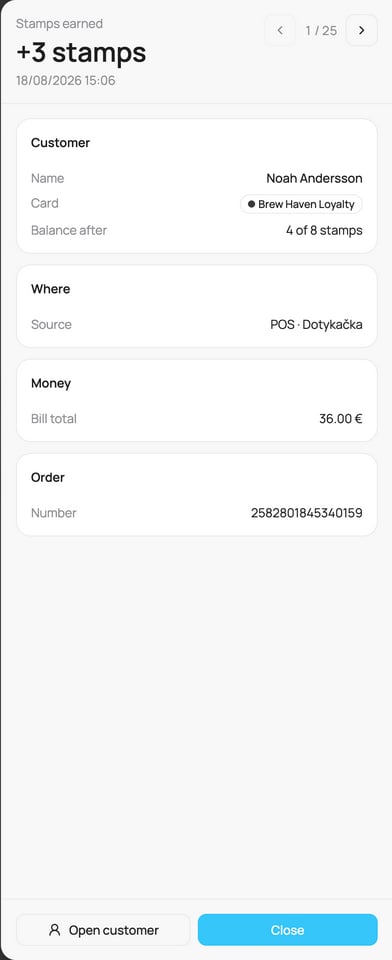
The transaction detail panel
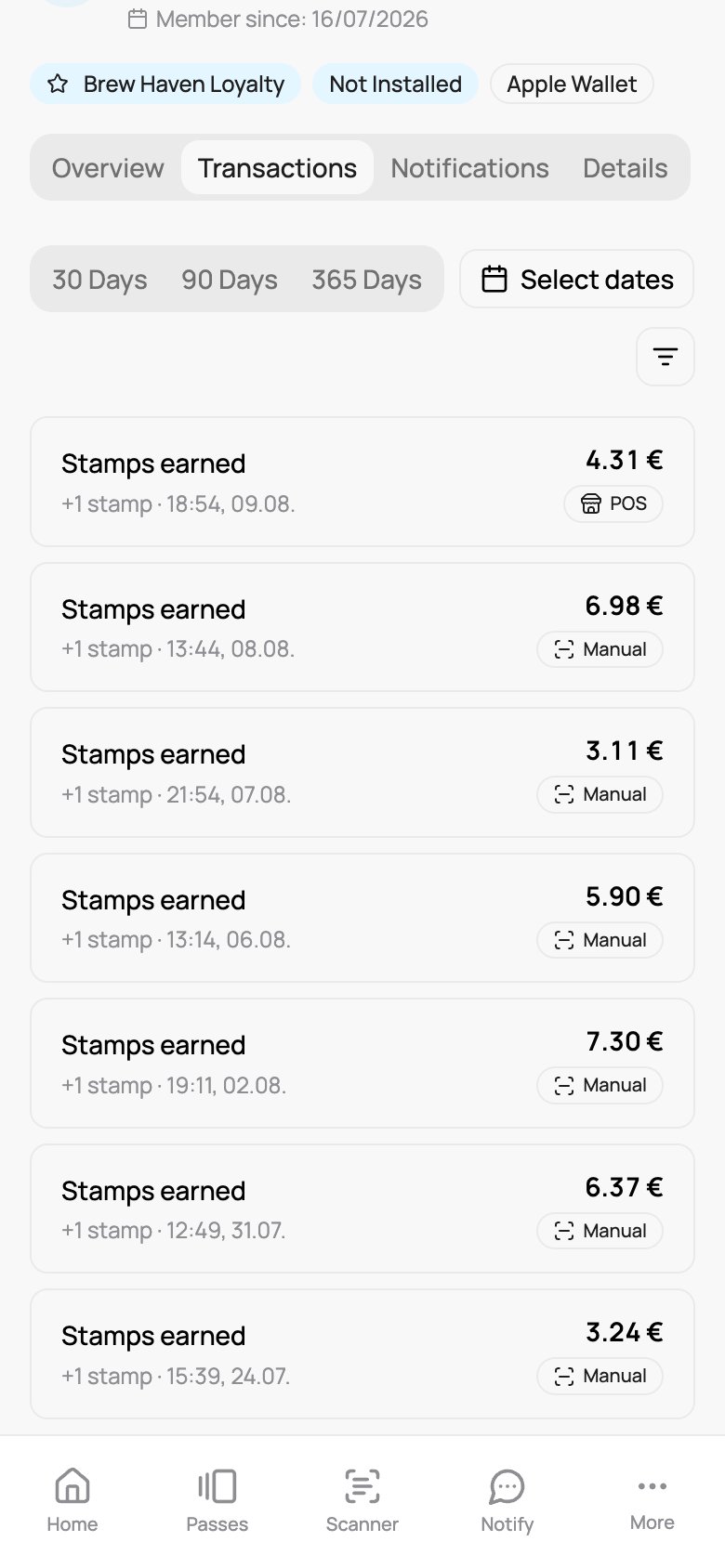
Transactions on a phone
If a transaction shows no location, the till it came from is usually not linked to one of your locations yet. Open Settings → Locations and check the POS mapping there.
Notifications
Send a push notification to this one customer now, with a live preview. You cannot schedule it here. Then see the notification history for messages already sent to them. A customer who turned Marketing messages off does not receive it.Details
The Details tab is where you edit the customer and manage their card.Information
Edit the customer’s First Name, Last Name, Email, Phone, and Date of Birth, plus a Custom card number (an optional reference of your own, for example VIP-1001). Click Save to apply your changes.Card Information
- Customer ID: the internal ID of this customer. Quote it to support. It is not the ID the public API uses.
- Send card again: re-sends the card’s claim link to the customer, by Email or, if they have a phone number on file, by SMS. They receive the same message as when the card was first sent, so this is what you use when a customer never installed the card, lost it, or switched phones. If there is no email (or no phone) on file, that option is not available.
- Referral Code: shown when the customer has one.
Marketing messages
A switch that controls whether this customer receives your broadcasts and automatic messages. Card updates after a purchase are always sent. Turn it back on only if the customer asked for it. On an employee card with a monthly limit, this tab also shows what the employee used This month and Left, and a Custom monthly limit. Use the limit when one employee gets a different amount, for example 600 € on a card with 300 €. It changes only when the discount stops; the levels of the card stay the same. It applies right away and counts what the employee already spent this month. Use the card limit removes it. A card with no limit has no custom limit.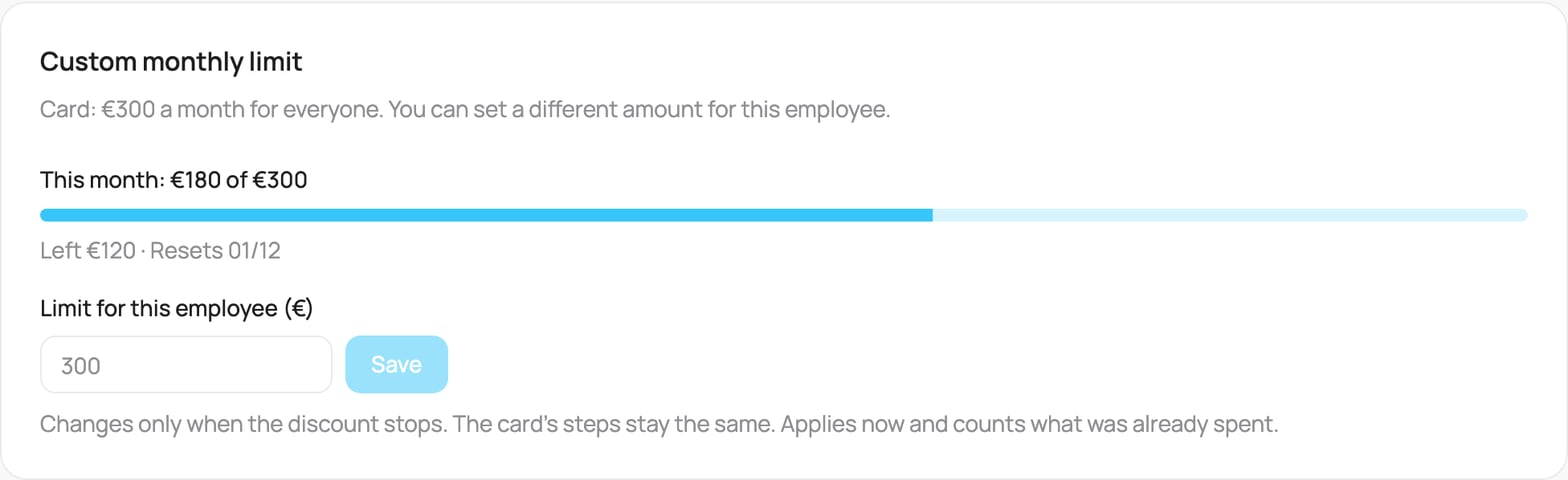
This month and a custom monthly limit of 450 € on a card with 300 €
Danger Zone
Delete Customer permanently deletes the customer, all their cards and their transaction history. There is no recovery period. Only admins can use it. If you use webhooks, acustomer.deleted event is sent to your endpoints. It carries no name, email or phone. If you use Dotykačka, the customer’s record there is marked as deleted too.