

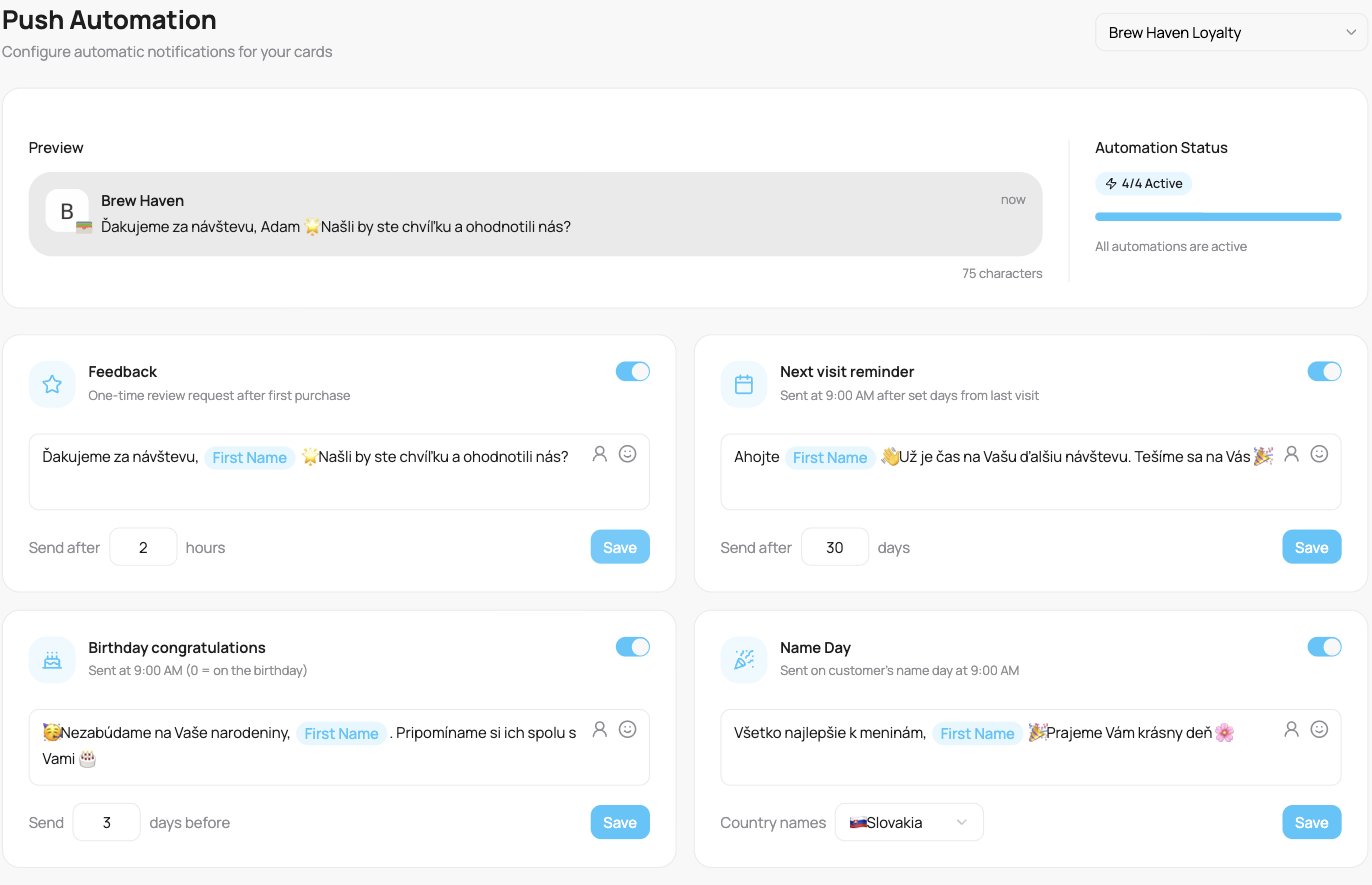
The four automations for a card
The four automations
Feedback: a one-time review request
Feedback: a one-time review request
Sent once, a set number of hours after a customer’s first purchase, while the visit is fresh. Perfect for asking for a Google review. Default timing: 2 hours after. It pairs with the review link on the card, which also appears after that first visit, so the reminder and the link arrive together.
Next visit reminder: win back quiet customers
Next visit reminder: win back quiet customers
Sent at 9:00 AM once a customer has not visited for the number of days you set, a gentle “we would love to see you again”. Default: 30 days after the last visit.
Birthday congratulations
Birthday congratulations
Sent at 9:00 AM around the customer’s birthday. Set how many days before to send (0 = on the day itself). Default: 3 days before.
Name Day
Name Day
Sent on the customer’s name day at 9:00 AM, a lovely touch in countries where name days are celebrated. Pick the country whose name-day calendar to use (for example Slovakia, Czechia, Hungary).
Setting one up
Each automation card has the same controls:- A toggle to turn it on or off.
- The message, which you can edit freely. It supports the same personalisation and emoji as a manual message: click First Name to drop in a
First Nametag that becomes the customer’s real name when the message is sent (see personalising with First Name). - The timing (hours or days), or, for Name Day, the country.
- A Save button for that automation.
You can write each automation’s message in multiple languages. Each customer receives it in their own language, so a Slovak customer gets the Slovak version and an English customer the English one. Use the language switcher while editing to set each variant.
Writing good automated messages
The same four automations work for any business; only the wording changes. A few rules that make them land:- Keep the
First Nametag near the start, a message that opens with the customer’s name feels personal, not mass-sent. - Give the feedback message a clear ask. For a review, link the intent (“rate your experience”) rather than a bland “thanks for visiting”.
- Make the win-back worth returning for. A reason to come back (“your stamps are waiting”, a small offer) beats “we miss you” alone.
- Keep birthday and name-day messages warm and short. These are goodwill, not a sales pitch, a genuine wish plus a small treat is plenty.
- Stay within 200 characters and add an emoji or two so it stands out on the lock screen.
Examples by business type
Ready-to-use wording for each automation. Hover over an example and click the copy icon, then paste it into the automation’s message and tweak it.{firstName} in the examples is the personalisation token. Paste it as part of the message and it becomes the customer’s real name when sent, showing as a First Name tag in the message box. You can also insert it with the First Name button instead of typing it.Café & bakery
Feedback
Next visit
Birthday
Restaurant & bar
Feedback
Next visit
Birthday
Salon & beauty
Feedback
Next visit
Birthday
Gym & fitness
Feedback
Next visit
Birthday
Retail & shop
Feedback
Next visit
Birthday