

Like creating a card, editing is done on desktop. Design and text changes you save reach existing cardholders and new ones, so the passes already in your customers’ wallets update automatically. Each customer’s own stamps, points, and balance are not changed. If you change the goal of a stamp card, the pass text follows the new goal. For a reusable coupon whose offer changes, the editor asks first: Update design only (holders keep their status) or Update and reissue (every holder’s coupon becomes redeemable again). As you edit, the live preview on the right shows the card as your customer will see it. Click Save when you are done.
Live preview
The Card Preview panel opens on the right every time you open the editor. It shows the card with your latest changes, before you save them.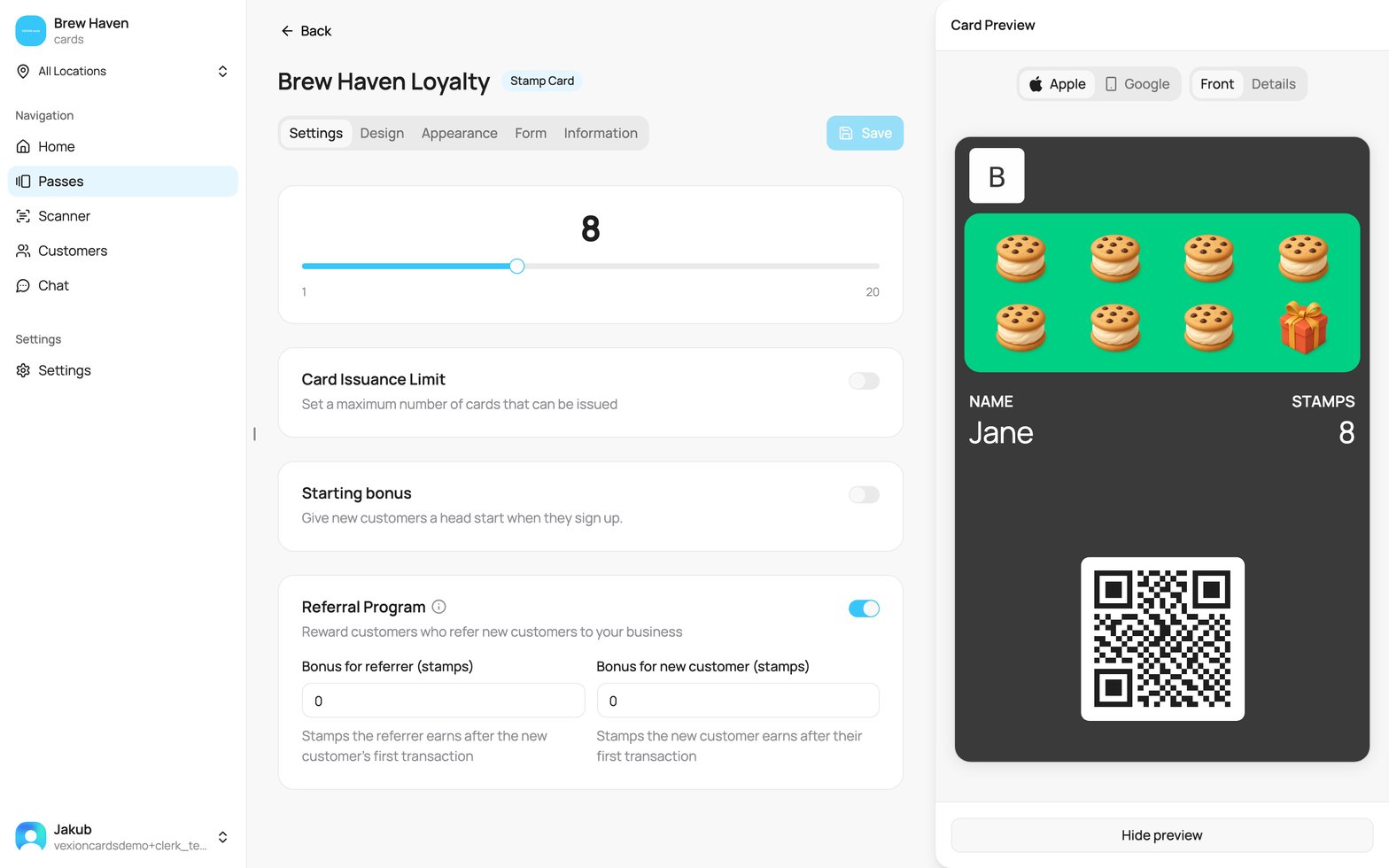
The card editor with the preview open
- Apple / Google switches between the two wallets.
- Front shows the card as it sits in the wallet.
- Details shows what the customer sees when they open the card: the back of the card on iPhone, the details list on Android.
- The name, email and numbers in the preview (such as Jane Doe) are examples. Your customers see their own data.
- On a wide screen the panel sits next to the form. On a smaller screen it slides over the form.
- Hide preview closes the panel. Show preview next to Save opens it again.
- Esc closes the panel. If a menu or a dialog is open, Esc closes that first.
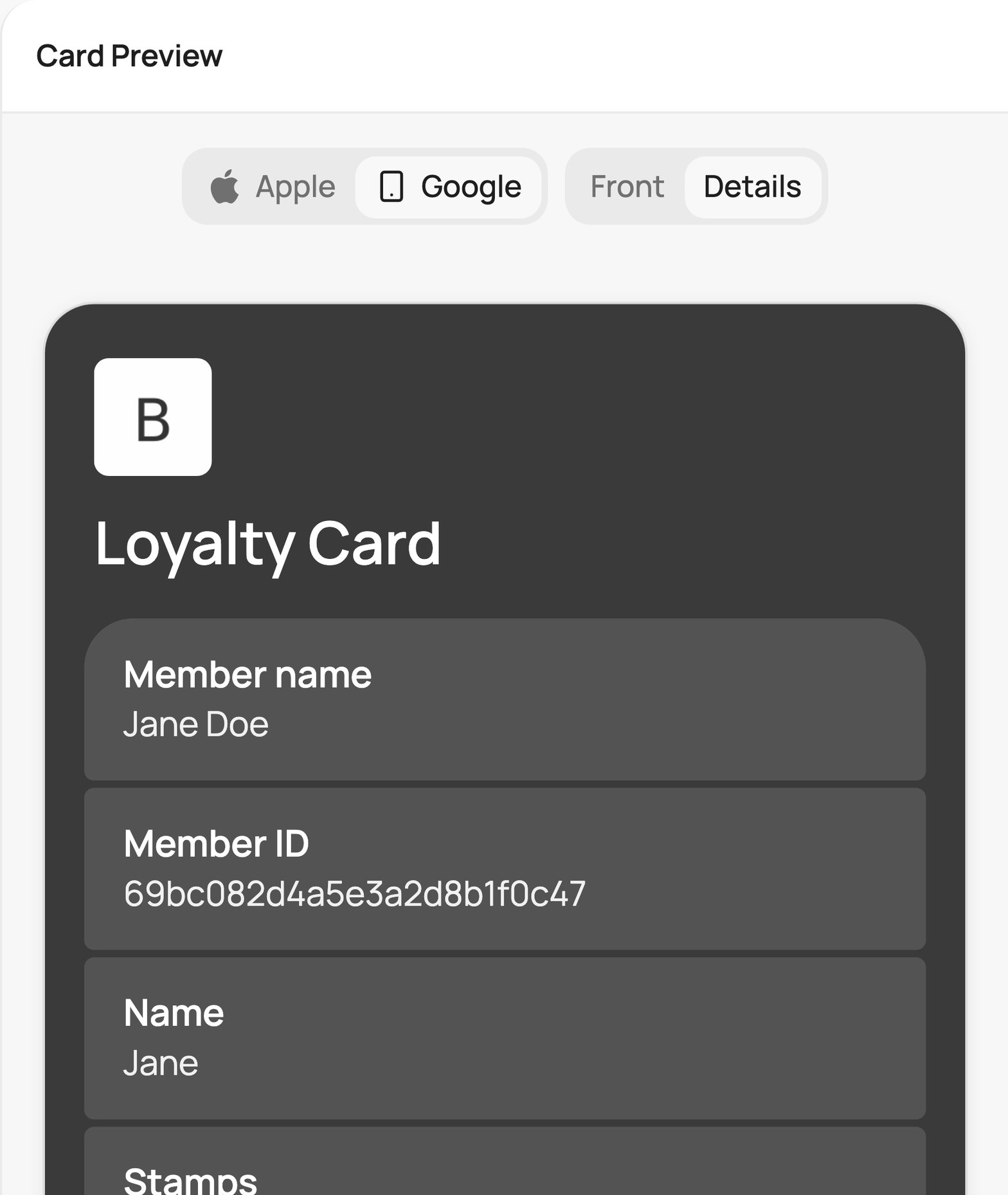
Details on Android: one tile for each row of the card
Click a row to edit it
Every row in the preview that comes from a setting opens that setting. Hover a row: a blue ring and the hint Edit: with the setting name appear.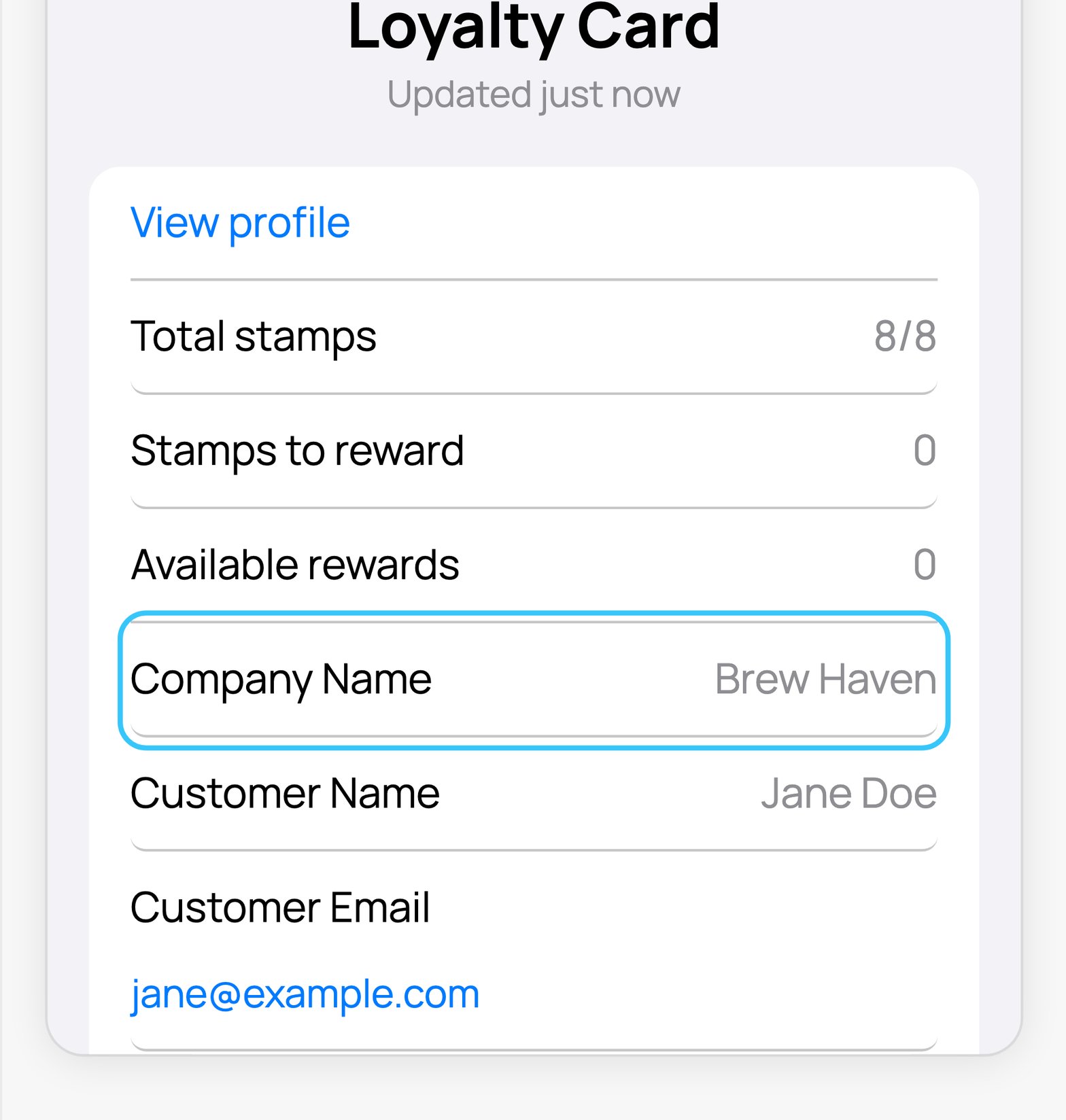
Hover a row in the preview
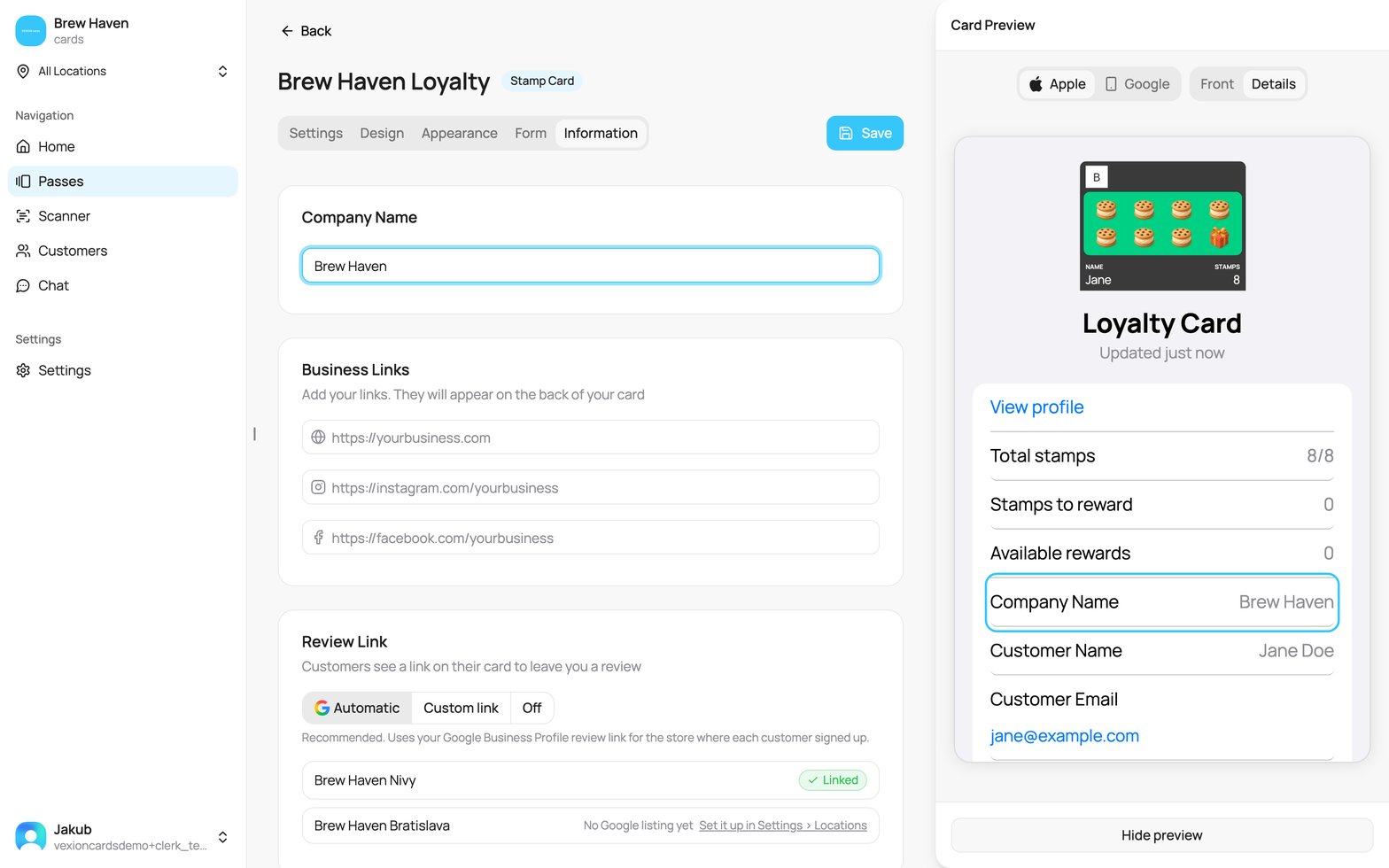
A click on Company Name opens the Information tab
- Company name, links and terms open the Information tab.
- Stamps, tiers, rewards and the other card rules open the Settings tab.
- The logo and the notification icon open the Appearance tab. The card background opens the Design tab.
- The customer name and email open the Form tab. A click on the card name lets you rename the card in the header.
- Rows with customer data (card ID, member ID, collected stamps and rewards, the QR code) are examples. They do not open anything.
- With the keyboard: press Tab to reach a row, then Enter.
When you create a card, the preview works the same way. A click opens only a step you have already reached in the wizard.
The editor tabs
The editor shows the same options as when you created the card, but as tabs you can move between freely instead of a step-by-step wizard.Settings
The rules of the card, and the one tab that is different for each card type (stamps, points, discount tiers, gift amounts, and so on). Because it is type-specific, each is documented in full on that card’s own page:Stamp
Reward / Cashback / Tiered
Discount
Coupon
Gift
Membership
Design
How the card background and, for stamp cards, the stamps look. Stamp cards have a Stamp Design step (stamp icon and colours); other cards have a Card Design step (an auto-generated icon pattern or a custom background image). See the design step on each card type’s page.Appearance
Your Logo (recommended 480 x 150 px), the Notification Icon (512 x 512 px, shown in push notifications), and the Card Colors (such as text and background). Covered in Creating a Card.Form
The sign-up form customers fill in to get the card: the languages it is offered in, which fields are shown, and which are required. Gift cards and employee cards do not have this tab. See Creating a Card.Information
Your Company Name, Business Links (website, Instagram, Facebook), the Review Link (Automatic, Custom link, or Off, see Review link), the Show terms of use toggle and the Loyalty programme rules toggle. Show terms of use puts your terms on the back of the card. Turn it on and a text box appears for them. Turn it off and the text leaves the card, but it stays saved: turn the switch back on and the same text is on the card again. With the switch on and the text box empty, nothing is on the card. This switch controls only the text on the card. It does not change your rules link.Your own programme rules
Loyalty programme rules has its own switch, separate from Show terms of use, with a web address underneath it. Turn it on and paste the address of your own rules, and customers see that link when they sign up, next to VEXiON’s card terms and the GDPR notice, under the same tick. The two switches work independently: you can show the rules link with the terms text off, or the terms text with the rules link off.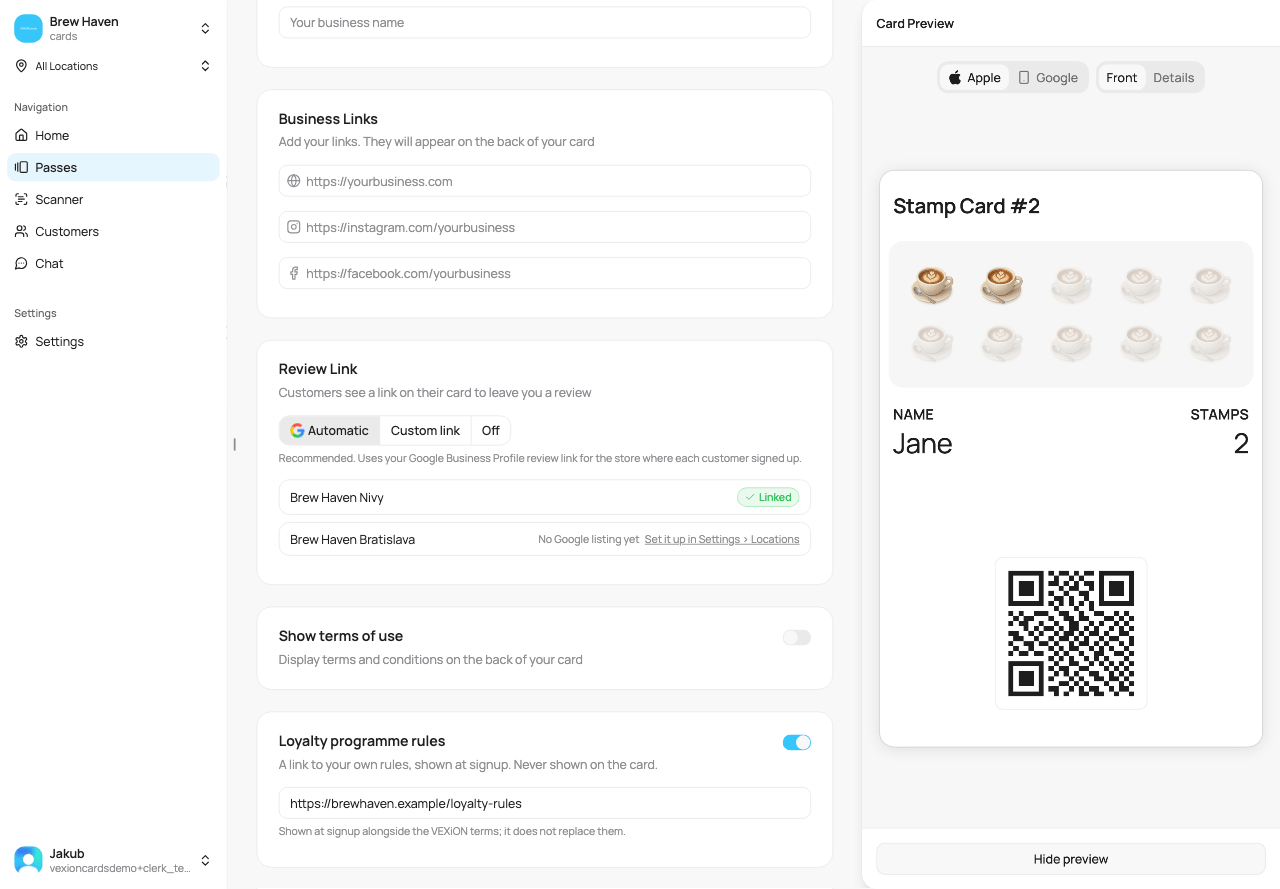
Two switches: terms text off, rules link on
https://. Paste something like example.com/rules and it is completed for you when you click away; anything that is not a usable address is refused and the card will not save until you fix it.
To stop showing the link, turn the switch off. The address stays in the field, so turning it back on later costs you no retyping. Emptying the field while the switch is still on is the one thing that does not work, and the card will not save that way.
Because the tabs match the creation steps exactly, the full field-by-field detail lives on each card type’s page and on Creating a Card. Editing simply lets you change any of it later.
Leaving with unsaved changes
If you still have unsaved changes, VEXiON cards stops and asks before you leave the editor, so an edit is never lost by accident. It asks for every way out: Back, a link in the editor, the main menu, your browser’s back button, signing out and switching to another organization. When you close or reload the browser tab, your browser shows its own warning. Unsaved changes appears with three choices:- Save and leave (Save and continue when you pressed Back in the editor): saves your changes, then takes you where you were heading, or keeps you in the editor.
- Leave without saving: discards the changes and continues.
- Stay on this page: closes the prompt and puts you back in the editor.
This is why the Set it up in Settings > Locations shortcut on the review link setting is safe to click halfway through an edit. It asks before it takes you anywhere.
Activating, pausing, and resuming
A card’s status (Active, Draft, or Paused) decides whether customers can join it, see Card statuses. You change it from the ”…” menu. The menu on a card tile (Passes page) and the menu on the card’s detail page (open the card) show the same first action:- Pause card for a live card.
- Activate card for a draft or paused card. This makes it live right away.
If you edit a card that is still a draft and save, VEXiON cards asks whether you want to activate it now or keep it as a draft, so a finished card does not sit unpublished by accident.
Rename, duplicate, or delete
From the ”…” menu on a card tile on the Passes page:- Activate card (draft or paused cards) makes the card live so customers can join. A live card shows Pause card instead.
- Edit name renames the card. Customers see this name on the sign-up page.
- Duplicate creates a full copy you can adjust, so you do not rebuild a similar card from scratch. The copy keeps the status of the original, so a copy of a live card is live at once.
- Delete removes the card, its images, the transaction history of that card for all of your customers, and the card’s automations. Deleting a card does not delete your customer records. If the card is a Discount card and you use Dotykačka, its discount groups are removed from Dotykačka.
Deleting a gift card
When you delete a gift card, the dialog first checks whether customers still have unspent credit on it:- No credit left: you delete the card as usual.
- Vouchers on your own email: they count as customer credit too, because a voucher sold at the till can be in a customer’s hands. If they were only your tests, contact us. We mark them as tests, and then you can delete the card.
- Customers still have credit: you cannot delete the card yet, because deleting it would take money your customers paid. The dialog shows who has how much credit, and offers Pause card. A paused gift card can no longer be bought, and customers can still use their credit. You can delete the card once all credit is spent.