

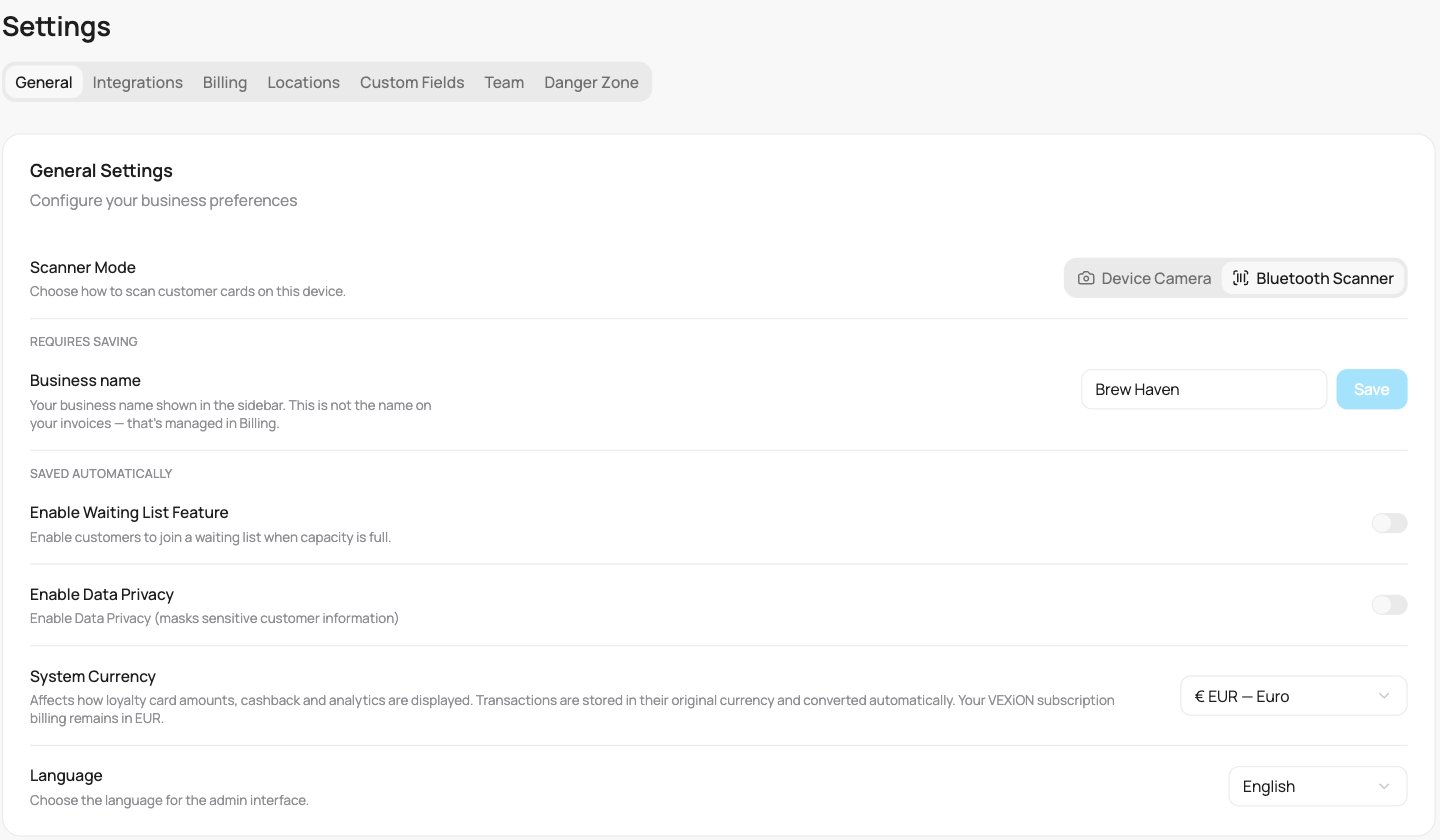
General settings
Scanner Mode
Choose how this device scans customer cards: Device Camera or Bluetooth Scanner. This is saved per device, so your shop iPad and your phone can each use whatever suits them. Scanner staff can change this and the language. See Using the Scanner for how the two modes work.Business name
Your business name as shown in the sidebar. Type a new name and click Save.This is your display name, not the legal name on your invoices. The invoice name is your billing detail, managed under Billing.
Enable Waiting List Feature
This switch is currently inactive. It saves a setting, but customers cannot join a waiting list and no other screen uses it. Leave it off.Enable Data Privacy
Hides part of your customers’ email, phone number and date of birth in the customer list and at the scanner. Useful for shared tills or counters where others can see the screen. The customer profile page and exports are not masked. Saves automatically.Confirm before saving a transaction
On the Scanner screen and on a customer’s page (for example Adjust stamps), staff see the entered amount once more and must confirm it. This protects against typos during manual entry. Saves automatically.Maximum transaction amount
The largest single purchase accepted on reward and discount cards. It also applies to manual corrections in a customer profile, and to purchases sent through the API and AI assistants. Leave the field empty for no limit. Saves automatically.Whatever you set here, VEXiON refuses a single purchase above about 10,000 EUR worth (for example 250,000 CZK or 4,000,000 HUF).
System Currency
Your business uses one currency for card amounts, cashback, transactions and analytics. It is set from the country of your first location. After your first sale, customer balance or gift card, the currency is locked. The field is greyed out and shows: “The currency is locked. Contact support to change it.”Your VEXiON subscription is always billed in EUR, regardless of your business currency.