

Activity
The Activity tab is the card’s Transaction History: every transaction recorded on the card, newest first.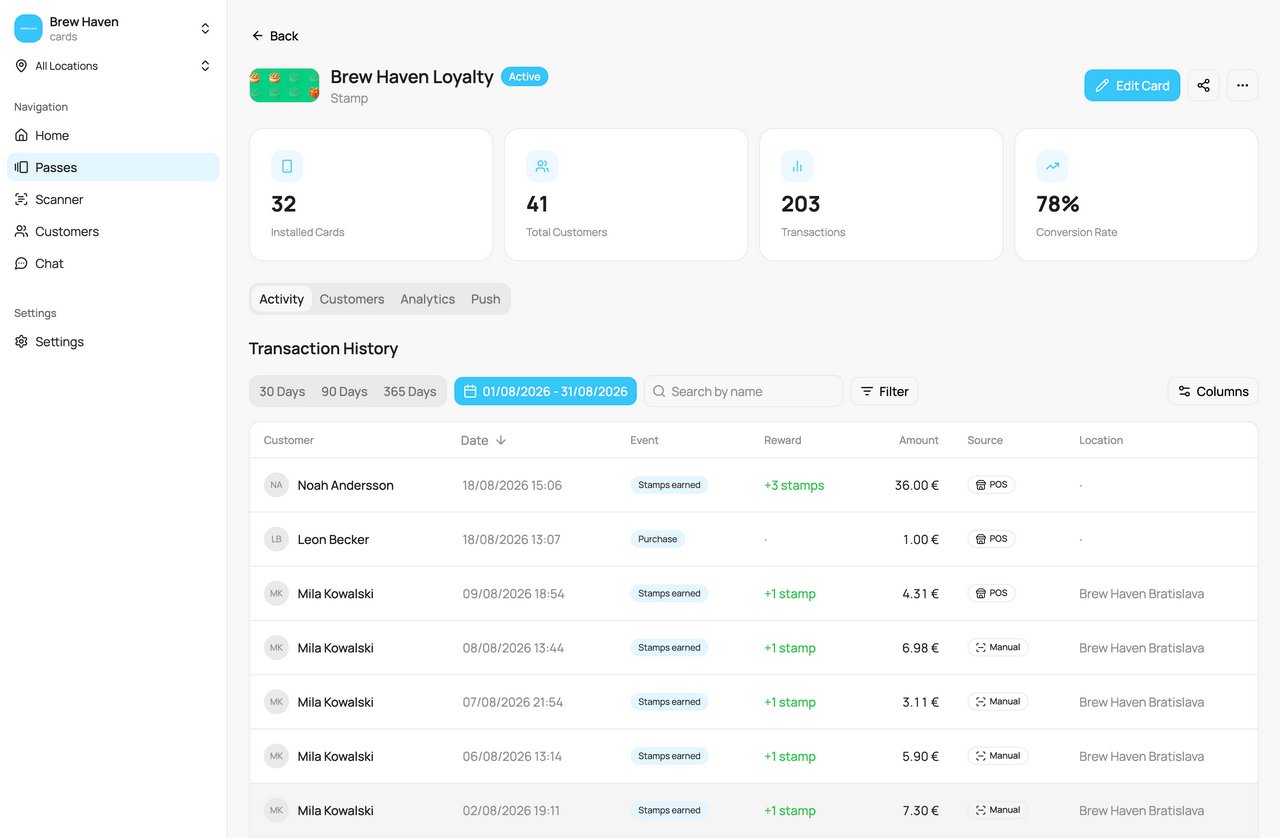
The Activity tab
The table
Each row is one transaction. The columns are:
An empty cell shows a small dot. If nothing matches, the table shows “No results.”.
Date is the only column you can sort.
Event
The Event column shows a plain label, never raw system text. The words depend on the card type:
Some labels fit every card type, for example Purchase, Balance adjusted, Balance carried over, Card updated, Order returned, Order cancelled, Referral bonus, Welcome bonus (referral), and Sign-up bonus.
When a transaction is reversed, two things change:
- The reversal appears as its own row. Its label starts with Reversed ·, for example Reversed · Stamps earned.
- The original row gets a Reversed badge. Hover over it to see the date.
Source
The Source column is a plain chip. It shows the channel only:
The chip has no hover card. To see the system behind it, click the row and read the Where section of the detail panel.
Find what you need
Above the table you have these controls:- Period: 30 Days, 90 Days, 365 Days, or Select dates for your own range. With no choice made, the table shows all history.
- Search by name: finds a customer by name. Type at least two characters.
- Filter: narrows the rows by Event and Source.
- Columns: shows or hides columns.
Filter
Click Filter to open the menu. It has two groups. Tick one or more options in each group. The number of ticked options shows on the button. Click Clear to remove all ticks.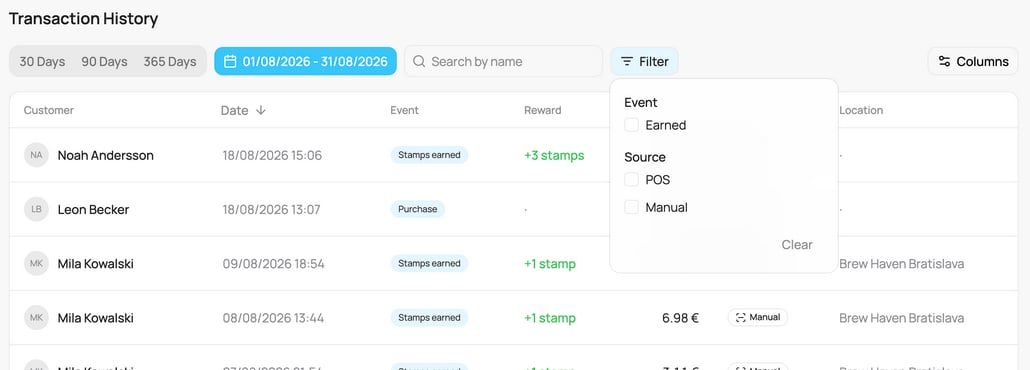
The Filter menu
The Source options are POS, E-shop, Online, Manual, and System. Booking transactions count as System in the filter, although their chip says Booking.
The menu offers only what really happened on this card in the period and the locations you selected. For example, a card with no reversals shows no Reversed option. A group with only one possible choice is hidden. If no group is left, the Filter button is hidden too. An option you ticked always stays in the menu, so you can untick it. A gift card always offers all seven Event options.
Columns
Click Columns to show or hide Event, Reward, Amount, Source, and Location. Customer and Date always stay. The choice is saved for this table, for you, on this device.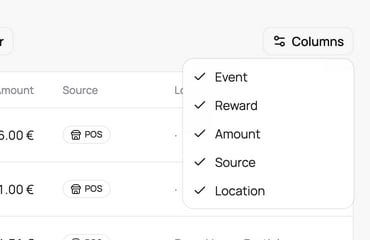
The Columns menu
Transaction details
Click any row to open the detail panel on the right. On a phone it opens from the bottom.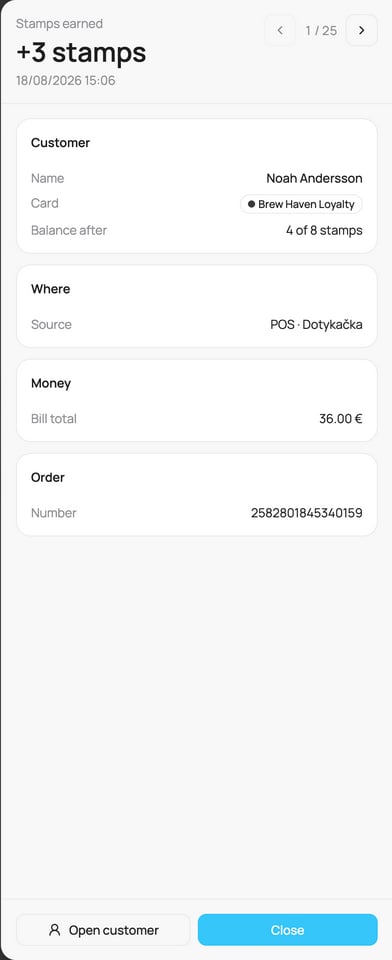
The transaction detail panel
Two buttons sit at the bottom:
- Open customer opens the customer’s profile. On a gift card, this is the card holder.
- Close closes the panel.
On a phone
On a phone, each transaction is a card. It shows the customer’s name (or the event, on a customer profile), the reward and the time, the amount, and the Source chip. Tap a card to open the detail panel. Scroll down and tap Load more to see older transactions.If you have more than one location, the sidebar location selector scopes the Activity history to the selected store(s), and a blue chip by the title shows the active scope. You may also see a note that some records have no assigned location (older transactions not tied to a store). See Filtering by Location & Time.
Gift cards
A gift card holds money, so its card page shows money figures and money rows.Figures at the top
A gift card shows four money figures instead of Installed Cards, Total Customers, Transactions, and Conversion Rate:
Sold, Redeemed, and Redemption rate follow the period you pick on the Activity tab and the location selector in the sidebar. With no period, they cover all history. Outstanding balance is always today’s figure for the whole card, in every location. The Analytics tab shows the same money month by month.
What each event means
Every gift card sale has a row, on every channel: online, at a connected till, with the Scanner, and when a printed card is activated.
A reversal names what it undoes, for example Reversed · Gift card sold. When the original is not known, the label is just Reversed.
The Reward column shows the change of the balance in money: a plus amount on a sale or a top-up, a minus amount on a spend or a lock. A bonus added at the till is included. The Amount column stays empty on a sale, a spend, a lock, a card issued by merchant, and a refill, because they are not a bill. A card issued by merchant and a refill also have no money section in the detail panel, because no money was received.
The Source shows where it happened: Online for a sale paid online, POS for a connected till, E-shop for a spend in your Shopify store, Manual for the Scanner or the dashboard, and System for a lock or a monthly employee refill.
Gift card details
When a row belongs to a gift card sale, the detail panel adds a Gift card section:
Type, For, Buyer, Delivery, and Voucher appear only when the sale is paid. The section never shows email addresses. The separate Order section is hidden on these rows, because the order number is already here.
Any other row of a fully locked card shows Status: Locked.
The Where section says who or what did it:
A reversal done by a till or online reads Performed by. Rows recorded before this change may not name anyone.
Open customer opens the card holder, the person the card is for. When the card was a gift, the buyer is not a customer in your list, so there is nothing to open for them.
Customers
The Customers tab lists everyone who holds this card, one row each.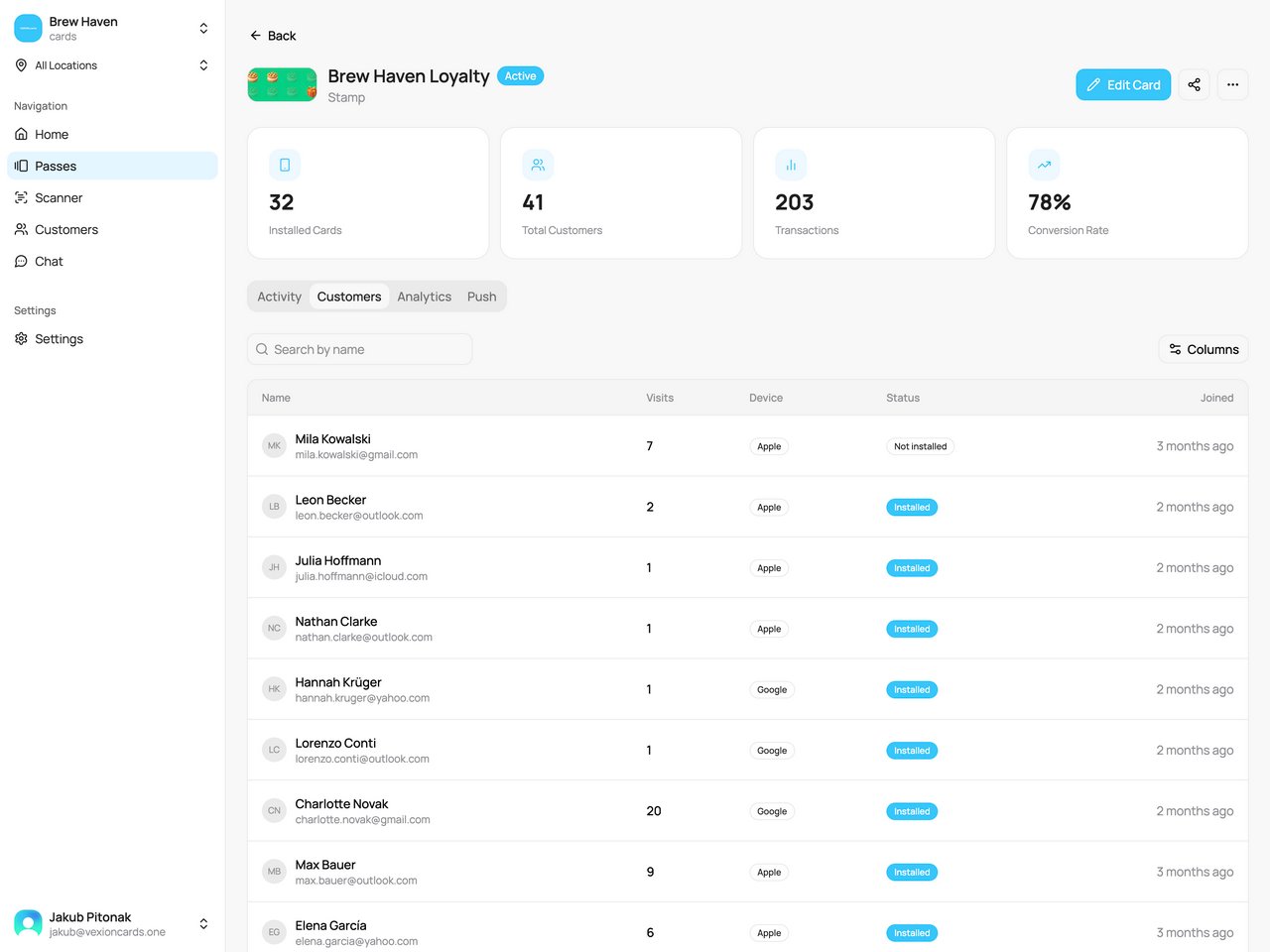
The Customers tab
Use Search by name to find a customer. Use Columns to hide Visits, Device, Status, or Joined. Name always stays. Click a row to open the customer’s profile.
This list has no sorting and no filter. It shows the newest customers first. To export it, use Export customers in the card’s ”…” menu.
On a phone, each customer is a card, and Load more shows the next page.
For deeper numbers (completion rates, points, cashback, gift-card value, and more), use the Analytics tab. Those panels differ by card type, so they are documented in Card Analytics.