

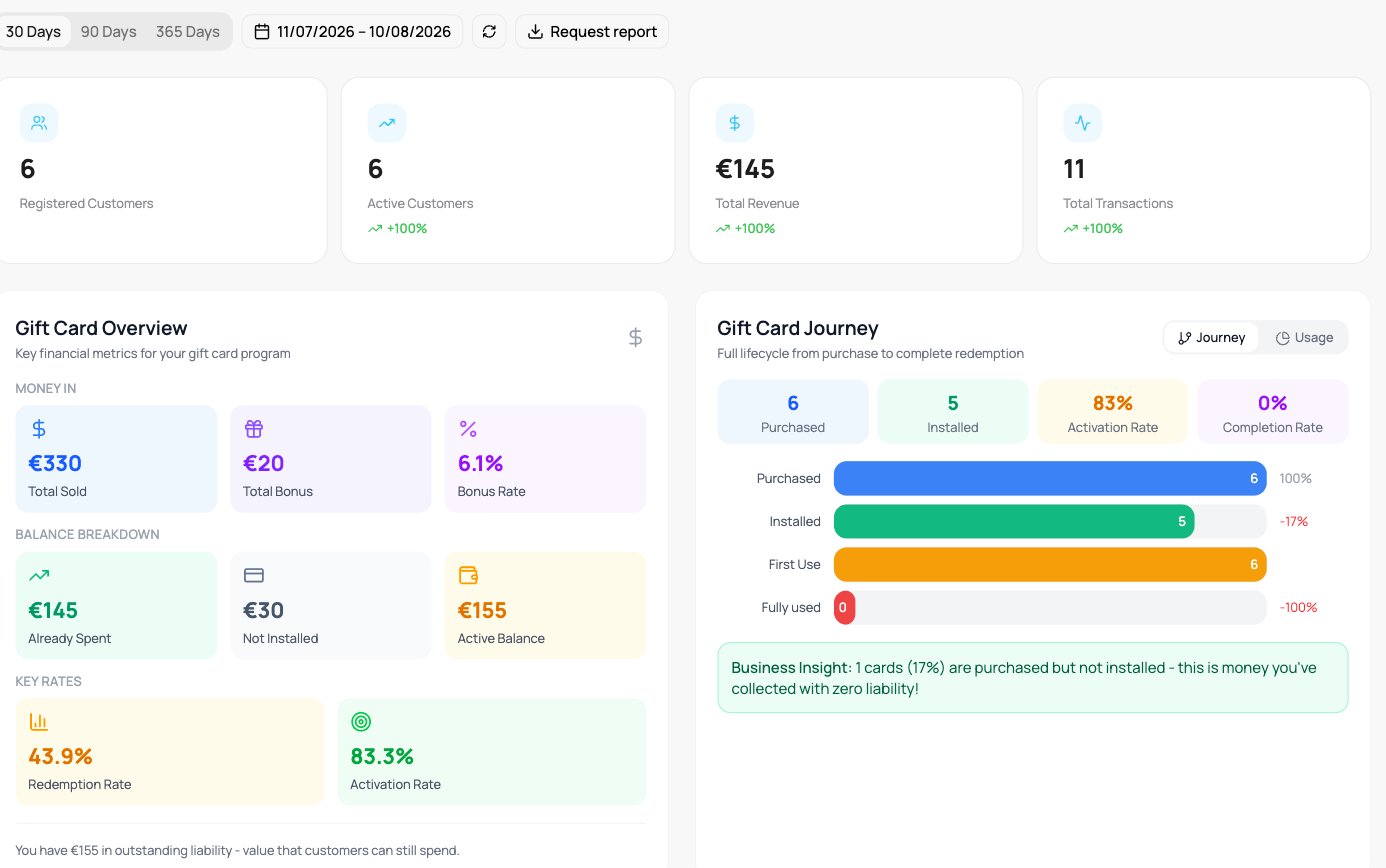
Gift card analytics
Gift Card Overview
The key financial picture: Money In (Total Sold, Total Bonus, Bonus Rate), Balance Breakdown (Already Spent, Not Installed, Active Balance), and Key Rates (Redemption Rate, Activation Rate). The Active Balance is the balance on installed cards that customers can still spend, counted over all time. Not Installed is the balance on cards sold in the selected period that have not been added to a wallet yet. The two are counted separately. Under the panel, a note tells you how much you have “in outstanding liability - value that customers can still spend”. The amount is the Active Balance. The Not Installed balance is not part of that amount.Gift Card Journey
The full lifecycle from purchase to complete redemption: Purchased, Installed, First Use, Fully Used, with the activation and completion rates. When some cards were purchased but not yet installed, a Business Insight note says that this is “money you’ve collected with zero liability”. Those cards still hold their balance, and the recipient can spend it once they add the card to a wallet. Whether and how you book that balance is a question for your accountant.Time Analytics
Timing of gift-card usage: Average Days to First Use and to Full Use, Average Card Lifespan, Redemptions Per Card, Average Days Between Uses, and Cards Used in Period.Expiration Tracking
Cards approaching expiry, grouped by 7, 30, 60, and 90 days and Already Expired, with the value at risk in each bucket.Purchase Behavior
How gift cards are bought: Most Popular Amount, Repeat Purchasers, Gift vs Self Purchases, a purchase trend, amount distribution, unique purchasers, and SMS / Email delivery counts.Program Health Score, Balance Trends & Business ROI
- Program Health Score rates the program (Active, Dormant, At-Risk, and Churned cards).
- Balance Trends shows value Issued, Top-ups, and Redeemed over time, the utilisation rate, and average balance.
- Business ROI covers Breakage Revenue, Bonus Cost, Net Benefit, Average Spend Per Card, Redemption and Breakage rates, and your Current Debt. Current Debt is the total balance owed to customers on all cards, including cards not yet installed, over all time and not filtered by period.