

Open the Share window
There are three ways to open it:- On the Passes page, click Share on a card tile. Every tile has Open and Share side by side.
- Open a card and click the Share icon at the top right.
- After you save a card in the card editor, the same window opens once, so you can share the card right away.
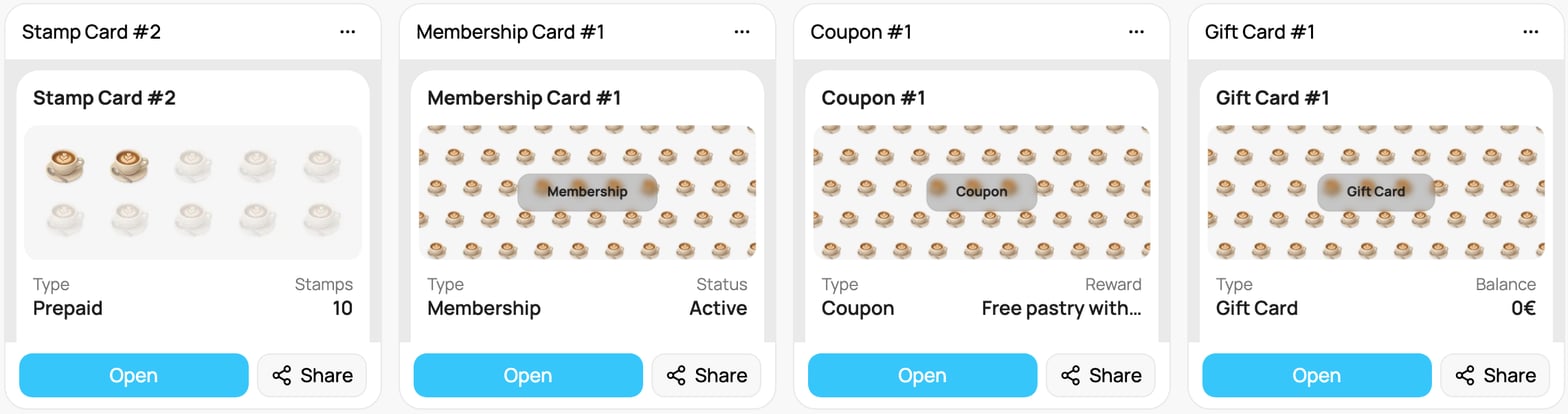
Every card tile has Open and Share
Only admins see Share. If it is greyed out with “Certificate pending”, finish your wallet setup first (see Wallet).
What is in the window
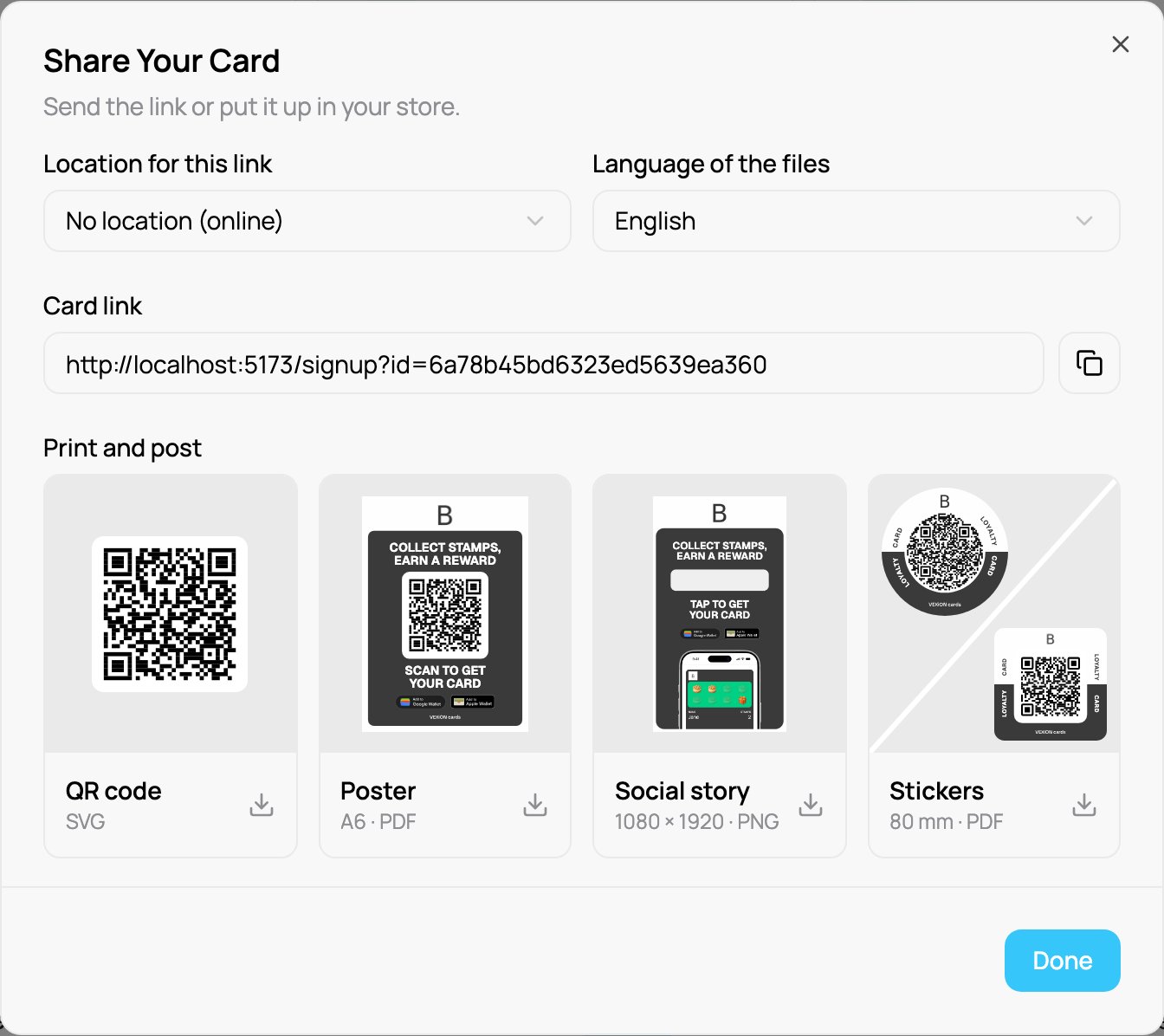
The Share Your Card window
- Location for this link: only with two or more locations. See “Links for a specific location” below.
- Language of the files: Slovenčina, Čeština or English. It starts on your dashboard language and the window remembers your choice for each card on that computer. Texts on the files, such as “Collect stamps and get great rewards”, follow this language.
- Card link: click the copy icon next to it to copy the link.
- Print and post: four tiles with a live preview. One click on a tile downloads the file.
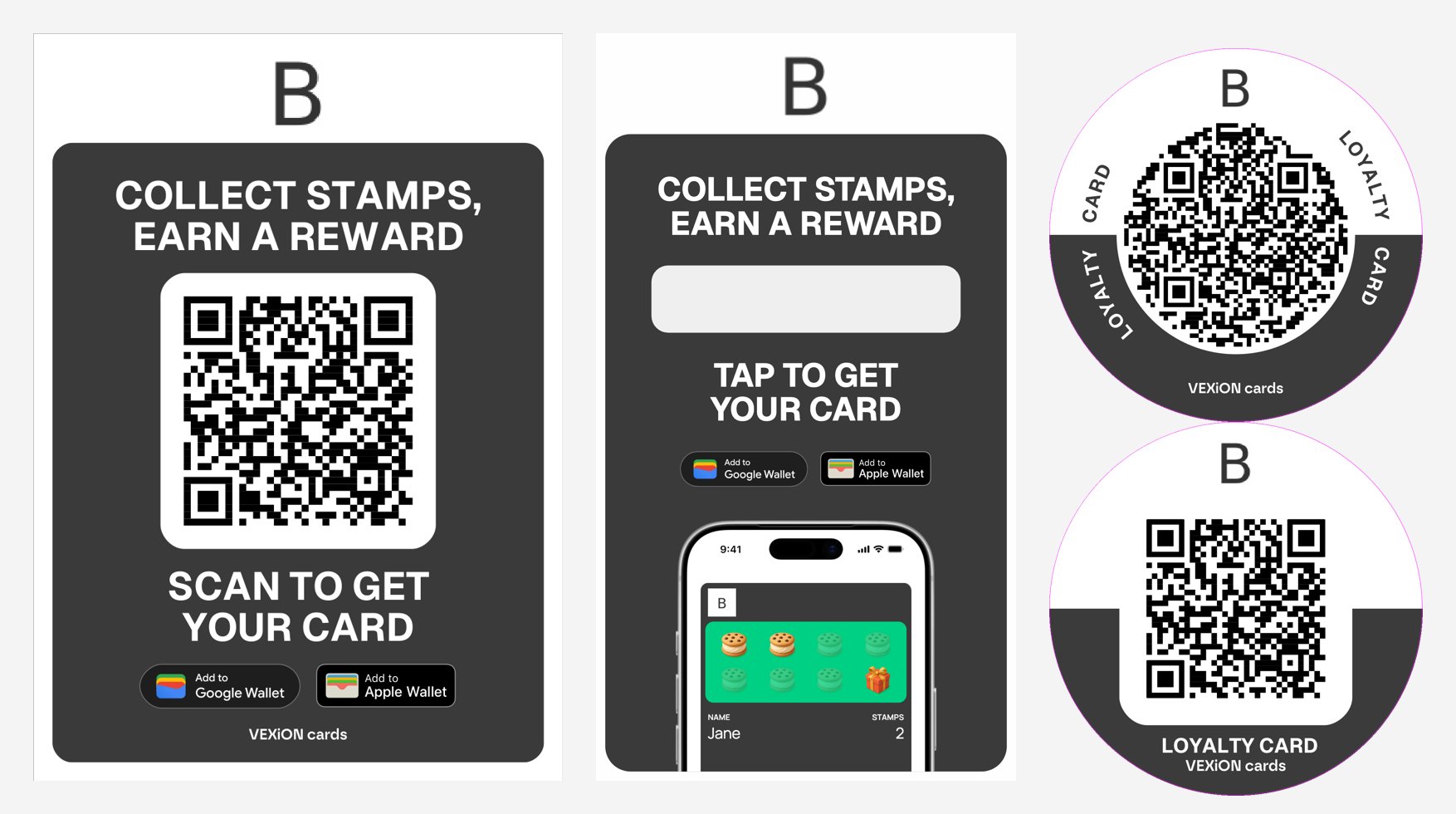
A poster, a story and a sticker made from one card
Poster: print at home or at a print shop
Click Poster and choose:- Print at home: an A4 page with the A6 poster in the middle and crop marks at the corners. Cut along the marks and slide the poster into your VEXiON stand. If your card colour is very light (for example white), a thin grey line shows exactly where to cut.
- Print shop: A6 with 3 mm bleed and crop marks, plus a second page with instructions for the print shop. Hand over the whole PDF.
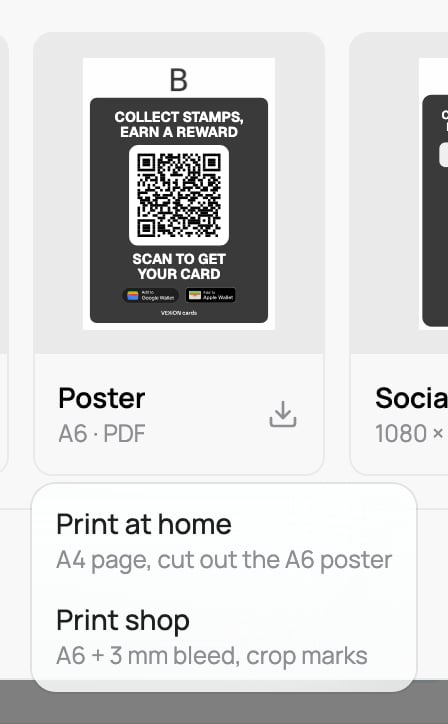
The two poster options
Stickers: round or square
Click Stickers and choose a shape. Both are 80 mm wide, in your card colours, with your logo on top and the card name on the sides, so it reads from every angle:- Round sticker: Ø 80 mm. The QR code fills a white circle and the card name runs along the edge.
- Square sticker: 80 x 80 mm with rounded corners. The QR code sits on a white square with rounded corners and is a little bigger, so it scans from further away.
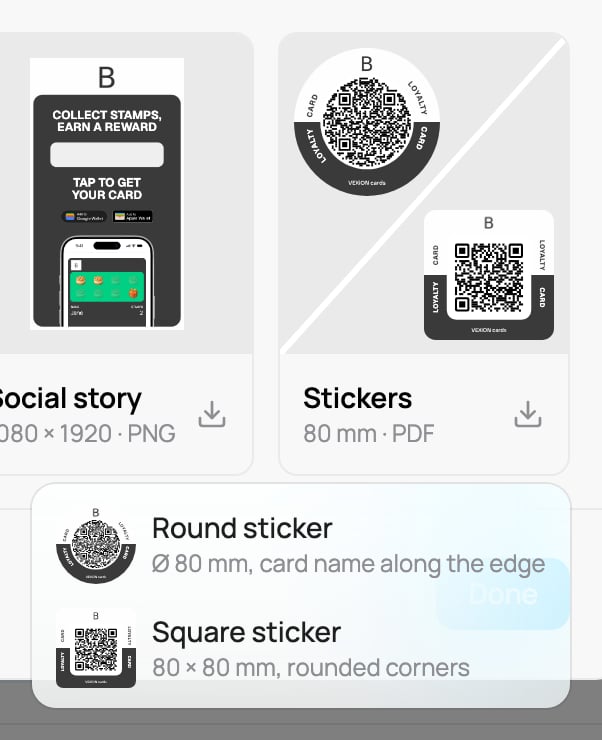
Round or square sticker
Social story
The story has an empty box. In Instagram, add the Link sticker to your story and place it on that box. Customers tap the link on their phone. That is why the story has no QR code: a QR code cannot be scanned on the phone that shows it.On a phone or tablet
When you use Share on a phone or tablet, the files open the share sheet of the device instead of a download.- Social story: choose Instagram to post it right away, or tap Save Image to keep it in Photos. The card link is copied at the same time: in Instagram, add the Link sticker and paste it.
- Posters, stickers and the QR code: choose Print, AirDrop, Mail or any other app from the sheet.
Links for a specific location
With two or more locations, start with Location for this link. Choose a location and everything in the window switches to that location’s link: the card link, the QR code and the poster, story and stickers. Every customer who joins through that link is attributed to the chosen location, so your statistics, transactions and location filters show where each customer really signed up.- No location (online), the default, keeps the general link. Signups through it are attributed automatically, or to your only location if you have just one.
- It works for every card type. For gift cards the chosen location is attached to the online purchase link, so gift card sales are credited to that location too.
- A typical setup: download one poster per location and print each next to its own counter. Same card, one poster per location, and clean per-location statistics.
Paused or draft cards
If the card is paused or a draft, a warning shows at the top of the window. You can still prepare the files. Customers who scan the QR code are told the card is not available until you activate it. Use Activate card to make it live before you print, see Card statuses.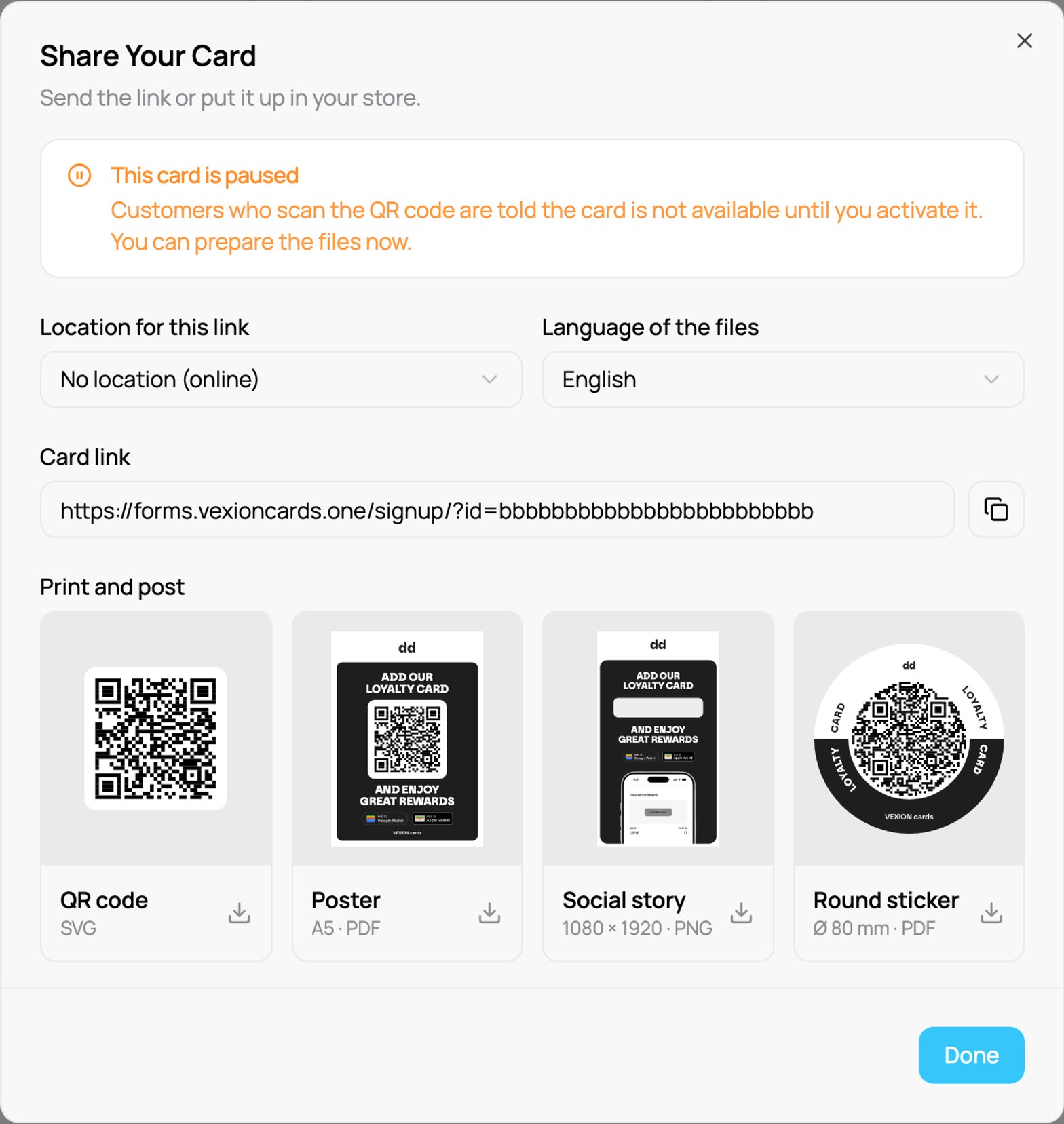
The warning on a paused card
Employee cards
Employee cards, such as the employee discount card and the employee gift card, are for your team. The window shows only the Card link and the QR code, with a note that posters, stories and stickers are not offered. This keeps customers from joining a card meant for staff. Send the link or the QR code to your team directly.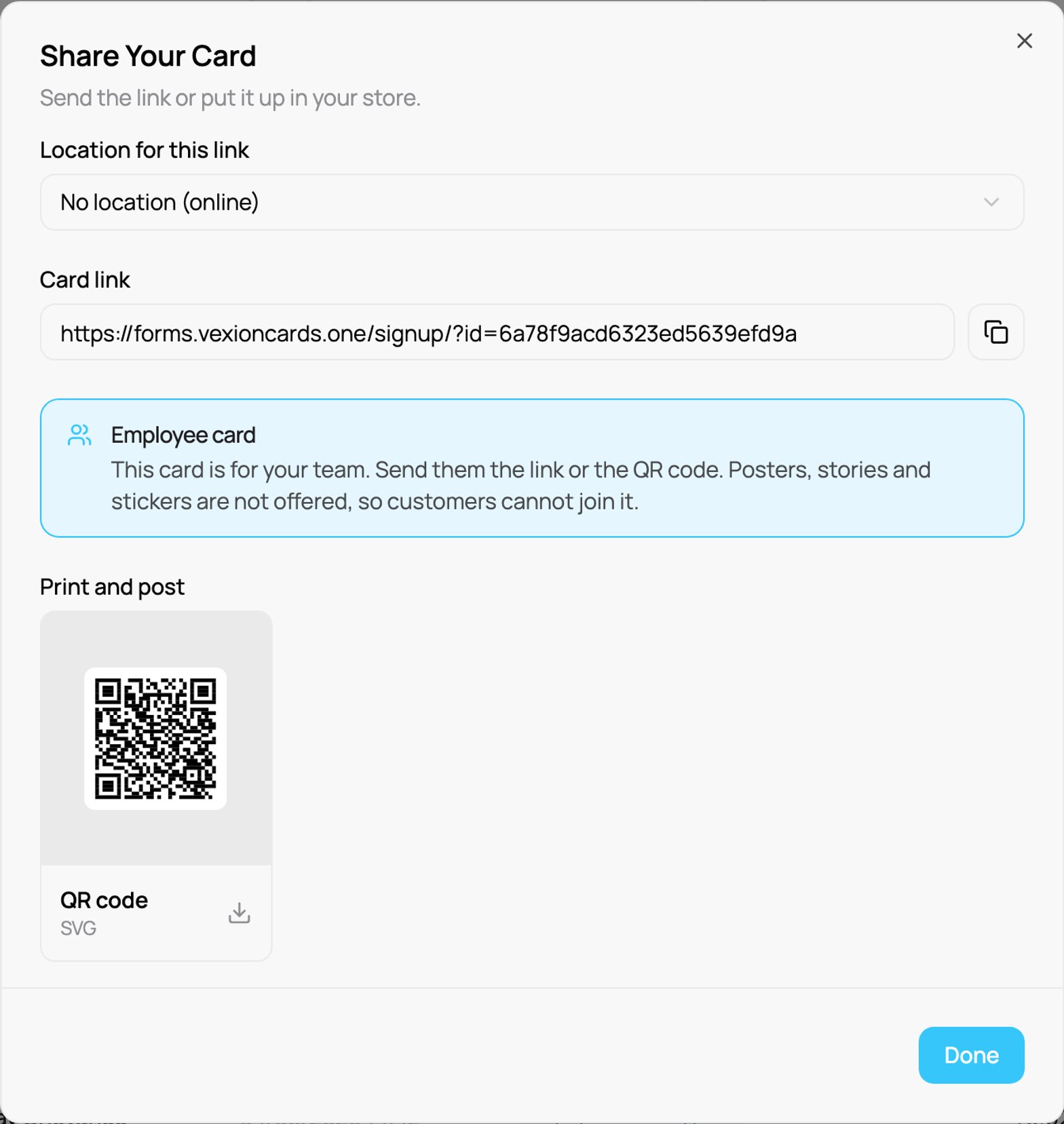
The Share window of an employee card
Ways to enrol customers
- In store: print the Poster, or put Stickers at the till, on tables and on the window. Customers scan and join in seconds.
- Online: paste the link into your website, Google profile, email footer or a social post. Post the Social story on Instagram.
- One to one: staff can show the QR code on screen for a customer to scan on the spot.