

This guide is for a single location (single cloud). If you run multiple locations, see Multi-cloud management.
Connecting to Dotykačka
Where to find the settings
- Sign in to the VEXiON admin.
- Open Settings in the sidebar.
- Select Integrations.
- Expand Dotykačka.
The connection steps
1
Start the connection
Click Connect to Dotykačka. A new window opens with the Dotykačka sign-in.
2
Sign in to Dotykačka
Enter your Dotykačka login details.
3
Choose your cloud
Select the cloud (location) you want to connect.
4
Approve access
Confirm access for VEXiON, then you can close the sign-in window.
5
Confirmed
Back in VEXiON cards you will see the connection confirmed.
The Dotykačka connection
What happens after connecting
- VEXiON gains access to your Dotykačka location.
- It automatically starts receiving order information.
- Basic location details are loaded.
Map your location
Right after connecting, a Location Mapping dialog opens. VEXiON has discovered the branch(es) in your Dotykačka account, each shown with its name and cloud ID (for example “Pokladna_01, Cloud: 343869195”). A branch that Dotykačka itself marks as temporary or replaced carries a Temporary or Replaced badge. For each branch you choose:- Link to existing, then pick the VEXiON location it belongs to, or
- Create new, to make a fresh VEXiON location for it, or
- Skip, if this branch should not use VEXiON cards.
- Day 1: VEXiON emails your billing address that a branch needs mapping.
- Day 14: VEXiON emails a warning with the days left.
- Last week: the Location Mapping panel on the Integrations tab shows “Auto-upgrade in N days”, and the dashboard banner asks you to map your branches within N days, with a Map button.
- Day 28: VEXiON adds every Dotykačka branch that is still unmapped (neither linked nor skipped) as a new VEXiON location. Each new location counts toward your per-location price, and VEXiON emails you a confirmation if your bill changed.
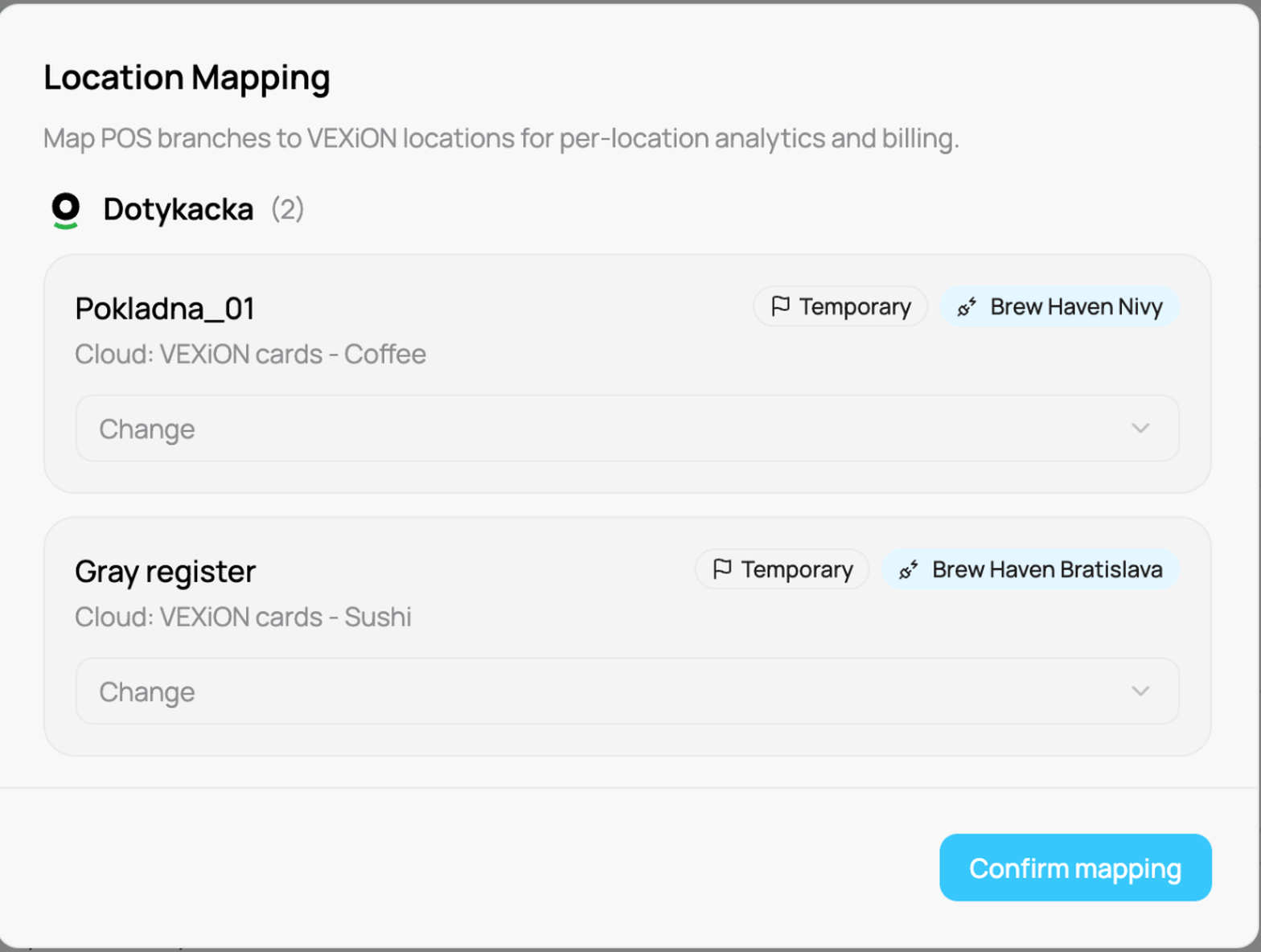
Mapping a Dotykačka branch to a VEXiON location
Each mapped location counts as a billing unit, on the graduated per-location pricing. Linking to an existing location does not add cost; creating new locations uses your paid slots first and only adds cost beyond them (shown before you confirm). A single-location business simply links its one Dotykačka cloud to its one VEXiON location.
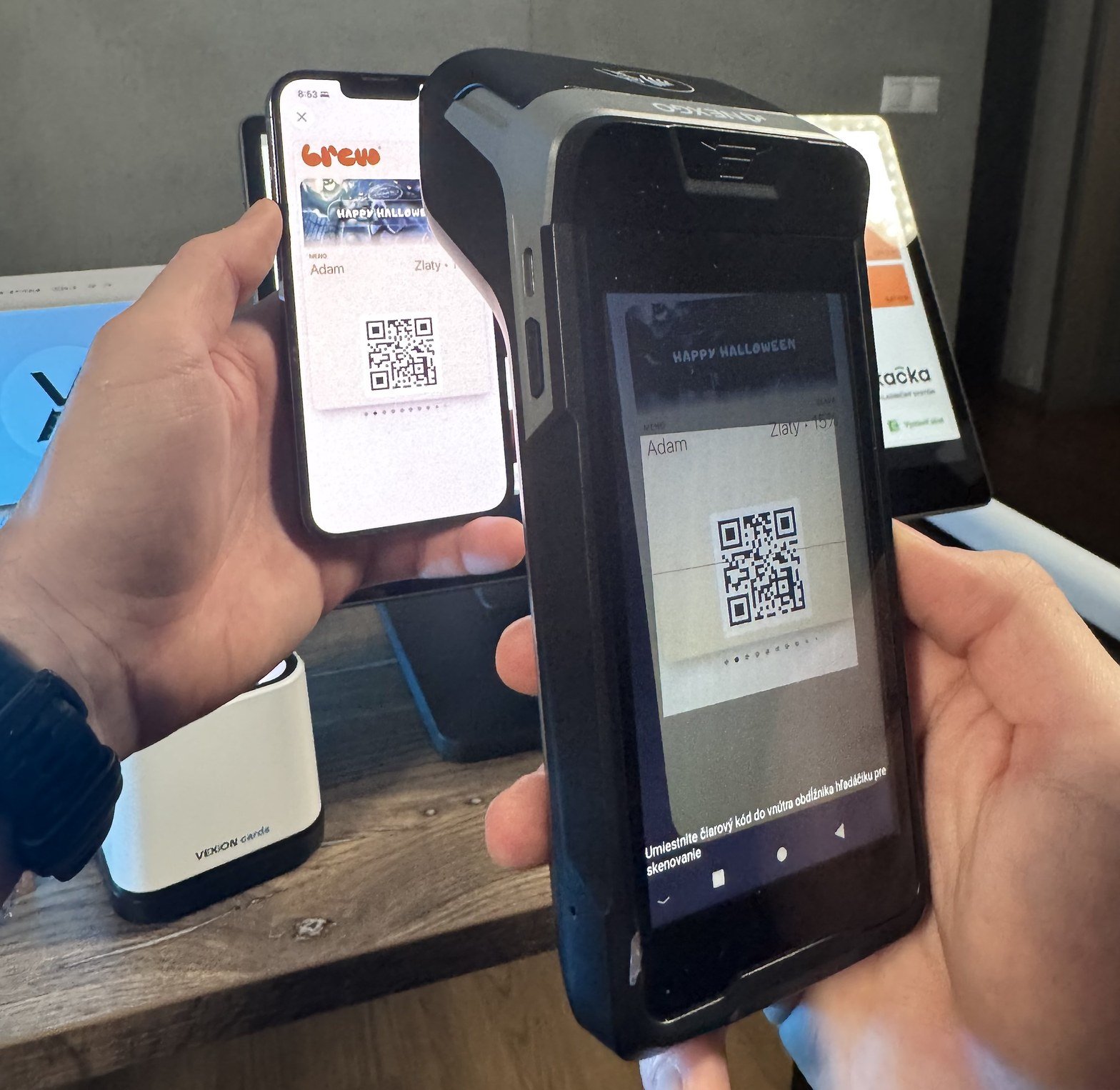
The Dotykačka mobile waiter scanning a card from the phone wallet
What you see after connecting
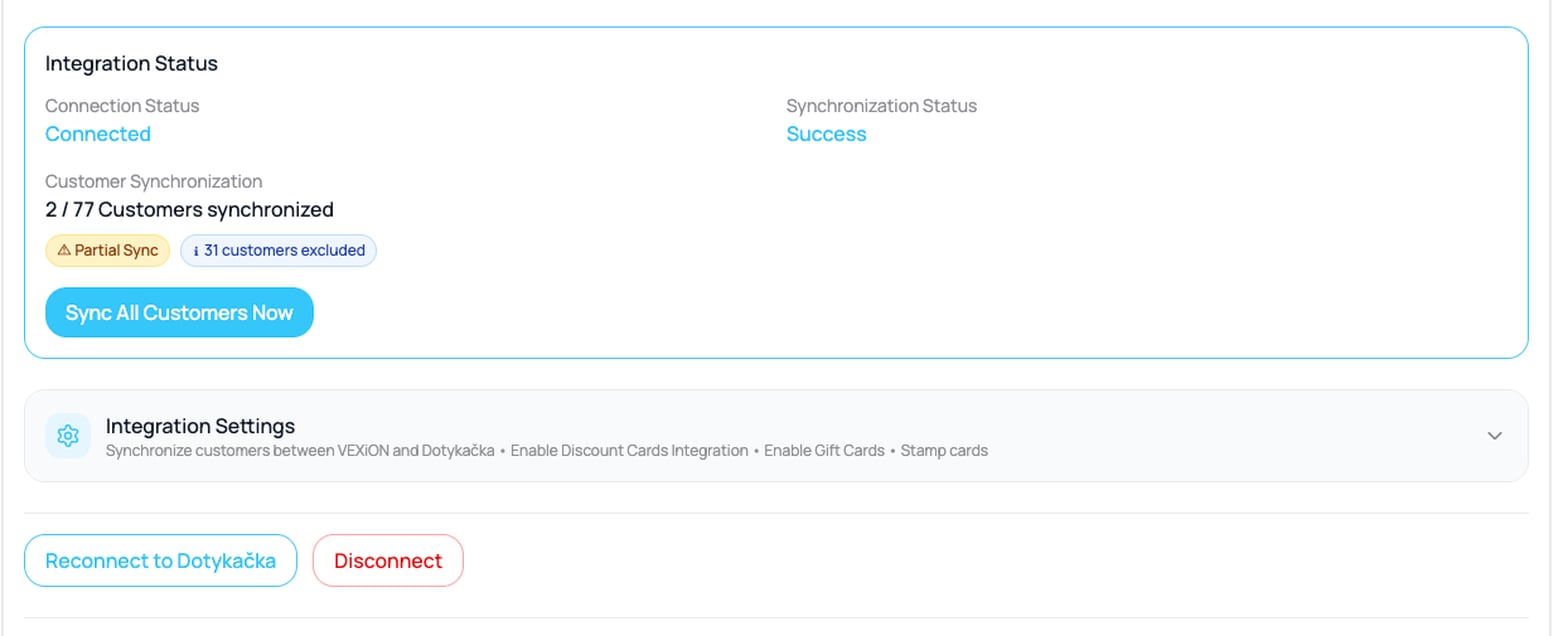
Once connected, an Integration Status panel shows how things are running, with Connection Status, Synchronization Status, and Customer Synchronization, plus Sync All Customers Now, Reconnect to Dotykačka, and Disconnect buttons.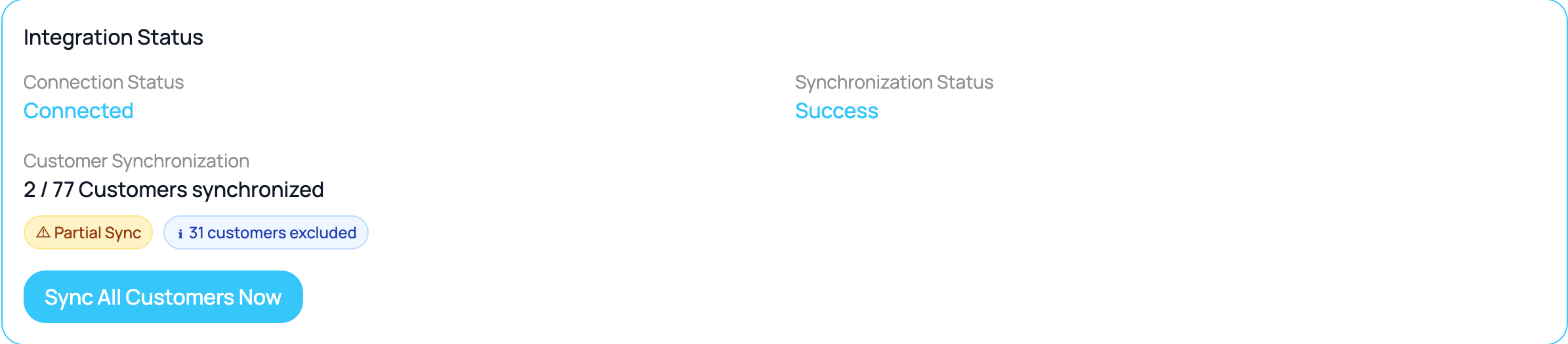
The Integration Status panel
Connection status
Synchronization status
Customer synchronisation
Shows how many customers are synced (for example “685 / 735 Customers synchronized”), with badges:- ⚠ Partial Sync, some customers are not synced yet.
- ℹ N customers excluded, customers that cannot be synced.
A worked example. A business with 108 customers, with Discount cards and Gift Cards enabled and Stamp cards selected as the point card type:
That gives 77 eligible and 31 excluded, which is exactly what the panel shows. The 19 Reward-card customers are excluded only because the business chose Stamp cards; switching Point card type to Reward would swap which group is skipped, not reduce the total.
Basic settings
Open Integration Settings (the panel is collapsed until you click it) to turn features on or off. If you later switch on multi-cloud, the same settings apply to all connected clouds.
When Enable Gift Cards is on, a Gift Card Settings panel appears:
- Prepaid Value Range: a minimum and a maximum amount. VEXiON saves these values, but Dotykačka gift cards do not check them yet, so they do not limit a purchase or top-up.
- Enable Bonus Credits: optionally add extra value on top-up (a bonus program).
Point card type (important for stamp cards)
When you turn on Enable Dotykačka points integration (for Stamp/Reward cards), a further choice appears underneath it, Point Card Type for Dotykačka Sync:
This is where the app enforces the rule that only one type can be active at a time, as the hint under the option says: “Choose which VEXiON card type will sync points with Dotykačka. Only one type can be active for point synchronization at a time.”
How customers see their points
With Reward (Cashback) Cards selected, one line underneath shows how your customers see their points. There is nothing to set: VEXiON reads it from the Points redemption product in Dotykačka.
Customers see points only when VEXiON cannot find one clear value for a point, for example when two redemption products have different prices. Keep one points-usage product with one price in Dotykačka. The change shows by the next day.
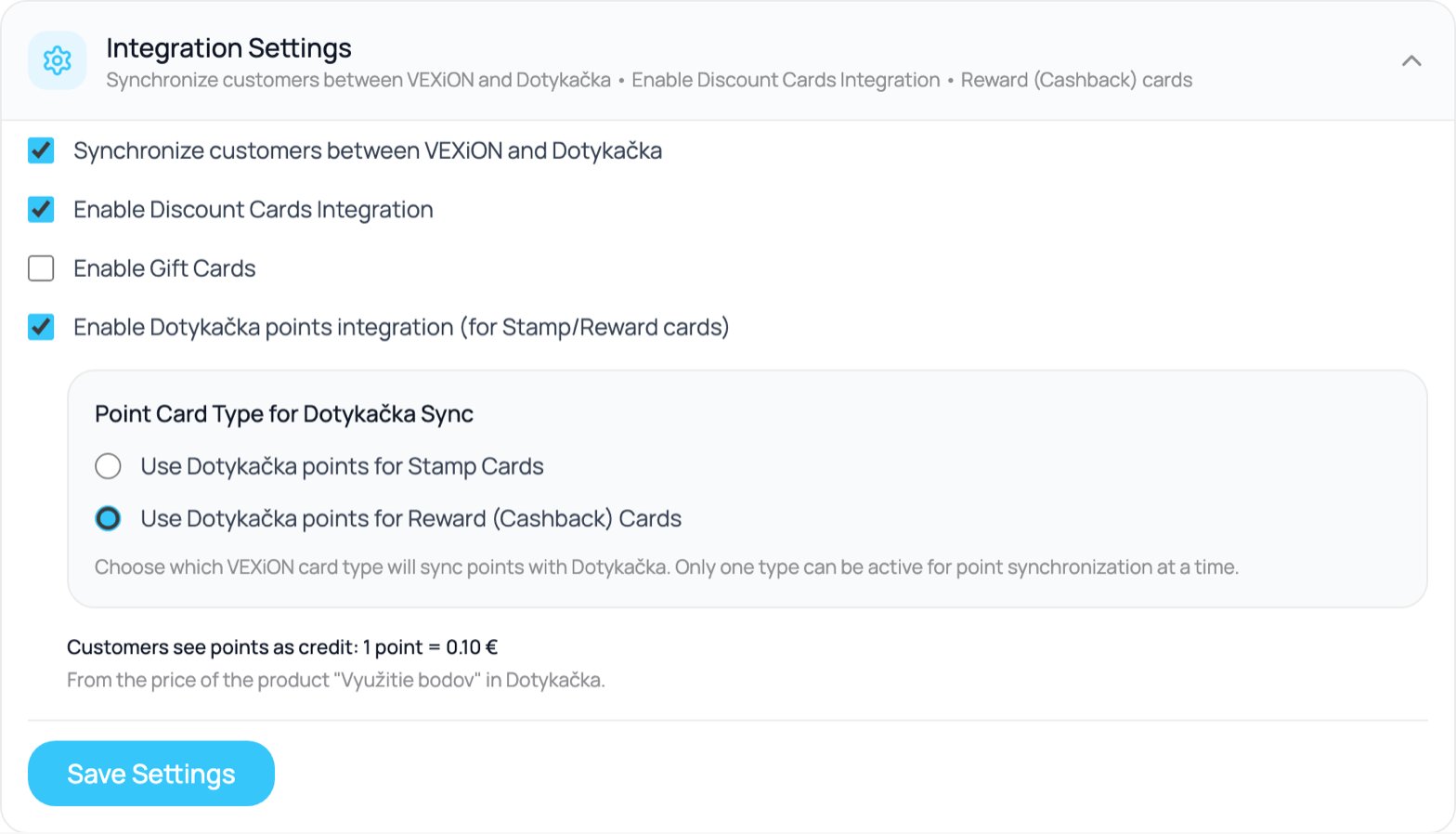
How customers see the points, under Point Card Type
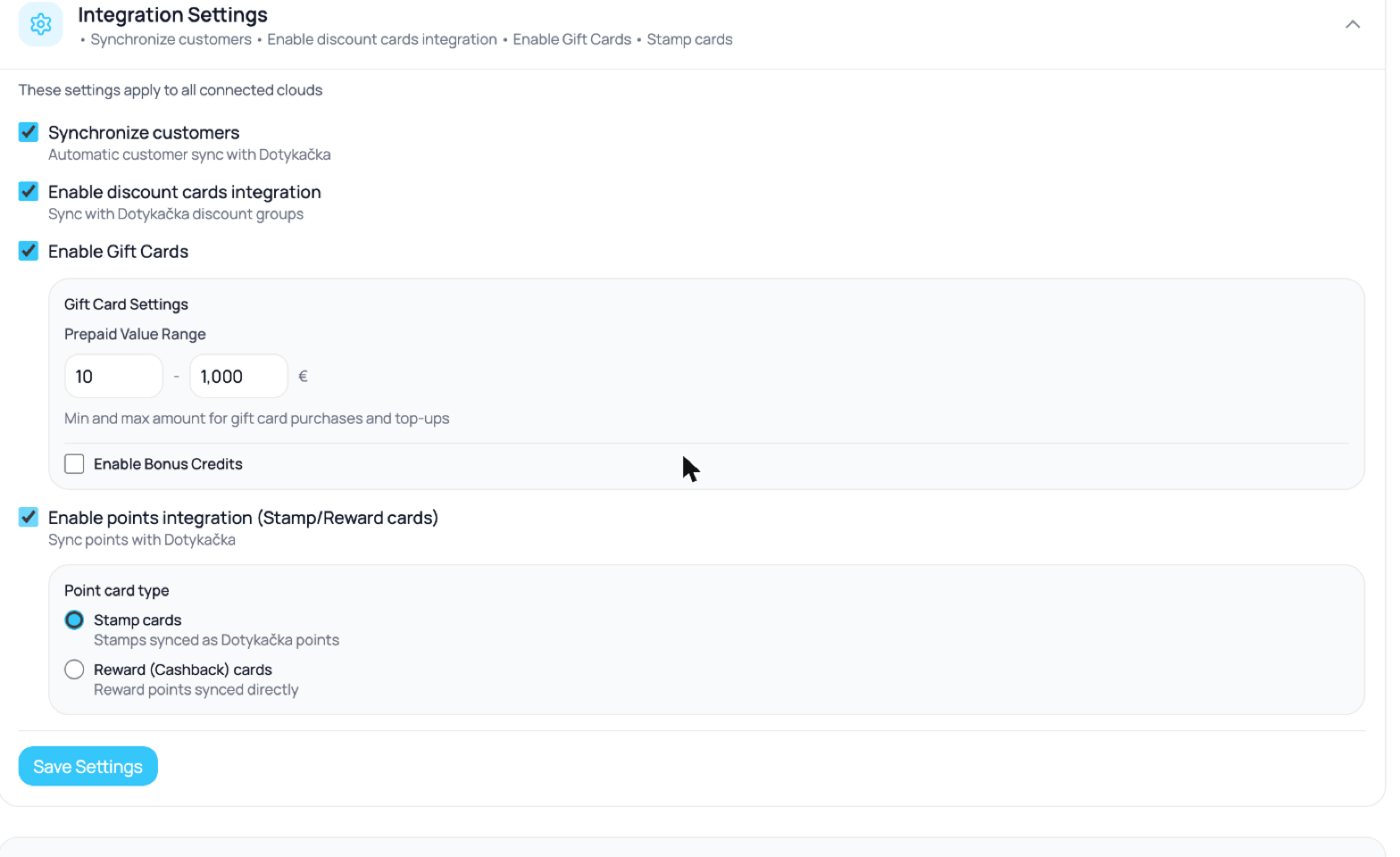
The Dotykačka integration settings
Discount cards
Discount cards give automatic percentage discounts by the customer’s tier. How they work in Dotykačka: VEXiON creates discount groups namedVEXiON: {Card name} - {Tier} (for example VEXiON: Loyalty card - Gold). The customer is automatically placed into the right group.
Setting them up: discounts are configured on the card itself in VEXiON, not in the integration. Open your discount card, set the tiers and percentages, and save. VEXiON then creates and updates the discount groups in Dotykačka automatically.
What syncs: the discount groups (create and update only) and the customer’s assignment to a group.
Gift cards
Gift cards work through Dotykačka’s customer credit. Value settings: the Prepaid Value Range fields are saved, but Dotykačka gift cards do not enforce them yet. Bonus program: optionally add extra value on top-up, for example a 10% bonus means loading 100€ gives 110€ on the card (50€ gives 55€). For the full gift-card flow, see Card types and point setup.Stamp or point cards
Stamp cards need setup in both systems: in VEXiON you create the card and set the stamps needed for a reward; in Dotykačka you set stamps on products and create a reward product (price 0€, with negative stamps).
Point (cashback) cards are set up entirely in Dotykačka: set points on products, and create a special “Points redemption” product where you define the value of one point (the redemption is calculated by Dotykačka; VEXiON reads the point value from that product and keeps its own copy up to date automatically).
Full instructions are in Card types and point setup.
Customer synchronisation
VEXiON syncs customers with Dotykačka automatically.
Sync runs automatically when a new customer is created, when their details change, and on every Dotykačka order.
Manual sync: to sync everyone immediately, click Sync All Customers Now and wait for it to finish. Use it on first connection, after a bulk customer import, or when troubleshooting.