

The principle: in Dotykačka you set points on the products. VEXiON receives the transaction information and automatically updates the card in the customer’s wallet.
Stamp card
A simple “10th product free” program. You need to set up three things in Dotykačka: points on products, a category for rewards, and the reward products.Step 1: Set points on products
Option A, manually (for 10-15 products). In Remote administration (admin.dotykacka.cz) → Lists → Products, open a product → DETAIL → Prices tab → set the Points field to 1 → SAVE. Repeat for each product that should earn a stamp. Option B, in bulk via Excel (for many products).1
Export
Go to Lists → Products (Zoznamy → Produkty) and click EXPORT → Export products (Export produktov). A report opens: click Columns (Stĺpce) at the top right, tick Points (Body), then click EXPORT (top right).
2
Edit in Excel
Find the
points column and enter 1 for the products that should earn a stamp. Do not change the productId column, the system matches existing products by it.3
Import
Lists → Products → IMPORT → Import products (Import produktov). Upload the file (for Excel
xls/xlsx you just drag or click to upload; for CSV, pick the input file encoding, where “Automatically” is recommended). Check the preview, then click Finish import (Dokončiť import).On screen the column picker shows Slovak names (you tick Body for points), but the exported Excel file uses English column headers:
categoryName, productId, name, vat, priceWithVAT, and points. Edit the points column and leave productId unchanged. VAT is a plain number (19, 23), not a percentage sign.points column set to 1):
On the preview screen, Dotykačka maps each file column to its own field (a dropdown under each header links
categoryName → Názov kategórie, productId → ID produktu, points → Body, and so on). It normally maps them automatically. Rows are sorted into tabs:
Special products always land in CHYBY (Errors), and that is expected. Dotykačka’s special products (Points redemption, Credit top-up, Bill discount) are exported with the rest of your catalogue but cannot be updated by import. A typical example is the “Dobiť kredit” special product. Leave those rows out of your file, or simply ignore those errors.
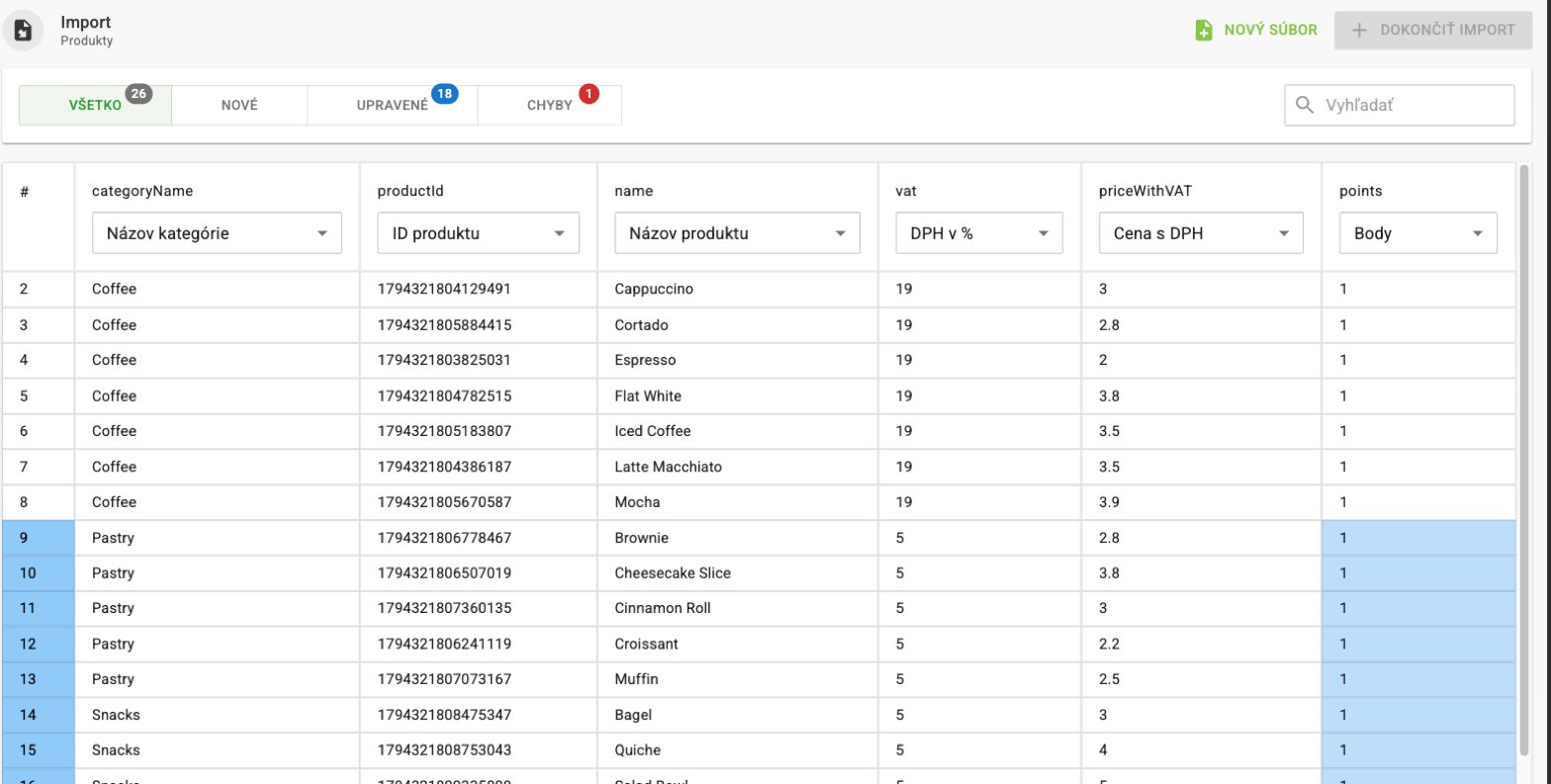
The import preview, existing products matched into the Updated tab
Step 2: Create a category for rewards
Create a separate category so staff can find the reward products easily: Lists → Categories → + ADD → name it Rewards (or “Redemption”) → SAVE.Step 3: Create the reward products
Reward products are free products with negative points. Adding one to a bill deducts the customer’s stamps. Option A, manually: Lists → Products → + ADD → Basic tab: name (for example “Cappuccino FREE”), category Rewards → Prices tab: price with VAT 0, VAT 0, Points -10 (the negative number that matches your stamp card) → SAVE.-10 is an example for a 10-stamp card. For an 8-stamp card, use -8.
productId (so new products are created), set categoryName to Rewards, priceWithVAT to 0, vat to 0, and points to -10. Import, the reward products appear in the NOVÉ (New) tab, which is correct here.
The reward products (copied and edited), note the blank productId, Rewards category, and negative points:
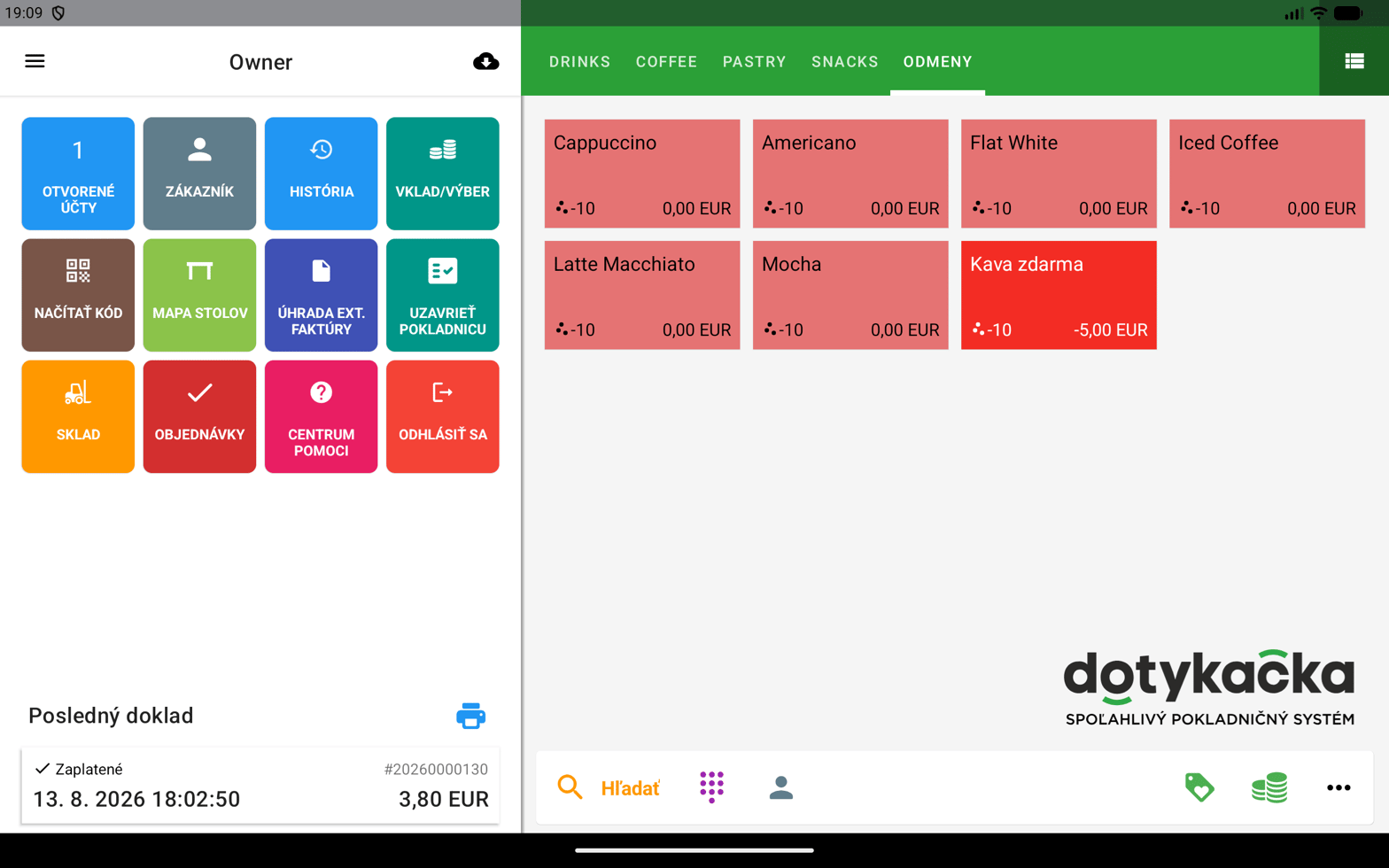
Reward products in Dotykačka
Redeeming at the till
Assign the customer, check they have enough stamps (say 10+), open the Rewards category, add the reward product, and the stamps are deducted automatically.Point card (credit cashback)
The customer collects points, then spends them as a euro discount. On the customer’s wallet card the balance shows as credit in euros. At the Dotykačka till the cashier still sees and enters points.Cashback on this till
Dotykačka counts points with the price per point you set. The customer still sees credit in your currency on the card and in every message. With a point value of 0.05 €, 160 points show as 8,00 € of credit (at 0.25 Kč per point, 160 points show as 40 Kč). The cashier enters points at the till. You set up three things: a category, the special “Points redemption” product, and points on products.Step 1: Create a category
Lists → Categories → + ADD → name it Rewards (or “Points redemption”) → SAVE.Step 2: Create the “Points redemption” product
1
Add a special product
Lists → Products → + ADD → choose CREATE SPECIAL PRODUCT (Vytvoriť špeciálny produkt).
2
Choose the type
Select Points redemption (Využitie bodov).
3
Set category and value
Category: Rewards (Odmeny). Set the price per point to whatever one point should be worth (this guide uses 0.01€) (in the Prices/Ceny tab it appears as -0.01, a negative unit price, that is what makes each point reduce the bill). Keep Require quantity (Vyžadovať zadanie množstva) ticked so staff can enter the number of points. SAVE.
Dotykačka marks this as a special product (Špeciálny produkt) and warns you when you edit it. VEXiON recognises it automatically, so you do not configure anything on the VEXiON side for it.
Step 3: Set points on products
Decide your cashback rate (say 5%). With price-per-point at 0.01€, usepoints = product price × 5 for 5% cashback.
Set it manually (per product, DETAIL → Prices → Points) or in bulk via Excel (export with the Points column, put
=E2*5 in the first points cell, drag it down, import). E2 is the price cell (priceWithVAT).
Your export file with 5% cashback applied (points = price × 5):
Points can be decimal for cashback.
Cashback with levels: set the base level only
If your cashback card has levels (for example Bronze 2%, then 3%, 5%, 7%, 9%), you only set the product points for the lowest (base) tier in Dotykačka. You do not create separate points per tier. VEXiON handles the rest: when a customer is at a higher tier, VEXiON automatically scales the points by that tier’s multiplier as it processes each order, so a higher-tier customer earns proportionally more for the same product. Redeemed points are deducted one for one, they are not scaled. This keeps the maths correct everywhere without you touching Dotykačka again.How it works at the till
Open the Rewards category, add “Points redemption”, a dialog asks for the number of points, staff enter it (say 500), the discount is calculated (500 × 0.01€ = 5€) and applied, and the points are deducted.Worked example (at 1 point = 0.01€)
Discount card
Automatic percentage discounts by tier. VEXiON creates discount groups in Dotykačka namedVEXiON: {Card name} - {Tier} (for example VEXiON: Loyalty card - Gold), and the customer is placed into the right one automatically. Tiers are set on the card in VEXiON:
When a customer’s tier changes, VEXiON updates their Dotykačka discount group; when you add a tier, VEXiON creates a new group.
Gift card
Prepaid credit using Dotykačka’s customer credit.Step 1: Enable customer credit in Dotykačka
Remote administration → Cloud settings → find Use customer credit → turn it on → SAVE. Credit syncs in real time across all tills, so a stable internet connection is required.Selling a gift card in-store
There is one gift-card page, used both online and at the counter. The difference is only how the customer pays: with a card online, or by handing the counter a QR code. The customer: scans your gift-card QR code, picks the amount, enters their own name and email, and chooses Pay at the counter. A QR code appears on their phone. Staff: scan that QR code. A temporary customer appears with the buyer’s name and a surname made of the amount and the word Pending (for example first name “Anna”, surname “55€ Pending”). If the form has no amount, the surname is only “Pending” and you enter the amount the customer states. Click the customer → TOP-UP CREDIT, enter the amount from that surname, and take the payment as normal.Load the amount shown in the name. It is the card value. If the gift card itself has a bonus on its amount options (for example 50€ for a card worth 55€), the name shows “55€” and you load 55. A percentage bonus from the Dotykačka integration settings (Enable Bonus Credits) is not in the name. VEXiON adds it automatically after the top-up arrives, so do not add it yourself.
Selling gift cards online (digital gift cards)
You can also sell gift cards online, with no staff involvement. The customer buys on your gift-card web page, Stripe handles the payment, and VEXiON automatically pushes the paid balance to the recipient’s Dotykačka customer credit, the recipient gets the card in their wallet with the balance already loaded, ready to spend at the till.Online gift-card sales require the Stripe Connect integration (Settings → Integrations). This is the same Dotykačka customer-credit balance as the in-store flow, just paid for online instead of at the counter.
Using a gift card
The recipient shows their card (QR from the wallet), staff scan it to assign them, add products, and at payment choose Customer credit, the amount is deducted.Topping up credit
Find the customer or scan their QR, click TOP-UP CREDIT, enter the amount, take payment, the credit increases automatically.Special products
Dotykačka has three special products (marked ★):
“Points redemption” can be added once per bill, requires an assigned customer, and the customer must have enough points.
Assigning a customer to the bill
Assign them by scanning their QR code, using the PICK CUSTOMER button on the bill header, or searching by name or phone. Once assigned, product points are credited to them, their current balance shows, and the total point value prints on the receipt.FAQ
What if I don't have a points column in my export?
What if I don't have a points column in my export?
Add it manually. The system recognises it on import.
Can I have decimal points (e.g. 0.5)?
Can I have decimal points (e.g. 0.5)?
Yes,
points is a decimal type. For stamp cards, whole numbers are recommended.What if I import a product without points?
What if I import a product without points?
The default is 0, no points.
How do I check the current points?
How do I check the current points?
Export the products, the
points column shows the current values.Why aren't points being added?
Why aren't points being added?
Check the customer is assigned to the bill, that products have points set, and the sync status in the integration settings.
Difference between negative points and 'Points redemption'?
Difference between negative points and 'Points redemption'?
Negative points give a specific free product (fixed count, for stamp cards). “Points redemption” gives credit toward anything (variable count, for cashback).