This is the day-to-day guide for staff using VEXiON cards at the Dotykačka till.

The basic workflow

Without assigning the customer, points are not added.

Taking the payment

The three icons at the bottom right of the product panel are payment shortcuts. The ... icon opens the full Payment screen, which is where the named methods live: Cash, Credit Card and Customer credit (how a gift card is spent), plus a SPLIT PAYMENT button for paying one bill by more than one method.
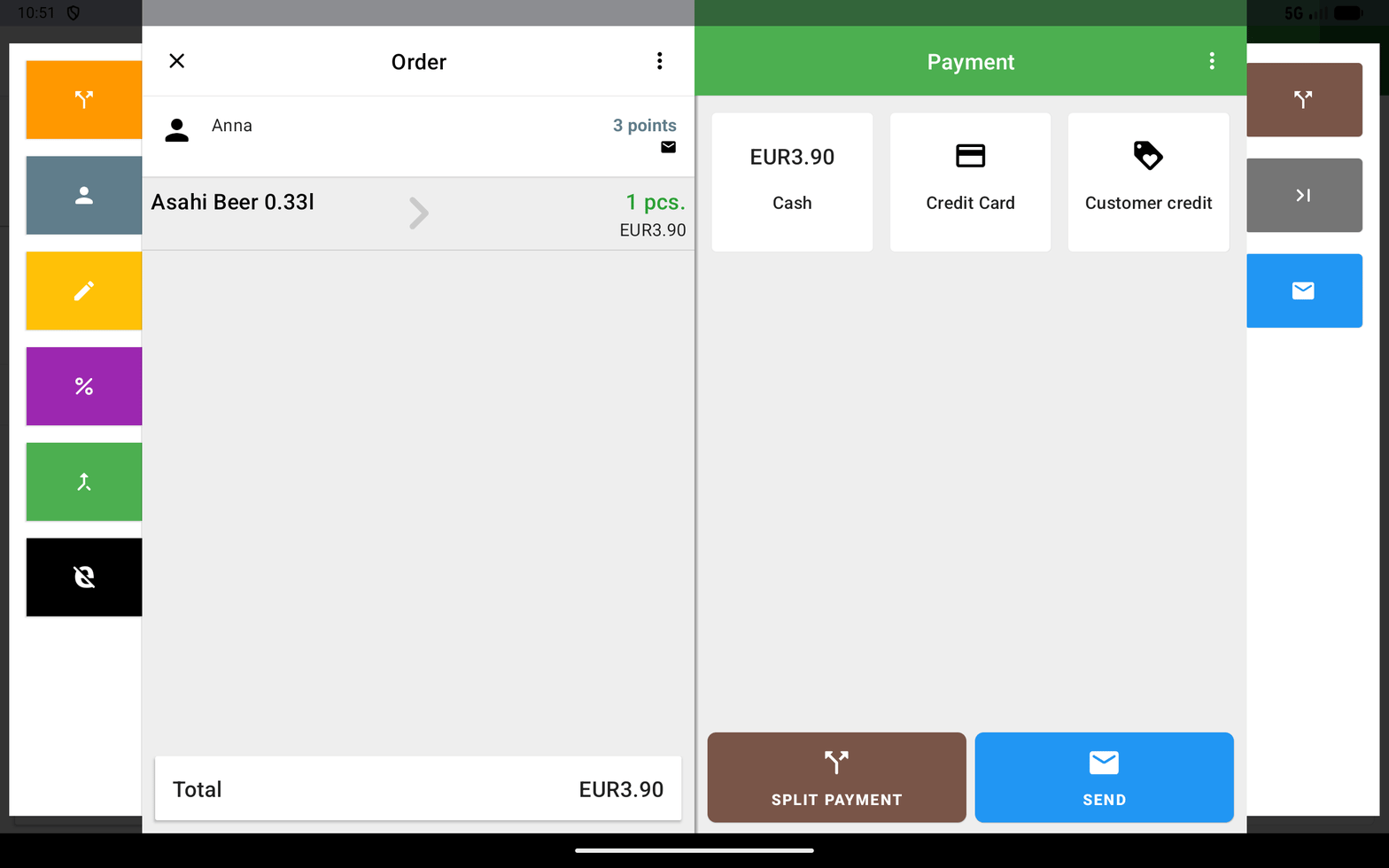
The Dotykacka Payment screen showing Cash, Credit Card and Customer credit, with a SPLIT PAYMENT button.

The Payment screen, with Split payment

The green round button at the bottom left of the bill panel parks the bill, it is not payment. It saves the bill so you can come back to it, and parked bills are then reachable from OPEN ORDERS.
Paying in cash takes three taps, not one:
1

Choose the payment method

Tap the coin icon for cash.
2

Tip

Dotykačka offers a tip. The screen is headed Tips (total). Tap NO TIP to skip it, pick one of the offered amounts, or CUSTOM to type one.
3

Confirm the cash taken

The tendering screen shows To pay and Paid, plus To return for the change, with note and coin buttons to work it out. Tap the green PAID to close the bill.
The bill is only finished, and the points only counted, after that last confirmation. If you stop at the tip screen, nothing has been paid yet.

Finding a customer

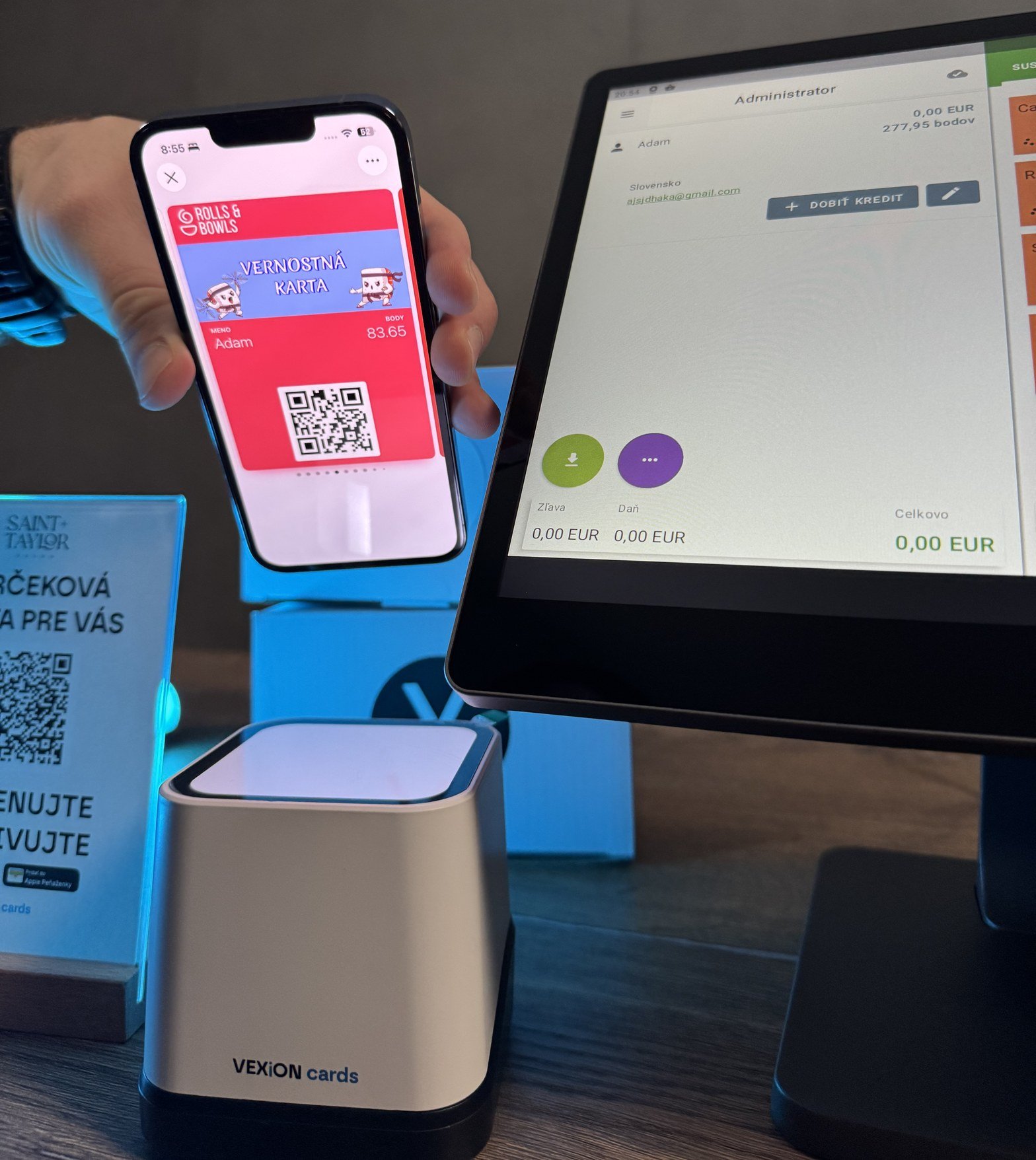
QR code from the wallet: the customer opens their card in Apple/Google Wallet and shows the QR code, staff scan it, and the customer is assigned automatically.
A customer showing their loyalty card QR code in the phone wallet at the counter, with the VEXiON cards scanner and the Dotykačka tablet showing the assigned customer.

Scanning the customer's wallet QR at the till
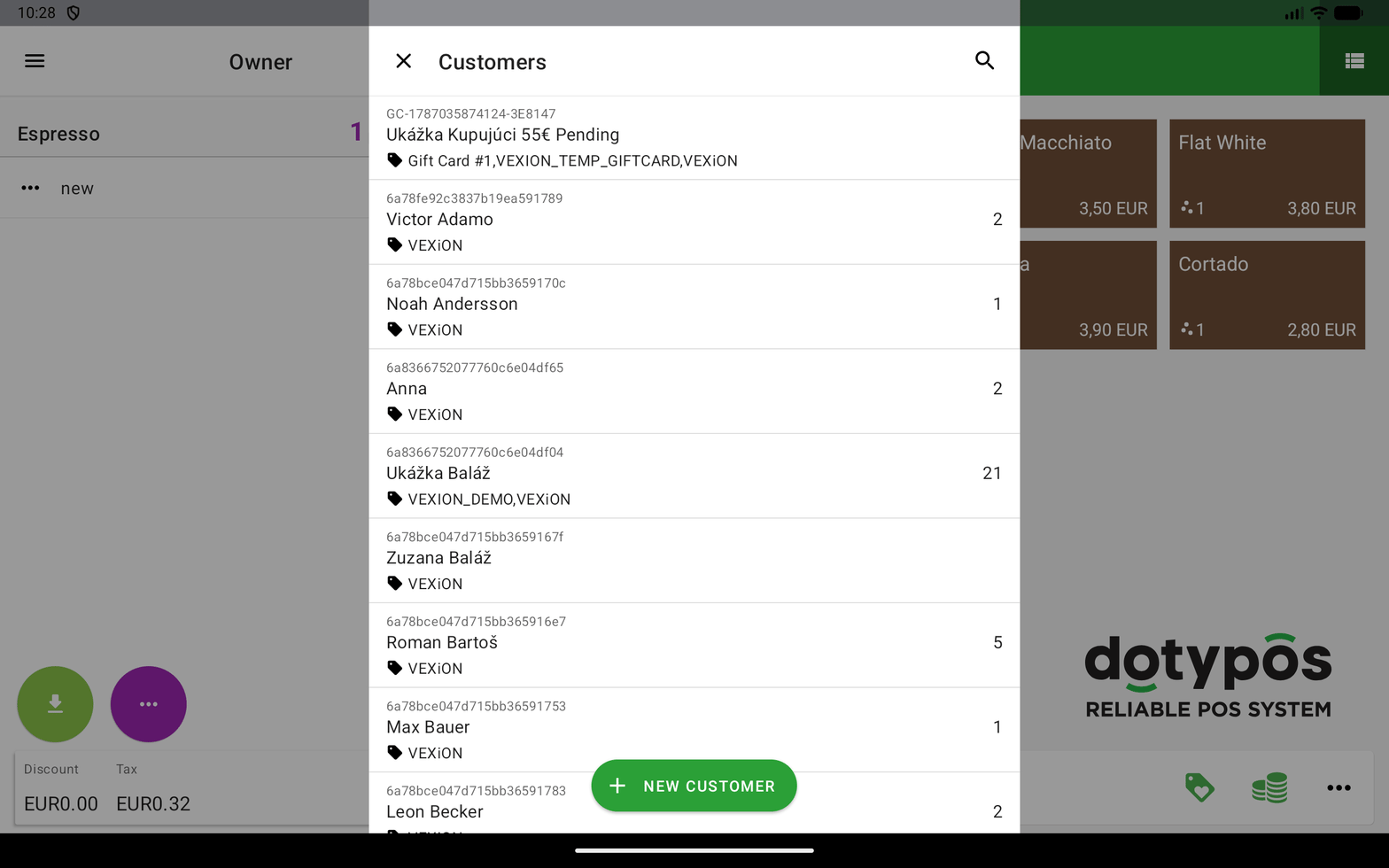
Search by details: click PICK CUSTOMER on the bill header, or the person icon in the bottom bar, to open the Customers list. Search by name, phone number, or email and tap the right customer. Do not use NEW CUSTOMER for loyalty customers: a customer created at the till has no VEXiON card and earns nothing, because VEXiON does not know them. Register them with the registration QR code (see below).
The Dotykačka POS customer search screen.

Finding a customer by name, phone, or email

After assigning you see the customer’s name on the bill, their current points (for a point/stamp card), their discount group (for a discount card), and their credit (for a gift card).

Registering a new customer

If the customer does not have a card yet, you can help them register right at the till, this is the first step, without it they cannot use the program.
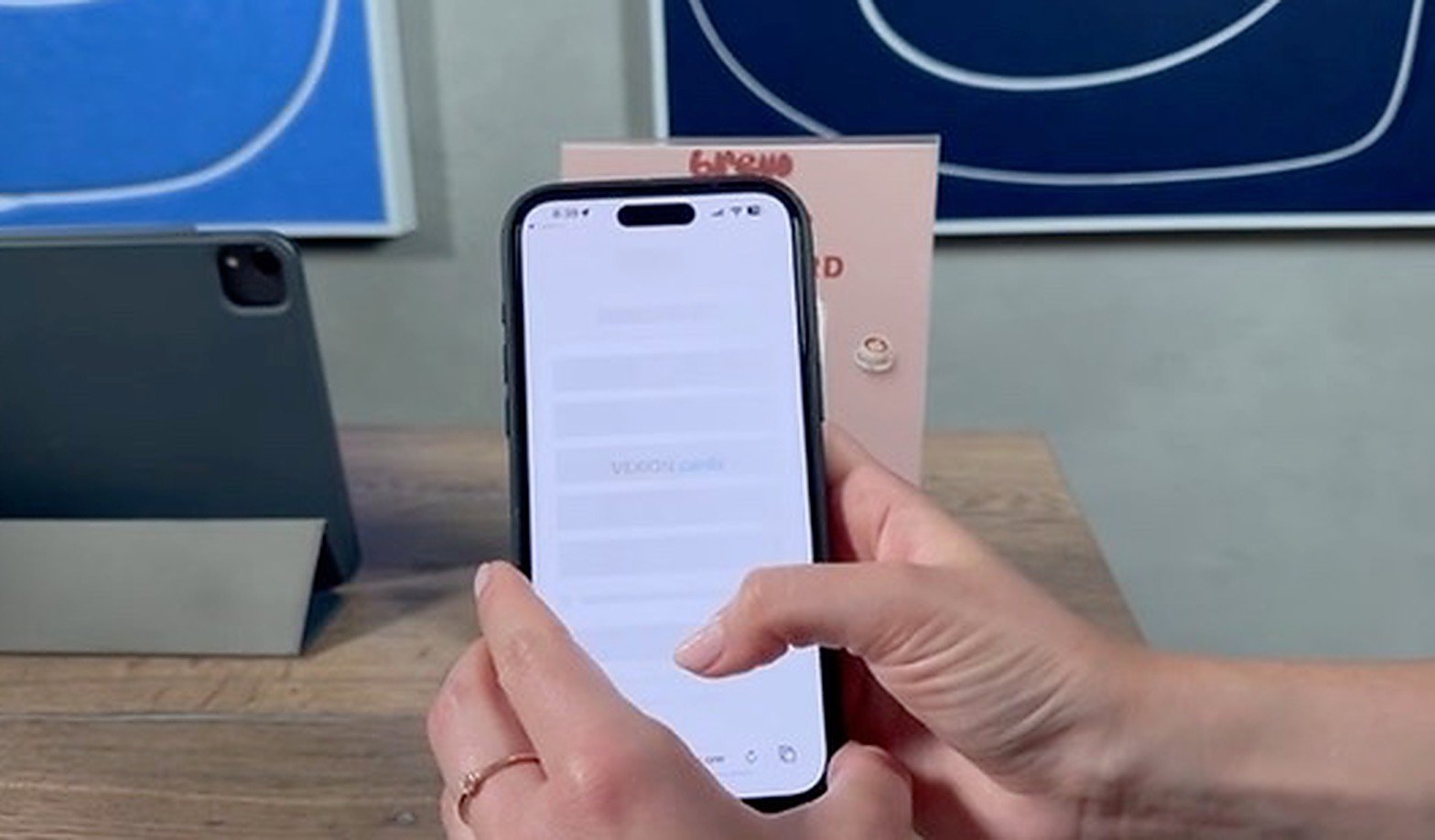
A customer at the counter holding their phone with the VEXiON cards registration page open, next to the printed card on the counter.

A customer scanning the registration QR at the counter

You have a registration QR code on-site, available two ways:
Ask your manager to print the poster with the QR code and place it somewhere visible (by the till, on the table, on the counter).
How the customer registers: they scan the registration QR with their phone, a web form opens (name, email, and any extra fields you set), the card is added to their Apple/Google Wallet automatically, and they can use it for the current payment.
The registration link is meant for a phone. If you open it on a computer, on a tablet, or on the till itself, VEXiON shows a QR code asking you to scan it with a phone instead of showing the form. This is not a fault: neither Apple Wallet nor Google Wallet exists on those devices, so the card can only be added from a phone. The form appears once the link is opened on a phone.
Registration takes about 30 seconds. Wait for the customer to finish, then scan their card.

Which card type do you have?

Read the section for the card type your business uses. If you are not sure, ask your manager.

Stamp cards

Collecting stamps is automatic. After you assign the customer and complete payment, the system counts the stamps from the products, adds them to the customer, sends a notification, and updates the card in the wallet. You do not enter anything manually.
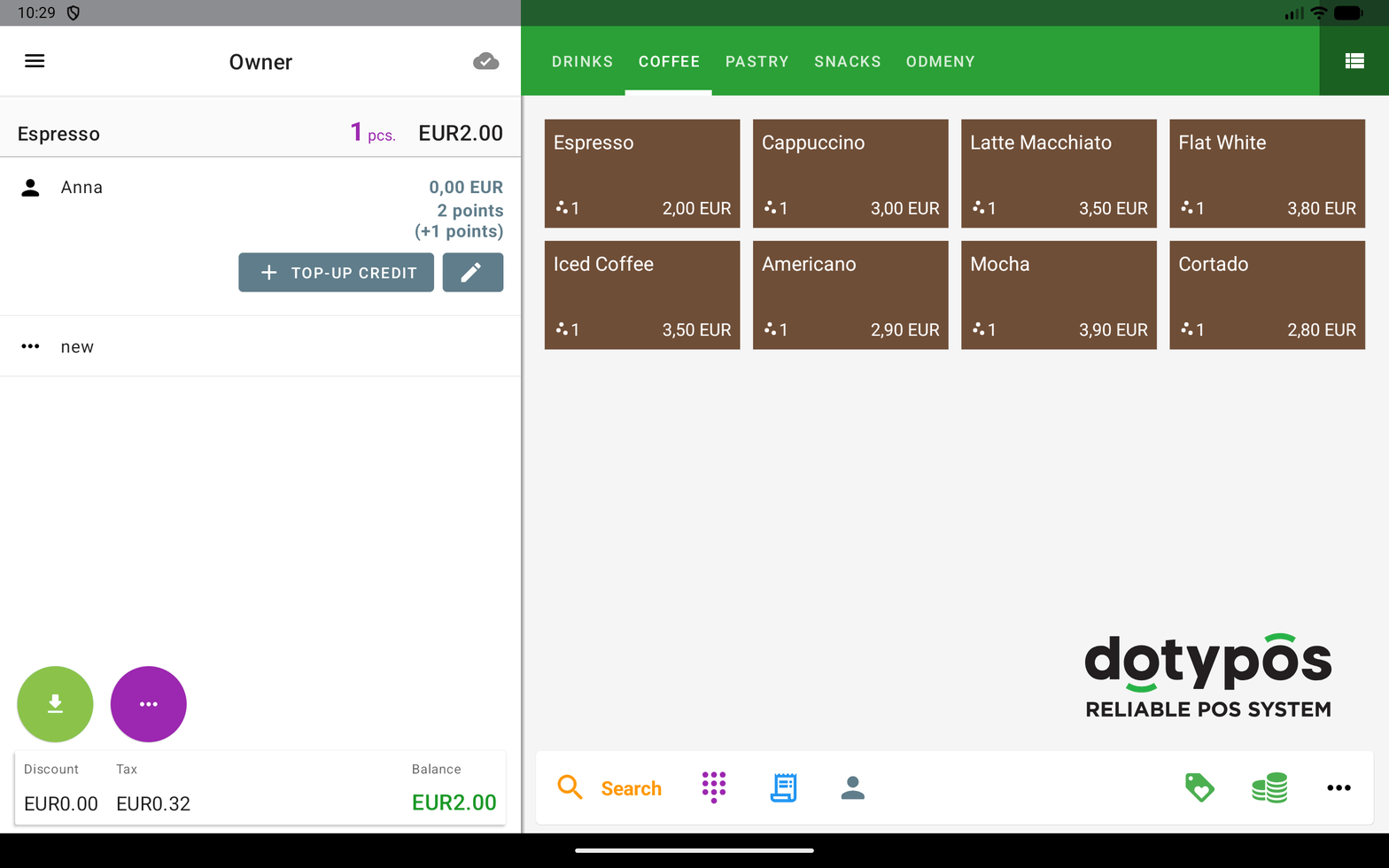
A Dotykačka POS bill with the customer assigned and the stamp products added.

A Dotykačka bill with a customer assigned, stamps counted automatically

Redeeming a reward (a free product):
1

Assign the customer

Assign them to the bill.
2

Check the stamps

Do they have enough? You do not have to count precisely, see the note below.
3

Add the reward

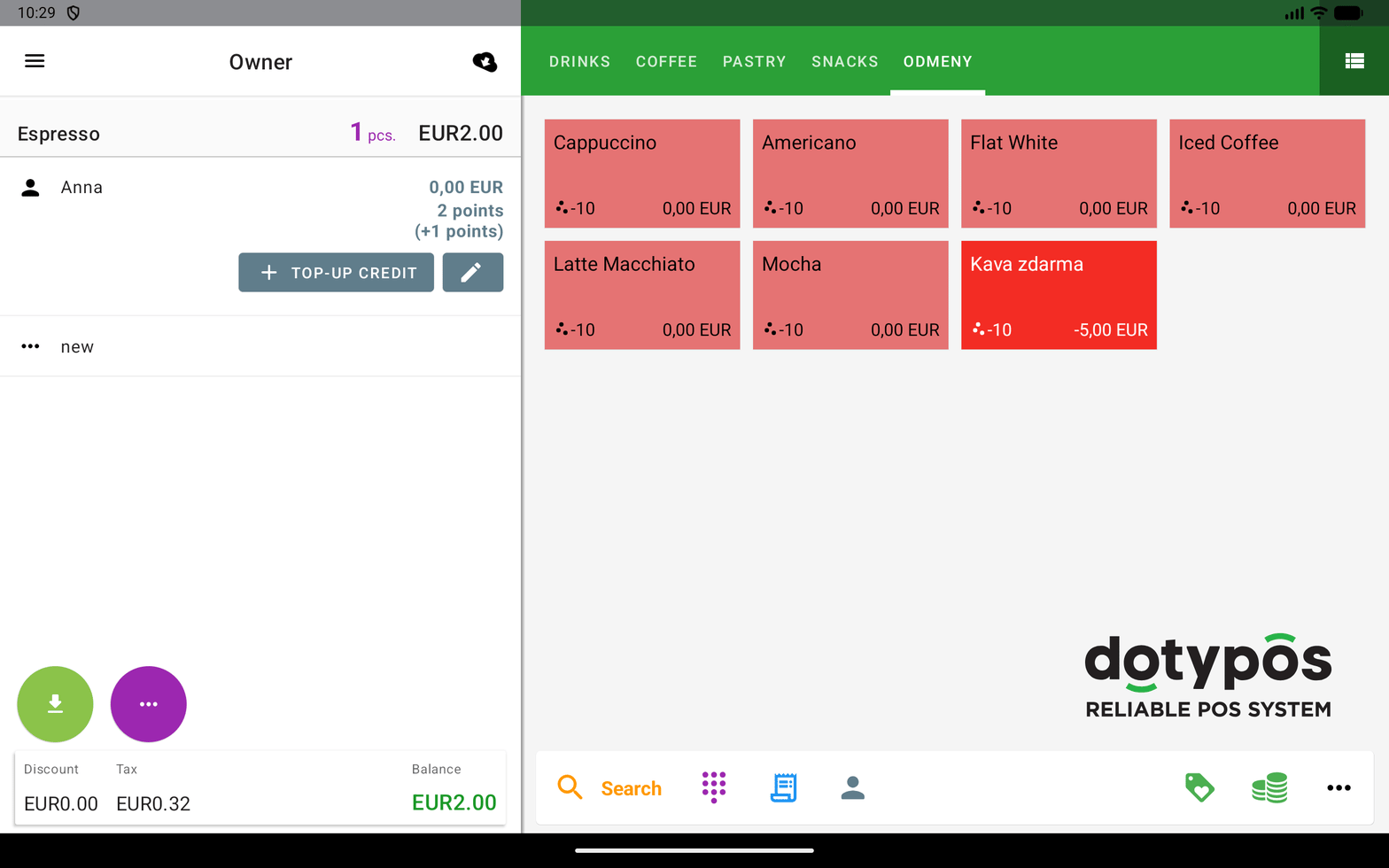
Open the Rewards category and add the reward product (for example “Coffee FREE”).
4

Complete

Complete the bill, the stamps are deducted automatically.
The Dotykačka POS rewards category with a reward product added to the bill.

Adding a reward product to the bill

Worked example (a 10-stamp “Coffee FREE” reward)
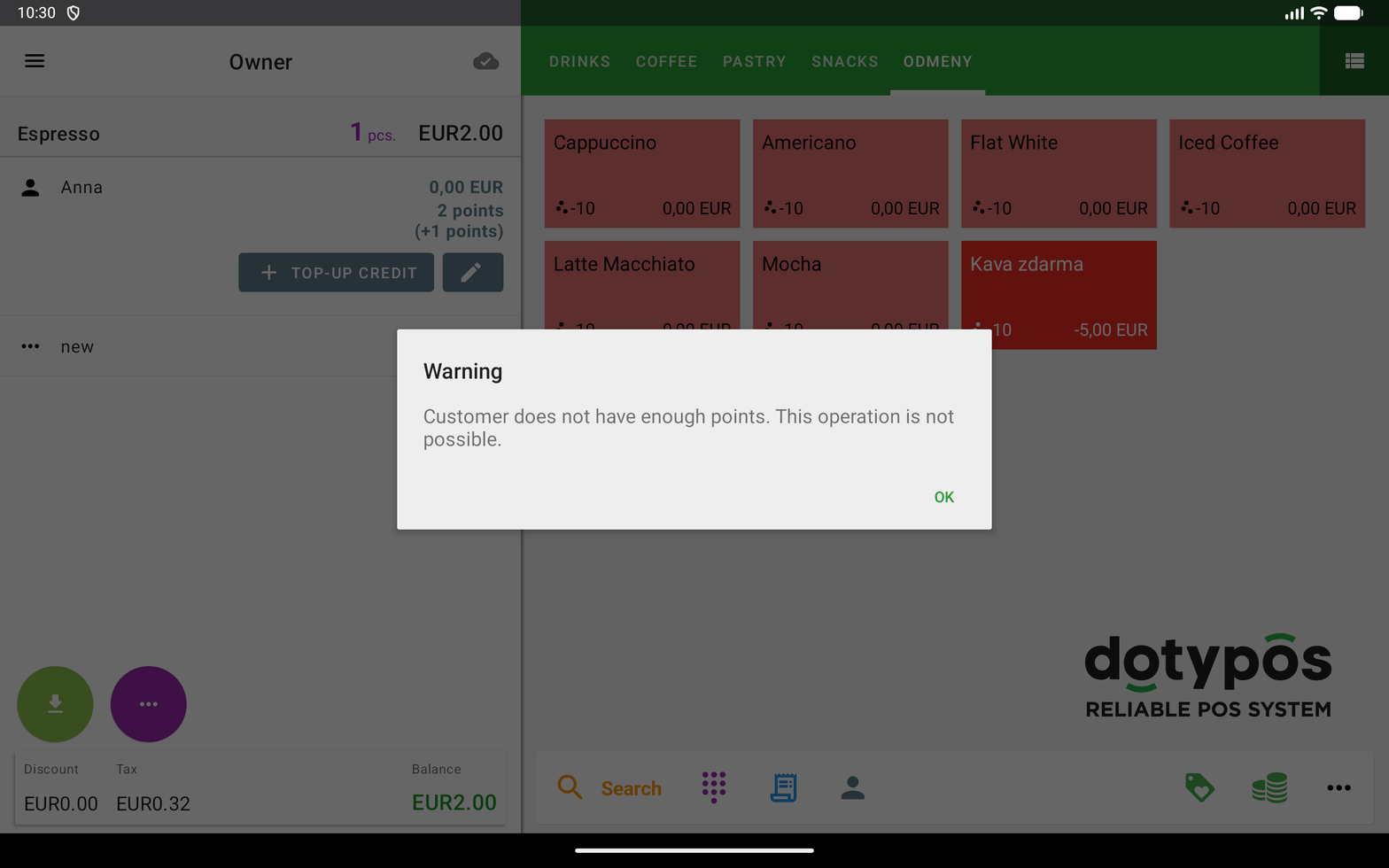
You cannot redeem a reward the customer has not earned. If you add a reward product and they are short, Dotykačka refuses it outright with a message (at the time of writing: “Customer does not have enough points. This operation is not possible.”) and nothing is added to the bill. So it is safe to simply try: the till will not let you over-redeem, and it will not put the customer into a negative balance.
A Dotykačka warning dialog reading Customer does not have enough points. This operation is not possible.

Dotykačka blocking a reward the customer cannot afford
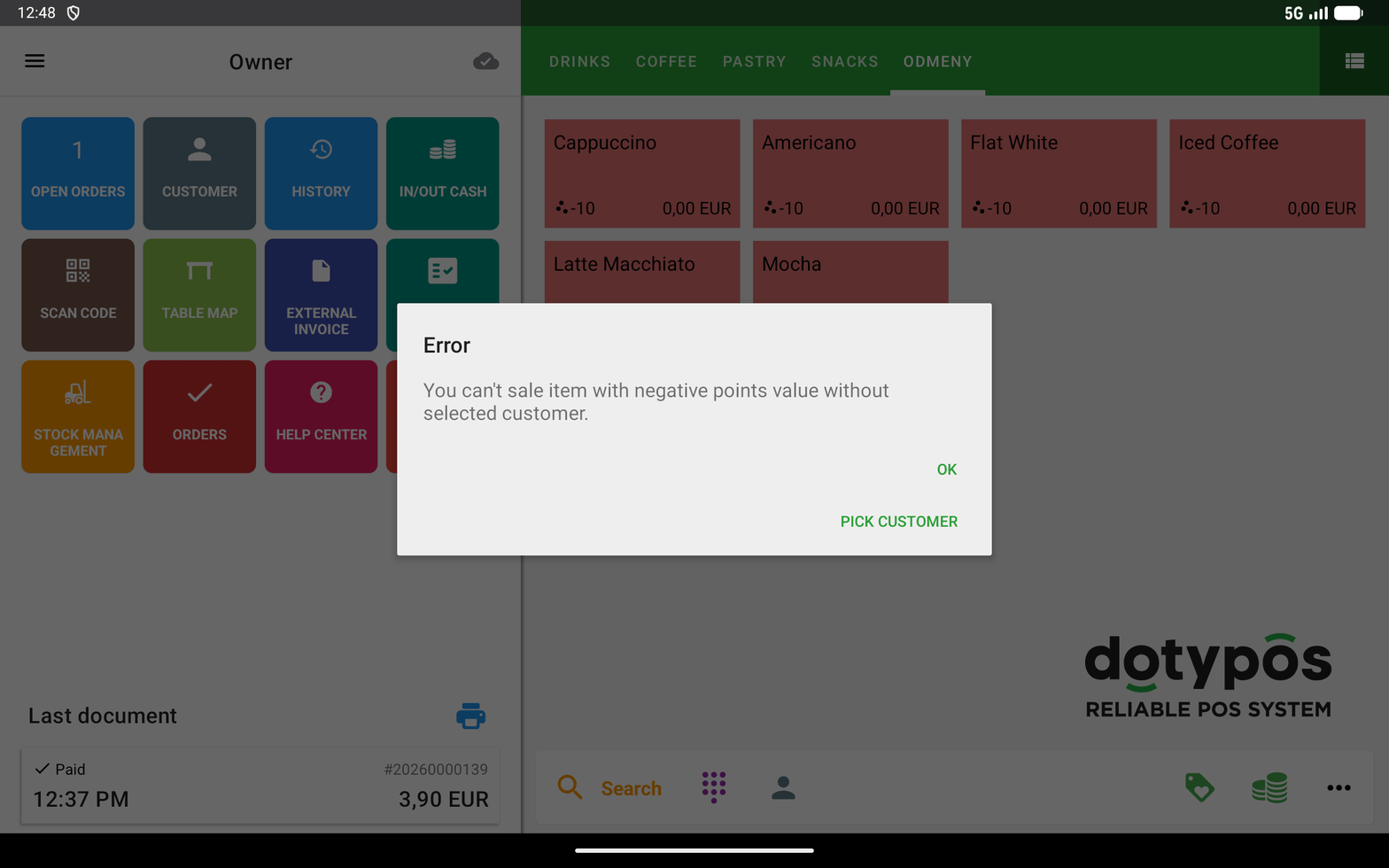
Adding a reward product with no customer assigned is also refused, but by a different message (at the time of writing: “You can’t sale item with negative points value without selected customer.”) That dialog carries a PICK CUSTOMER button, so you can assign the customer without closing it and starting again. Forgetting to assign first is the common slip, so it is worth recognising which of the two messages you are looking at.
A Dotykacka error dialog stating an item with a negative points value cannot be sold without a selected customer, offering a PICK CUSTOMER button.

Adding a reward before assigning the customer

If the customer does not want the reward, just do not add the reward product, they keep collecting stamps for this purchase.

Point cards (cashback)

Collecting points is automatic, same as stamps: assign, complete payment, and the points are added, the customer notified, the card updated. Redeeming points (a discount off the bill) uses the special “Points redemption” product. Points are credit in euros. The customer’s wallet card shows the same balance as credit in euros, while the till counts points.
The value of one point is whatever you set in the “Points redemption” product, and VEXiON reads it from there and keeps its own copy up to date automatically. Dotykačka calculates the redemption. The examples and screenshots below use 1 point = 0.10€, so 50 points is 5,00€ off. Other articles use 0.01€ as the example rate. Neither is more correct than the other; check your own product to see which applies to you.
1

Assign and add products

Assign the customer and add the products.
2

Add Points redemption

Open the Rewards category and add “Points redemption”.
3

Enter the points

A dialog asks how many points, enter the amount the customer wants to use.
4

Complete

The system calculates the discount and applies it, complete payment.
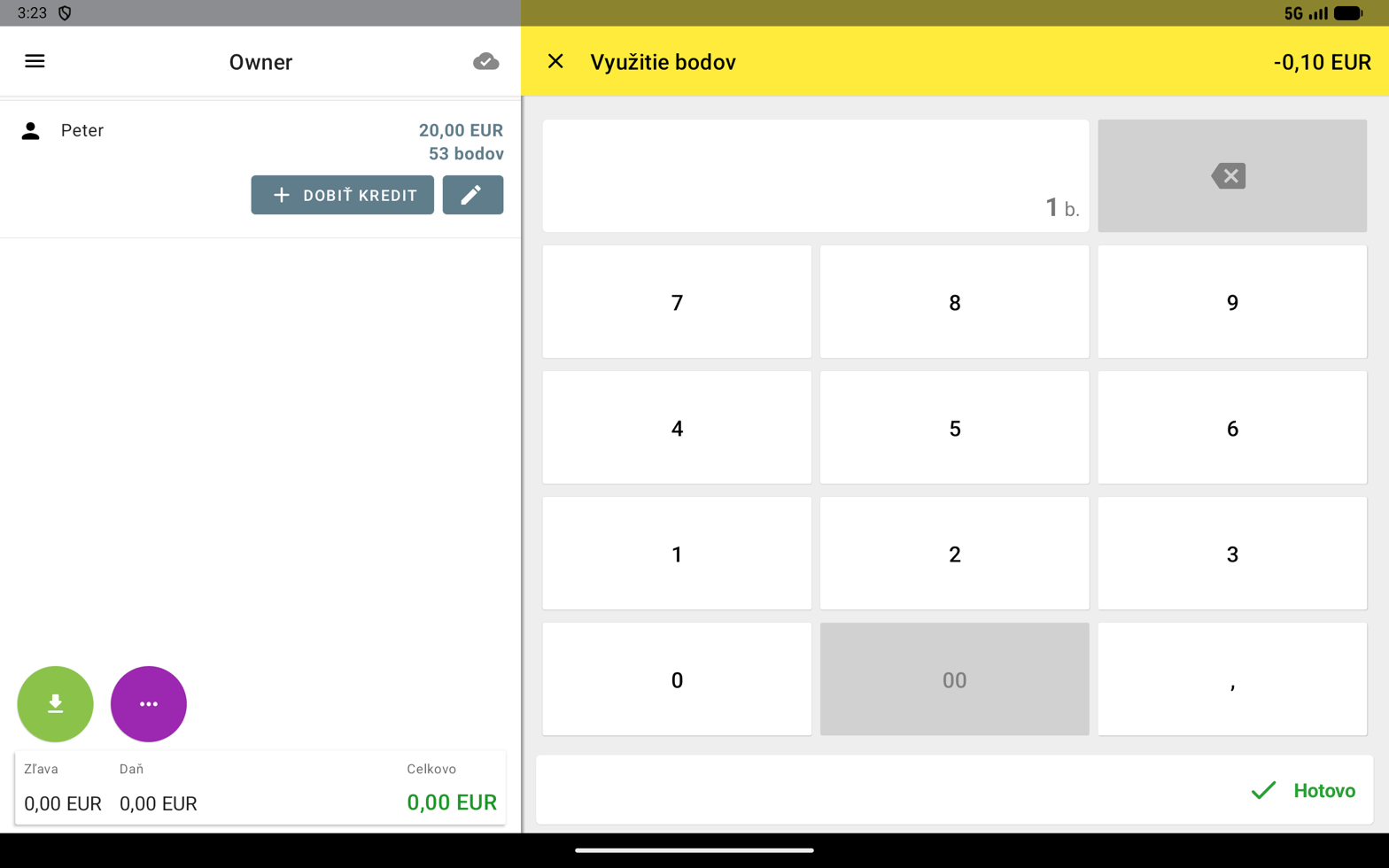
The Využitie bodov (Points redemption) dialog with a numeric keypad; points are entered in the unit b. and the euro value is recalculated as you type.

The Points redemption dialog, entering the number of points
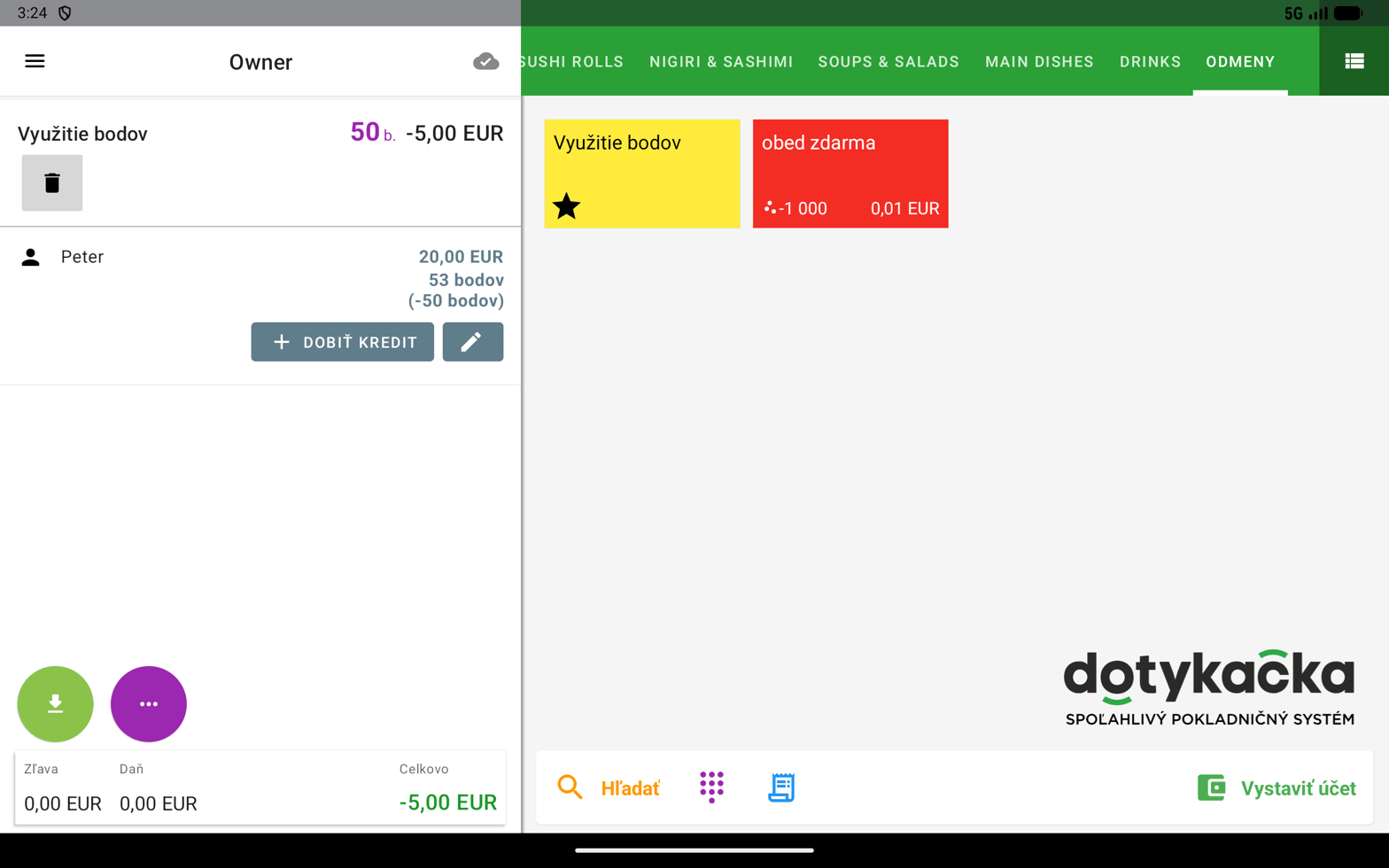
A bill showing a Využitie bodov line of 50 b. for -5,00 EUR, with 50 points deducted from the customer.

The redeemed points applied to the bill

Worked example (at 1 point = 0.10€, the rate shown in the screenshots above)
“Points redemption” can be added once per bill, the customer needs enough points, and must be assigned. If they do not want to use points, just do not add it.

Discount cards

The discount applies automatically. Assign the customer and the system applies the discount from their discount group; it shows on the bill. You see the discount group name (for example “Discount 20% …”), the per-item discount, and the total.
The customer’s tier changes automatically based on their spending, you do not set anything.

Gift cards

Selling a new gift card (a customer buying one at the counter): The customer scans your gift-card QR code, picks the amount, and enters their own name and email. They then choose Pay at the counter, and their phone shows a QR code for you. You (staff):
1

Scan the customer's QR

A temporary customer appears on the bill. It carries the buyer’s name, and the surname shows the amount and the word Pending (for example first name “Anna”, surname “55€ Pending”), so you can see what to charge without asking. If the surname is only “Pending”, the form had no amount: enter the amount the customer states.
2

Load the credit

Click the customer → TOP-UP CREDIT, and enter the amount shown in the surname. If the gift card itself has a bonus on its amount options, this is the value with that bonus included, not the price the customer pays you. A percentage bonus set in the Dotykačka integration settings is not in the name: VEXiON adds it automatically after the top-up, so do not add it yourself.
3

Take the payment

Charge the customer the purchase price in the usual way (cash or card) and complete the bill.
Everything after that is automatic: the temporary customer becomes a real one, the buyer’s phone updates by itself within a few seconds, and the PDF with the card is generated and emailed.
The recipient is chosen after payment, not before. The customer is not asked who the card is for while buying. Once the payment goes through, their phone shows the choice For me or For someone else; only then do they enter the recipient’s details. So do not wait for the customer to fill in a recipient at the counter, there is nothing to fill in yet.
Using a gift card: the customer shows their card (QR from the wallet), you scan it to assign them, add products, and at payment choose Customer credit, the amount is deducted.
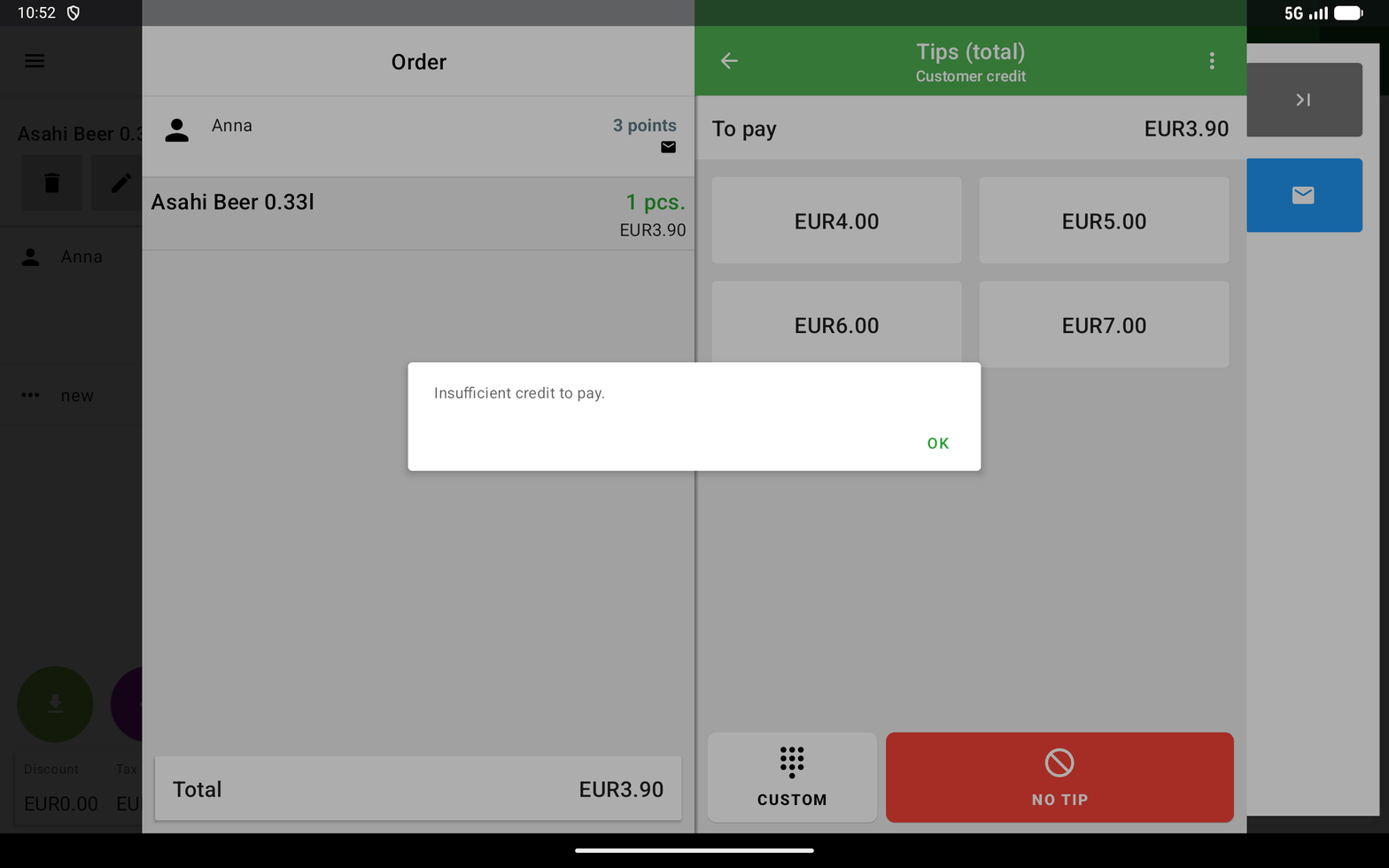
If the credit is not enough, you must press SPLIT PAYMENT first. Choosing Customer credit on its own is rejected. See the note below.
A Dotykacka dialog reading Insufficient credit to pay, shown when paying by customer credit with too small a balance.

Customer credit refused when the balance is too small
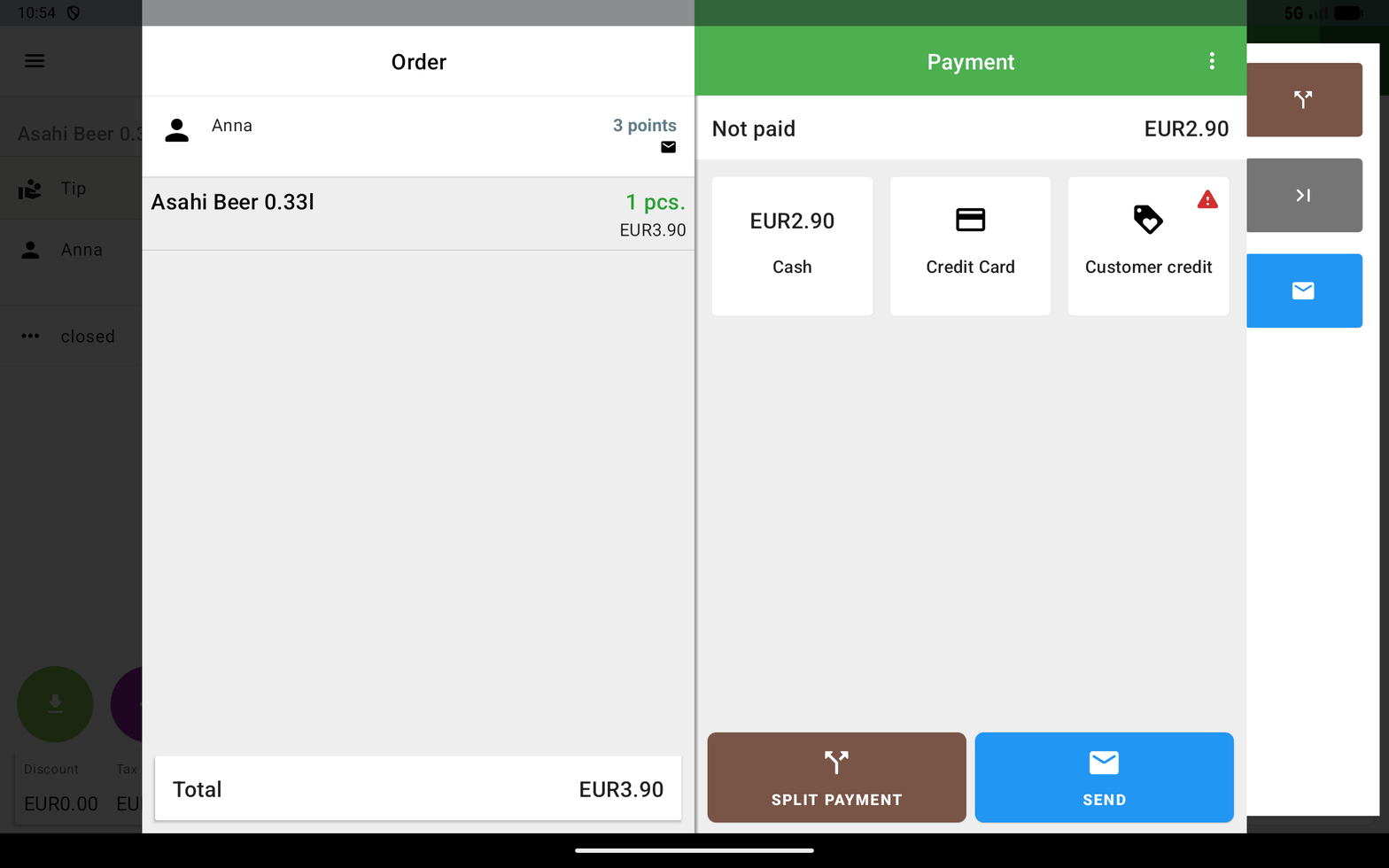
The Payment screen after a split, showing Not paid EUR2.90 and a red warning triangle on Customer credit.

After splitting: the remainder shows as Not paid

Topping up credit: find the customer or scan their QR, click TOP-UP CREDIT, enter the amount, take payment, the credit increases.

Cancelling a receipt (storno)

If a bill was paid by mistake, you cancel the receipt itself. The points go back automatically, you do not adjust them by hand.
1

Open the receipt

Tap HISTORY, then tap the receipt in the list. It loads into the left panel.
2

Open the receipt menu

Tap the round purple … button at the bottom left. The Receipt menu opens, with PRINT DOCUMENT COPY, CANCEL THIS ORDER, CHANGE PAYMENT TYPE, SEND RECEIPT and ADD TIP.
3

Cancel the receipt

Tap the red CANCEL THIS ORDER.
4

Choose how you return the money

Dotykačka asks for the refund method, the same choices as at payment: cash, card, credit/voucher or customer credit. Pick the one you actually refund with and the cancellation completes.
The original receipt is not deleted. Dotykačka keeps it and issues a separate cancellation document, which is why the History filter panel lists Common receipts, Cancelled receipts and Cancellation receipts separately.
What happens to the loyalty side: VEXiON receives the cancellation as its own order and reverses it. The reversal is recorded as an extra transaction rather than by editing the original.
Do not confuse this with cancelling an open, unpaid bill. That is CANCEL THIS ORDER in the round ... order menu, and it asks “Void Bill?”, discarding only the bill you are currently building. The two menus look alike, but only the one reached from History cancels a receipt that has already been paid.

Common situations

They have not been created or synced yet. They can register via the QR code, then they will be available.
Search by name or phone number, assign them, points are credited.
Check: was the customer assigned before payment was completed? Did the products have points set?
Just remove the reward product from the bill, they keep collecting points for the purchase.
Add “Points redemption” and enter the exact number (not all), they use only what they want.
Dotykačka will not do this for you automatically. If you pick Customer credit when the balance is too small, the whole payment is refused (at the time of writing with “Insufficient credit to pay.”) and nothing is taken, not even the part they could afford.The way through is SPLIT PAYMENT, before choosing a method: press it, choose Customer credit, type the amount the customer actually has, and confirm. The rest of the bill then shows as Not paid and you settle it with Cash or Credit Card as normal. Once the credit is used up, Customer credit carries a red warning triangle.

Summary for staff

Always:
  • Assign the customer to the bill (if they have a card).
  • Check their points/credit.
  • Ask if they want to use a benefit.
Automatic:
  • Collecting points from products.
  • Applying the discount from the discount group.
  • Updating the card in the wallet.
  • Notifying the customer.
Manual:
  • Adding a reward product (if the customer wants it).
  • “Points redemption” for cashback.
  • Loading credit for gift cards.
Need help? Contact your manager or VEXiON support.