

The tiers
Your monthly total is the sum across all your locations. For example:
- 3 locations = 45€ + 30€ + 30€ = 105€/mo
- 6 locations = 45€ + (4 × 30€) + 25€ = 190€/mo
The first location’s 45€ is the same as the PRO base price, so a single-location PRO business simply pays 45€/mo. Every extra store is cheaper than the last.
You do not have to work this out yourself. When you subscribe, upgrade, or switch to annual, the dialog shows the graduated total for the locations you actually have, so the figure you approve is the figure you are charged.
What you pay for a location
The Locations card on the Billing tab shows the price per location (on the graduated price: the Next location and the price tiers), how many locations are paid, free or paid by managers, and your next payment. The numbers come straight from your subscription, so they match your invoice. If you agreed a special price with us, the card shows that price, not the table above. A discount shows as a badge, for example “48.89% off forever” or “20% off until 2027-03-01”. The line under the title shows three separate numbers, for example 5 locations billed to you · 4 paid slots · 3 locations delegated to managers:- Locations billed to you are the locations in your own billing, including free (bonus) ones. Locations that managers pay for are not in this number.
- Paid slots are the places you pay for in your subscription. A place you paid for and kept after deleting a location is counted here until your renewal.
- Delegated to managers are the locations that managers pay for themselves.
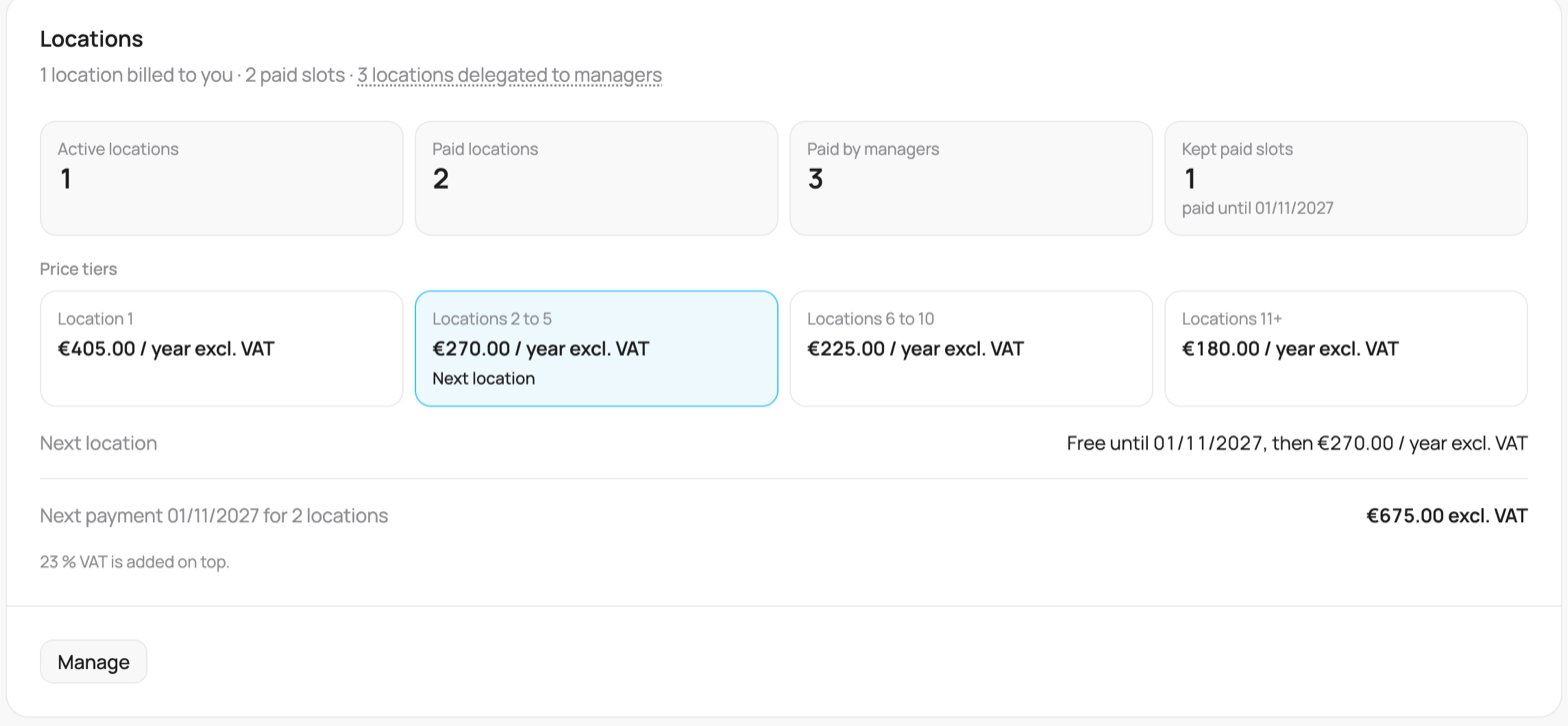
The Locations card on the Billing tab
Adding a location
You add and remove locations on the Locations tab. The Billing tab only shows the result.1
Open Add location
Go to Settings, Locations and click Add location. Fill in the name and address.
2
Check the price
The window shows You pay today (without VAT and with VAT), the Price per location (on the graduated price: Next location and the price tiers), and what you pay from the next renewal date for all your locations.
3
Confirm
Click Add location and pay, the button shows the amount you pay today. If you pay by bank transfer, the button says Add location and we email you the invoice with a QR code.
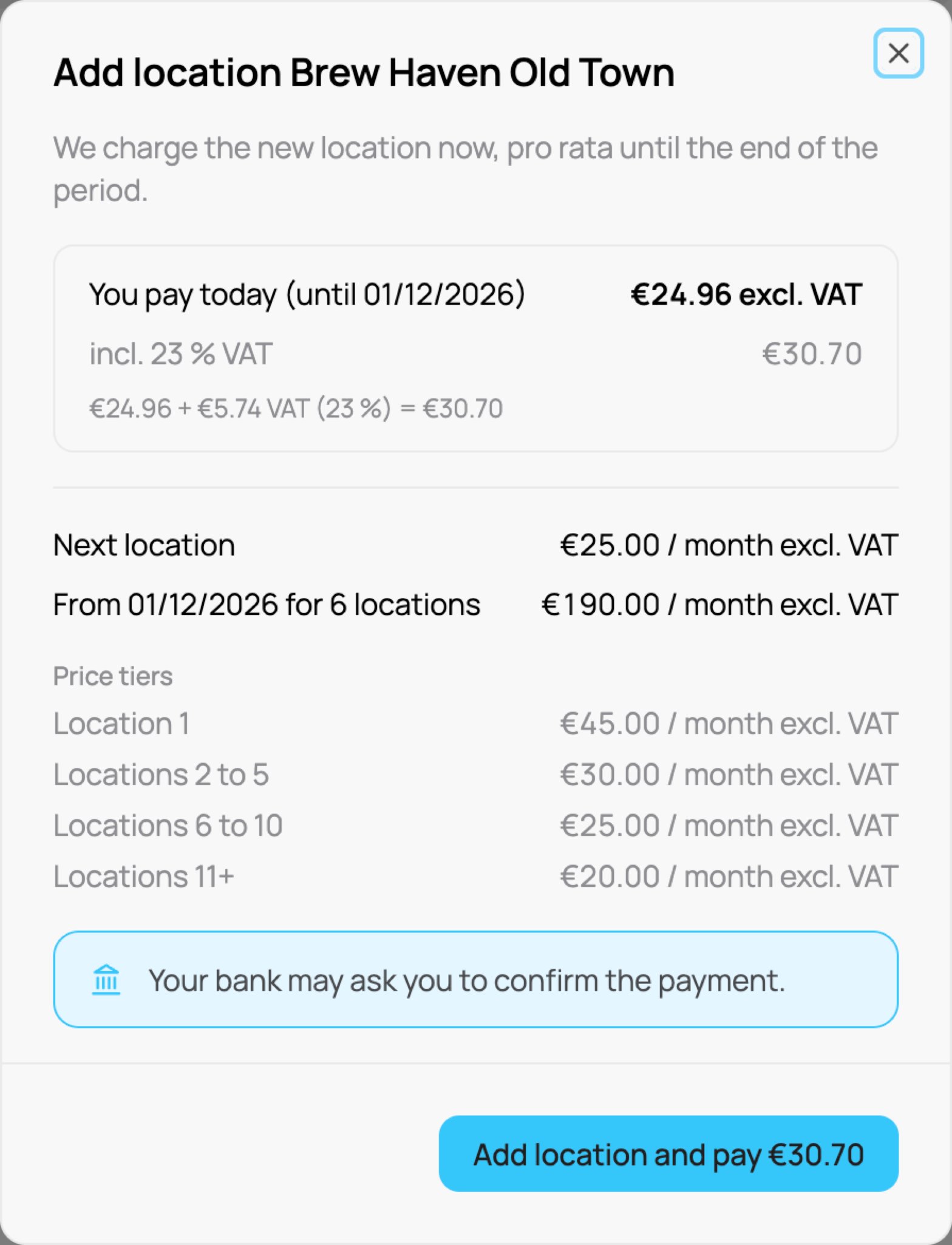
Add location with the price you pay today
- A new location is charged pro rata, from today until the end of your current period. The invoice and the confirmation email follow right away.
- At the next renewal the location is billed at the full price per location.
- If you still have a free location available, the window says so and you pay nothing. After you confirm, a message says Location added in a free slot. You pay nothing. If the location takes a place you already paid for (for example one you kept after deleting a location), it says Location added in a slot you already paid.
- If we cannot update your subscription (for example Stripe is not answering), the message says Nothing was added or charged: we could not update your subscription. Try again in a moment. The location is not created and you are not charged. Click the button again.
- If your locations and your subscription do not match for a moment, the window cannot show a price. It says so and offers Refresh and Contact us. Refresh first. If it stays like this, write to us and we fix it.
- Every amount in VEXiON says which VAT it includes, for example incl. 23 % VAT. A company in another EU country with a valid VAT ID sees 0 % VAT, reverse charge.
- When you remove a location, the unused part is credited on your next invoice.
- You cannot remove a location while your account is paused.
Locations that come from your POS
When a branch or till of your POS becomes a new VEXiON location, you pay for it, as the owner. This is the same price step as Add location: the mapping window shows the amount before you confirm. Linking a branch to a location you already have costs nothing. If a manager should pay for that location, create it first, then delegate it. Open the location and turn on Delegated Billing (see Delegated billing). A location you create by hand under Settings, Locations can be created already billed to a manager.Connecting a POS and mapping its branches works on a computer only. On a phone, the Integrations page asks you to use a larger screen. Only admins can do it. A manager cannot connect a POS or map a branch, so a franchise location with its own POS is connected by an admin, then delegated.
Switching to annual billing
The Switch to annual billing dialog shows what you pay today, with VAT. When you click Switch to Annual, the plan changes as soon as the payment is done. If your bank asks you to confirm, the plan stays monthly until you confirm on the payment page. Next billing then shows the new date, one year ahead, without a reload.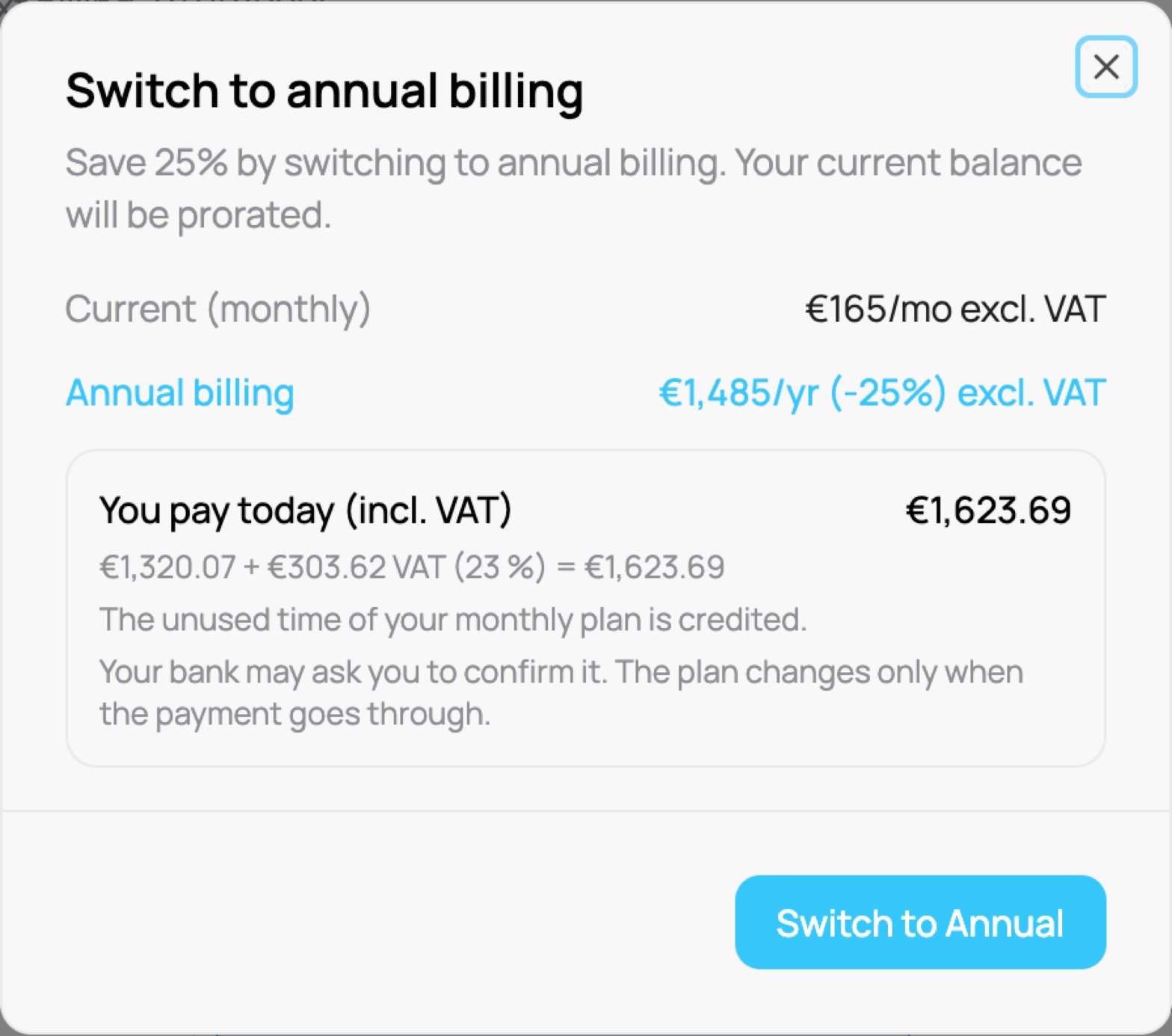
The Switch to annual billing window: what you pay today with VAT
Paying for a location
When you click Add location and pay, the payment step opens in the same window. On a phone it is a sheet that slides up from the bottom. One window does the whole payment: you never go to another page.1
Check the amount
The window shows Amount due with the VAT, the date the payment covers (Pro rata until …) and the card we charge. To use another card, click Change card: it opens Stripe’s secure card page, and you come back to the same window. You never type card details inside VEXiON.
2
Click Pay
The button shows Paying…. You cannot close the window while the payment is running. The new location is created and works right away.
3
Confirm in your bank, if it asks
Some banks ask for confirmation (3D Secure). Your bank’s page then appears inside the same window, under Confirm in your bank. Confirm there and do not close the window. Cancel stops the confirmation and leaves the payment open.
4
Done
The window says Paid, shows the amount and the date the location is paid until. Click Done. The invoice comes by email from VEXiON.
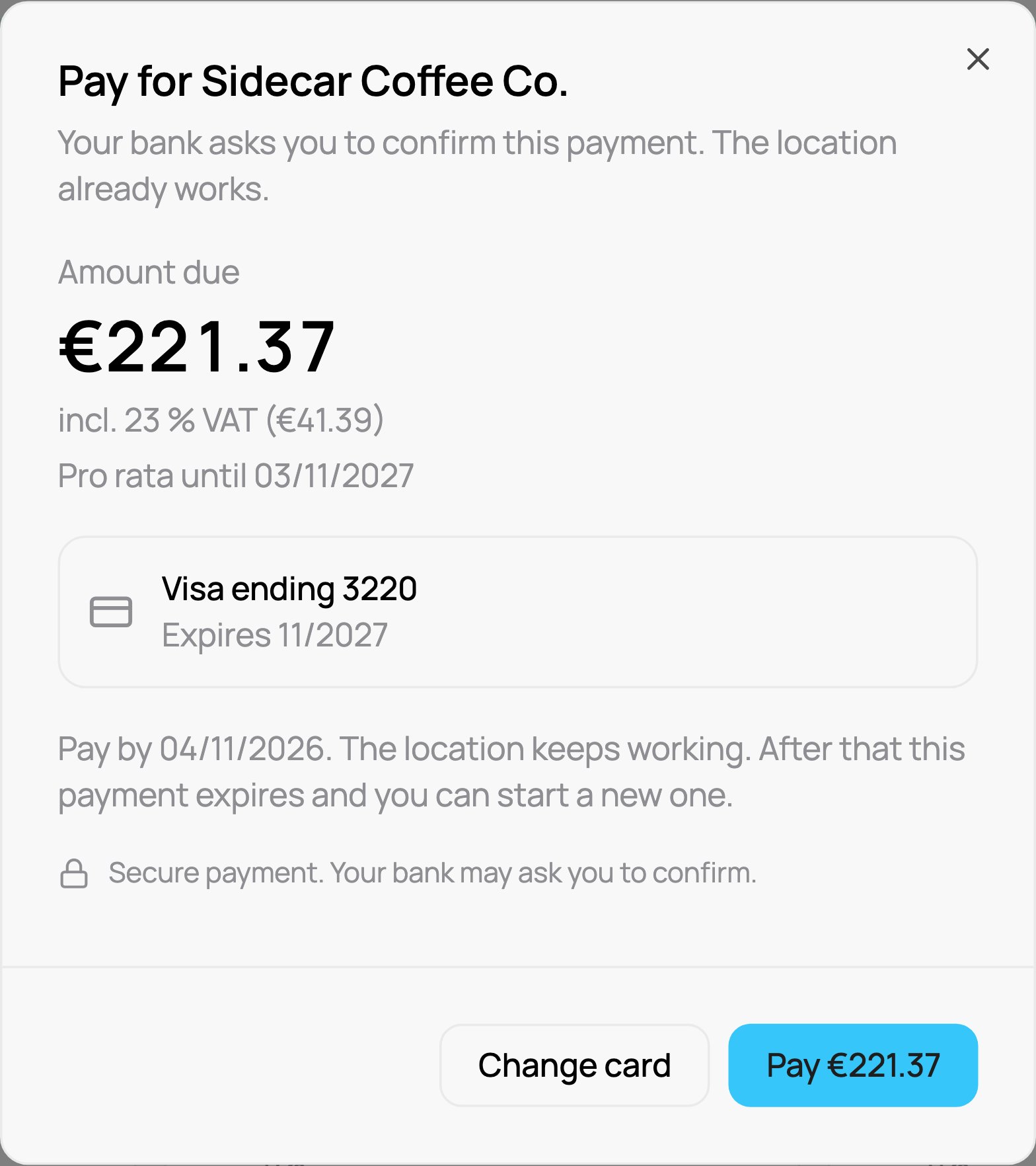
The payment window: amount, VAT, saved card and the Pay button
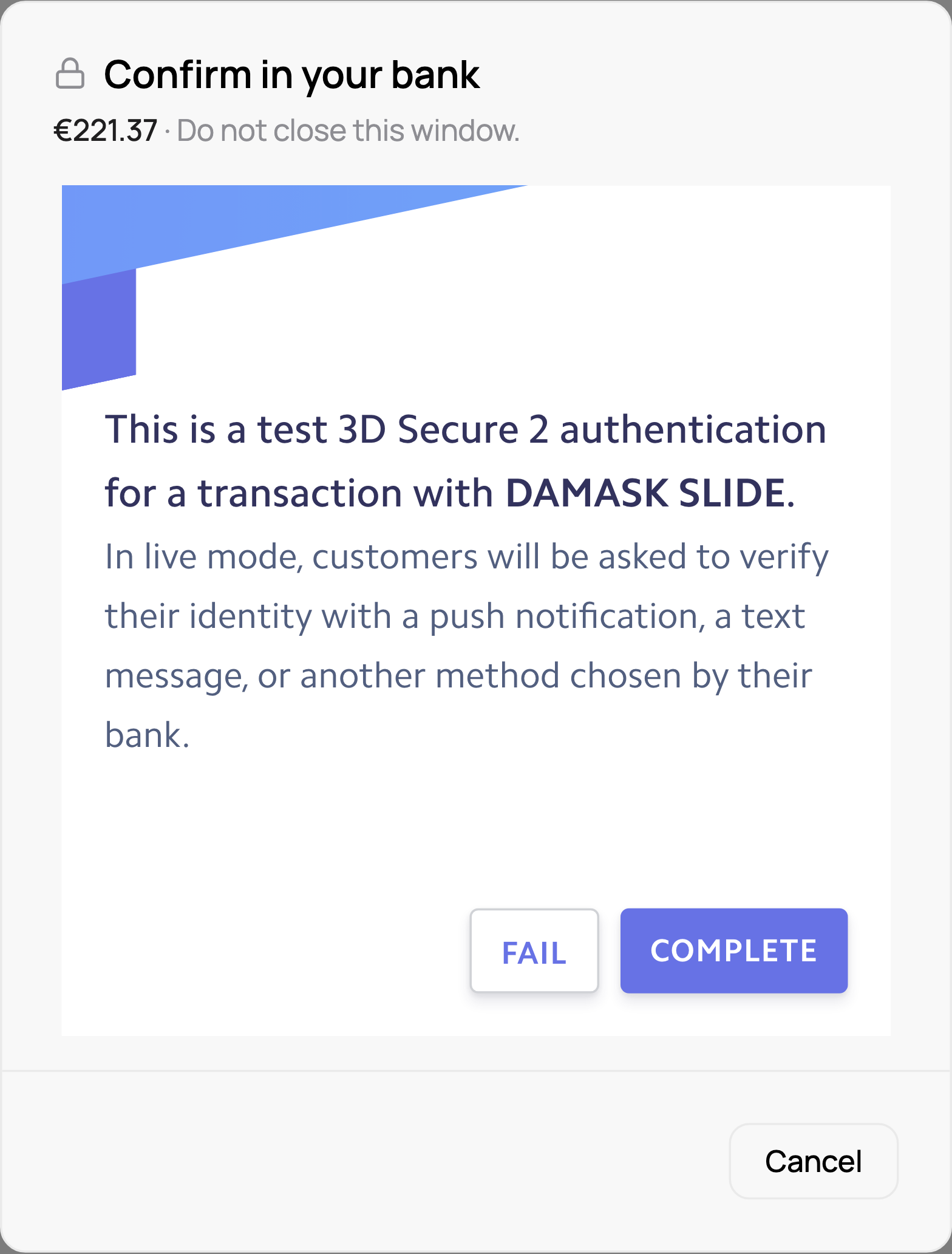
Your bank's confirmation, inside the same window
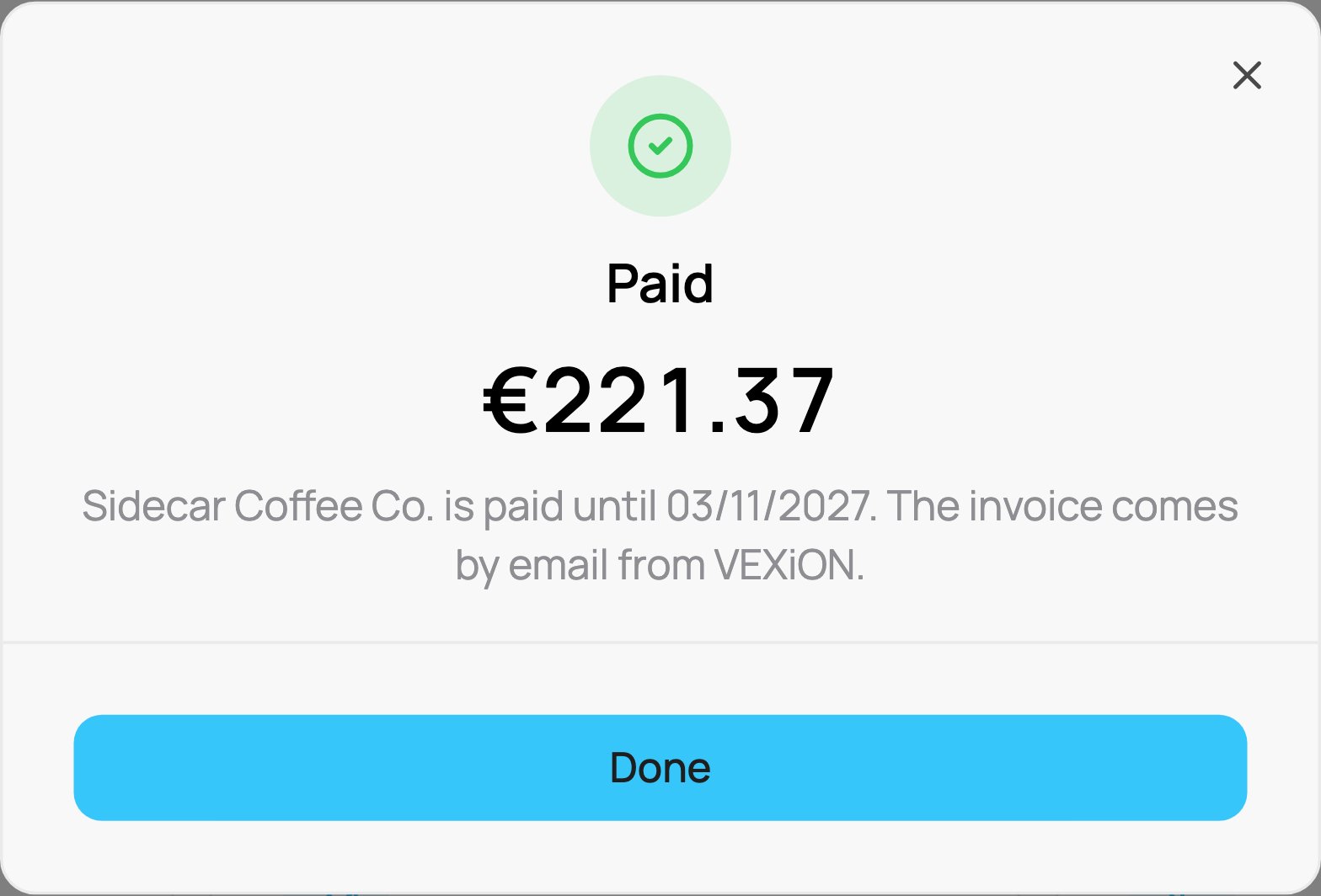
Paid
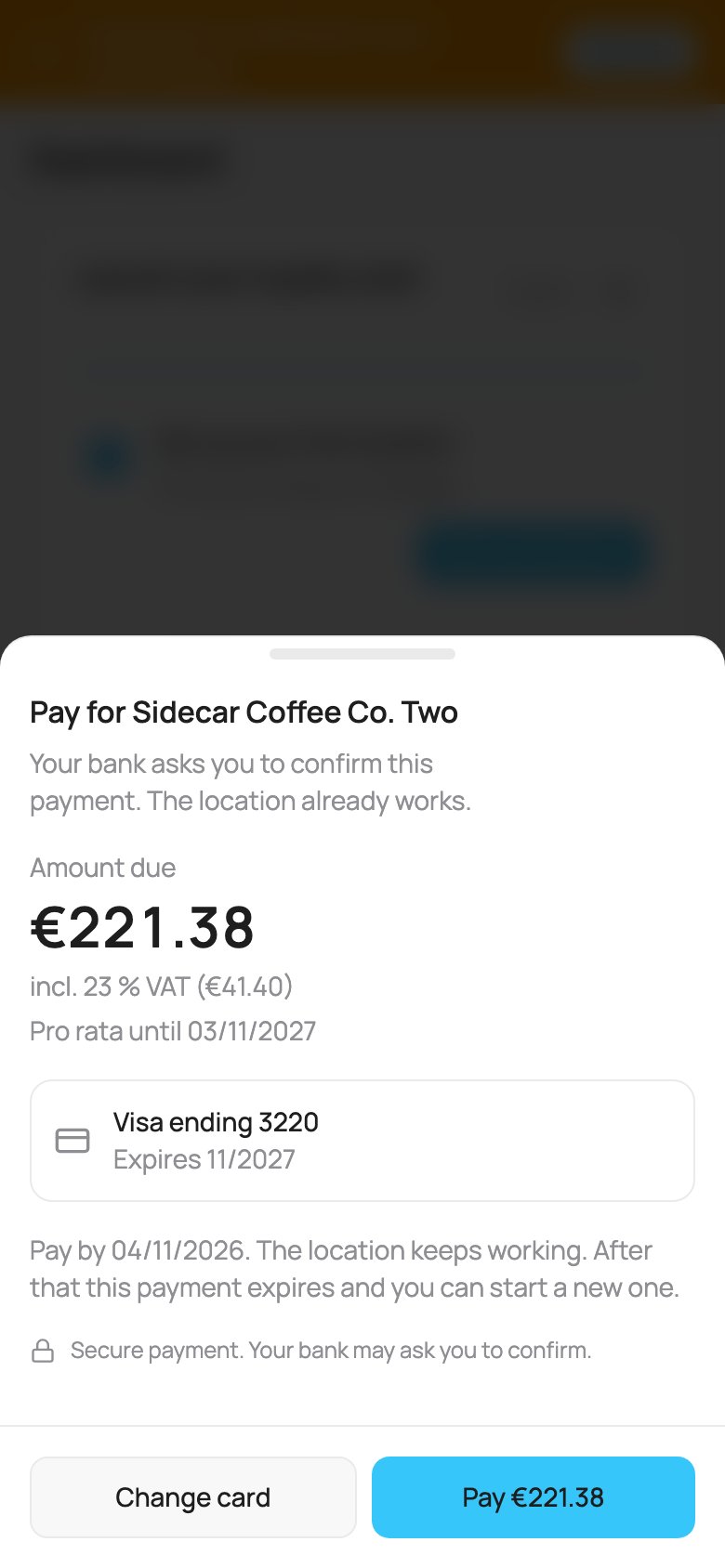
On a phone the payment window is a sheet from the bottom
- Billing shows an Open payments card with the amount and the button Pay. The button opens the same window.
- The person who pays sees a small banner “A payment is waiting for your confirmation.” with the button Pay now. It opens the same window on the page you are on. On Billing the Open payments card shows the payment instead, so the banner is not repeated there.
- We email you Confirm the payment. The button opens Billing with the same window.
- When the payment is confirmed, the card and the banner disappear and you get the confirmation email with the invoice.
The payment stays open for about 24 hours. After that it shows Start a new payment. The amount is recalculated for the day you pay. We never charge your card a second time on our own.
If the card is declined, the window says so. Click Change card, choose another card, then click Try again. The location keeps working. While a payment waits, you cannot add another paid location. Finish the payment first.
Bank transfer accounts do not get a card page. We email the invoice with a QR code, as for every payment.
Per-location billing is available on PRO only. If your plan is managed by VEXiON (for example a partner or quarterly agreement), the card asks you to contact support, because the table above does not represent your negotiated pricing.