

Before you start
- The new owner must already be an active admin of your organization. If they are not on your team yet, invite them as an admin first and wait until they have joined.
- A suspended person, or a VEXiON support account, cannot become the owner.
- You stay the owner until the other person accepts.
Steps
1
Open the Team tab
In Settings, open Team. In the Ownership block click Transfer ownership. You can also use Make owner… in the menu of an admin.
2
Choose the new owner
Pick one of your admins. People who cannot become the owner are greyed out, with the reason.
3
Read, type the organization name, and confirm
The window explains what changes. Type the name of your organization to confirm that you mean it, then click the send button. VEXiON asks you to confirm it is really you with a one-time code. Nothing is sent before that.
4
The new owner accepts
The new owner gets an email with a button. They must be signed in as the same person the email was sent to, and they confirm with a one-time code too. A forwarded email is useless to anyone else. The request is valid for 7 days.
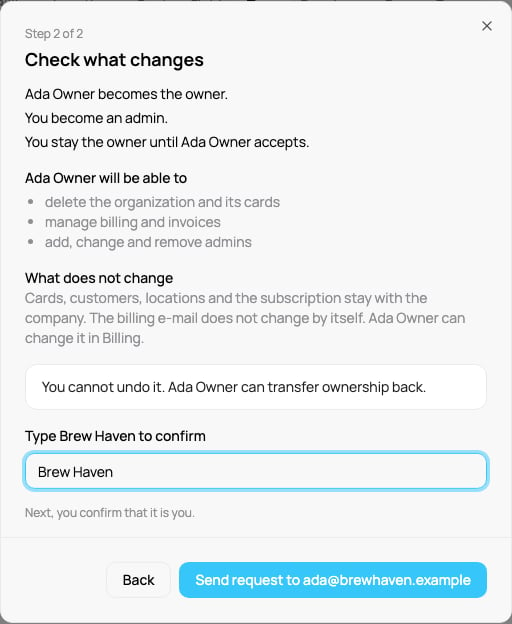
The review window: who becomes the owner, what stays the same, and the box where you type the organization name
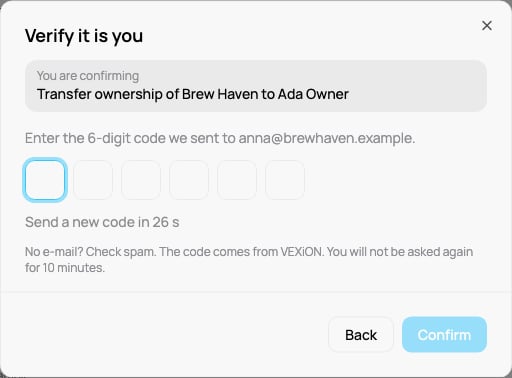
Confirming that it is you: the code from your email

The banner on the Team tab while the request waits
What changes, and what does not
The old owner’s phone login for the scanner app is switched off, because it belonged to the old person. The new owner can set up their own.
You cannot undo a transfer, but the new owner can transfer ownership back to you the same way.
Cancelling, declining, and expiry
- You can cancel the request at any time before it is accepted. The other person can decline it.
- If the request is not accepted within 7 days it expires. Nothing changes and both of you get an email.
- If the new owner is removed, suspended, or changed to another role in the meantime, the request is cancelled automatically.
If the owner can no longer sign in
If the owner left the company or lost access, write to VEXiON support. Support asks for proof (for example that the request comes from the billing email or the company, and matches the invoice), contacts your current admins, and waits 48 hours before it changes the owner. The same email goes to the old owner’s address, so a request that nobody agreed to can be stopped.If an owner who started a transfer is later removed from the sign-in service, the transfer they approved can still be completed by the person they chose.