

Keys created here start with
vxn_sk_. They are production keys and work against your live loyalty data straight away. A separate sandbox is provisioned on request: contact us and we create a sandbox organization with its own vxn_test_sk_ key, used against https://migration.api.vexioncards.one. We send you the sandbox address together with the test key. Treat every key from this tab as production.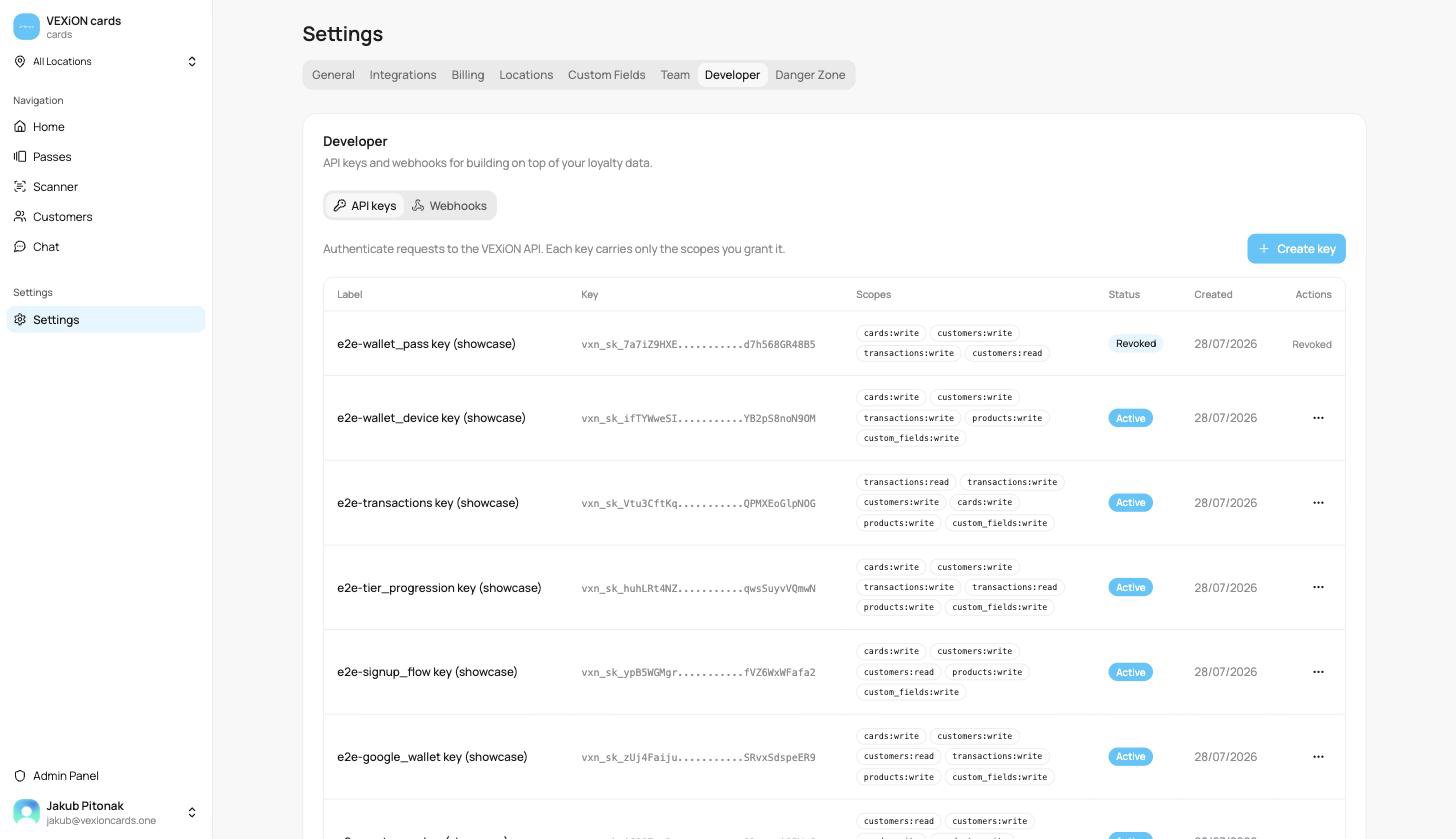
Settings → Developer → API keys
Creating a key
1
Open the Developer tab
Go to Settings → Developer and stay on the API keys tab.
2
Click Create key
Give the key a Label, a name only you see, so you can tell your keys apart later (for example Production server, Zapier, or Accountant export). Use one key per system, never share a single key across several. A key needs a label and at least one scope.
3
Choose its scopes
Tick the permissions this key needs, and nothing more (see Scopes below).
4
Agree to the API terms
Tick the box confirming that, by creating a key, you agree to Articles 7 and 8 of the Terms of Service (Third Party Platforms and Public API) and to Annex 1 (DPA) for the data processed through the API. The link next to it opens the published text. Create key stays greyed out until this is ticked.
5
Copy the key, once
Click Create key. The full key is shown one time only. Copy it and paste it into your system’s settings right away.
Scopes
Scopes are the individual permissions a key carries. They come in two kinds:- Read access (
...:read), the key can view that data. - Write access (
...:write/...:send), the key can change or create that data.
customers:read and nothing else, so a leaked key can do as little damage as possible.
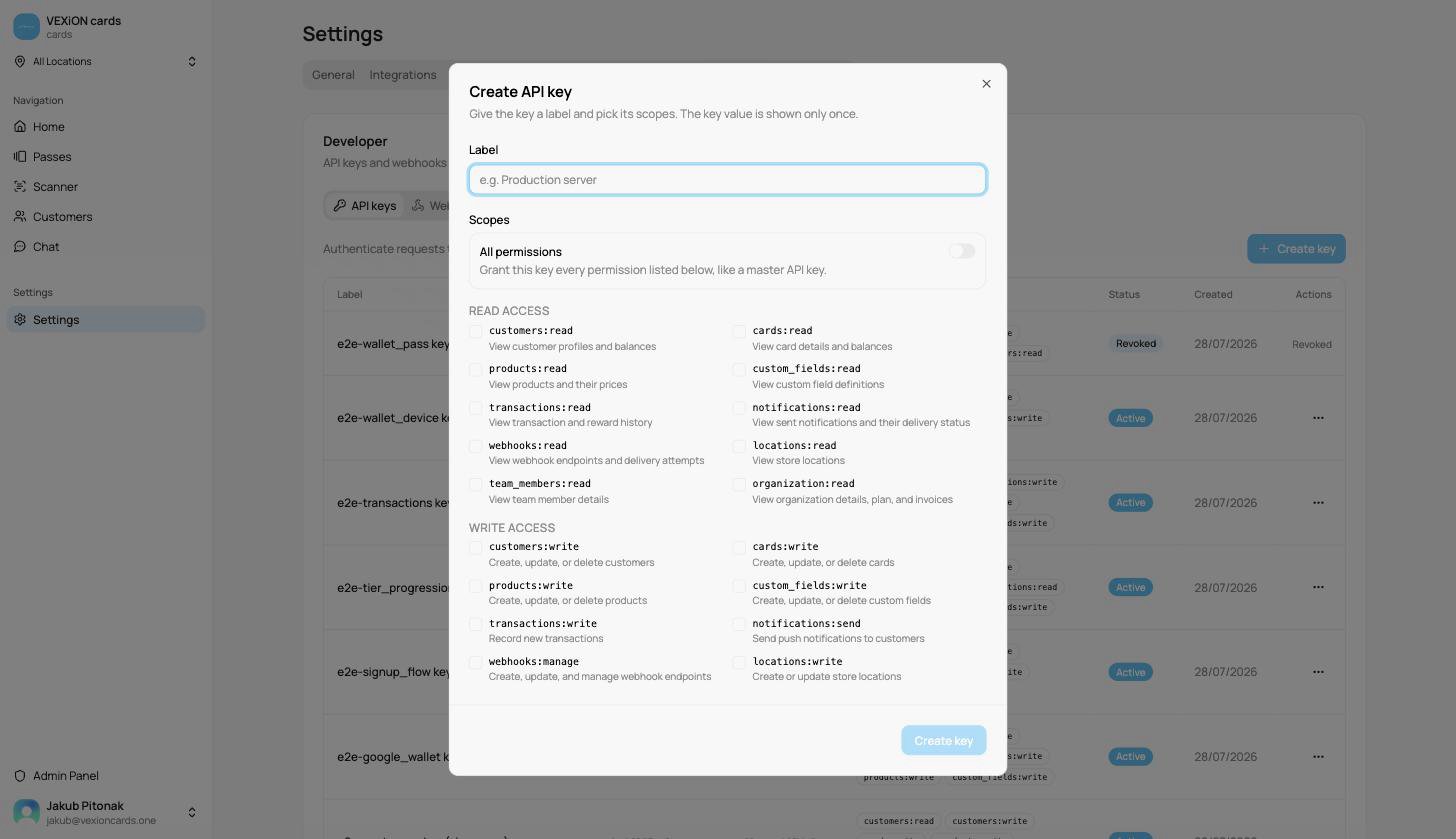
Choosing scopes when creating a key
A key can only ever do what its scopes allow. If a request needs a permission the key does not hold, the API refuses it, so granting less is always safe.
Using a key
Send the key in theAuthorization header on every request, as a Bearer token:
Managing your keys
Each key in the table shows its label, a masked preview of the key, its scopes, its status, and when it was created.Revoking a key
Open the ⋯ menu on a key and choose Revoke when a key is no longer used, may have leaked, or belonged to a system you have retired.Next steps
Set up webhooks
Get a signed message the moment something happens, instead of polling for changes.
API Reference
Full documentation of every endpoint, field, and response.