Connecting OBERON takes three values: an Address, a Username and a Password. You create them in VEXiON and type them into OBERON.
You create one address per shop, not one per till. Every till in the same shop is set up with that same address, and that is what makes each sale count towards the right shop.

Where to find the settings

  1. Sign in to the VEXiON admin.
  2. Open Settings in the sidebar.
  3. Select Integrations.
  4. Expand OBERON.
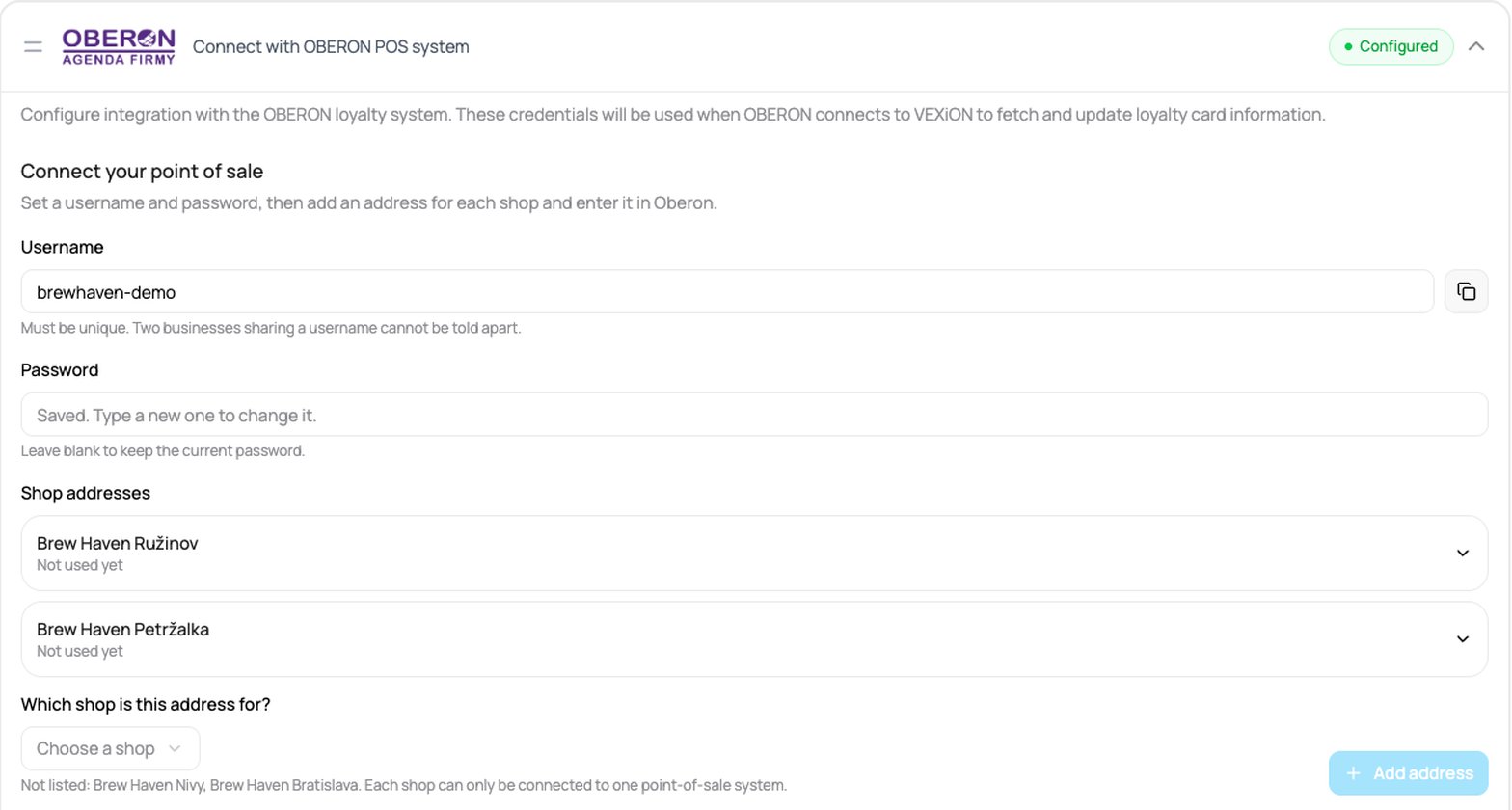
The OBERON integration panel with a saved username, two shop addresses listed, and the shop picker ready to add another.

The OBERON integration panel

Step 1: set a username and password

These are the credentials your tills sign in with. You choose them here, and every till uses the same pair.
1

Choose a username

Enter a Username. It must be unique, so use something specific to your business rather than admin or pokladna. Your business name works well.
2

Choose a password

Enter a Password. Write it down, because you will need it on every till you set up and VEXiON never shows it again.
3

Save

Click Save Settings. The Shop addresses section appears once the credentials are saved.
Use a username nobody else could be using. Your business name works well. Do not use admin, pokladna or kasa.The username must be unique across every VEXiON business. If two businesses use the same one, VEXiON cannot tell their tills apart, and one business’s till can end up reading the other business’s customers. VEXiON refuses to save a username that is already taken and tells you so.

Step 2: add an address for the shop

An address belongs to a shop, not to a single till. It is what tells VEXiON which shop a sale happened in.

If you have one shop

1

Add the address

Click Add address. VEXiON creates it straight away, because there is only one shop it could belong to.
2

Open it

Click the entry in the list to reveal the Address.
Once that one address exists, the Add address button disappears. That is correct: there is nothing left to add, and every till you set up uses this address.

If you have several shops

1

Choose the shop

Under Which shop is this address for?, pick a shop.
2

Add the address

Click Add address. It is created and tied to that shop.
3

Repeat for every shop

Do the same for each shop where you have tills. A shop that already has an address is no longer offered, because it only ever needs one.
Shops already connected to another POS system (Dotykačka, Storyous or Papaya) are not listed, and VEXiON says which ones those are. Each shop can only be connected to one POS system.
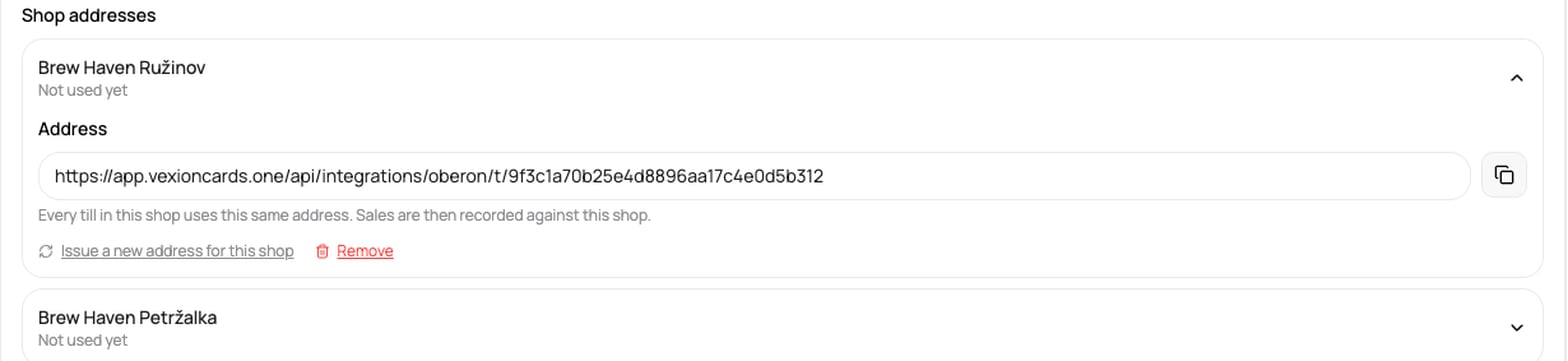
An expanded shop address showing its connection address, the copy button, and the note that every till in the shop uses the same address.

A shop with its address

Step 3: set up OBERON

Do this on every till. It has four parts: a connection that holds the three values, a switch that turns loyalty on, the loyalty system itself, and the barcode scanner.
OBERON’s screens are in Slovak only, so the labels below are quoted exactly as they appear on screen.

3a. Create the connection

1

Open Externé webové služby

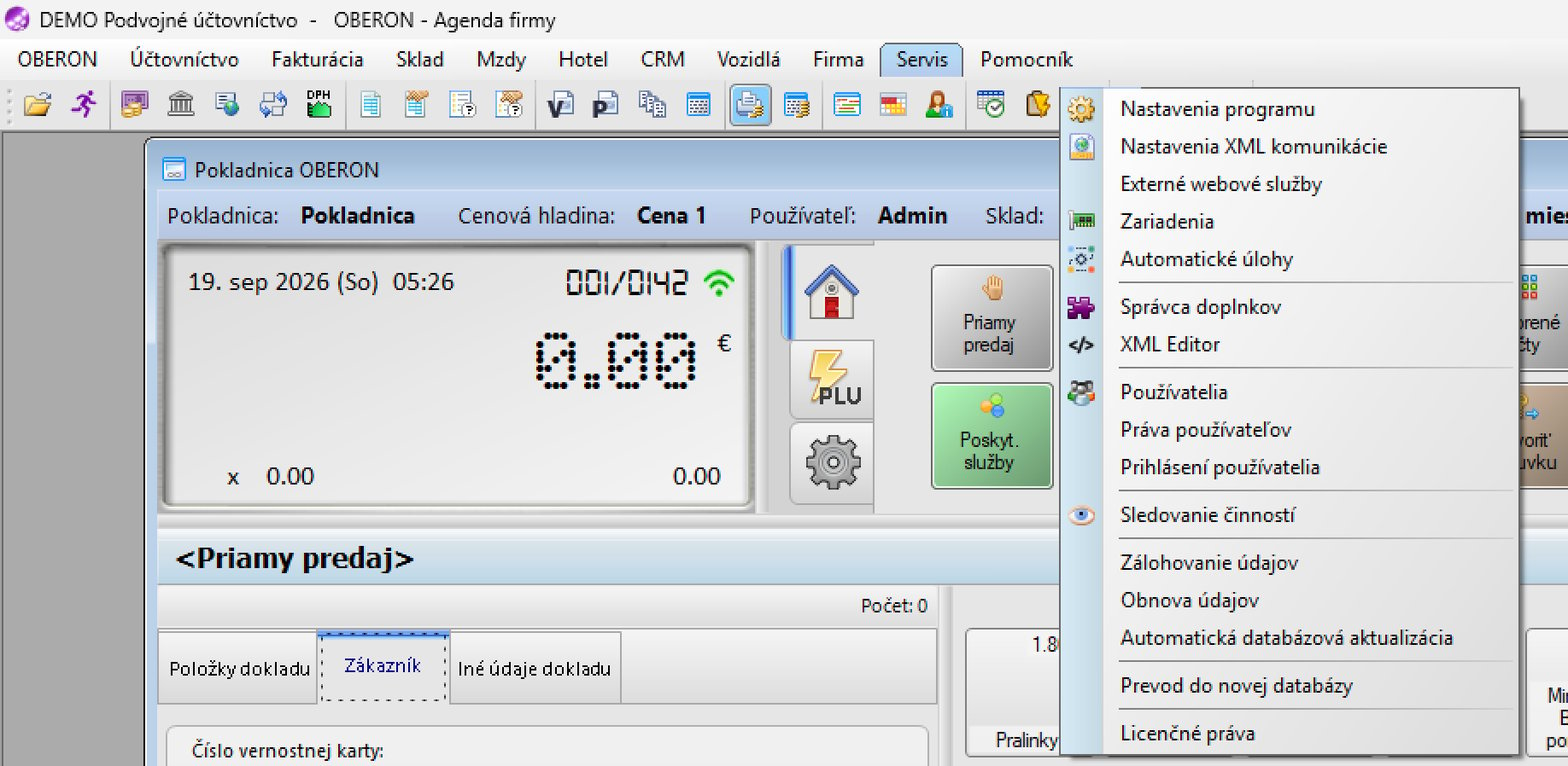
In OBERON open the Servis menu and choose Externé webové služby (external web services).
The OBERON Servis menu open, with the Externé webové služby item visible.

The Servis menu

2

Add a new record

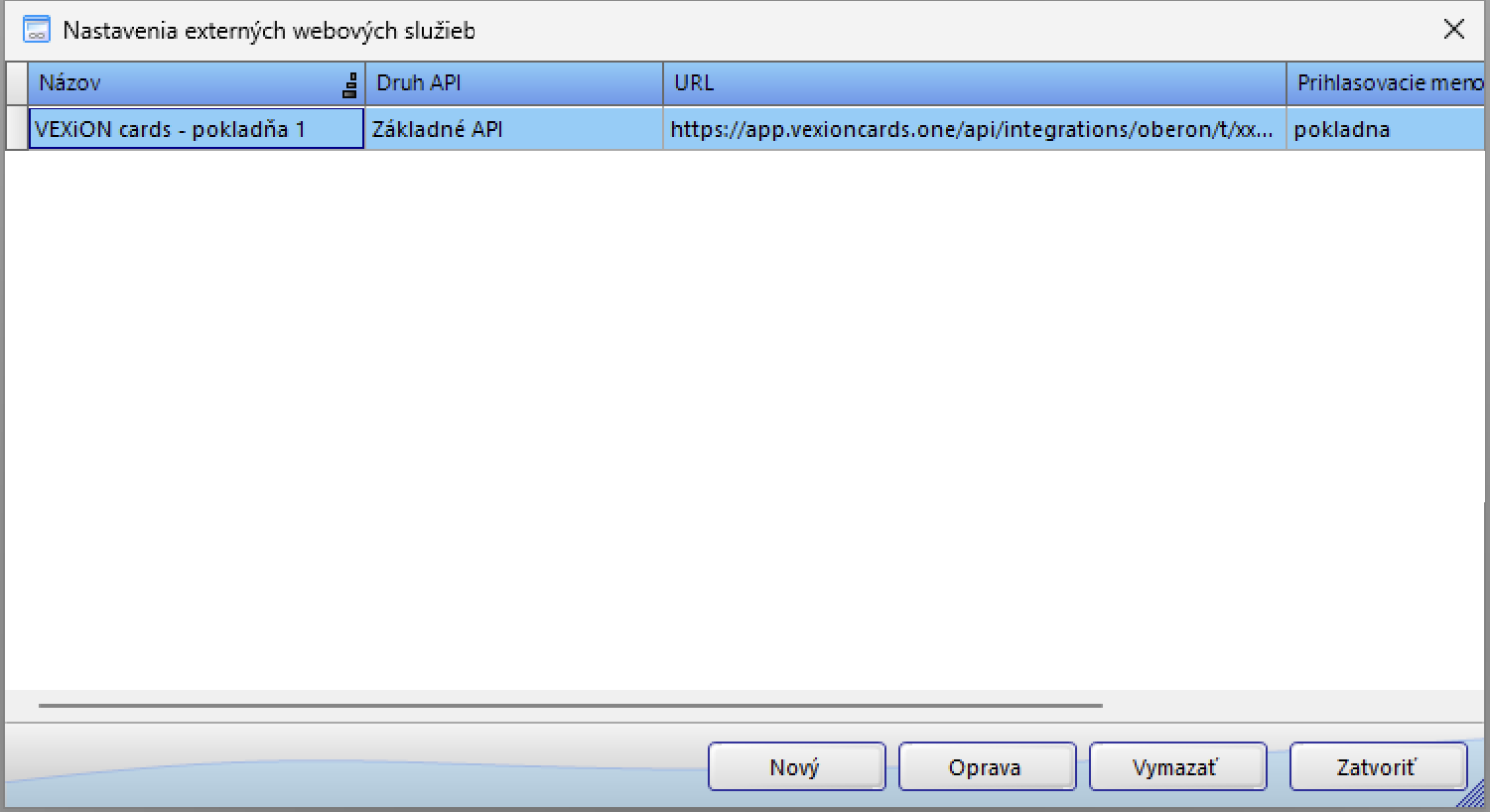
The window Nastavenia externých webových služieb opens. Click Nový.
The Nastavenia externých webových služieb window listing one service named VEXiON cards - pokladňa 1 with its VEXiON address, and the Nový, Oprava, Vymazať and Zatvoriť buttons.

The list of external web services

3

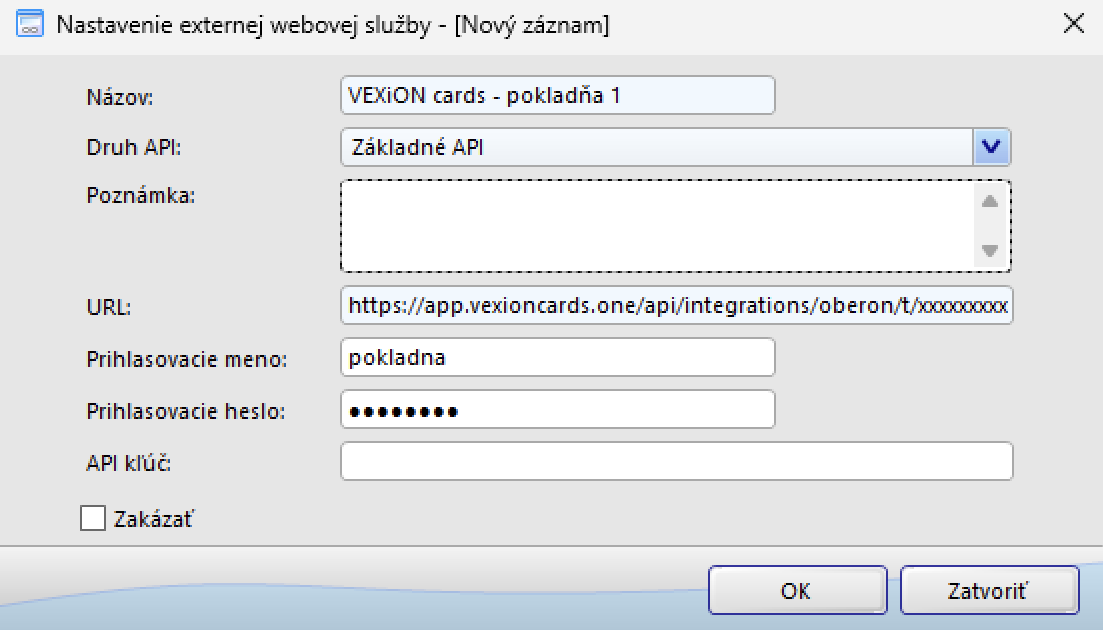
Fill in the form

Leave Poznámka, API kľúč and Zakázať as they are, and save.
The Nastavenie externej webovej služby form with the name VEXiON cards - pokladňa 1, Druh API set to Základné API, the VEXiON address in URL, a username, and a hidden password.

The connection, filled in

The password is case sensitive. Kaviaren and kaviaren are different passwords, and the till will not sign in with the wrong one.

3b. Turn loyalty on

Do this when no sale is in progress. Opening Nastavenia programu asks to close every open window (Zatvoriť všetky okná?), an open bill included.
1

Open the company settings

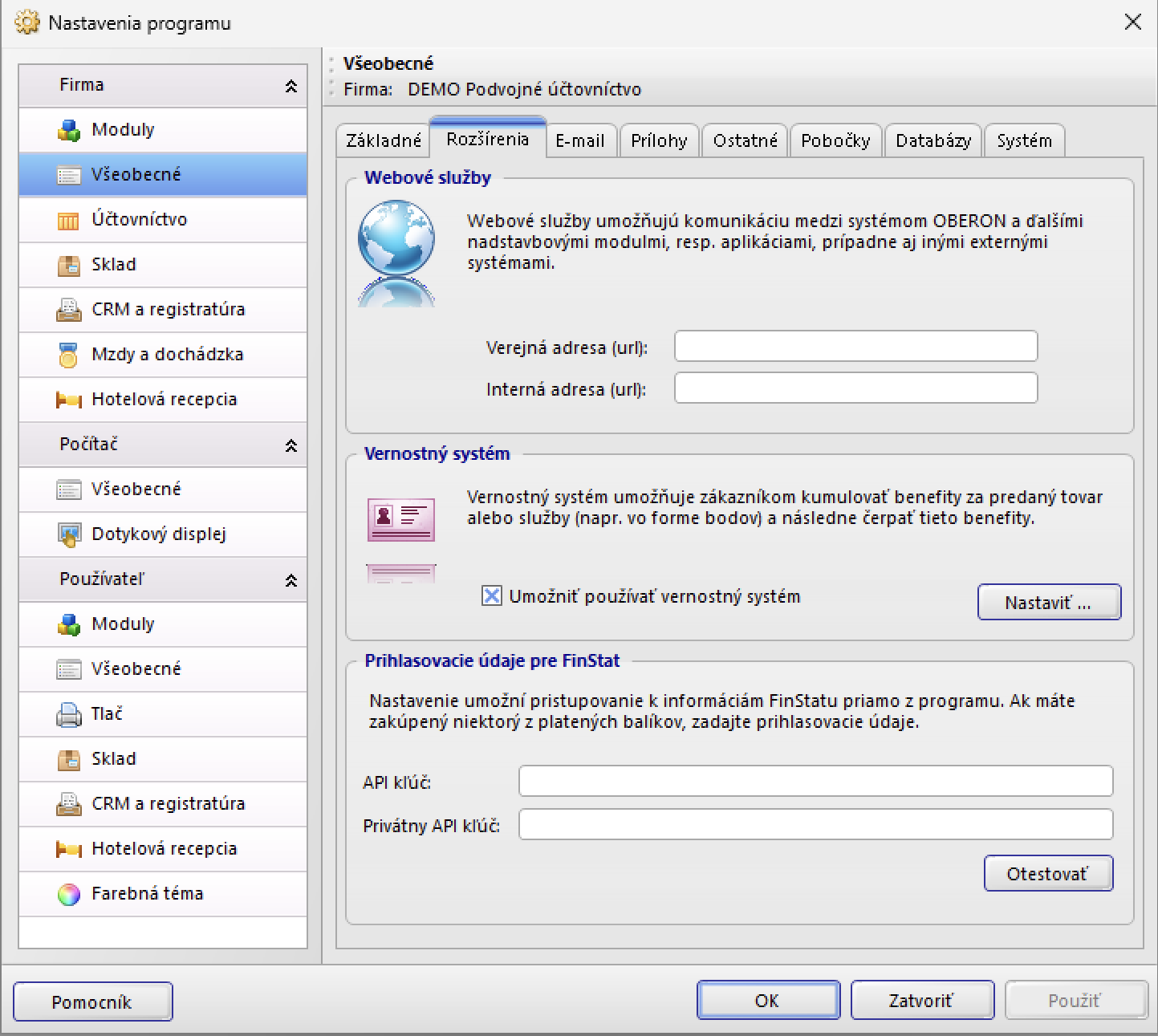
Go to Servis → Nastavenia programu, then Firma → Všeobecné, and open the Rozšírenia tab.
2

Allow the loyalty system

Under Vernostný systém, tick Umožniť používať vernostný systém, then click Nastaviť.
The Rozšírenia tab of the OBERON company settings with Umožniť používať vernostný systém ticked and the Nastaviť button next to it.

Loyalty allowed on the Rozšírenia tab

3c. Add the loyalty system

Nastaviť opens the list of loyalty systems. Click Nový to add one, or Oprava to edit one you already have.
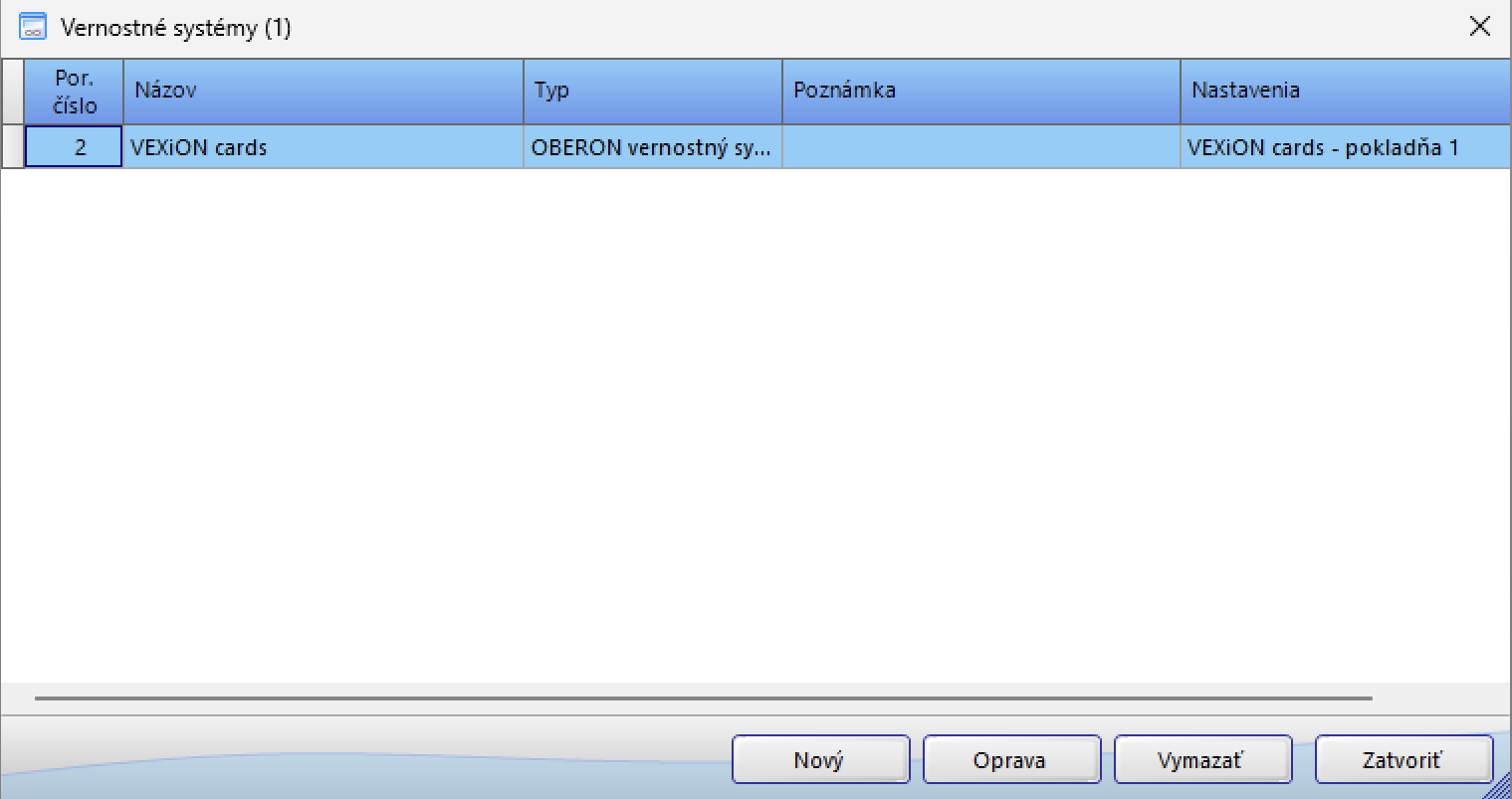
The OBERON list of loyalty systems with the Nový and Oprava buttons.

The list of loyalty systems

The record has three tabs.
1

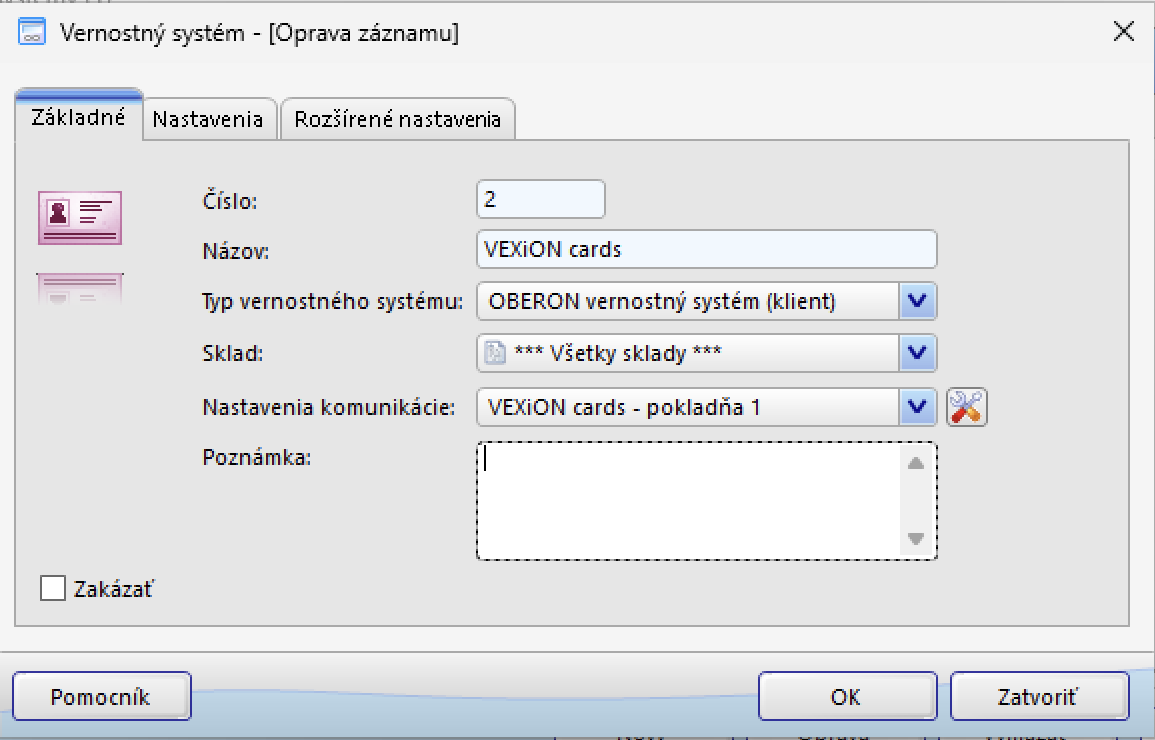
Tab Základné

Leave Číslo as OBERON fills it in.
Tab Základné of the loyalty system record, with the name VEXiON cards, Typ vernostného systému set to OBERON vernostný systém (klient), Sklad set to all stocks, and VEXiON cards - pokladňa 1 selected under Nastavenia komunikácie.

Tab Základné

2

Tab Nastavenia

This tab decides when the till reports a sale to VEXiON: the Kumulovanie benefitov dropdown in the Kumulovanie vernostných bodov group, the checkbox Pri čerpaní benefitov umožniť súčasne aj kumulovať benefity, and Predvolené použitie. The values to choose depend on your card type and are set out in card types and settings.
3

Tab Rozšírené nastavenia

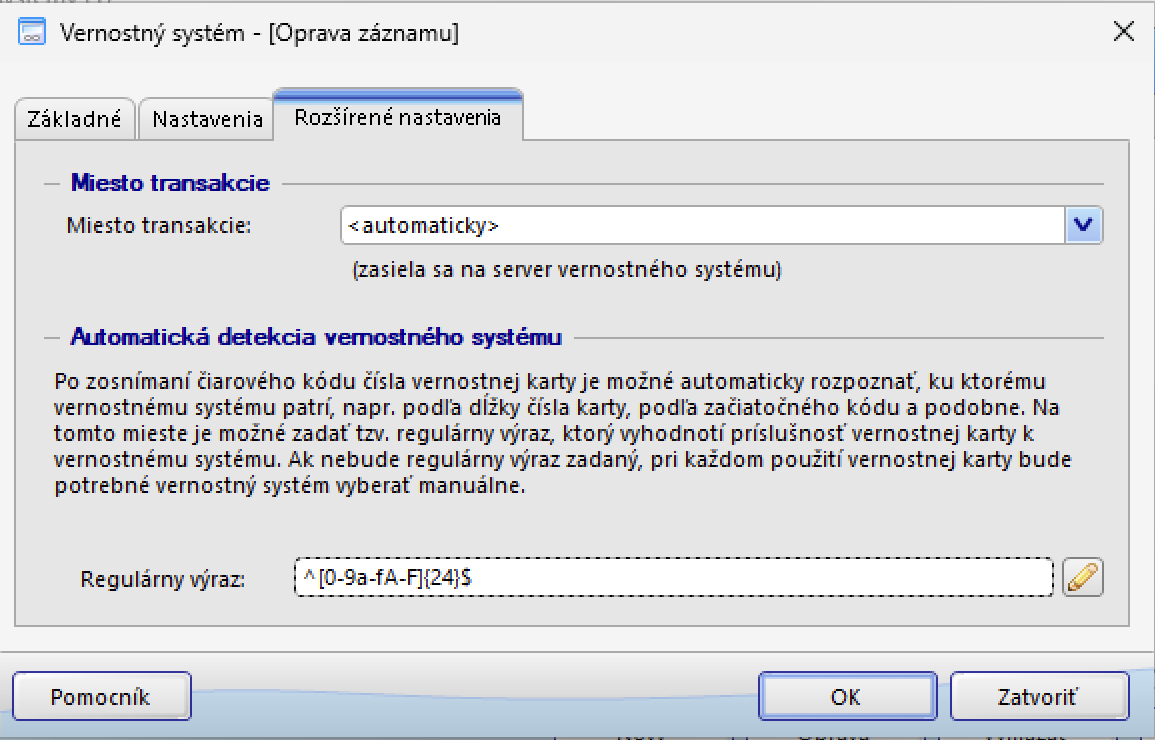
In the Automatická detekcia vernostného systému group, enter this in Regulárny výraz:
It tells OBERON what a VEXiON card number looks like: 24 characters, digits and the letters a to f. With it, a card scanned into the till is recognised and the customer attached straight away. Without it, OBERON asks the cashier to choose the loyalty system by hand every time a card is used.Type it exactly, or copy it from here. The pencil button next to the field opens OBERON’s Editor kódu, where Skontrolovať checks it and should answer Regulárny výraz je korektný.
Why 24 characters is all you need. A VEXiON QR code holds a web address ending in the card number, and every VEXiON address is built so that the part before the number is exactly 32 characters. A scanner set up to drop the first 32 characters therefore sends the bare card number and nothing else. Scanners supplied by VEXiON come set up that way.
If your scanner sends the whole address instead, the pattern above will not match it. Use this one, which accepts both:
The better fix is to have the scanner set up to strip the first 32 characters, so the till only ever sees the card number.
Leave Miesto transakcie at its default, <automaticky>. OBERON sends it along with each sale and VEXiON shows it on the transaction, but the shop a sale counts towards always comes from the address, never from this field.
Tab Rozšírené nastavenia of the loyalty system record, with Miesto transakcie left at automaticky and the VEXiON card pattern entered in Regulárny výraz under Automatická detekcia vernostného systému.

Tab Rozšírené nastavenia

Click OK to save the record, Zatvoriť to close the list, then OK (or Použiť) in Nastavenia programu. The setup is not saved until you have confirmed all three.

3d. Register the barcode scanner

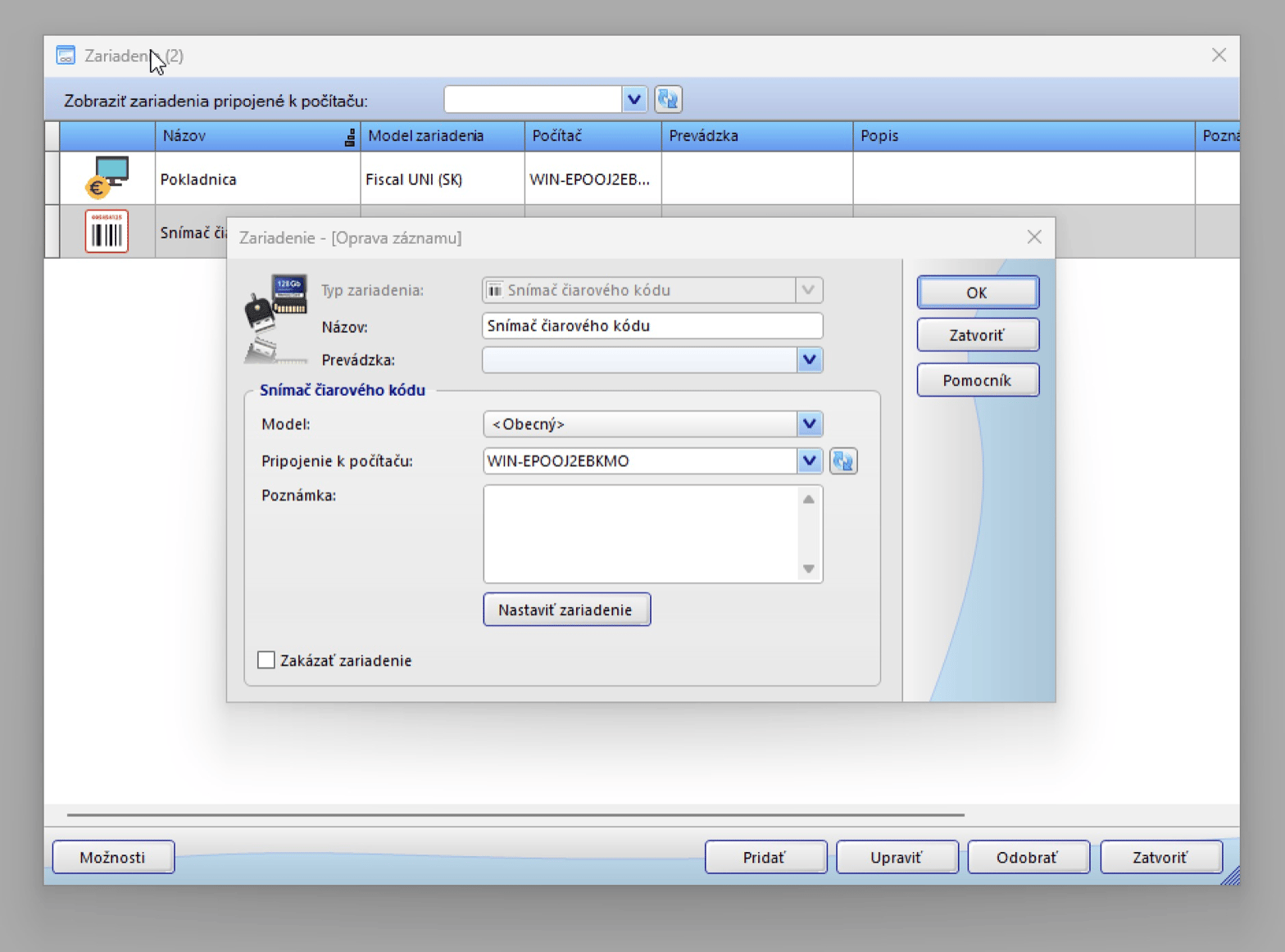
The scanner has to exist in OBERON as a device, or nothing it scans reaches the till.
1

Open Zariadenia

Go to Servis → Zariadenia. The list shows the devices attached to this computer.
2

Add the scanner

Click Pridať, or Upraviť if it is already listed, and set:Prevádzka can stay empty. Leave Zakázať zariadenie unticked and click OK.
The OBERON Zariadenia window listing a Pokladnica and a Snímač čiarového kódu, with the device dialog open showing Typ zariadenia Snímač čiarového kódu, Model Obecný and the till computer selected under Pripojenie k počítaču.

The scanner registered as a device

A USB scanner needs nothing beyond this. It behaves like a keyboard and types the card number into whatever field has the cursor, so <Obecný> is the right model and Nastaviť zariadenie can be left alone.That button is for a scanner on a serial (COM) port: it asks for the port and speed, and offers a field to test the scanner. The Model list also offers ECI - 125 (RFID kódy), ECI - 20 (RFID kódy), QeeR skener and <COM port scanner> for those specific devices.
The address looks like this:
The xxxx... part is a code unique to that shop. Yours will be different, so do not share it. Together with the password, it lets a till connect to your account.
Copy the address with the copy button rather than retyping it, and paste it whole. The long code at the end identifies the shop: a single wrong character, or an address pasted without it, stops the till signing in.
Two tills in the same shop use exactly the same three values. They still work independently: each one signs in on its own and its sales are recorded separately, all against that shop.Two tills in different shops must use different addresses, one from each shop. The username and password stay the same.
Menu names can differ slightly between OBERON versions. If you cannot find these forms, ask your OBERON supplier, and see OBERON’s own help at help.oberon.sk.

Step 4: test it

1

Scan a real card

OBERON has no connection test button: it first contacts VEXiON when a card is used at the till. So scan a customer’s VEXiON card into the till. OBERON should show the card holder’s name and their balance under Vernostné body.
2

Check it arrived

In VEXiON, open the customer and confirm the transaction is listed, and that it is recorded against the right shop.
Once any till in a shop has connected at least once, that shop’s address shows In use in the list.

Checking the shop mapping

If you have several shops, open Settings → Integrations and look at Location Mapping at the top. OBERON appears there with the other POS systems and shows how many of your shops have an address.
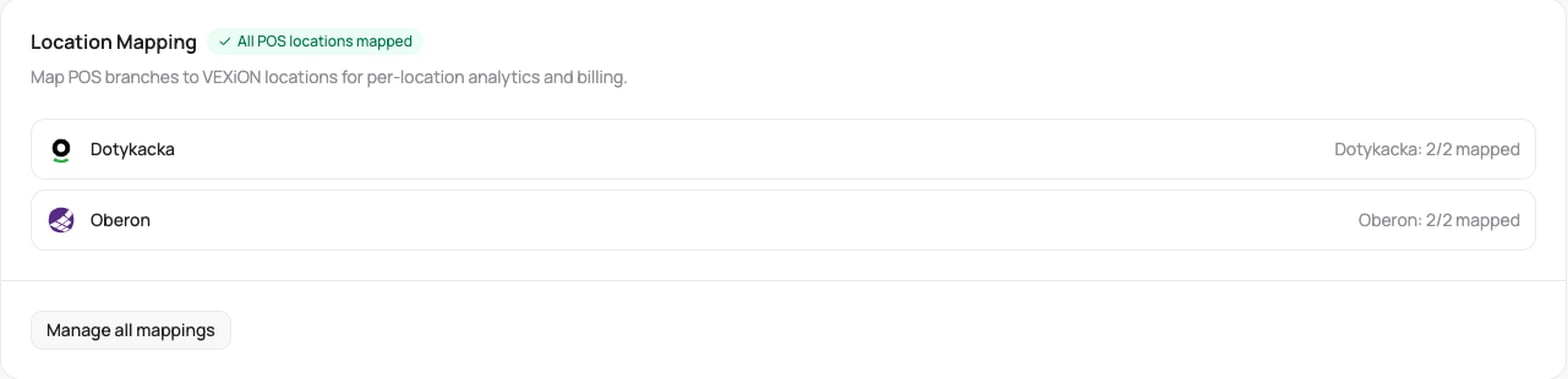
The Location Mapping panel listing Dotykacka and Oberon, each showing two of two shops mapped.

OBERON in the location mapping list

A till connected without an address still works. If you have more than one shop, its sales are not counted towards any particular shop.

Managing addresses later

  • Issue a new address: use this if an address has leaked. The old address stops working for new sign-ins immediately. Tills that are already signed in can keep working with it for up to 4 hours. Every till in that shop has to be updated with the new one.
  • Remove: deletes the address. No till in that shop can connect any more, and the shop becomes available to add again.

Troubleshooting

The card is real but the till is signed in to the wrong business, or to no shop. Check that the address in OBERON is the exact one VEXiON shows for the shop this till stands in. If you retyped it by hand, copy it again with the copy button.
One of the three values does not match. Check, in this order:
  • The password, including capital letters. It is case sensitive.
  • The address, pasted whole. It must end with the long code, with nothing after it.
  • Whether the address was reissued. If you used Issue a new address in VEXiON, the old one no longer works for new sign-ins and every till in that shop needs the new one.
If you changed the password in VEXiON, every till has to be updated with the new one.
Another business already uses it. Pick something specific to you, such as your business name.
Either it already has an address, or it is connected to Dotykačka, Storyous or Papaya. A shop only ever needs one address. To connect it to OBERON instead, disconnect the other POS system for that shop first.
Every shop already has one. That is all you need: set your remaining tills up with the address of the shop they stand in.
That till was set up with the wrong shop’s address. Copy the correct shop’s address from VEXiON and enter it on that till.
This applies if you have more than one shop. That shop has no address yet, or the till was connected without one. Add an address for the shop and enter it on its tills.

Already connected before addresses existed?

If your OBERON was connected before addresses were introduced, it keeps working exactly as it does now and you do not have to change anything. Moving to an address is worth it if you have more than one shop, because it is the only way sales are counted per shop. Follow step 2 for each shop, then step 3 on each till.