

The basic workflow
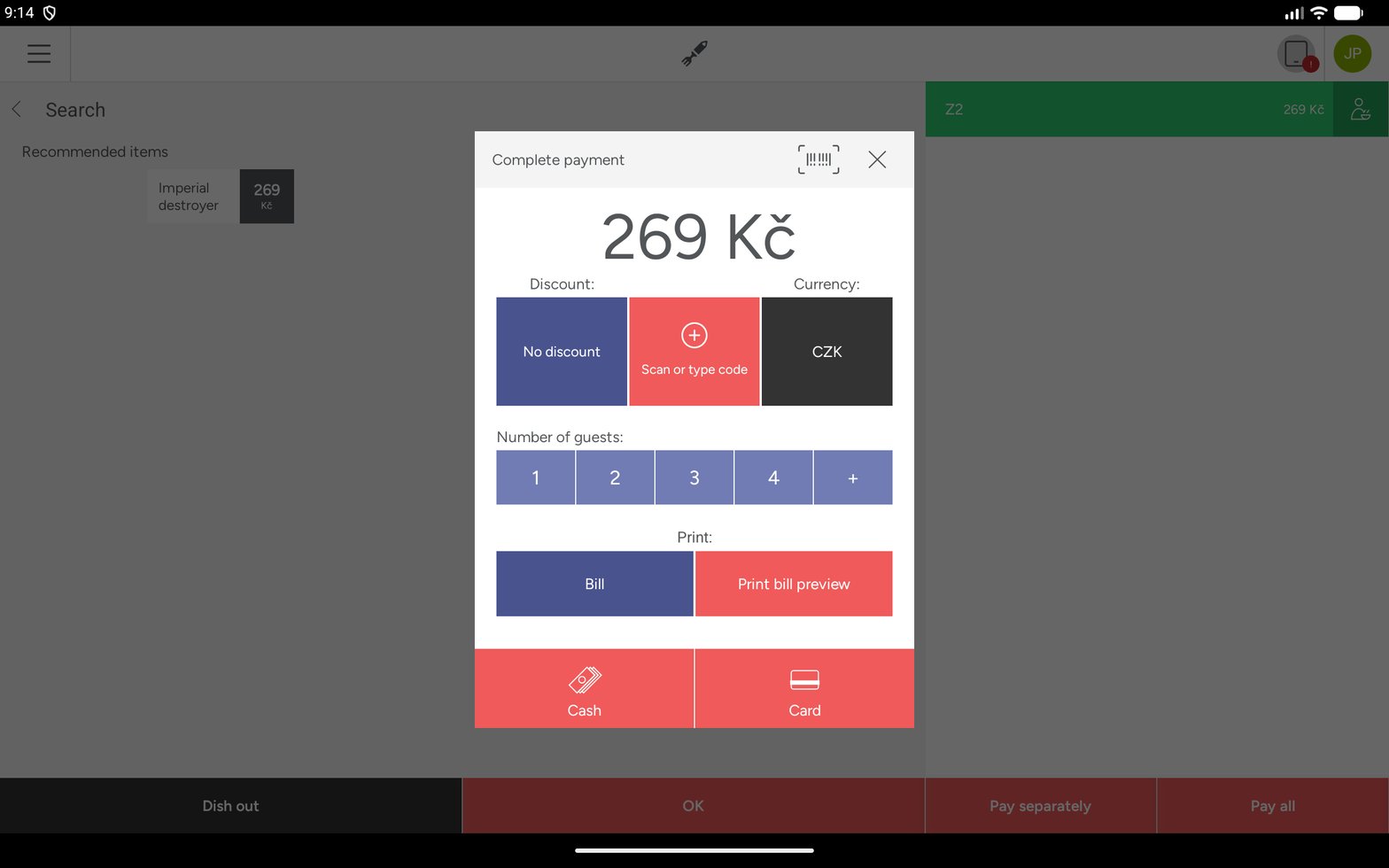
The Complete payment dialog, reached by tapping Pay all
Finding a customer
By QR code. The customer opens their card in Apple or Google Wallet and shows the QR. Tap Scan or type code, scan the QR, and wait 1 to 3 seconds. By typing the code. The same button opens a text field with the on-screen keyboard. Type the customer’s code and confirm with the keyboard’s enter key. This is the fallback when a screen is cracked, too dim to scan, or the scanner is broken, and it is also how a handheld barcode scanner works: the scanner types the code and sends enter for you.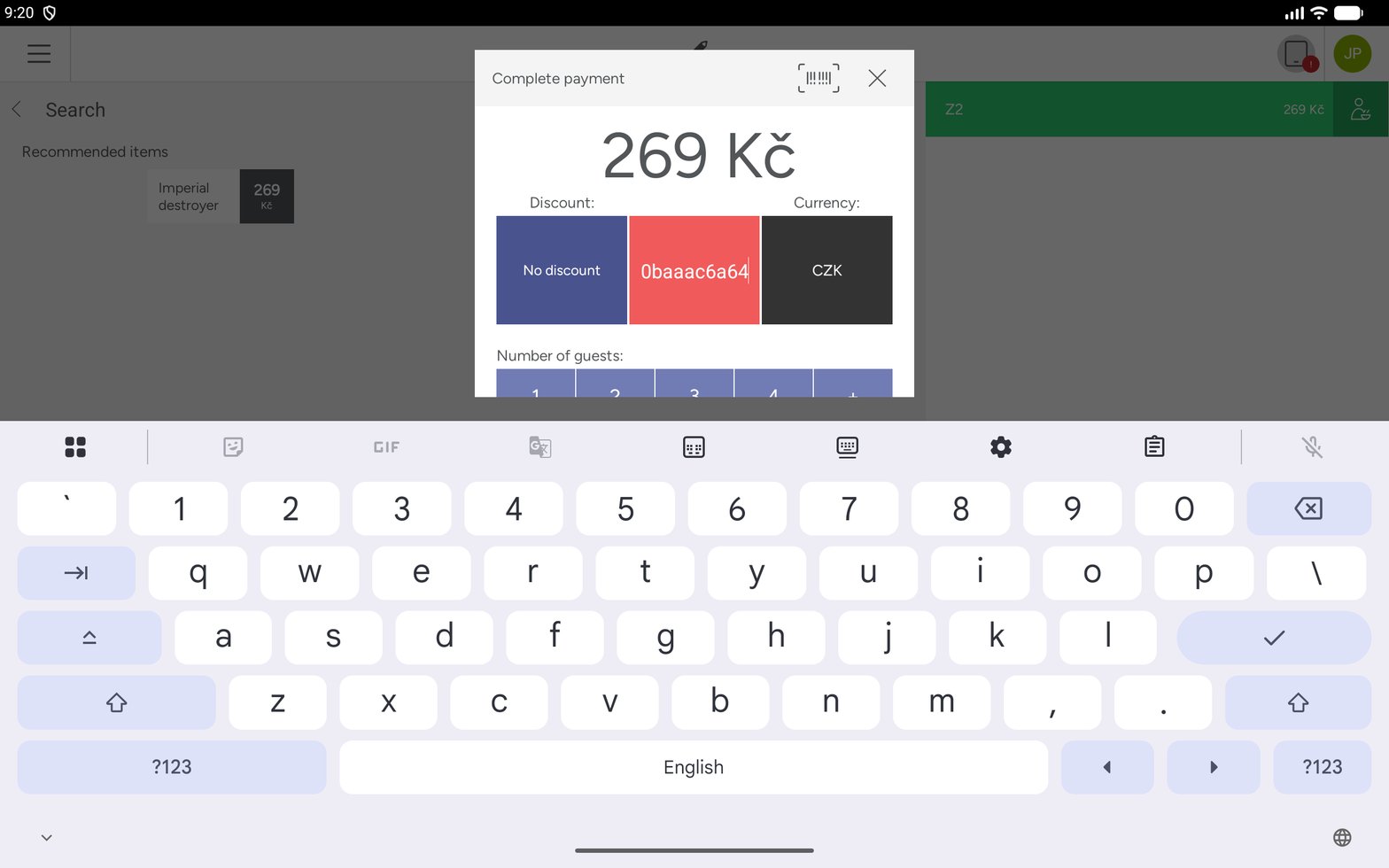
Typing a customer code instead of scanning it
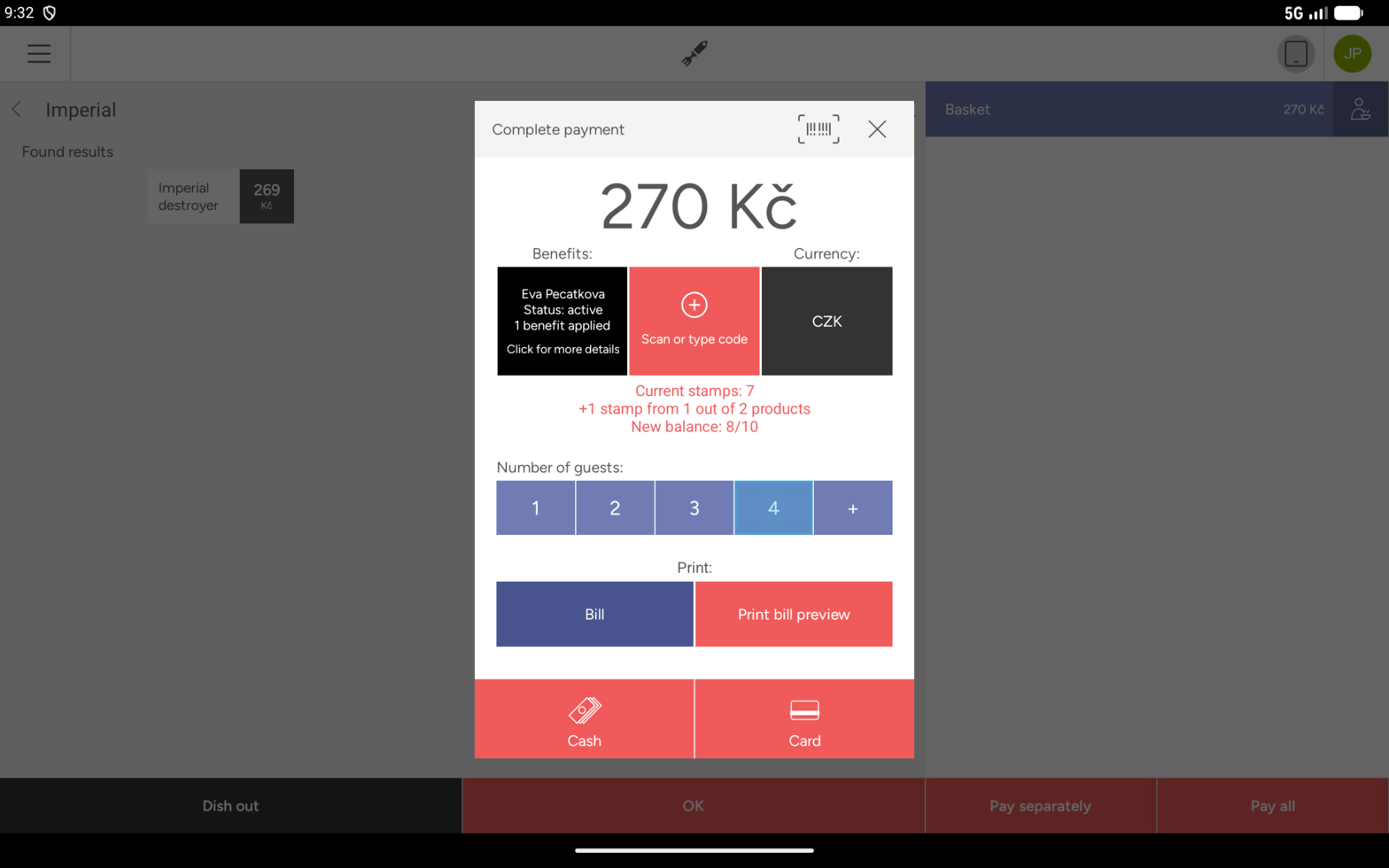
The payment dialog after a one-card customer is scanned
Registering a new customer
If the customer has no card yet, they can register at the till. This is the first step, without it they cannot use the program. You have a registration QR code on-site, available two ways:Turning benefits on and off
Every benefit in the Customer benefits dialog has a toggle. This is how staff handle a customer who does not want to use a reward right now.Stamp cards
Collecting (not enough for a reward yet). The line reads:Earning 2 stamps - Current stamps: 6and the detail underneath shows:
: 6. Only basket items with Loyalty enabled and an Earn Stamps value above zero count, which is what “2 out of 3 products” means.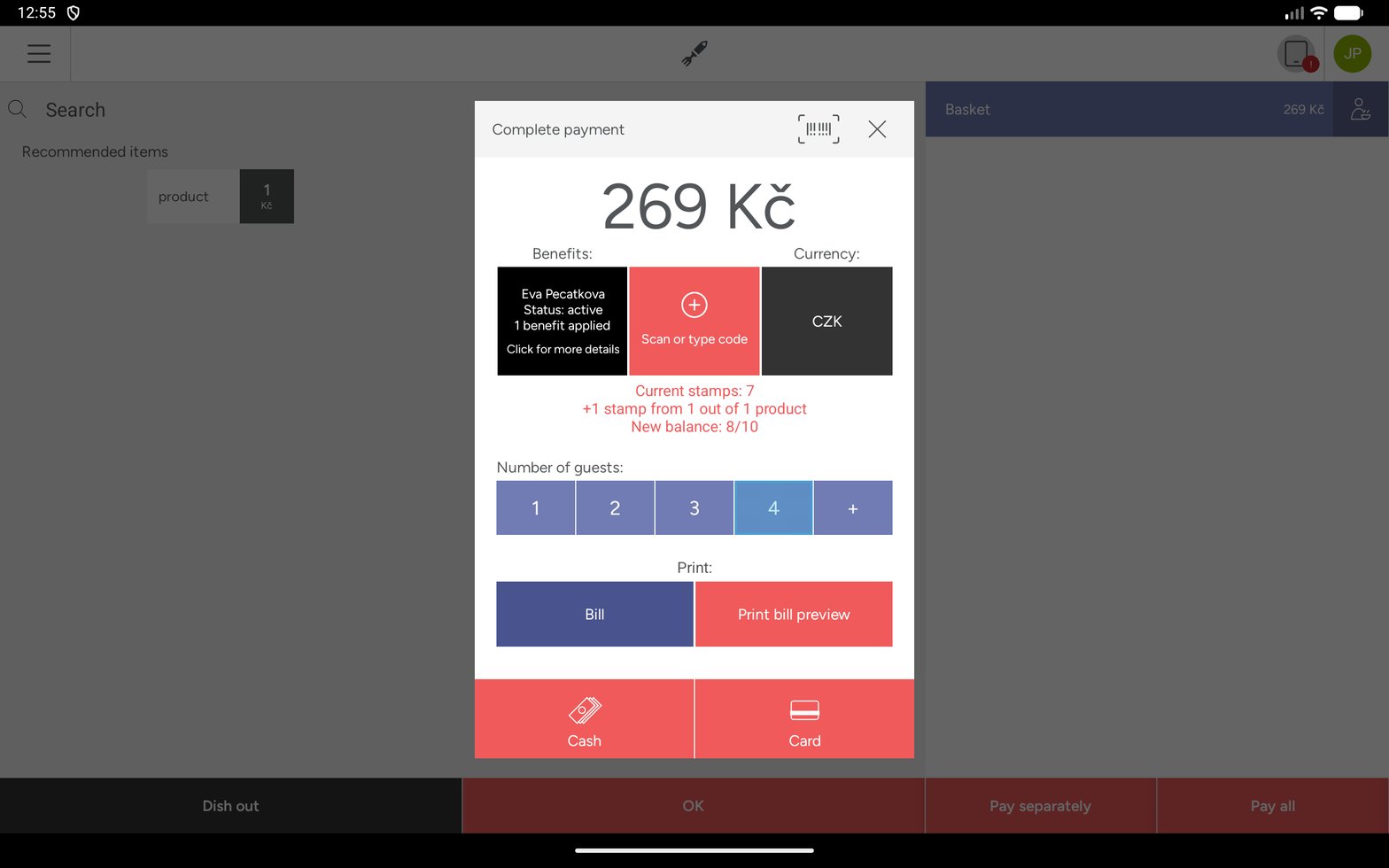
Earning a stamp: one benefit applied, the current stamps, the stamp earned and the new balance
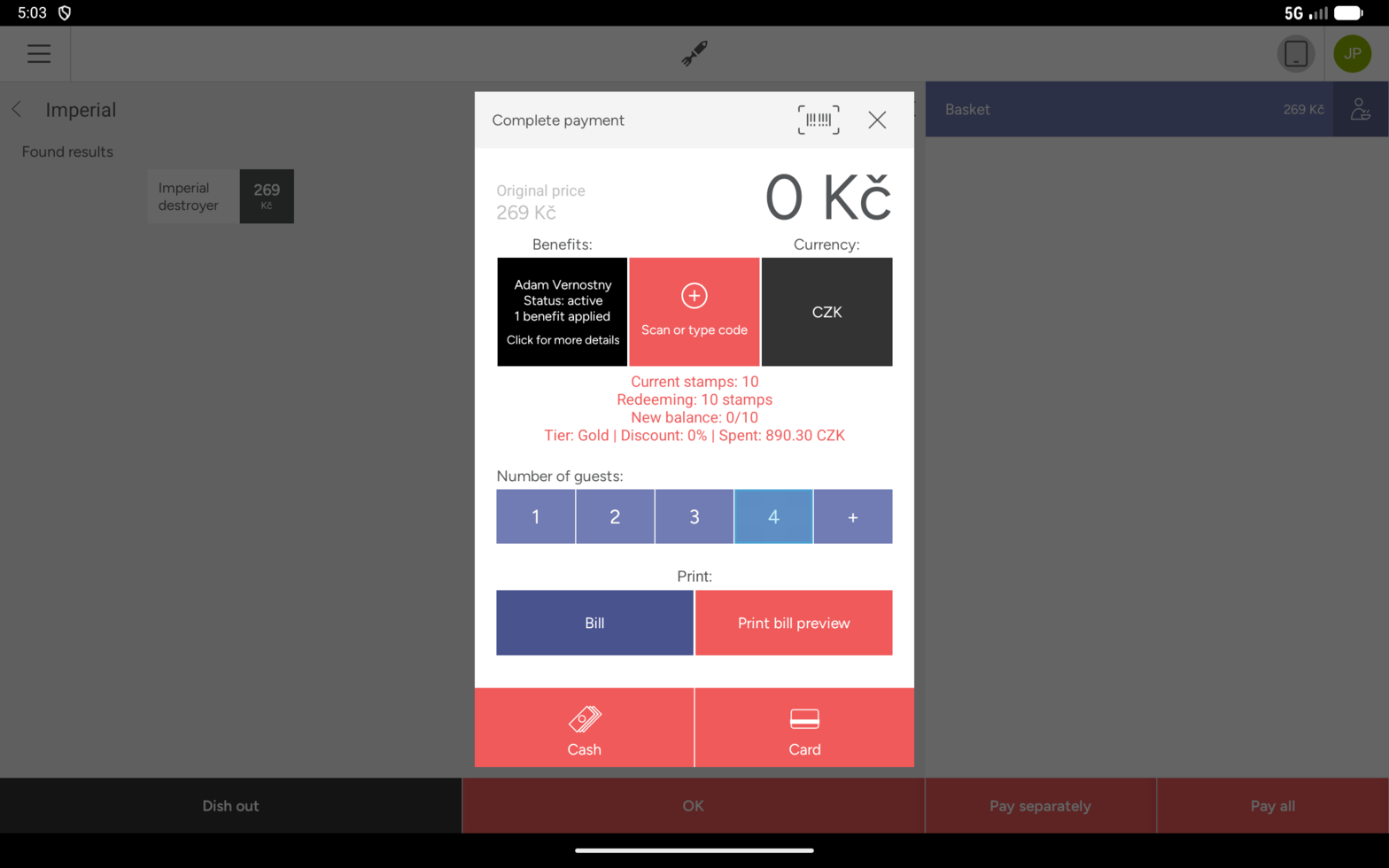
Redeeming stamps: a free product and the stamps deducted
Reward cards
Credit Cashback
The line is headedCredit - enter the number of points, with a field to enter how many points to use. The cashier types points. The lines show euros first and the points in brackets. The detail reads (example at 1 point = 0.01 €):
Credit: €8.50 (850 points) and For this purchase: +€0.08 (8 points).
Ask the customer
Enter the amount
Confirm
Product Rewards
VEXiON offers the eligible products when the customer has enough points, the cheapest line on the bill first, with a toggle for each to apply or skip it. It redeems as many products as the points allow. The discount percent applies to the whole line price, so a line of two of the same product is discounted for both units. Set Discount above 0 on every redeemable product: a product with Redeem above 0 and Discount 0 is offered as “0% off” and still costs the points.Free with points or Discount with points (50%).A cashback amount field in the Customer benefits dialog
Discount cards
The discount applies automatically, staff do nothing. The line readsLoyalty Discount - Silver (10%), with the detail:
Loyalty discount (10%) on the line, plus a summary with Tier: Silver (10% discount), Saved: 12.50 EUR, and either 100.00 EUR until Gold (15%) or You have the highest tier!. The total spend is shown on the till screen, not on the receipt.
Tier upgraded! Next time: Gold (15%). The new rate applies from their next visit, not this one.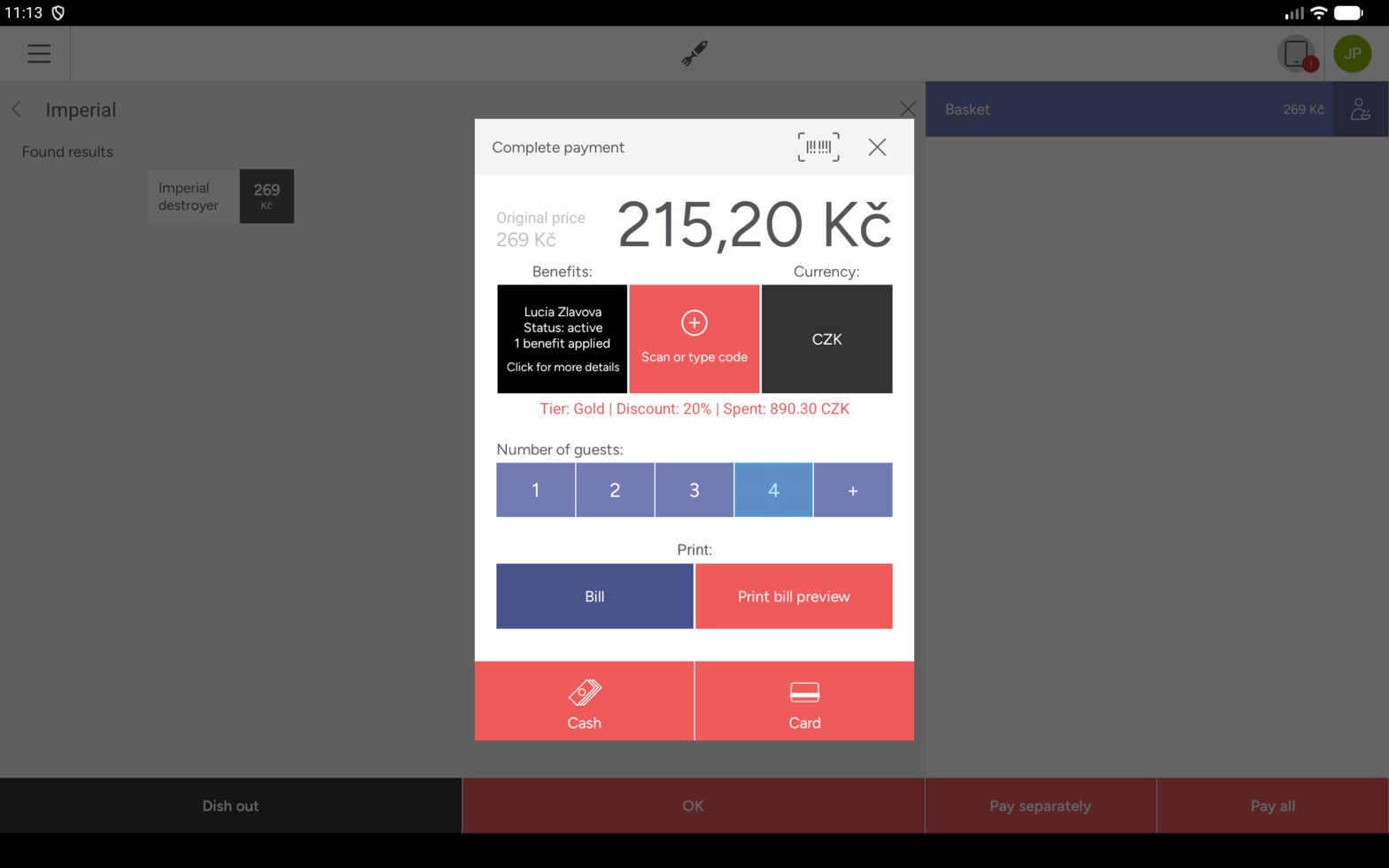
A discount tier on the payment screen
Gift cards
Paying with a gift card. Scan the card, and at payment the line is headedSpending with Select amount to use, showing:
Prepaid Credit. Storyous names the payment method itself, in English, whatever language the till runs in, and the paid bill lists it alongside the cash or card part. Nothing to change, it is simply what to look for when reconciling.Previous balance, Used, and Remaining balance, each with the amount.
Max top-up and the allowed range, which comes from the Prepaid Value Range you set in the integration settings. Enter the amount, confirm, and the customer pays the basket plus the credit. The line is headed Gift Card Top-Up and shows Current balance, Max top-up and Enter amount with the allowed range. Storyous adds its own Balance after transaction under the toggle. The receipt records Added: 50.00 EUR (or Added: 50.00 EUR + 5.00 EUR bonus when a bonus applies) and the New balance.
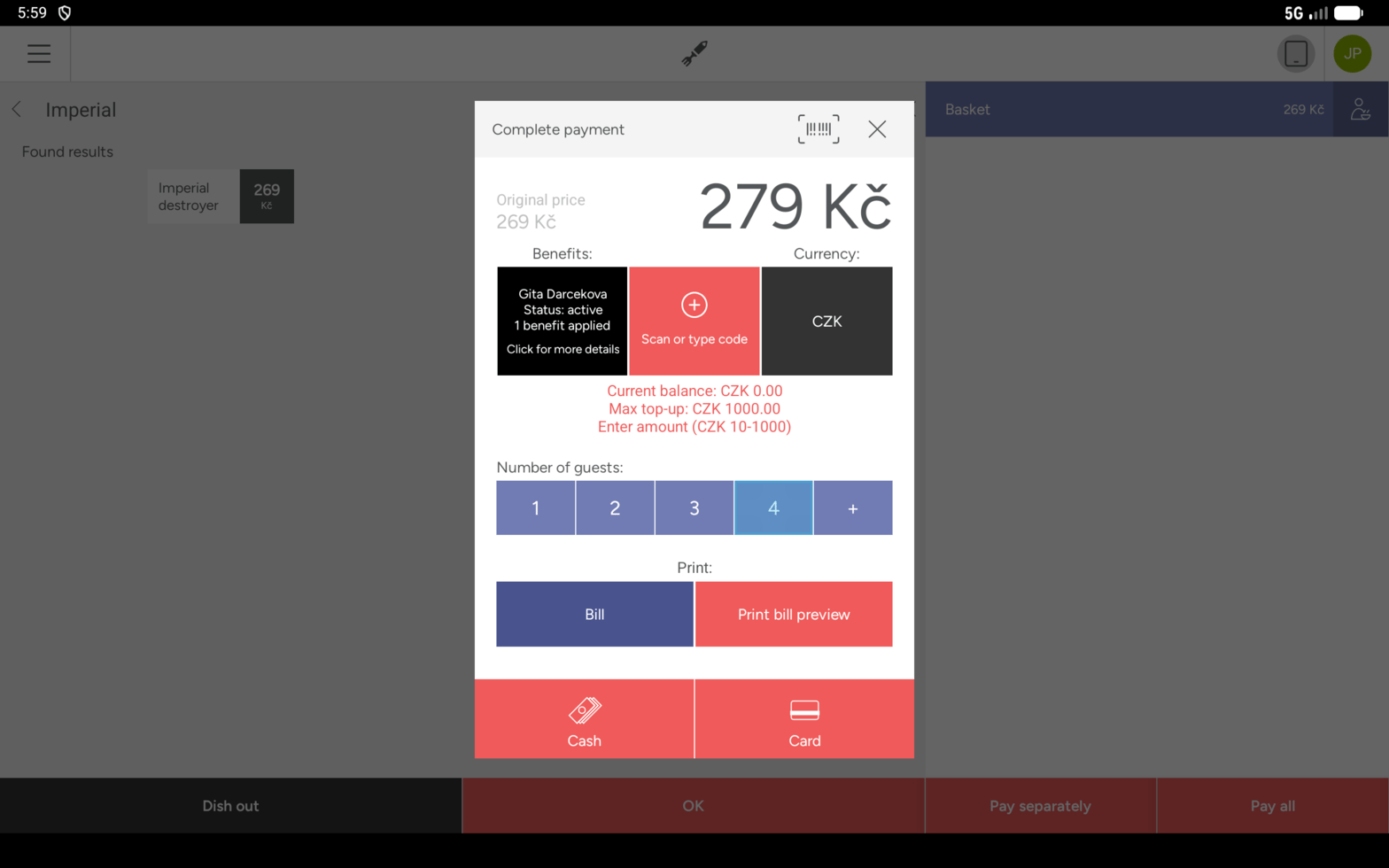
Top-up mode: the amount is added to the bill
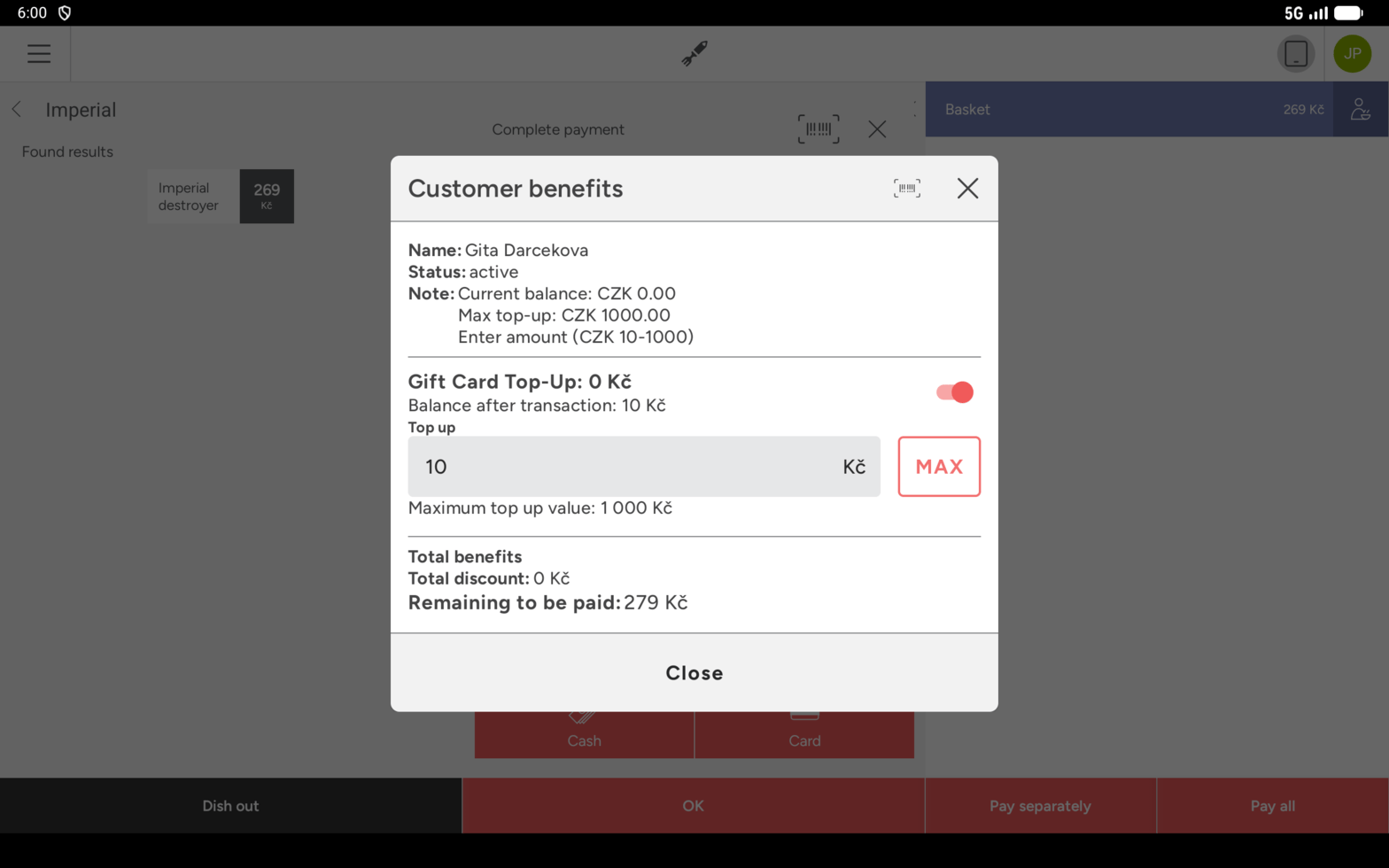
The top-up amount field with its MAX button
New Gift Card · From: (buyer) · To: (recipient) · Phone: (recipient’s number) · Requested amount: (amount)From is the buyer. To and Phone appear only when they exist. For an online order the buyer chooses the recipient after paying, so they are usually missing. The amount and the bonus are the ones the buyer saw on the gift-card page. You cannot change them. Check the amount, confirm and take payment. The buyer pays the base amount, the bonus is free. After payment the buyer gets a confirmation email and the card goes to the buyer or the recipient they choose. Some cards are sold with the older in-store form. For those the till asks you to enter the card value, within the Prepaid Value Range from the integration settings. The bonus then follows the percentage in the integration settings.
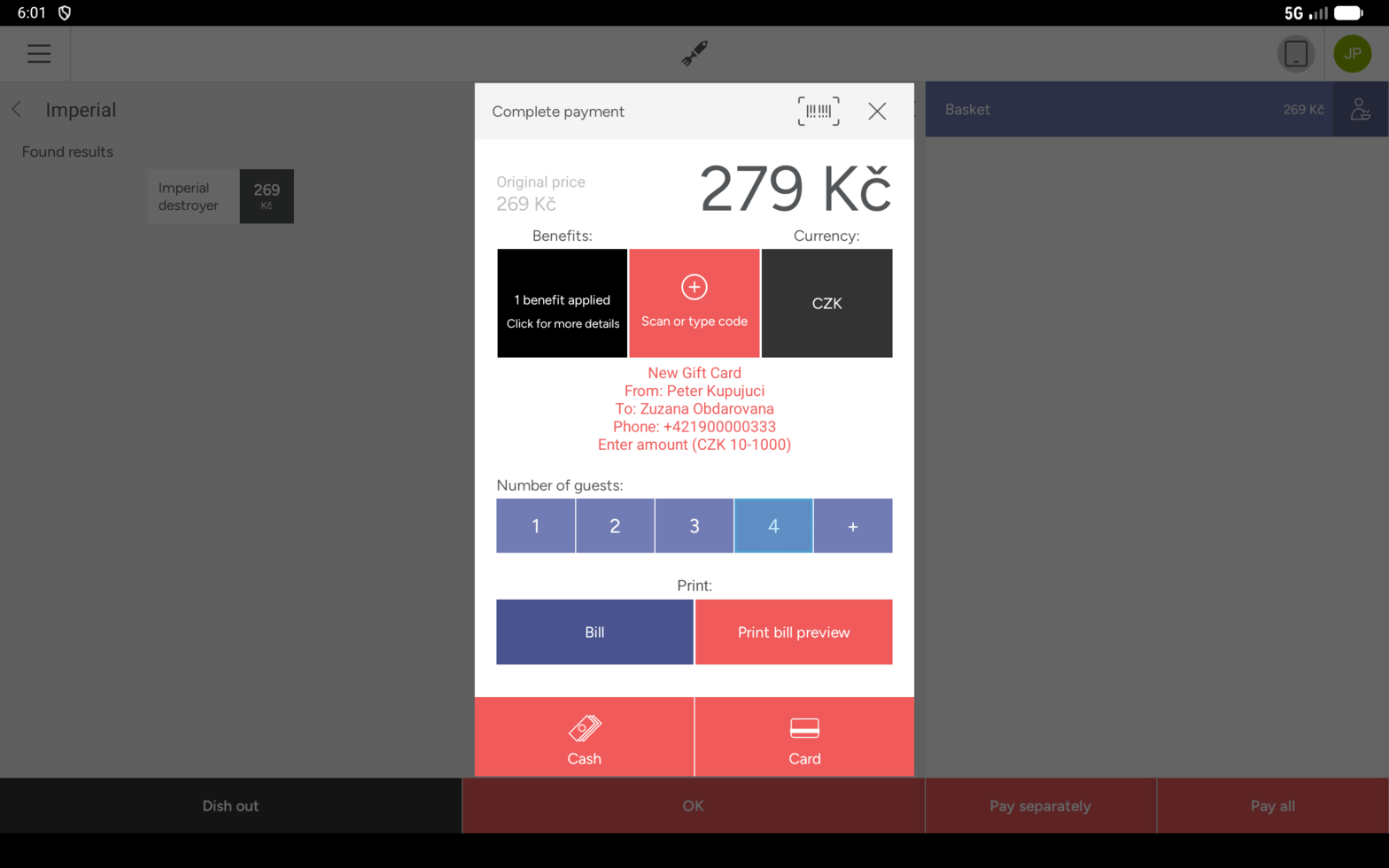
The buyer's order shown on the payment screen
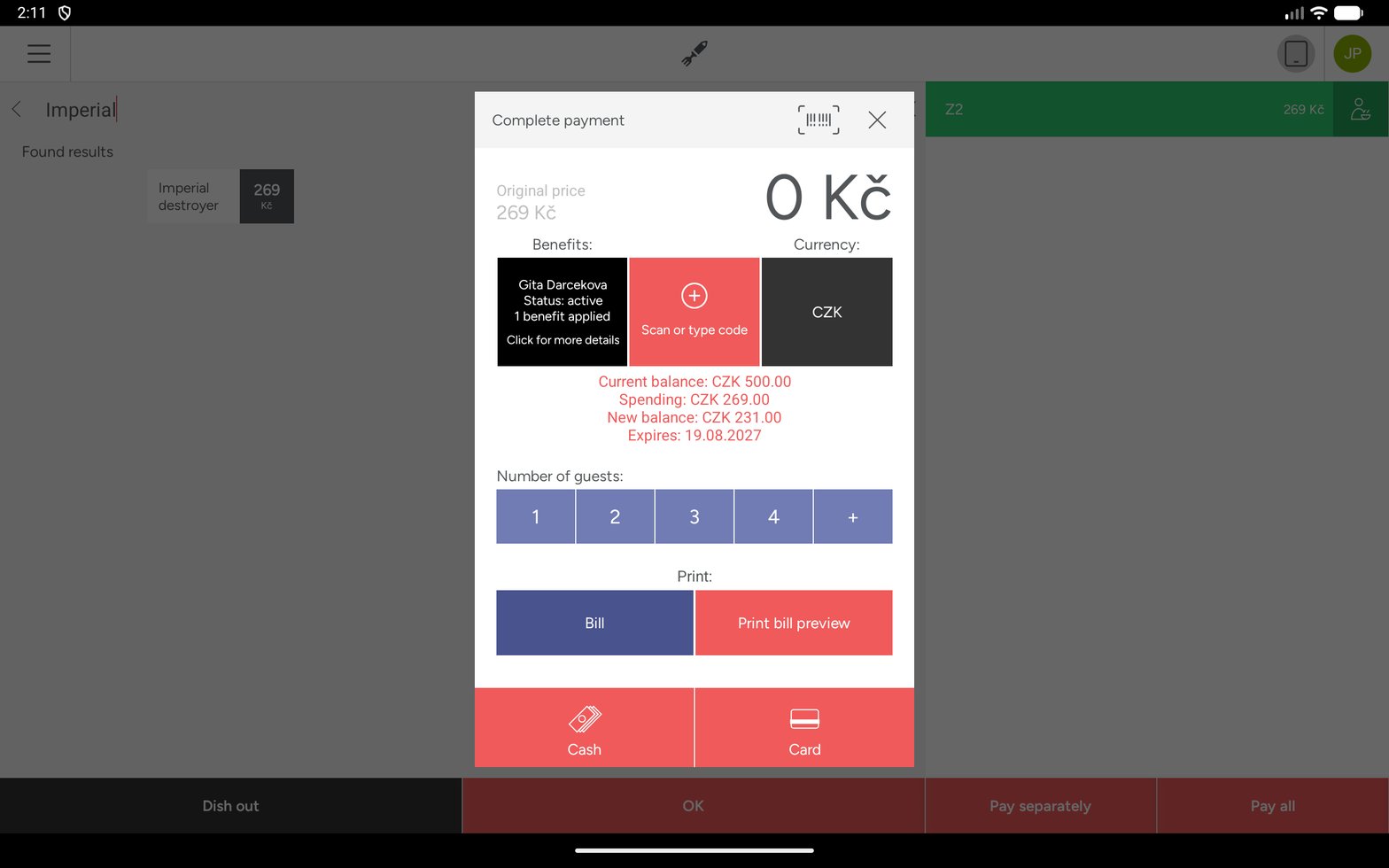
Paying with a gift card: the balance covers the bill in full
Employee cards
An employee card behaves like a discount card at the till, with two differences staff will see:Monthly limit reached is shown instead. Either way the card still scans, it just applies no discount until the budget resets.
What lands on the receipt
Loyalty is not only on screen. When a card is used, VEXiON adds lines to the printed bill in two places:- On the product line itself, replacing or annotating the price. A redeemed item prints
Free with stampsorFree with points, a partly discounted one printsDiscount with stamps (60%)orDiscount for 1000 points, and a tier discount printsLoyalty discount (15%)with the original price struck through. - In a summary block after the total, under the
STORYOUSheading, giving what was earned or redeemed and the resulting balance.
Redeemed 200 stamps New stamps balance: 356/10 Loyalty by VEXiON cardsA tiered discount sale prints:
Tier: Gold (15% discount) Saved: 65.55 CZK You have the highest tier! Loyalty by VEXiON cardsAnd a gift-card top-up prints the previous balance, what was loaded including any bonus, and the new balance. Most receipts with loyalty on them end with:
Loyalty by VEXiON cards
Controls at a glance
Quick reference
Common situations
The customer forgot their phone
The customer forgot their phone
The card would not scan
The card would not scan
The customer does not want to use points
The customer does not want to use points
The gift card has expired
The gift card has expired
The internet is down
The internet is down
The code will not scan or is not recognised
The code will not scan or is not recognised
You cancelled (voided) a whole bill
You cancelled (voided) a whole bill
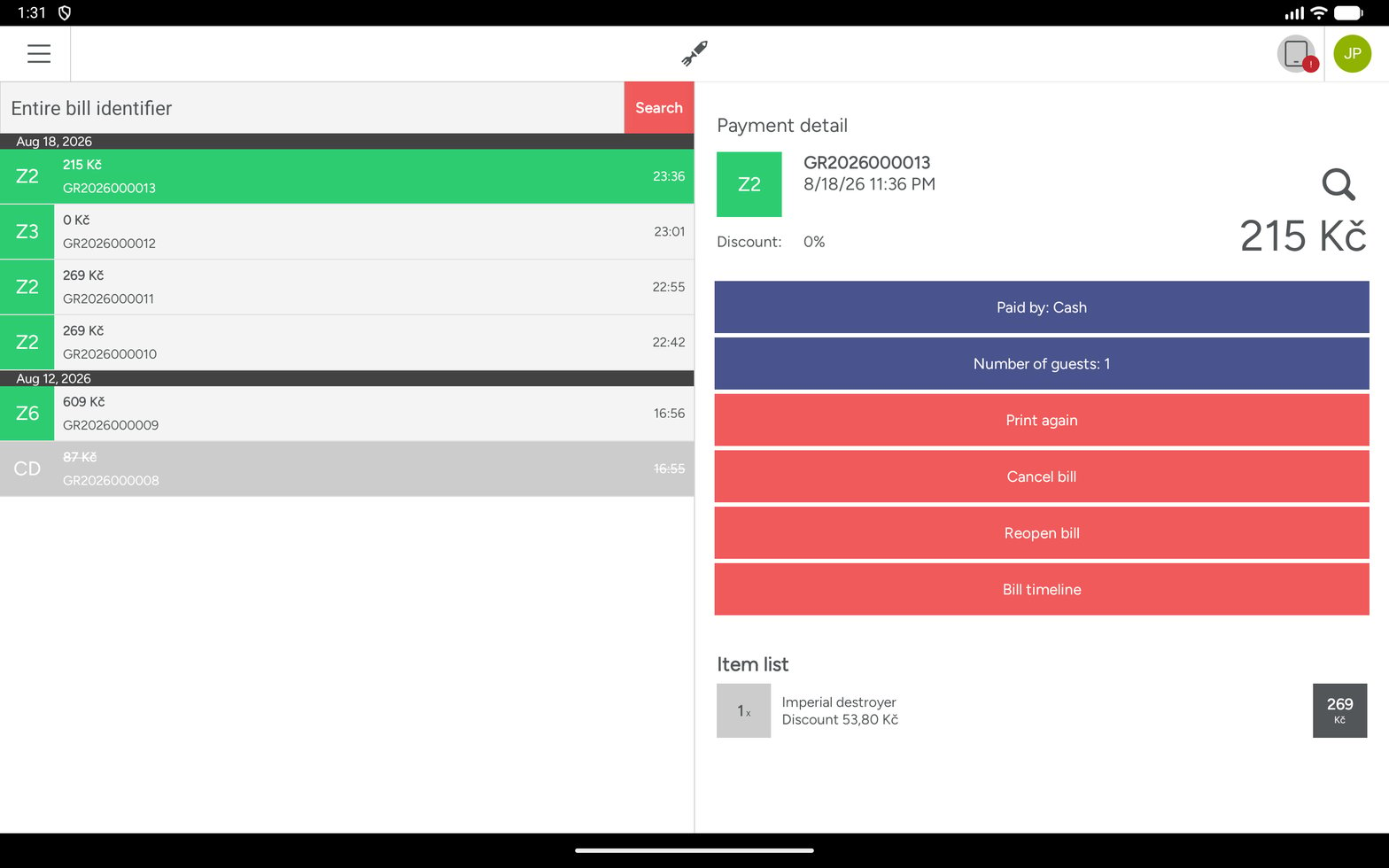
Where to cancel a bill: Bill history, then the payment detail
Cancel bill with loyalty benefit: would you like to refund the used benefit (so the customer can use it again) or keep the benefit used?
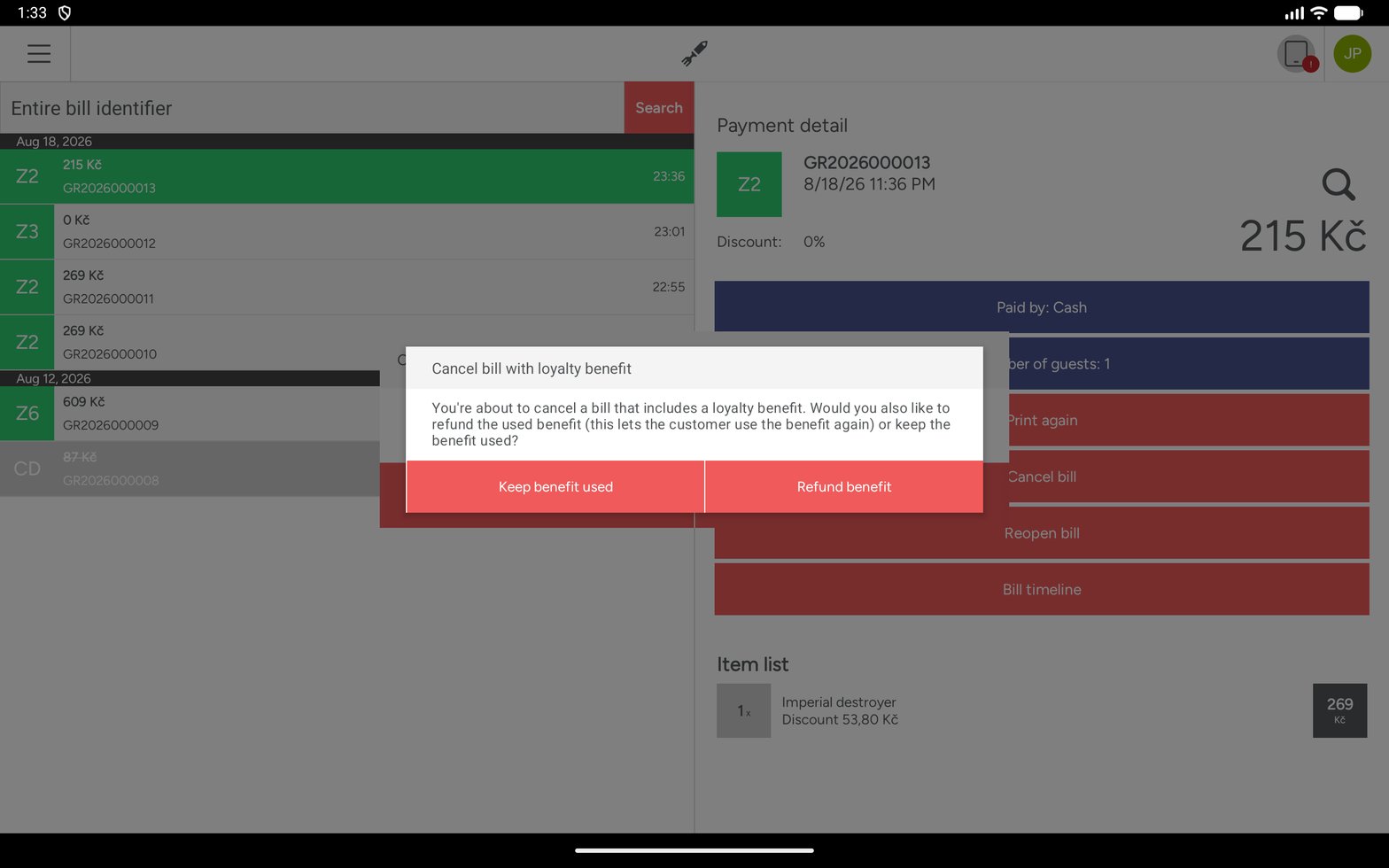
The choice the till offers when cancelling a bill that carried loyalty
You need to change a bill that is already paid
You need to change a bill that is already paid
Need help?
- Your manager can change most settings.
- VEXiON support: info@vexioncards.one, +421 948 777 490.
- Storyous support: for POS problems.