Using VEXiON cards at the Papaya till is quick. On automatic programs there is nothing to decide or enter, you scan the card and the loyalty is handled for you. On manual programs there is one extra step, and on manual programs set to Exact amount you also type how much the customer wants to use. Your manager will tell you which one you are on.
The loyalty messages Papaya shows on screen are in Slovak.

Step by step

1

Enter the order

Ring up the order in Papaya as you normally would, add the coffee, food, whatever the customer ordered.
2

Open DISCOUNT/SURCHARGE

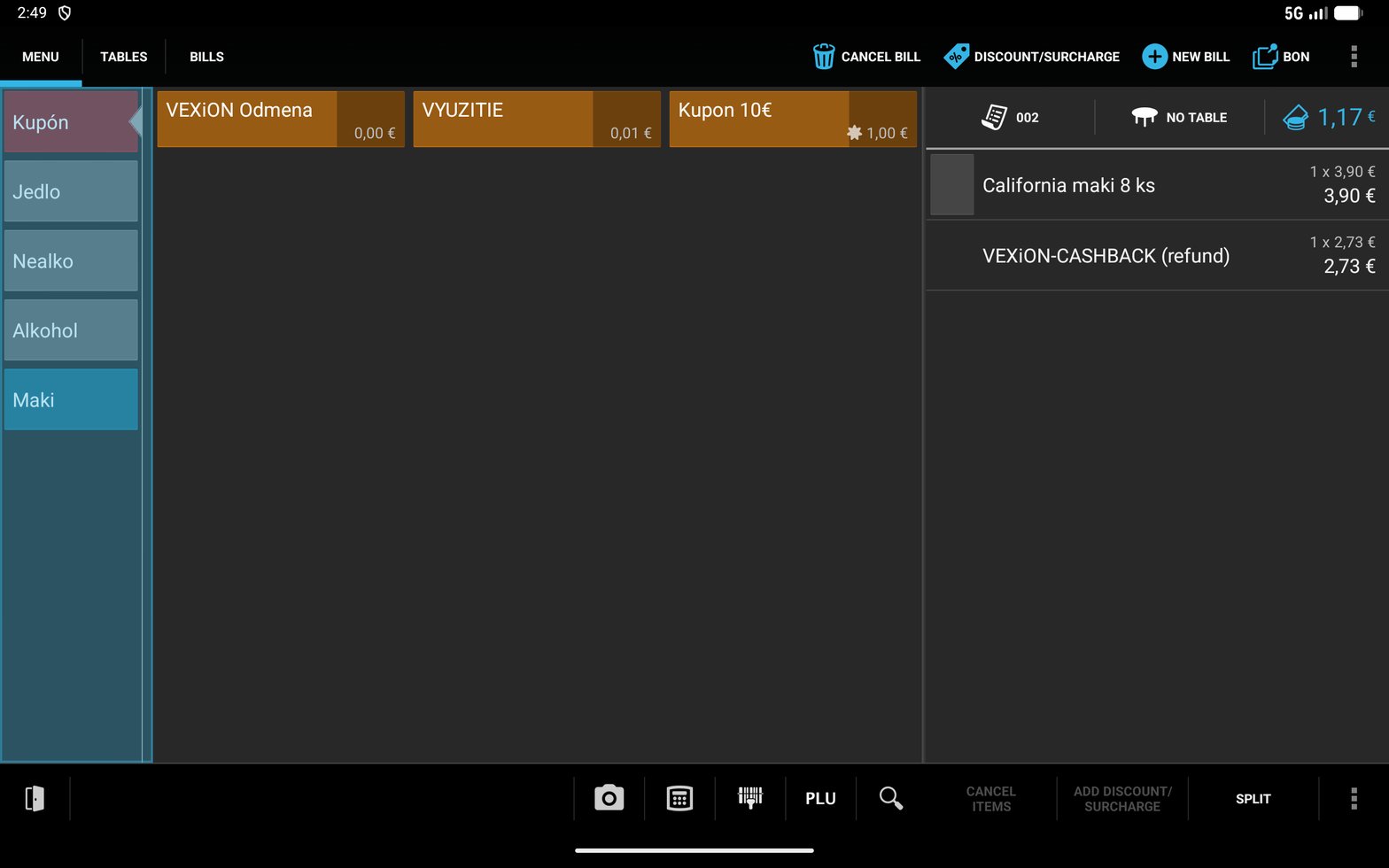
When the customer is ready to pay, click the DISCOUNT/SURCHARGE button at the top right of the screen (in Slovak: ZĽAVA/PRIRÁŽKA).
3

Scan the card

Scan the customer’s QR code from their phone (Apple or Google Wallet) with a physical scanner, or tap the scanner/camera icon if the till has a built-in camera.
4

See the result

A message appears at the bottom of the screen with the details: how many stamps or points the customer earned, their current balance, and any discount or cashback applied.
5

Take payment

Complete the payment as usual.
The Papaya till with DISCOUNT/SURCHARGE in the toolbar at the top right, above an open bill listing a product and the VEXiON-CASHBACK refund line.

The DISCOUNT/SURCHARGE button at the top right of the Papaya till

That is it. Stamps are assigned automatically, points are credited automatically, and cashback and discounts are processed the moment the card is scanned.

What the message shows

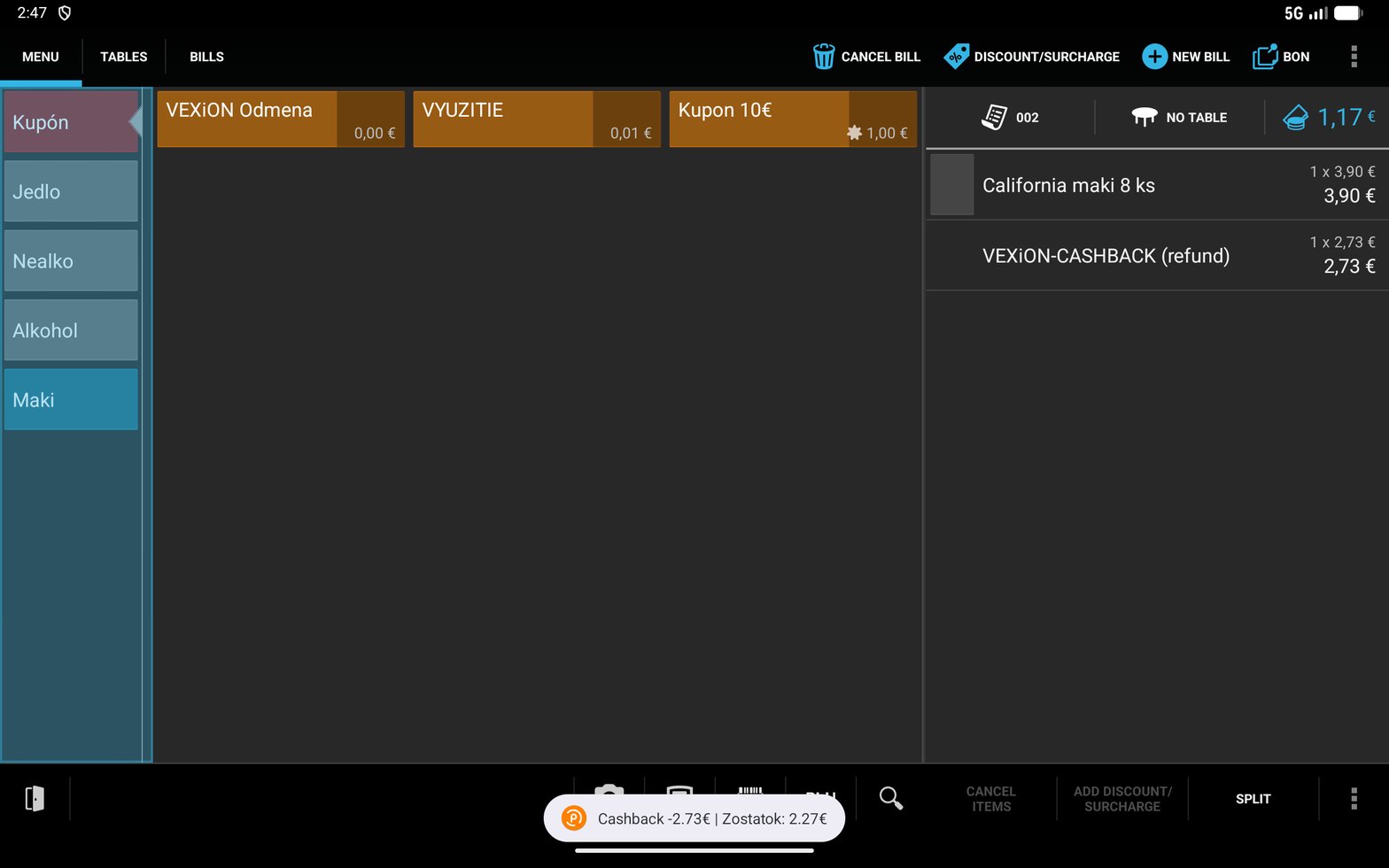
After you scan, Papaya shows a short message with what happened. For example: The message is one line, with the parts separated by |. These are real examples from a till:
These messages are always in Slovak, whatever language your till is set to. The Papaya buttons follow the tablet’s language; the VEXiON message does not.
Stamp cards Reward (cashback) cards Discount cards Any card type If the customer does not have enough for a reward yet, they simply collect stamps or points for this purchase.
The Papaya till after scanning a card: a toast reading Cashback minus 2.73 euro, remaining 2.27 euro, and a VEXiON-CASHBACK refund line of 2,73 euro that drops the bill from 3,90 to 1,17 euro.

A cashback redemption: the toast at the bottom and the refund line Papaya adds to the bill
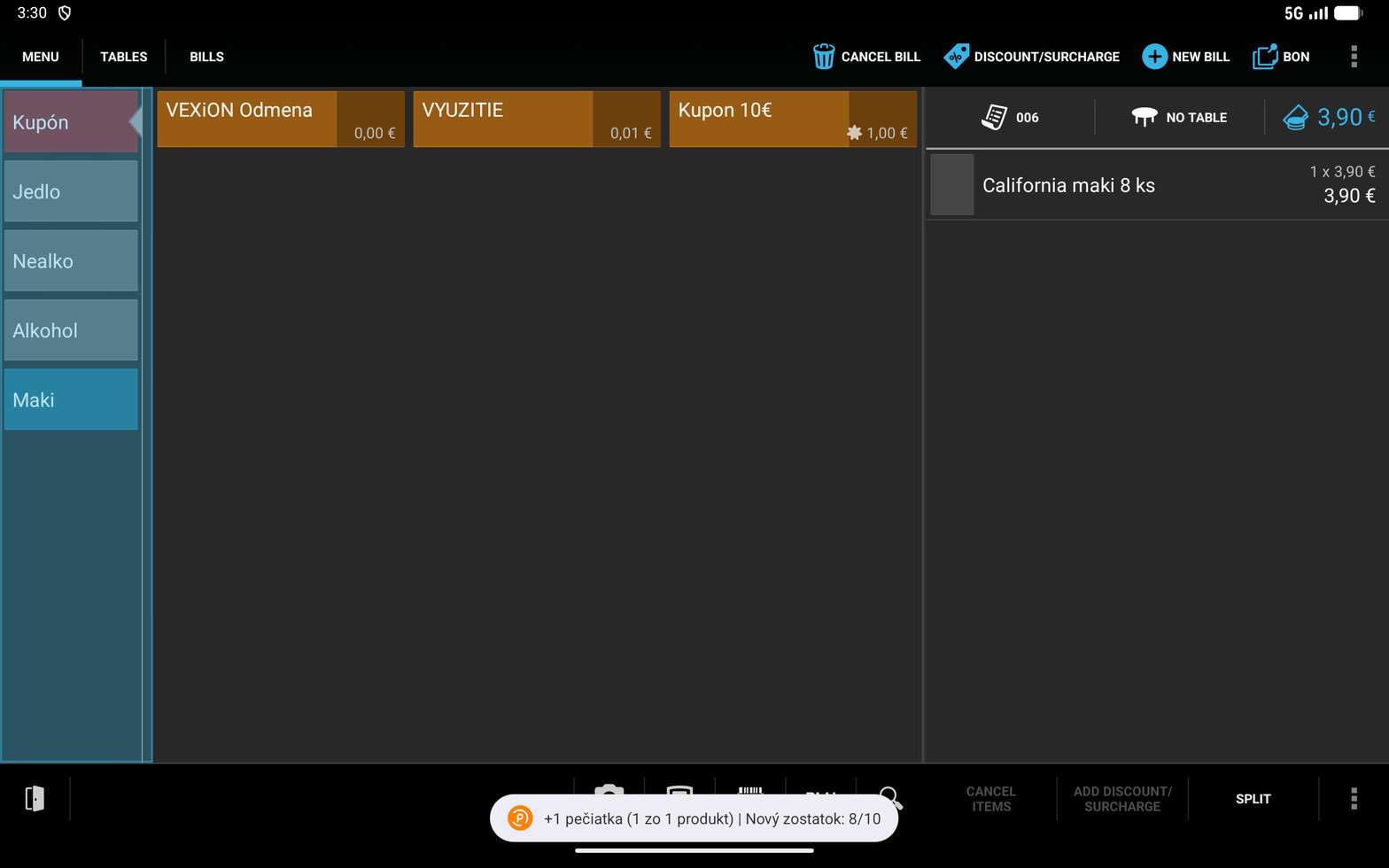
The Papaya till after scanning a stamp card, with a toast reading plus 1 peciatka, 1 of 1 product, new balance 8 of 10.

Collecting a stamp: the balance before, what was earned, and the new balance
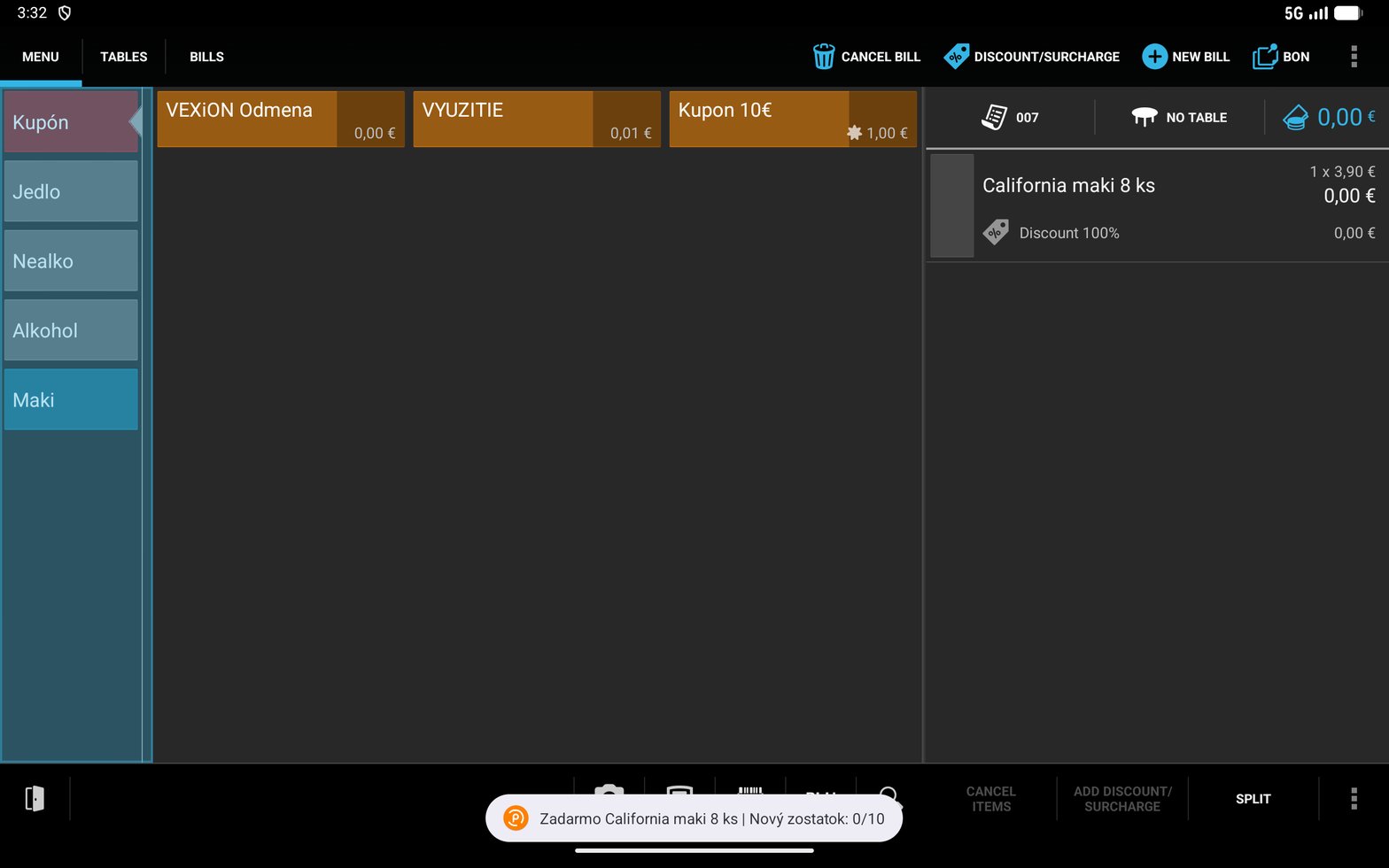
The Papaya till after a stamp redemption: the item priced 3,90 euro reduced to 0,00 euro with a Discount 100 percent sub-line, and a toast reading Zadarmo California maki 8 ks, new balance 0 of 10.

A stamp reward: the item drops to zero with a Discount 100% line under it
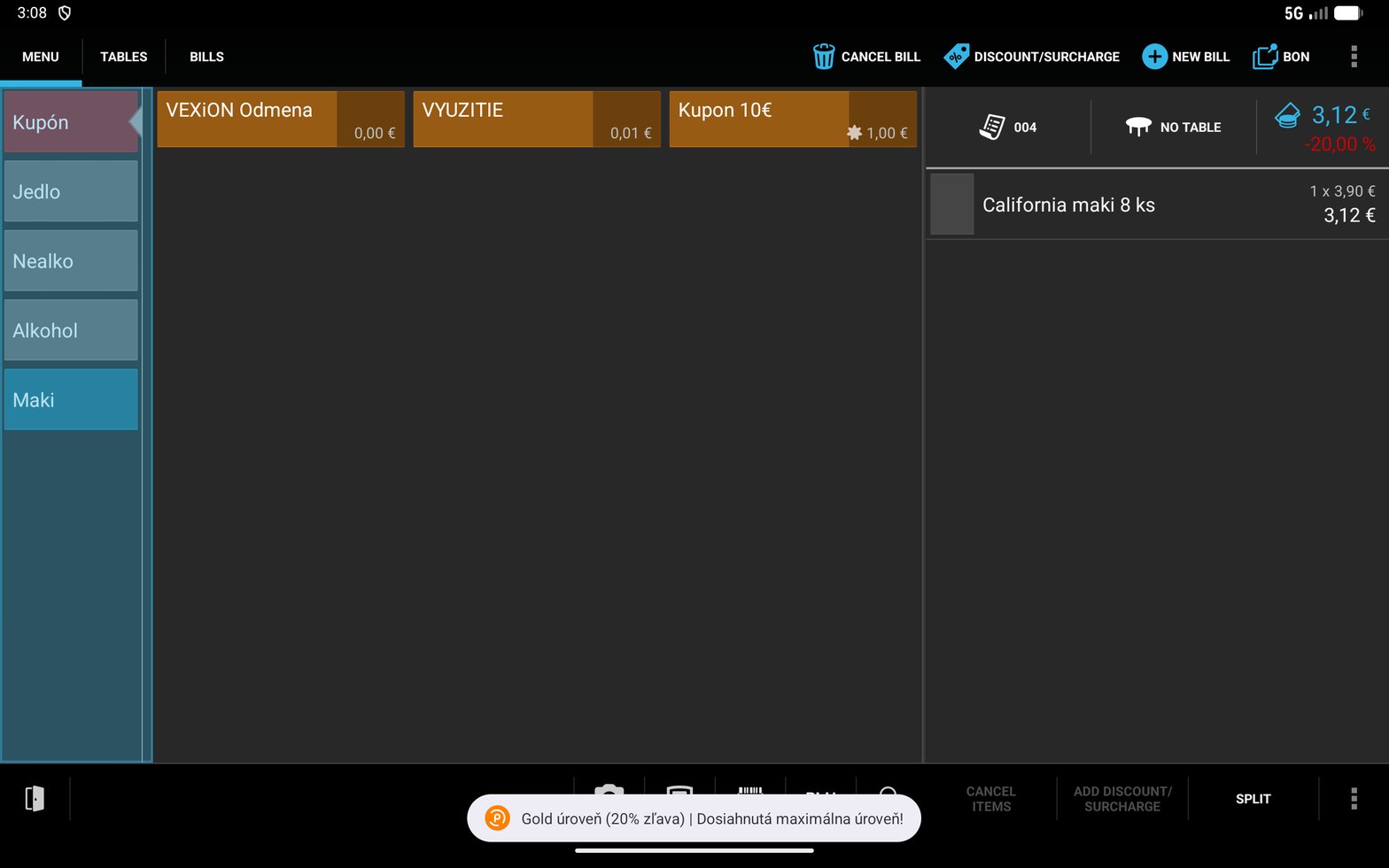
The Papaya till after scanning a discount card: a toast reading Gold uroven 20 percent zlava, maximum tier reached, minus 20,00 percent in the bill header, and the item reduced from 3,90 to 3,12 euro.

A tier discount: a percentage off, shown in the header and taken off the line price

The two kinds of discount look different on the bill. A cashback adds a separate VEXiON-CASHBACK line and leaves the item prices alone. A tier discount adds no line at all: it shows as a percentage in the bill header and the item price drops in place. Only cashback is capped by the redemption percentage.Papaya adds a word in brackets after VEXiON-CASHBACK, and that word follows the till’s own language, so it reads (refund) on an English till and (vrátenie tovaru) on a Slovak one. Look for the VEXiON-CASHBACK part, not the bracket.
The cashback is capped at a percentage of the bill, not the customer’s balance. In the example above the customer had 5.00 EUR of points but the cap is 70%, so 70% of the 3,90 EUR bill, which is 2,73 EUR, was used and 2.27 EUR stayed on the card. Your cap is set per location, so the same customer can get a different amount at a different place.The amount on the VEXiON-CASHBACK line is exactly what leaves the card, also when it covers the whole bill. A bill that uses cashback earns no new points.

Manual redemption

Most programs are automatic, so the steps above are all you do. If your program uses manual redemption, there is one extra step: before you scan, add the “VEXiON Odmena” product to the bill when the customer wants to redeem. Scanning without it only collects stamps or points.
In manual mode, the on-screen message reminds you: Pridajte 'VEXiON Odmena' pre uplatnenie (“Add ‘VEXiON Odmena’ to redeem”). Ask your manager if you are not sure whether your program is automatic or manual.

Letting the customer choose the amount

Some programs let the customer use only part of their credit instead of all of it. On those, the message reads Pridajte 'VEXiON Odmena' a zadajte sumu v € (“Add ‘VEXiON Odmena’ and enter the amount in €”).
1

Add VEXiON Odmena first, on an empty bill

Start the bill with the trigger, before you ring anything up. Tap the product, a number pad opens, and type how many euros the customer wants to use, for example 5 for 5€, then confirm. Decimals work, so 2,5 is 2,50€ and 1,04 is 1,04€.
2

Ring up the order as normal

Add the products the customer is buying.
3

Scan the card

The discount appears on the bill as a VEXiON-CASHBACK line and the total drops by that amount.
The number is euros, not points. If the customer says “I have 104 points”, that is not what you type. On a card worth 0,01€ per point, 104 points is 1,04€, so you type 1,04. Typing 104 asks for 104€, and the till simply gives them everything they have instead.
Put the trigger on the bill first. Tapping the tile after a priced item does not always register, and then the scan comes back asking you to add “VEXiON Odmena” even though you can see it. Starting the bill with it avoids that entirely.
Add the product and type the amount BEFORE you scan. The bill only changes when you scan the card. If you type an amount and then take payment without scanning, the customer pays the full price and gets no discount. Their credit is not lost, but you will have to refund and start again, and Papaya does not tell VEXiON about a refund, so it does not take back what the bill earned. The customer can end up with those points counted twice. Ask your manager to correct the balance in the VEXiON admin if that happens.
If you do not know how much credit they have, scan the card first. The screen shows Zostatok: 16,32€ (“Balance: 16,32€”) and nothing is used up by looking. Then add the product, type the amount, and scan a second time to apply it. If the customer already tells you how much they want, one scan is enough.
If they ask for more than they have, only what they actually have is used. You cannot take a card below zero. There is also a limit on how much of one bill can be paid with credit, usually 90%, so on a small bill the discount can come out lower than the amount you typed. The message on screen always says how much was actually granted.

Common situations

To pay with one, scan it on the finished bill exactly as you would any other card.To sell a card, top one up, or take payment for an order the customer placed online, start an empty bill, add the VEXiON GIFTCARD item with the amount in euros as the quantity, then scan the card or the customer’s code.Every step, and every message the till can show, is in Gift cards.
Without the QR code the card cannot be used for this sale. They can use it next time.
That is fine, scan the card and they collect stamps or points for this purchase.
Try again, raise the phone’s screen brightness, and check the internet connection.
Open Bills, change the state filter from Not Closed to All so that paid bills are listed too, then pick the receipt.A bill that is still open offers Cancel bill. A bill that has already been paid offers Refund bill in the same place. Either one asks you to confirm:
Bill cancellation / Do you really want to cancel the bill? / No / Yes
On a paid bill, answering Yes does not simply void the receipt. Papaya creates a matching bill for the negative amount, which you tender exactly like a normal payment, and marks each line (refund).
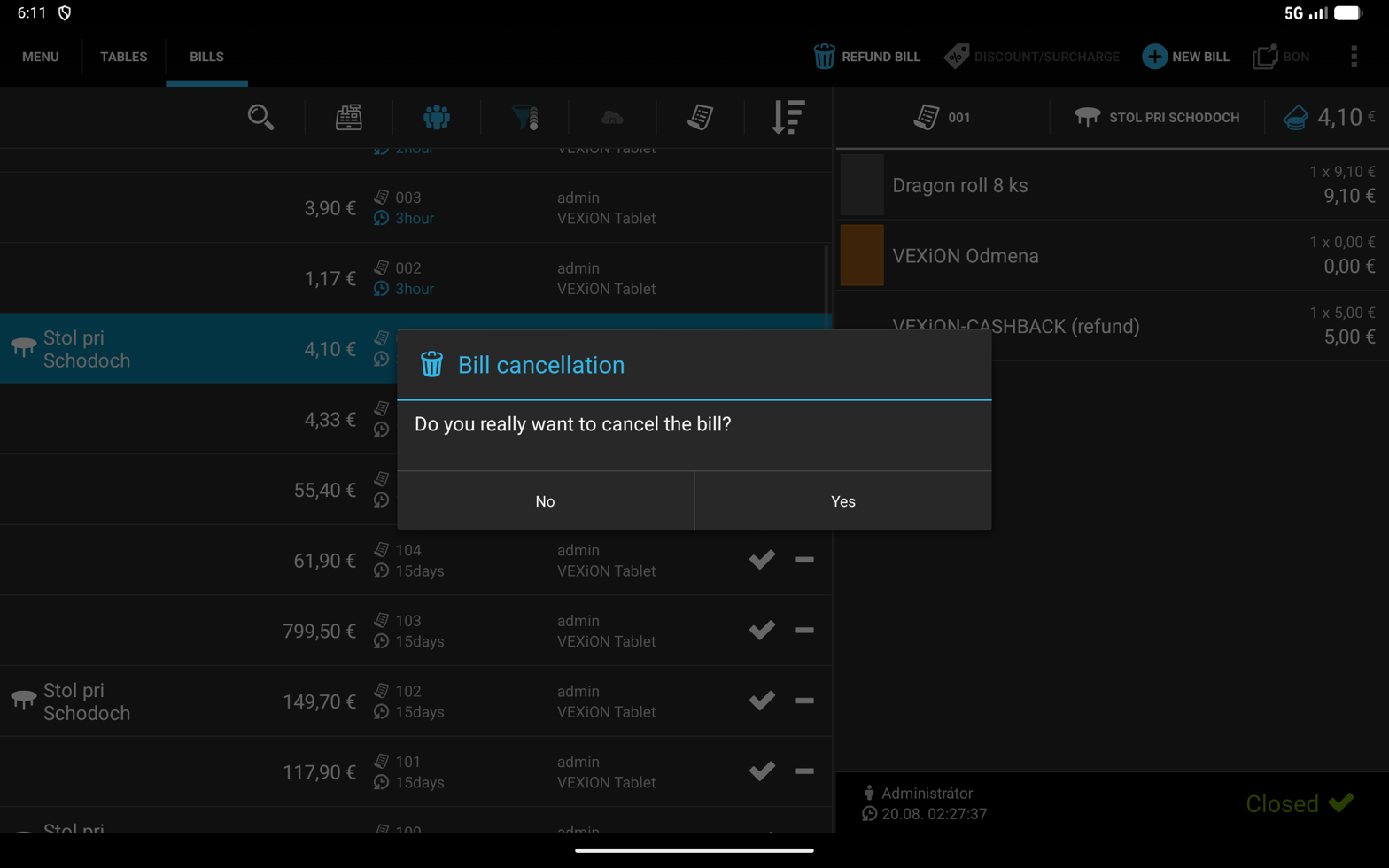
The Bills list with a closed bill selected and Refund bill in the toolbar, over a Bill cancellation dialog asking Do you really want to cancel the bill with No and Yes buttons.

The till asks you to confirm before it refunds a paid bill
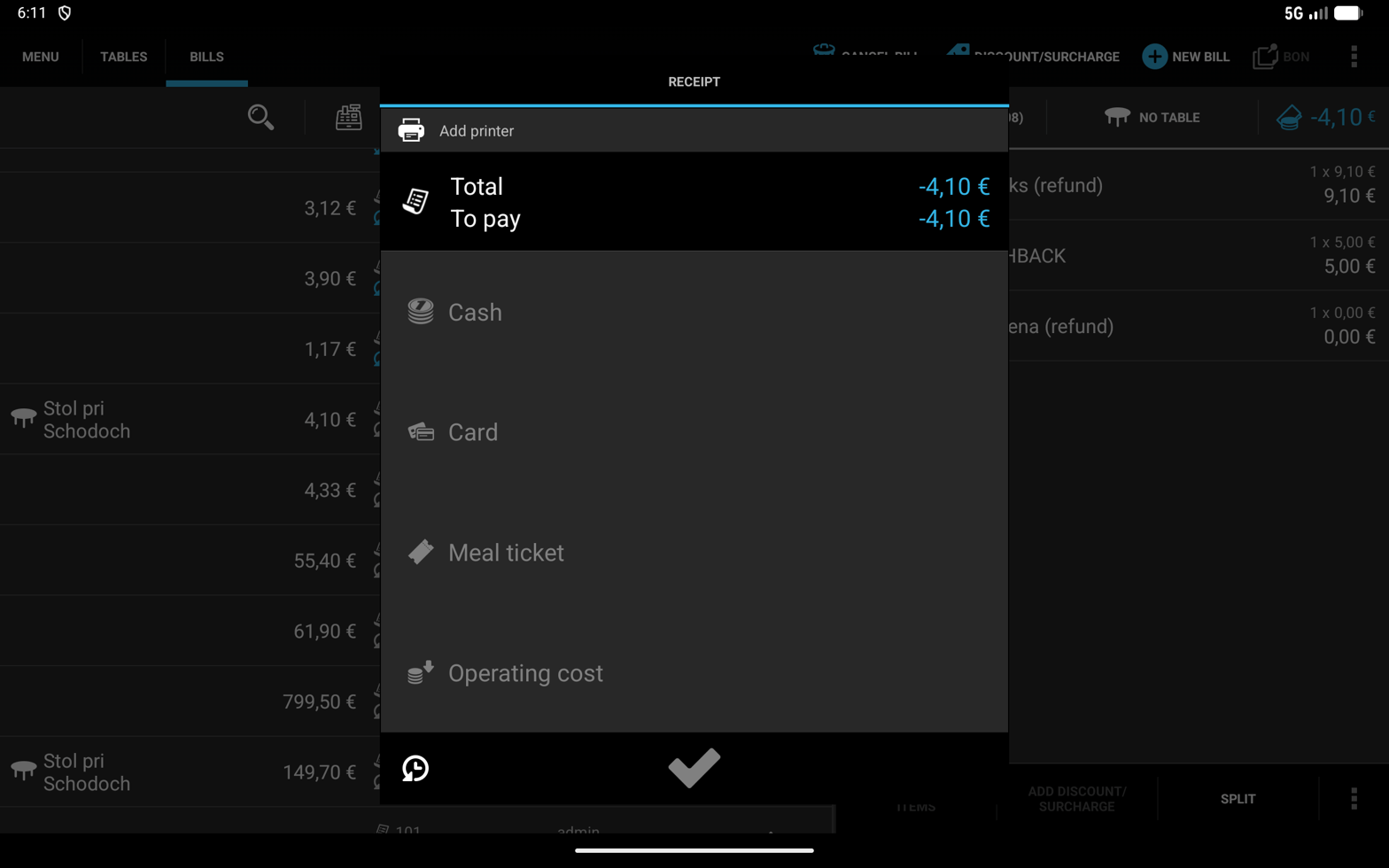
The Papaya payment sheet for the refund showing a total and amount to pay of minus 4,10 euro with Cash, Card, Meal ticket and Operating cost options, beside bill lines marked refund.

The matching negative bill Papaya creates, which you tender like any payment

A card can hold a fraction of a cent, for example 0,3 of a point, which shows as 0,00€ and cannot be spent on its own. It is not lost. As soon as the customer earns again and then redeems their whole balance, that leftover is cleared with the rest.
Check that “VEXiON Odmena” was on the bill before you scanned. Without it, a manual program only collects points.The other common cause: the product and the amount were added after the scan. The bill only changes at the moment you scan, so adding it afterwards does nothing on its own. Scan the card again and the discount appears.Nothing is taken off the customer’s balance in either case, so their credit is intact.

Cancelled and refunded bills

Papaya does not tell VEXiON when a bill is cancelled or refunded. The card keeps what the original sale gave it. If a customer collected or spent stamps, points or a reward on a bill you void, correct the balance by hand in the VEXiON admin.

Need help?

  • Your manager can change the settings.
  • VEXiON support: info@vexioncards.one, +421 948 777 490.
  • Papaya support: for POS problems.