

You set loyalty on products in VEXiON (earn, redeem, discount). Papaya calls VEXiON when a card is scanned, VEXiON returns the discount, and Papaya applies it.
Automatic vs manual redemption
You pick this in the integration settings, separately for stamp cards and reward cards.
In manual mode, if “VEXiON Odmena” is not on the bill, the card only earns, it does not redeem.
How much gets redeemed
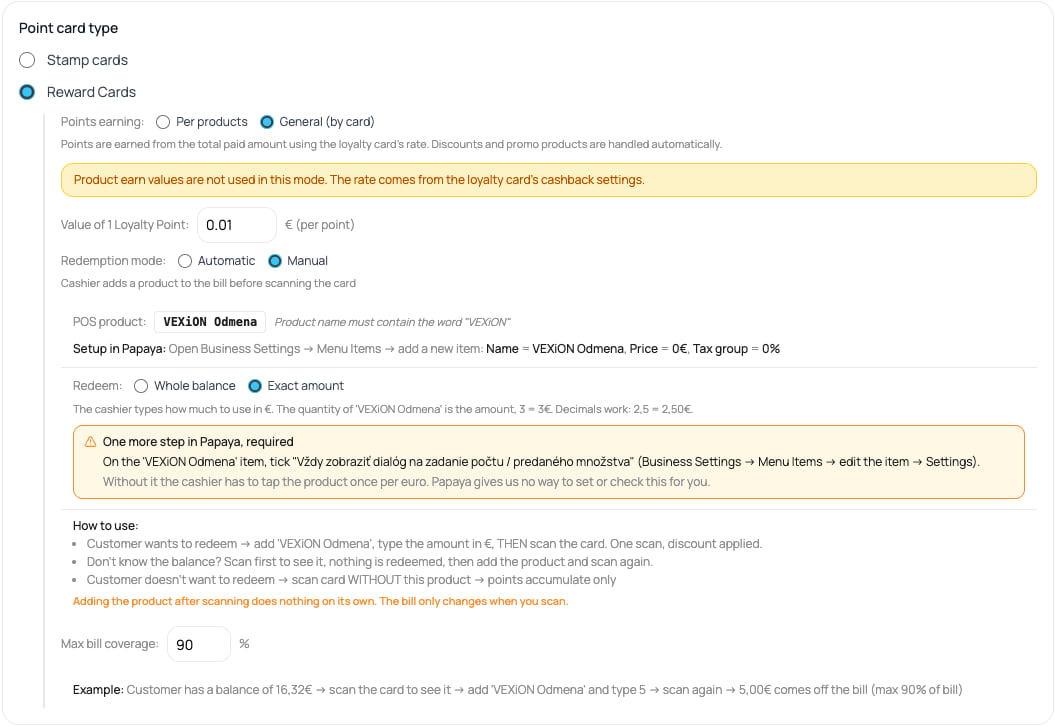
On reward cards, manual mode gives you a second choice, the Redeem setting:
Exact amount works through the quantity of the “VEXiON Odmena” line: a quantity of 1 redeems 1€, 3 redeems 3€. Decimals work, so 2,5 redeems 2,50€ and 1,04 redeems 1,04€. If the customer does not have that much, only what they have is used, and Max bill coverage still applies on top.
Whole balance is the default and it is what every program did before this setting existed. Nothing changes for you unless you switch it.
The “VEXiON Odmena” product (manual mode only)
If you use manual redemption, create one product in Papaya as the trigger:1
Open the menu in Papaya
Go to Business Settings → Menu Items and add a new item.
2
Name it VEXiON Odmena
Name =
VEXiON Odmena (the name must contain the word “VEXiON”), Price = 0€, Tax group = 0%.3
Tick the quantity dialog (Exact amount only)
Still on the item, open Settings and tick “Vždy zobraziť dialóg na zadanie počtu / predaného množstva”. Tapping the product then opens a number pad straight away, so the cashier types the amount once.Without it they have to tap the tile once per euro, which stops being usable after a few euros. This lives in Papaya and we cannot set it or check it for you, so confirm it is ticked before you switch a till to Exact amount.
4
Save
Save the product. Staff add it to a bill whenever a customer wants to redeem.
The trigger product is not counted as a purchase. It is removed before VEXiON looks at the bill, so it never earns stamps or points and does not appear in the “1 of 2 products” count in the message.
Choosing automatic or manual redemption
Stamp card
Collect stamps, redeem for a free or discounted product. In VEXiON’s product table, set per product:
Redemption:
- Automatic: when the customer has enough stamps, the free item is applied on its own.
- Manual: staff add “VEXiON Odmena” to the bill, then scan the card. Without it, the customer only collects stamps.
Reward card (cashback)
Points convert to a euro credit the customer spends on a future bill. Reward cards on Papaya are cashback.Cashback on this till
Papaya counts points with the Value of 1 Loyalty Point you set. The customer still sees credit in your currency on the card and in every message. With a point value of 0.05 €, 160 points show as 8,00 € of credit (at 0.25 Kč per point, 160 points show as 40 Kč). The Papaya screen shows a line like “Credit: €8.00 (160 points)”. Settings:
Points earning has two choices. Per products uses the Earn column in the product table (how many points each product earns). General (by card) ignores that column and awards points from the bill total at the card’s rate. In both cases there is nothing to redeem per product, points convert to euros.
Redemption:
- Automatic: cashback applies on its own once the balance passes the Min balance for cashback (for example 500 points = 5€). The Max bill coverage caps how much of the bill it can cover.
- Manual: staff add “VEXiON Odmena” to the bill, then scan the card. There is no minimum in manual mode, any balance can be used (up to the Max bill coverage). With Redeem set to Exact amount, the quantity they put on that line is how many euros are used, so the customer can spend part of their credit and keep the rest.
Tiered earning (reward cards)
A reward card can earn points faster for loyal customers using tiers. You set the product points at the base rate, and VEXiON multiplies them by the customer’s tier (for example Bronze 1x, Silver 3x, Gold 5x). This applies to earning only, never redemption. Tiers and multipliers are set on the card in VEXiON.Discount card
Automatic percentage discounts by the customer’s tier, applied on their own at the till. VEXiON tracks total spend and applies the tier discount. Tiers are set on the card in VEXiON: Example tiers:The tier discount is taken off the whole bill, including products that are not in the loyalty program. The Loyalty setting on a product only decides whether it earns stamps or points. A tier upgrade takes effect on the customer’s next visit.
Employee card
An employee card is a discount card set up for staff, with discount levels for the month and an optional monthly limit. With a limit, it stops when the limit is used up, until the reset day. The step is evaluated on the employee’s spend this month. On Papaya, a cancelled or refunded bill still counts toward this month’s spend, because Papaya does not tell VEXiON about it. Correct it by hand in the VEXiON admin. For the full setup, see Employee card.Gift card
Prepaid credit, sold and spent at the till. The balance is held by VEXiON and read live on every scan, so one card works at all of your locations. Setting it up takes two things:- One item in the Papaya web administration, named exactly
VEXiON GIFTCARD, priced 1,00 at 0 % VAT, with the count dialog turned on. The name is what VEXiON recognises, so an item you already sell cannot be used. - Enable Gift Cards switched on in the Papaya panel of the VEXiON dashboard, where you also set the minimum and maximum amount and the bonus.
FAQ
Where do I set the points, in VEXiON or Papaya?
Where do I set the points, in VEXiON or Papaya?
In VEXiON, on the product table. Papaya only provides the product names, prices, and categories.
Automatic or manual, which should I pick?
Automatic or manual, which should I pick?
Automatic is simplest for staff, the reward just applies. Manual puts the customer in control: nothing is redeemed unless the cashier adds “VEXiON Odmena” to the bill.
Can I use stamps and points at the same time?
Can I use stamps and points at the same time?
No. Within Point cards you pick either Stamp cards or Reward Cards. Customers collect one type.
Does the reward come off the cheapest item?
Does the reward come off the cheapest item?
Yes. When more than one product on the bill is eligible, the reward goes to the cheapest one (lowest unit price) that the customer has enough stamps for. One unit of that product is rewarded.